
1. Product Overview
The MENGQI-CONTROL RFID Guard Tour Patrol System is designed for efficient and reliable security patrol management. It utilizes RFID auto-induction technology for easy checkpoint reading and features an LCD screen for immediate feedback. The system includes durable patrol wands, numerous site checkpoints, and guard ID tags, all managed by user-friendly Windows-based software.
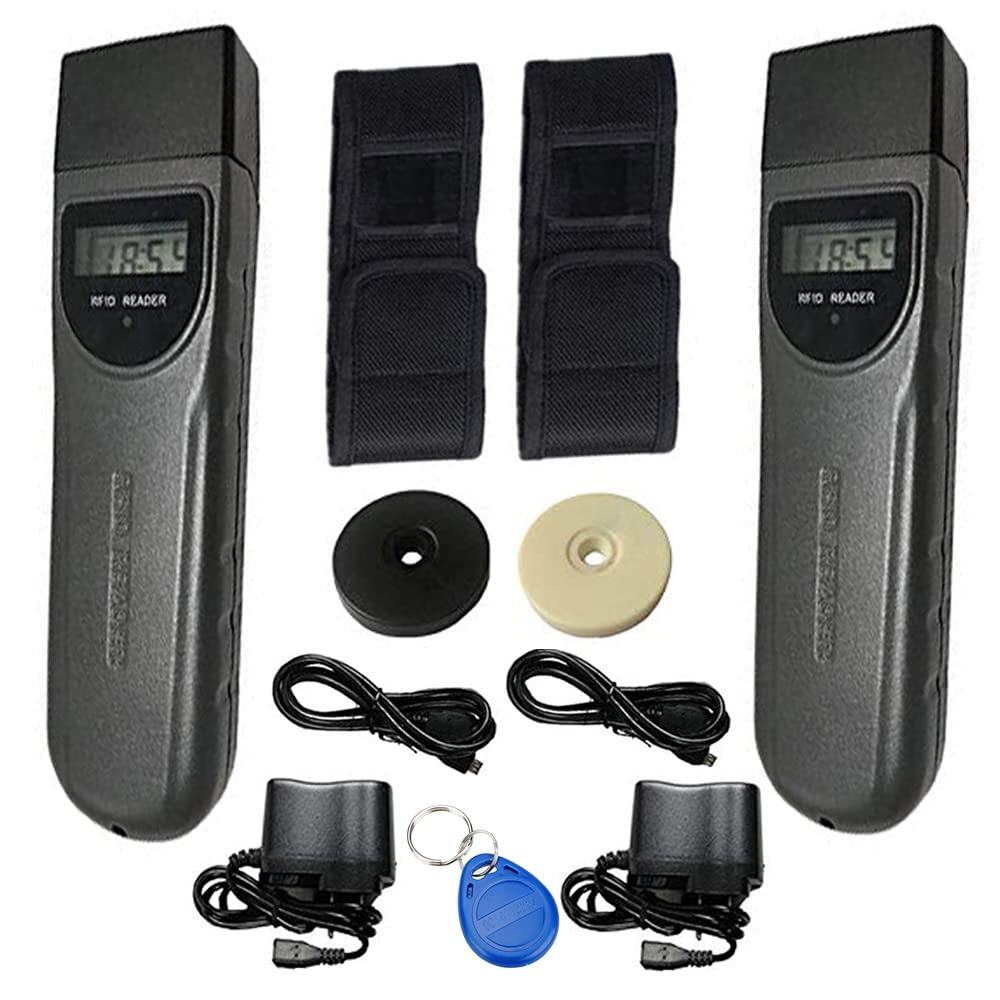
1.1. Package Contents
- 2 x LCD Display Patrol Wand Readers (Black)
- 15 x RFID Checkpoints (Black)
- 15 x RFID Checkpoints (White)
- 5 x Patrolman Fob Tags (Blue)
- 2 x USB cables for PC connection/Battery charging
- 2 x Holsters
- 2 x Power adapter chargers
1.2. System Components


2. Setup
2.1. Charging the Patrol Wands
Before initial use, fully charge the patrol wands using the provided USB cable and power adapter. A full charge typically supports 20-30 days of use.
2.2. Software Installation (Windows Only)
The system software is compatible with Windows 7/8/10/11 (32-bit and 64-bit systems). It does not support Mac operating systems.
- Insert the software CD (if provided) or download the software from the official MENGQI-CONTROL website.
- Follow the on-screen instructions to complete the installation.
- Launch the 'Guard Tour System' software. The default login is 'Admin' with no password. You can set a password later within the software.
2.3. Programming Checkpoints
To effectively track patrols, each physical checkpoint must be programmed and named within the software. This process involves reading the checkpoints with the wand and then downloading their IDs to the software for naming.
- Read Checkpoints with Wand: Use the patrol wand to read each RFID checkpoint. The wand will display a success message (light/beep or light/vibration). Ensure you read each checkpoint sequentially.
- Connect Wand to PC: Connect the patrol wand to your computer using the USB cable.
- Download Data: In the 'Guard Tour System' software, navigate to 'Basic Setup' > 'Checkpoint'. Click 'Download Data' to retrieve the checkpoint IDs from the wand.
- Name Checkpoints: For each downloaded checkpoint ID, select it and click 'Modify'. Enter a descriptive name (e.g., 'Gate Door', 'Elevator Door', 'Manager Office Door', 'Top Floor Door') and click 'Save'. This associates the physical checkpoint with a recognizable location in the software.
Video 1: Detailed guide on how to program and name checkpoints using the MENGQI-CONTROL Guard Tour System software.
3. Operating Instructions
3.1. Performing a Patrol
The patrol wand operates with RFID auto-induction, meaning no button press is required to read a checkpoint.
- Carry the charged patrol wand.
- Approach each designated RFID checkpoint.
- Hold the wand near the checkpoint. The wand will automatically read the checkpoint ID, display the time on its LCD screen, and provide a light/beep or light/vibration confirmation.
- Proceed to the next checkpoint in your patrol route.
3.2. Downloading Patrol Records
After a patrol, connect the wand to the computer to download the recorded data.
- Connect the patrol wand to your computer using the USB cable.
- Open the 'Guard Tour System' software.
- Go to 'Read Data' and click 'Download Data'. The software will retrieve all patrol records from the wand.
3.3. Viewing and Exporting Records
The software allows you to view and manage patrol records.
- After downloading, the patrol records will be displayed, showing patrol time, reader number, person (if assigned), checkpoint name, and chip ID.
- You can use the 'Print Preview' function to review reports before printing.
- To export data, click the 'CSV' button to save the records to an Excel-compatible file for further analysis or archiving.
4. Maintenance
4.1. Battery Care
- Regularly charge the patrol wands to maintain optimal battery life.
- Avoid completely draining the battery frequently.
- Store the wands in a cool, dry place when not in use.
4.2. Cleaning
- Wipe the patrol wands and checkpoints with a soft, dry cloth.
- Avoid using harsh chemicals or abrasive cleaners, which can damage the devices.
4.3. Software Updates
Periodically check the MENGQI-CONTROL website for any available software updates to ensure your system runs with the latest features and security enhancements.
5. Troubleshooting
5.1. Wand Not Reading Checkpoints
- Ensure the wand is sufficiently charged.
- Verify that the checkpoint is an official MENGQI-CONTROL RFID tag and is not damaged.
- Hold the wand directly over the checkpoint for a few seconds.
5.2. Software Not Detecting Wand
- Check the USB cable connection between the wand and the computer. Try a different USB port or cable.
- Ensure the software is correctly installed and running.
- Restart the computer and the software.
5.3. Data Download Issues
- Confirm the wand is properly connected and recognized by the software.
- Ensure no other applications are interfering with the USB connection.
5.4. Software Compatibility
Remember, the software is designed for Windows operating systems only. It is not compatible with Mac systems.
6. Specifications
| Feature | Detail |
|---|---|
| Brand | MENGQI-CONTROL |
| Model Number | 030dca23-b442-4522-9ad5-0317ffff9f5a |
| Read Mode | RFID Auto-Induction |
| Communication | USB (driver-free) |
| Software Compatibility | Windows 7/8/10/11 (32 & 64 bit), Not Mac compatible |
| Display | LCD Screen (shows read details) |
| Construction | Silicon tank, metal body with rubber shell |
| Durability | Drop proof, sabotage absorbent, resistant to electrical shock |
| Record Capacity | Up to 60,000 records |
| Battery | 1 Lithium Ion battery (included) |
| Power Source | Battery Powered |
| Item Weight | 2.29 pounds (1.04 Kilograms) |
| Color | Black |
7. Warranty and Support
7.1. Technical Support
MENGQI-CONTROL provides ongoing technical support for this product. If you encounter any issues or have questions regarding the setup, operation, or maintenance of your Guard Tour Patrol System, please contact our support team. We are committed to assisting you with any inquiries.
For assistance, refer to the contact information provided with your product packaging or visit the official MENGQI-CONTROL website.
7.2. Warranty Information
Specific warranty details are provided at the time of purchase. Please retain your proof of purchase for any warranty claims. The warranty typically covers manufacturing defects under normal use conditions.