
1. Introduction
This manual provides essential instructions for setting up, operating, and maintaining your Logitech G923 Racing Wheel and Pedals, paired with the ASTRO A10 Gen 2 Wired Headset. Designed for an immersive racing experience, this system is compatible with PlayStation 5, PlayStation 4, and PC.
2. Product Overview
The Logitech G923 system includes a high-performance racing wheel, a responsive pedal unit, and a comfortable ASTRO A10 Gen 2 Wired Headset, all engineered to deliver a realistic simulation experience.

Figure 1: Logitech G923 Racing Wheel and Pedals with ASTRO A10 Gen 2 Wired Headset.
2.1. Logitech G923 Racing Wheel
The G923 Racing Wheel features TRUEFORCE force feedback technology, providing high-definition, real-time feedback directly from in-game physics. The wheel is wrapped in high-quality, hand-stitched leather for a premium feel and durability. It includes integrated game controls, steel paddle shifters, an aluminum center marker, and an LED rev indicator.

Figure 2: Detailed view of the Logitech G923 Racing Wheel highlighting its features including the aluminum center marker, steel paddle shifters, LED rev indicator, easy-access game controls, brushed aluminum, 24-point selector, and leather wheel wrap.
2.2. Pedal Unit
The pedal unit includes solid polished metal pedals for throttle, brake, and clutch. The progressive brake pedal mimics the performance of a pressure-sensitive brake system, offering a more realistic racing experience. A programmable dual clutch system allows for cleaner and faster starts in supported games.

Figure 3: The Logitech G923 pedal unit featuring three polished metal pedals for throttle, brake, and clutch.
2.3. ASTRO A10 Gen 2 Wired Headset
The ASTRO A10 Gen 2 Wired Headset is designed for optimal comfort during long gaming sessions, featuring a comfortable headband pad and replaceable ear cushions. It includes a flip-to-mute microphone and a removable headphone cable with in-line volume control for easy audio adjustments.

Figure 4: The ASTRO A10 Gen 2 Wired Headset showing its ultra-durable headband, comfortable headband pad, replaceable ear cushions, flip-to-mute mic, and removable headphone cable with in-line volume control.
3. Setup
Follow these steps to set up your Logitech G923 Racing Wheel and Pedals with the ASTRO A10 Headset.
3.1. Mounting the Racing Wheel
- Place the racing wheel on a stable surface, such as a desk or racing cockpit.
- Use the integrated tabletop clamps to secure the wheel firmly. Tighten the clamps until the wheel is stable and does not move during use.
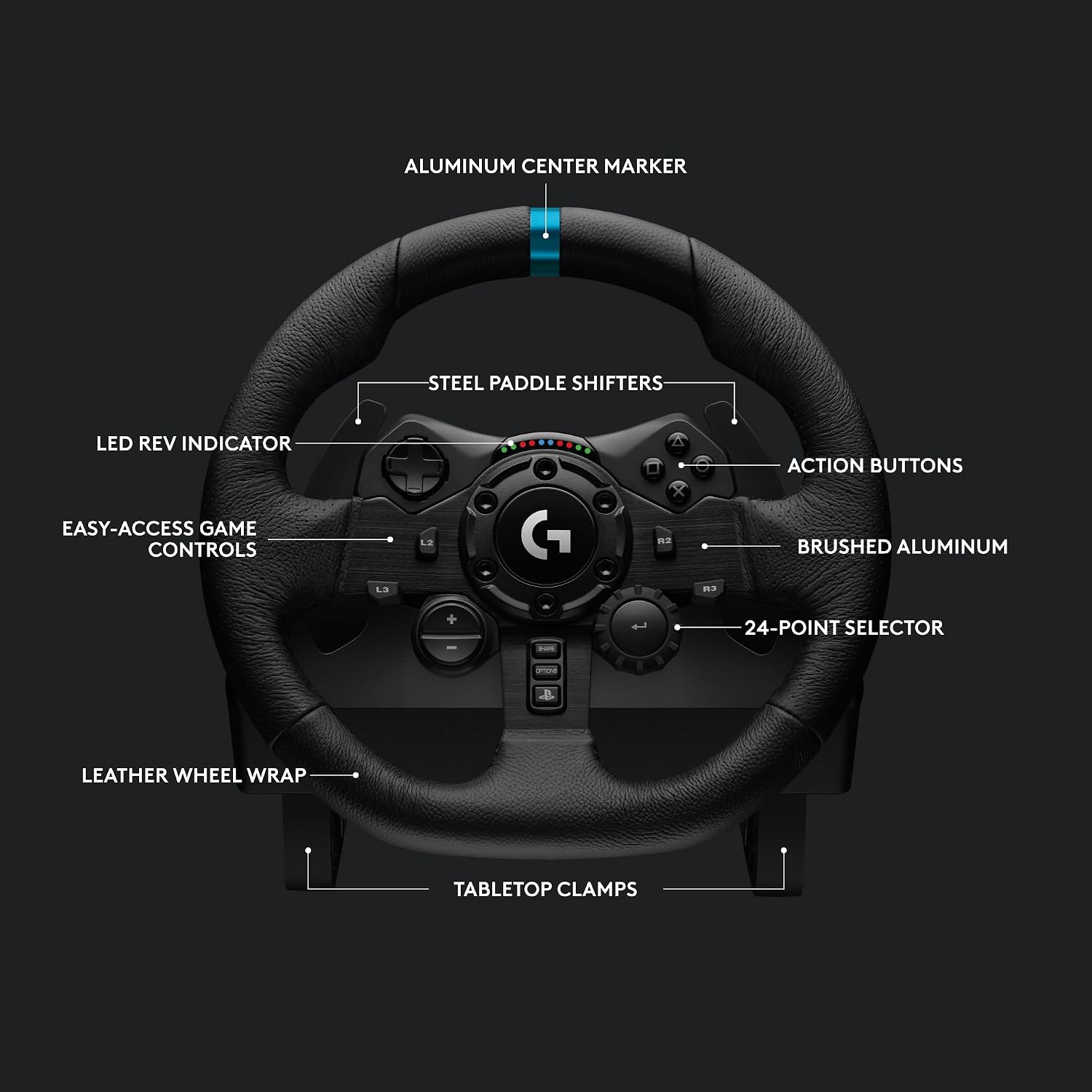
Figure 5: The Logitech G923 Racing Wheel securely mounted to a desk using its built-in clamps.
3.2. Connecting the Pedal Unit
- Connect the pedal unit cable to the corresponding port on the underside of the racing wheel base.
- Ensure the pedal unit is placed on a flat surface where it will not slide during use.
3.3. Connecting to Console/PC
- Plug the USB cable from the racing wheel into an available USB port on your PlayStation 5, PlayStation 4, or PC.
- Connect the power adapter to the racing wheel and then to a power outlet.
- For PC users, download and install the Logitech G HUB software from the official Logitech G website to customize settings, force feedback, and button assignments.

Figure 6: Screenshot of the Logitech G HUB software interface, used for customizing the G923 Racing Wheel settings on PC.
3.4. Connecting the ASTRO A10 Headset
- Plug the 3.5mm audio jack from the ASTRO A10 Headset into the controller (for console) or the appropriate audio port on your PC.
4. Operating the Racing Wheel
The Logitech G923 is designed for an authentic racing experience. Familiarize yourself with its key operational features.
4.1. TRUEFORCE Force Feedback
TRUEFORCE is a next-generation force feedback technology that connects directly to in-game physics. This provides high-definition, real-time haptic feedback, allowing you to feel engine rumbles, tire traction, terrain changes, and impacts with unprecedented realism. Ensure your game supports TRUEFORCE for the full experience.
Video 1: G923 Deep Dive. This video provides an in-depth look at the features and technology behind the Logitech G923 Racing Wheel, including its TRUEFORCE force feedback system.
4.2. Dual Clutch Launch Assist
The programmable dual clutch system simulates real race car launch assist. This allows you to get off the starting line cleaner and faster in supported games. Refer to your game's settings or the Logitech G HUB software for configuration.
4.3. Paddle Shifters and LED Rev Indicator
- Use the steel paddle shifters located behind the wheel for quick and precise gear changes.
- The integrated LED rev indicator lights up to show your RPM range, helping you shift at the optimal moment without taking your eyes off the track.

Figure 7: Close-up of the Logitech G923 Racing Wheel's built-in LED rev indicator lights.
5. Operating the ASTRO A10 Gen 2 Wired Headset
The ASTRO A10 Headset provides clear audio and communication for your gaming sessions.
5.1. Volume Control and Mute Function
- Adjust the game and chat volume using the in-line volume control on the headphone cable.
- To mute the microphone, simply flip the mic boom upwards. Flip it back down to unmute.
6. Maintenance
Proper maintenance ensures the longevity and optimal performance of your racing setup.
6.1. Cleaning
- Racing Wheel: Wipe the leather and plastic surfaces with a soft, damp cloth. Avoid harsh chemicals or abrasive cleaners.
- Pedal Unit: Clean the metal pedals and base with a dry or slightly damp cloth. Ensure no liquid enters the internal components.
- Headset: Gently wipe ear cushions and headband with a soft, dry cloth. Replace ear cushions if they show significant wear.
6.2. Storage
When not in use, store the racing wheel and pedals in a clean, dry environment away from direct sunlight and extreme temperatures. Disconnect all cables to prevent damage.
7. Troubleshooting
If you encounter issues with your Logitech G923 or ASTRO A10 Headset, try the following solutions:
- No Power/Connection: Ensure all cables (USB, power, pedal) are securely connected. Try a different USB port or power outlet.
- No Force Feedback: Verify that TRUEFORCE is enabled in your game settings and Logitech G HUB software. Ensure the game supports force feedback.
- Incorrect Button Mapping: Use Logitech G HUB software to customize and verify button assignments for your PC games. For consoles, check in-game controller settings.
- Audio Issues (Headset): Check the in-line volume control. Ensure the 3.5mm jack is fully inserted. Test the headset with another device to rule out a device-specific issue.
- Wheel Calibration: The wheel should automatically calibrate upon connection. If not, disconnect and reconnect the USB cable.
For further assistance, please visit the Logitech G support website.
8. Specifications
| Feature | Detail |
|---|---|
| Brand | Logitech G |
| Model Name | G923 |
| Compatible Devices | PS5, PS4, PC |
| Controller Type | Steering Wheel |
| Connectivity Technology | Wired |
| Additional Features | Ergonomic, TRUEFORCE Force Feedback, Dual Clutch, Real Leather |
| Button Quantity | 10 |
| Hardware Platform | Desktop, Gaming Console |
| Power Source | Corded Electric |
| Color | Black |
9. Warranty & Support
The Logitech G923 Racing Wheel and Pedals with ASTRO A10 Headset comes with a manufacturer's warranty. For detailed warranty information, product support, and FAQs, please visit the official Logitech G support website:


