
Phomemo Phomemo-M08F
Contents
Phomemo M08F Inkless Portable Printer User Manual
Model: Phomemo-M08F | Brand: Phomemo
1. Introduction
The Phomemo M08F is a compact and lightweight inkless portable printer designed for convenient printing on the go. Utilizing advanced thermal technology, it eliminates the need for ink cartridges, toner, or ribbons, offering a clean and efficient printing experience. This manual will guide you through the features and functions of your new printer, ensuring you can maximize its utility for various applications, from travel and business to home and office use.

The Phomemo M08F printer and its included carry case.
2. What's in the Box
Upon unboxing your Phomemo M08F printer, please verify that all the following components are included:
- M08F-Letter portable printer
- Portable Printer Hard Case
- USB-A to USB-C charging cable (80cm)
- 10 sheets Letter thermal paper
- Instructions manual
3. Setup
3.1. Charging the Printer
Before initial use, fully charge the printer. Connect the provided USB-A to USB-C charging cable to the printer's USB-C port and a compatible 5V 2A power adapter (not included). The printer features a 1200mAh battery, providing approximately 36 hours of standby time or up to 140 sheets on a full charge.

The printer is equipped with a 1200mAh battery for extended use.
3.2. Loading Thermal Paper
The Phomemo M08F printer requires special thermal paper. Ensure you use 8.5" x 11" Letter thermal paper for optimal performance. Regular copy paper is not supported.
- Ensure the printer is powered on.
- Orient the thermal paper with the printable side facing up. The printable side often feels smoother or slightly glossy.
- Gently insert a single sheet of thermal paper into the paper feed slot at the front of the printer until the rollers automatically pull it in.

Properly loading thermal paper into the printer.
3.3. Mobile Device Connection (Bluetooth)
To print from your smartphone or tablet, download the official Phomemo App. Do not connect the printer directly via your device's Bluetooth settings; all connections should be initiated through the Phomemo App.
- Download the "Phomemo" app from the App Store (iOS) or Google Play (Android).
- Open the Phomemo App and follow the on-screen instructions to connect your printer via Bluetooth. You may need to scan a QR code on the printer or select it from a list of nearby devices.
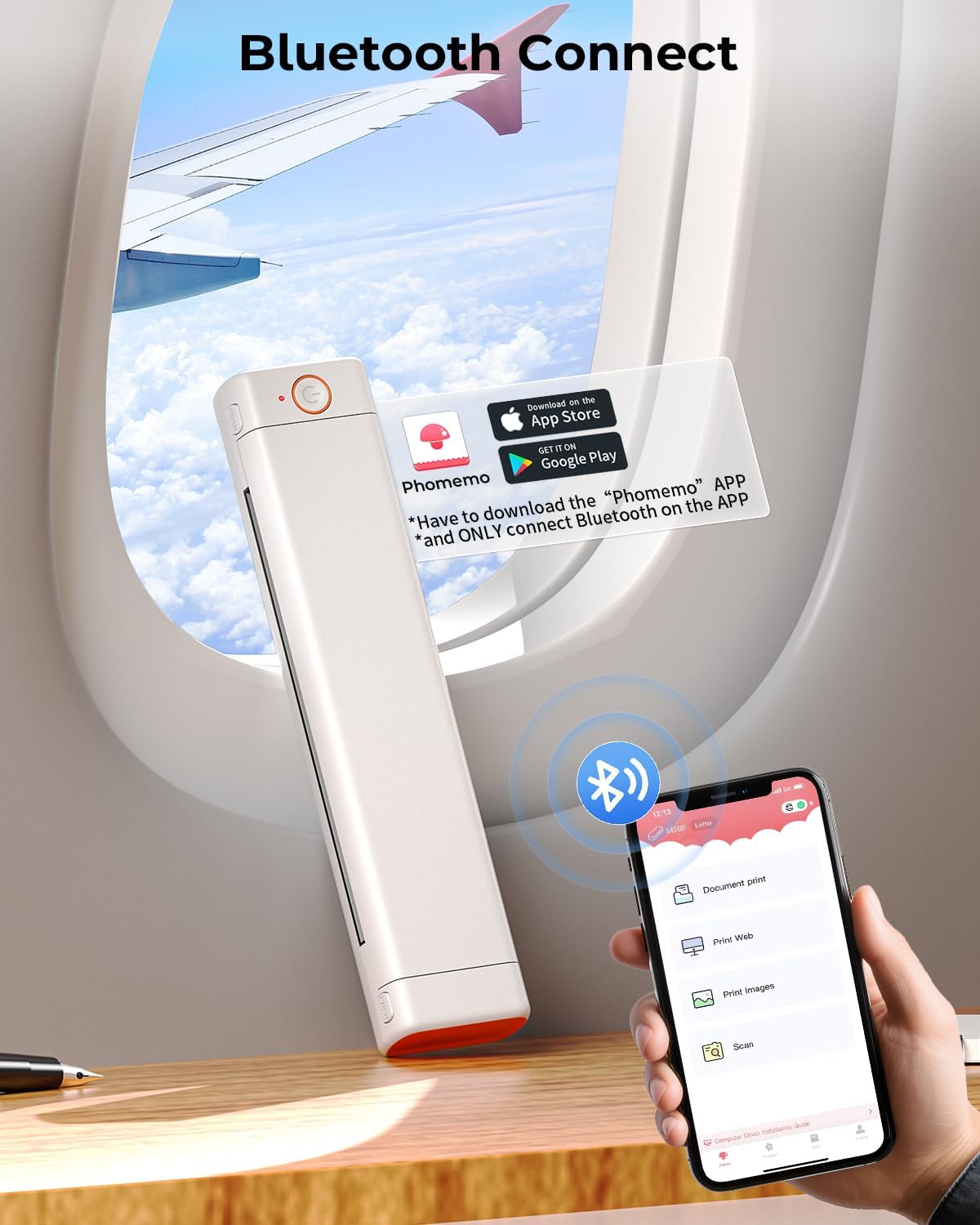
Connect your mobile device to the printer using the Phomemo App.
3.4. Computer Connection (USB)
For printing from a PC (Windows, macOS, Chrome OS, Linux), a USB connection is required. You will need to install the appropriate driver first.
- Visit m08f.phomemo.com to download the latest printer driver for your operating system.
- Install the downloaded driver on your computer.
- Connect the printer to your computer using the provided USB-A to USB-C cable.
- Ensure the printer is powered on. Your computer should recognize the printer, allowing you to print directly from applications.

Connect the printer to your computer via USB and install the necessary drivers.
4. Operating the Printer
4.1. Mobile Printing via Phomemo App
The Phomemo App offers various printing options for documents, images, and web pages.
Demonstration of how to use the Phomemo M08F printer with a mobile phone.
Within the app, you can select the type of content you wish to print (e.g., Document print, Print Web, Print Images, Scan). The app allows you to adjust print settings such as darkness and number of copies. It supports printing PDF, Word, and Excel files, as well as images and web content.

The Phomemo App provides a powerful interface for various printing tasks.
4.2. PC Printing
Once the driver is installed and the printer is connected via USB, you can print from any application on your computer as you would with a standard printer. Select the Phomemo M08F from your list of available printers.
Instructions on how to use the Phomemo M08F Portable Printer with MacOS via USB cable.

The Phomemo M08F is compatible with multiple operating systems.
4.3. Inkless Printing Technology
The M08F printer uses direct thermal printing, which means it applies heat to thermal paper to create images and text. This eliminates the need for ink, toner, or ribbons, simplifying operation and reducing maintenance.
An overview of the Phomemo M08F Portable Printer and its features.

The printer uses thermal technology, eliminating the need for ink.
5. Maintenance
5.1. Cleaning the Printer
Regular cleaning helps maintain print quality and extends the life of your printer. Use a soft, lint-free cloth to wipe the exterior. For the thermal print head and rollers, gently clean them using a cotton swab lightly dampened with isopropyl alcohol. Access to the rollers and thermal head can be achieved by pressing the hinge opening buttons.
5.2. Thermal Paper Storage
Thermal prints are sensitive to environmental factors. For best results and longevity of your printed documents, store thermal paper and printed materials in a cool, dry place, away from direct sunlight and excessive heat. Under ideal conditions, prints can remain viable for 7-10 years.
6. Troubleshooting
6.1. Common Issues and Solutions
- Paper Misalignment: If prints are skewed or edges are ragged, ensure the thermal paper is inserted straight and swiftly until it engages with the rollers. If a sheet is inserted incorrectly, open the printer cover and re-insert.
- Poor Print Quality: For very small text (8pt or less) or detailed graphics, print quality may vary. Ensure you are using high-quality thermal paper. Convert color graphics to grayscale before printing for better results.
- Difficulty Cancelling Print Job: If a multi-page print job needs to be cancelled, try powering off the printer and force-closing the Phomemo App on your mobile device.
- Noisy Prints: If the printer produces excessive noise, especially on hard surfaces, consider placing it on a softer, dampening surface to reduce resonance.
- Printer Not Charging: Ensure you are using a 5V 2A power adapter. Some fast chargers (e.g., Samsung Fast, Anker 20W/45W) may not be compatible.
7. Specifications
| Model Name | Phomemo M08F |
| Printing Technology | Thermal |
| Connectivity Technology | Bluetooth, USB |
| Printer Media Size Maximum | 8.5x11 inches (Letter) |
| Max Print Speed Monochrome | 4.2 ppm |
| Maximum Black and White Print Resolution | 203x203 DPI |
| Item Weight | 1.98 pounds (900 Grams) |
| Product Dimensions | 12.2 x 2.66 x 1.61 inches |
| Batteries | 1 Lithium Ion battery (included) |
| Compatible Devices | Smartphones, PC, Tablets, Laptops |
| Ink Color | Black (Monochrome output) |
8. Warranty and Support
The Phomemo M08F printer comes with a Limited Warranty. For detailed warranty information and support, please refer to the official Phomemo website or contact customer service.
You can also find additional resources and a user guide PDF at: Phomemo M08F User Guide (PDF)
Documents and downloads
Ask a question about this manual
Ask about setup, troubleshooting, compatibility, parts, safety, or missing instructions. Manuals+ will review the question and use this page’s manual context to help answer it.