This manual provides essential instructions for the setup, operation, and maintenance of your ATOZEE Kids Tablet CP80K. Please read this guide thoroughly to ensure proper use and to maximize the tablet's features, including its parental controls and eye protection functionalities.
Package Contents
Verify that all items listed below are included in your product package:
ATOZEE Kids Tablet CP80K
Charger
TYPE-C Cable
Protective Silicone Case
Product Overview
The ATOZEE Kids Tablet CP80K is designed for educational and entertainment purposes, featuring a durable build and child-friendly software. Below are the key components and features.
Image: The ATOZEE Kids Tablet CP80K, encased in its pink protective silicone cover, showcasing its vibrant, child-friendly home screen interface.
Key Features:
Display: 7-inch IPS HD Eye-Care Touchscreen (1280x800 pixels) designed to minimize blue light exposure.
Performance: 1.5GHz Quad-Core processor with 4GB RAM (2GB expandable memory) for responsive operation.
Storage: 32GB internal ROM, expandable up to 1TB via external SD card.
Cameras: Dual cameras for photos and video calls.
Operating System: Android OS with a pre-installed IWAWA Kids System.
Protection: Durable, lightweight, wear-resistant, and fall-resistant soft silicone case with an adjustable stand.
Image: Rear view of the ATOZEE Kids Tablet CP80K, displaying the product's model number (CP80) and regulatory markings.
Setup Instructions
1. Initial Charging
Before first use, fully charge the tablet using the provided TYPE-C cable and charger. Connect the TYPE-C cable to the tablet's charging port and the charger to a power outlet. The charging indicator will typically illuminate during charging and change color or turn off when fully charged.
2. Powering On/Off
To Power On: Press and hold the Power button located on the side of the tablet until the screen illuminates.
To Power Off: Press and hold the Power button, then select "Power off" from the options that appear on the screen.
3. Connecting to Wi-Fi
From the home screen, swipe down from the top to access the Quick Settings panel.
Tap and hold the Wi-Fi icon to open Wi-Fi settings.
Toggle Wi-Fi to "On" if it is off.
Select your desired Wi-Fi network from the list.
Enter the network password if prompted, then tap "Connect".
4. Setting Up Parental Controls (IWAWA Kids System)
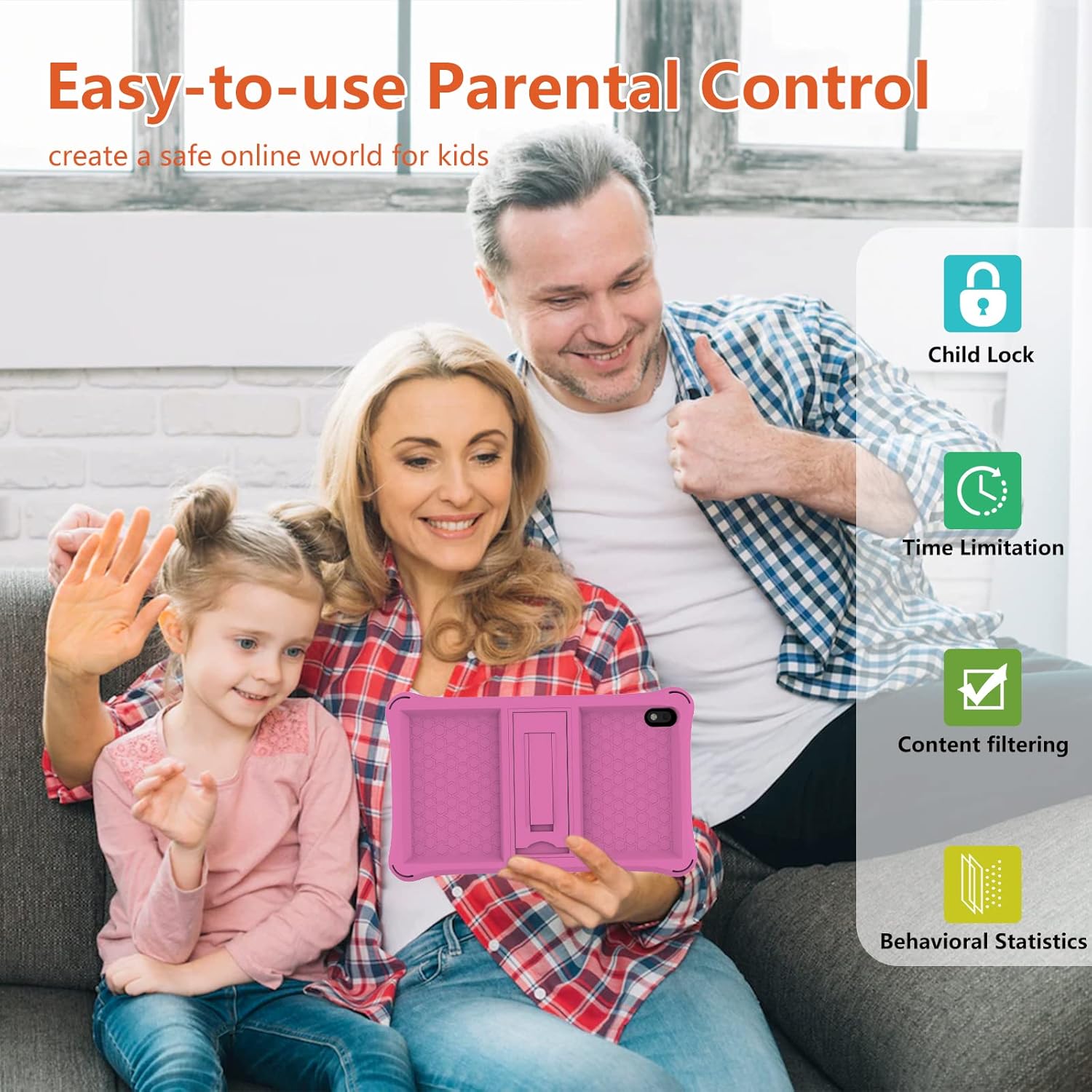
The tablet comes with a pre-installed IWAWA Kids System, offering robust parental control features to create a safe environment for children.
Image: Visual representation of the parental control features available on the tablet, including child lock, time limits, content filtering, and behavioral statistics.
Upon initial setup or by accessing the IWAWA app, you will be guided to create a parent account and set a password.
Within the parental control settings, you can:
Customize Accounts: Create separate profiles for each child.
Content Filtering: Select age-appropriate content and applications.
Time Limits: Set daily usage limits and specific play times.
Remote Control: Manage settings remotely (if supported by the IWAWA app version).
One-Button Lock Screen: Quickly lock the device.
Ensure to review and adjust these settings regularly to match your child's needs and development.
Operating Instructions
Basic Navigation
Tap: Select an item or open an application.
Swipe: Navigate through screens or scroll within applications.
Pinch-to-Zoom: Enlarge or reduce content on the screen.
Long Press: Access contextual menus or move icons.
Using the IWAWA Kids System
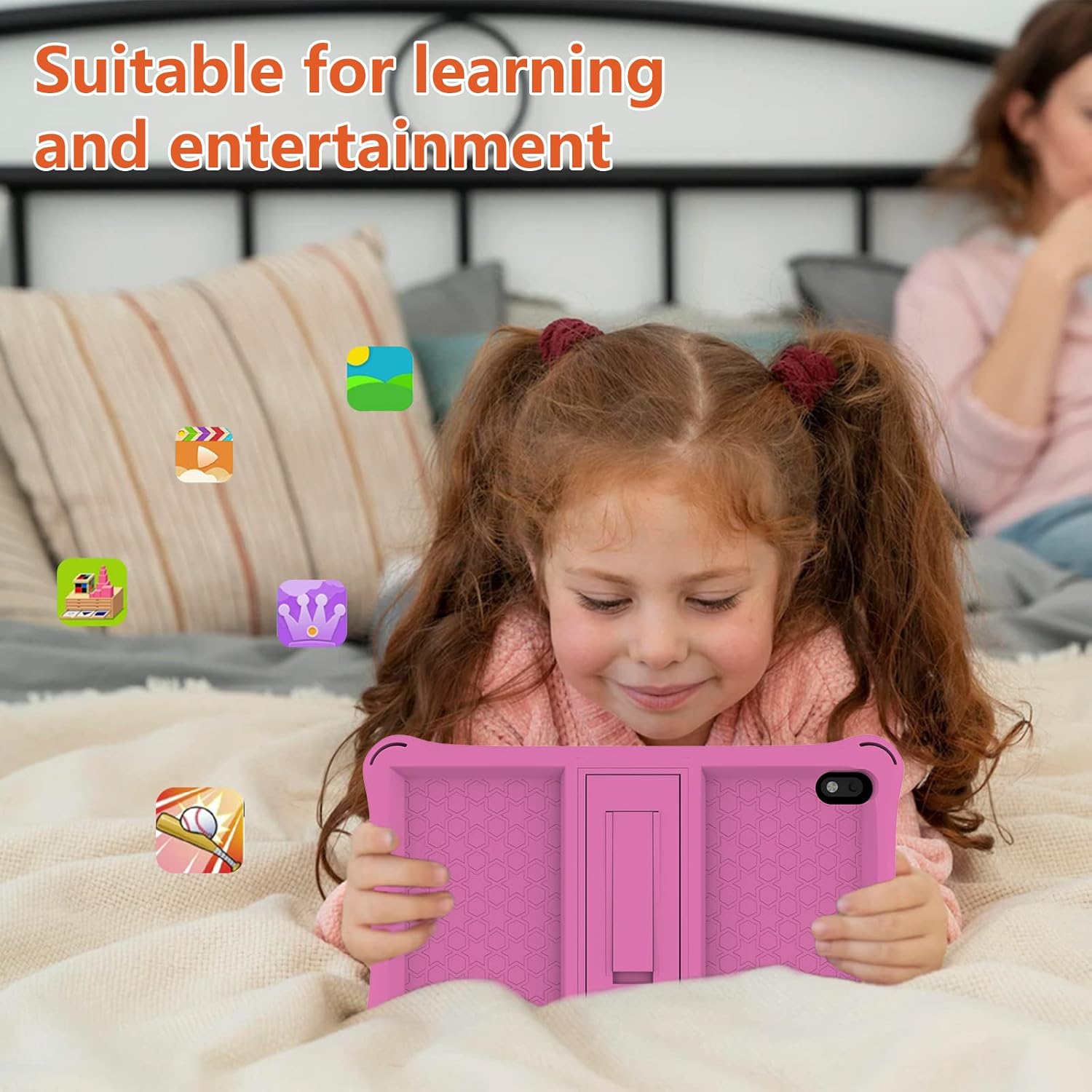
The IWAWA Kids System provides a curated environment with educational content and games. Children can easily navigate through different modules such as Montessori, First Learning, Brain Training, Mini Games, and Kids TV.
Image: A child engaged with the ATOZEE Kids Tablet CP80K, demonstrating its use for both learning and entertainment activities.
To enter the IWAWA Kids System, tap its icon from the main Android home screen.
To exit the IWAWA Kids System and return to the standard Android environment, a parental password is required.
Accessing and Managing Applications
The tablet supports standard Android applications. You can download additional apps from the Google Play Store.
Pre-installed Apps: The tablet includes applications like YouTube, Netflix, Disney+, ABC Mouse, and Google Play.
Downloading Apps: Open the Google Play Store app, search for desired applications, and follow the on-screen prompts to install. Parental controls can restrict access to the Play Store or specific app downloads.
Eye Protection Features
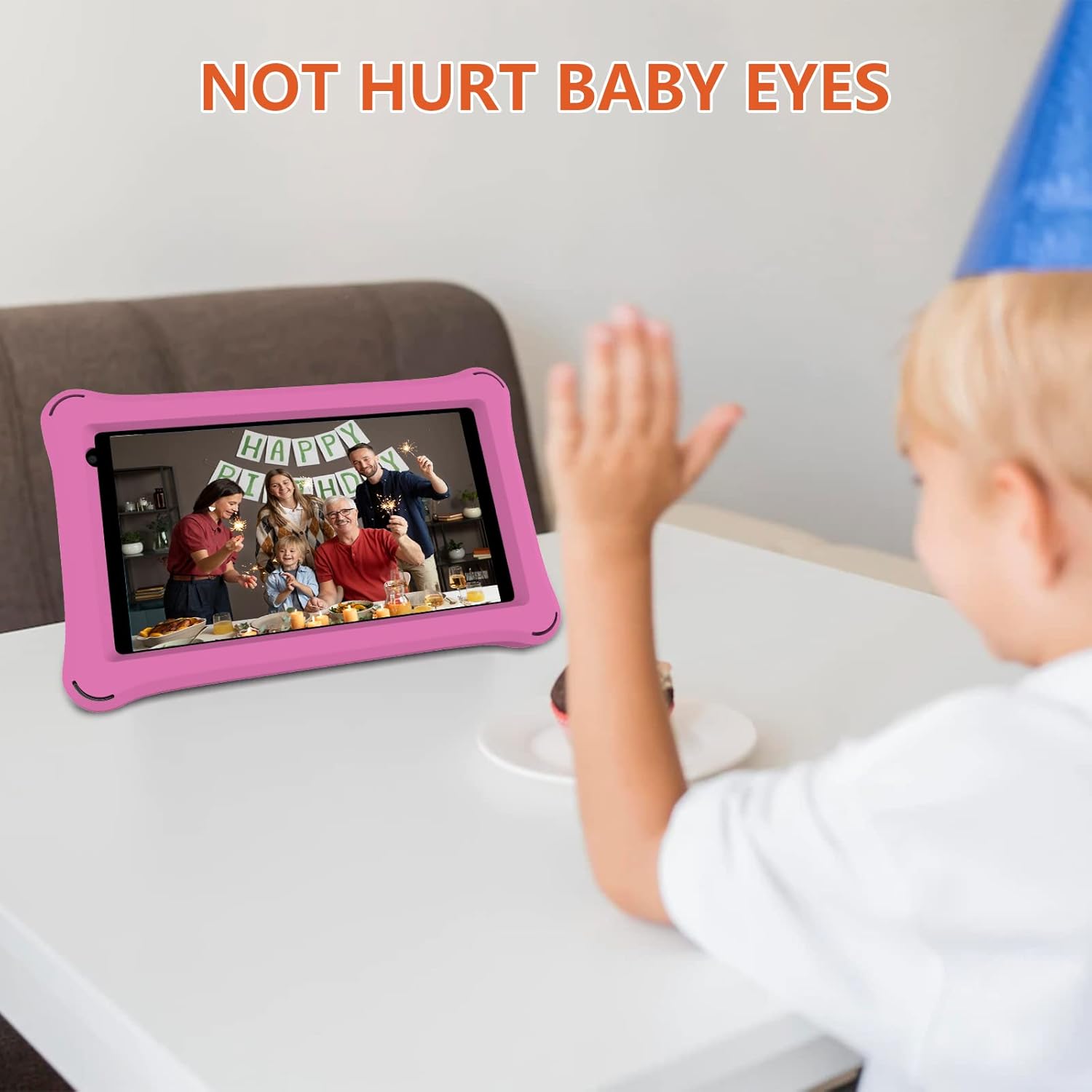
The IPS HD eye protection touchscreen is designed to minimize blue light output and automatically adjust brightness for comfortable viewing, especially in low-light conditions.
Image: The ATOZEE Kids Tablet CP80K in use, highlighting its eye-care display technology designed for comfortable viewing.
Blue Light Filter: This feature is active by default to reduce eye strain.
Brightness Adjustment: The tablet can automatically adjust screen brightness based on ambient light. This can be configured in the tablet's display settings.
Night Reading Mode: Activate this mode in display settings for a warmer color temperature, further reducing eye fatigue during evening use.
Using the Protective Case and Stand
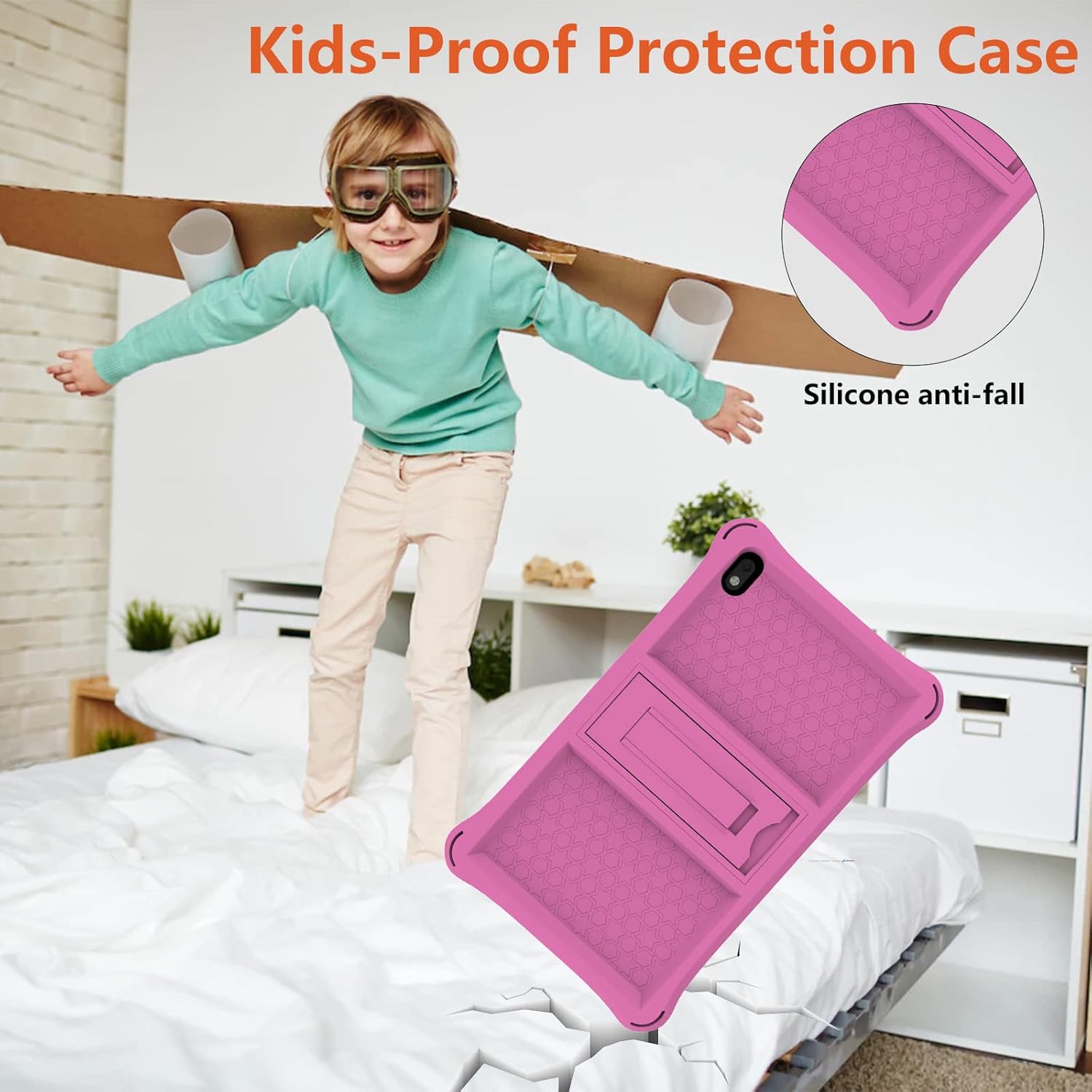
The included silicone case provides protection against drops and scratches. It features a built-in adjustable stand for hands-free viewing.
Image: The pink silicone protective case for the ATOZEE Kids Tablet CP80K, emphasizing its durable, anti-fall design.
Adjusting the Stand: Gently pull out the kickstand from the back of the case to prop up the tablet at a comfortable viewing angle. Push it back in when not in use.
Case Removal: To remove the case, carefully peel back the silicone edges from around the tablet.
Maintenance
Cleaning
Screen: Use a soft, lint-free cloth, slightly dampened with water or a screen cleaner, to gently wipe the screen. Avoid harsh chemicals.
Case: The silicone case can be wiped with a damp cloth. For deeper cleaning, it can be removed and washed with mild soap and water, then thoroughly dried before reattaching.
Battery Care
Avoid fully discharging the battery frequently.
Do not expose the tablet to extreme temperatures.
Use only the provided charger and cable.
Software Updates
Periodically check for system updates in the tablet's settings to ensure optimal performance and security.
Storage Management
To maintain performance, regularly manage the tablet's storage:
Delete unused apps and files.
Move large files (photos, videos) to an external SD card (up to 1TB supported).
Clear app caches in the tablet's settings.
Troubleshooting
Problem
Solution
Tablet does not power on.
Ensure the tablet is fully charged. Connect it to the charger for at least 30 minutes before attempting to power on again. If it still doesn't turn on, try a hard reset by holding the power button for 10-15 seconds.
Cannot connect to Wi-Fi.
Check if Wi-Fi is enabled in settings. Verify the Wi-Fi password. Restart your router and the tablet. Try connecting to a different Wi-Fi network to isolate the issue.
Tablet is running slow.
Close unused applications. Clear app caches. Free up storage space by deleting unnecessary files or moving them to an SD card. Restart the tablet.
Battery drains quickly.
Reduce screen brightness. Close background apps. Disable Wi-Fi or Bluetooth when not in use. Check for apps consuming excessive battery in settings.
Parental controls are not working as expected.
Review the settings within the IWAWA Kids System. Ensure the correct profiles and restrictions are applied. Check for any recent software updates that might have altered settings.
If you encounter issues not listed here or if the suggested solutions do not resolve the problem, please contact ATOZEE customer support for further assistance.
Specifications
Feature
Detail
Model Number
CP80K
Operating System
Android
Processor
1.5GHz Quad-Core
RAM
4GB (2GB expandable memory)
Internal Storage (ROM)
32GB
Expandable Storage
Supports up to 1TB via external SD card
Screen Size
7 Inches (as per product title and main image)
Screen Resolution
1280x800 Pixels (IPS HD Eye-Care Touchscreen)
Wireless Connectivity
802.11ac Wi-Fi
Rear Camera Resolution
8 MP
Front Camera Resolution
Not specified
Battery Life
Approximately 6 hours (average use)
Dimensions (LxWxH)
9.84 x 0.59 x 6.3 inches
Item Weight
1.12 pounds
Warranty and Support
For warranty information, technical support, or service inquiries, please refer to the warranty card included in your package or contact ATOZEE customer service directly. Contact details can typically be found on the official ATOZEE website or through your purchase platform.
Please retain your proof of purchase for warranty claims.
Related Documents - CP80K
Atozee Q3K Kids Tablet: User Manual and Specifications Comprehensive user manual for the Atozee Q3K kids tablet, detailing specifications, features, port layout, and FCC compliance information. Features Android 14 (Go edition) and a 7-inch display.
AT70K Kids Tablet User Manual User manual for the AT70K Kids Tablet, detailing specifications, device layout, and basic operation. Includes FCC statement.