
AJAZZ AK992
AJAZZ AK992 Wireless Mechanical Keyboard User Manual
Model: AK992 | Brand: AJAZZ (Manufactured by MAGIC-REFINER)
1. Introduction
This manual provides comprehensive instructions for the setup, operation, maintenance, and troubleshooting of your AJAZZ AK992 Wireless Mechanical Keyboard. Please read this manual thoroughly before using the product to ensure proper function and longevity.

Image 1.1: The AJAZZ AK992 Wireless Mechanical Keyboard, showcasing its full layout and coiled cable.
2. Package Contents
Verify that all items are present in the package:
- 1 x AJAZZ AK992 Mechanical Keyboard
- 1 x 2.4GHz USB Receiver
- 1 x Custom Coiled USB-C Cable
- 1 x Keycap Puller
- 1 x Switch Puller
- 4 x Replacement Switches
- 8 x Replacement Keycaps
- 1 x User Manual (this document)
3. Specifications
| Feature | Detail |
|---|---|
| Model | AK992 |
| Connectivity | Bluetooth 5.0, 2.4GHz Wireless, USB-C Wired |
| Keys | 99 Keys (98% Layout) |
| Switches | Hot-swappable (3-pin/5-pin compatible) |
| Keycaps | PBT OEM Keycaps |
| Backlighting | RGB (18+ effects) |
| Battery Capacity | 4000mAh |
| Dimensions | 16.5 x 2.2 x 2.8 inches |
| Weight | 2.48 pounds |
| Manufacturer | MAGIC-REFINER |
4. Setup
4.1 Charging the Keyboard
Before initial use, fully charge the keyboard using the provided USB-C cable. Connect the USB-C end to the keyboard and the USB-A end to a power source (e.g., computer USB port, wall adapter).
- The keyboard features a 4000mAh battery, providing extended usage time.
- To check battery level, press FN + Back (Delete Key). The number keys 1-0 will light up to indicate the power proportion.
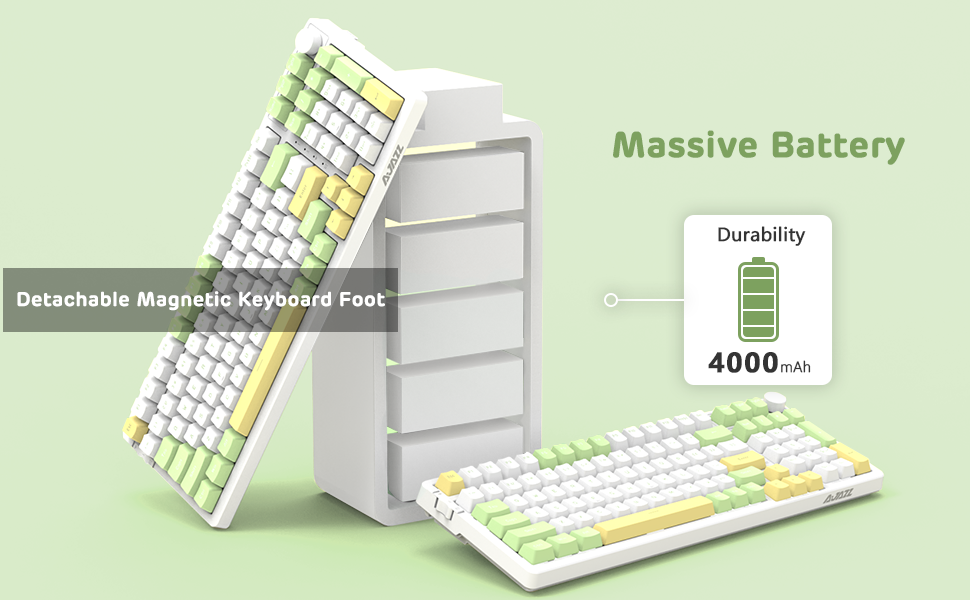
Image 4.1: Visual representation of checking the keyboard's battery level by pressing FN + Back (Delete Key).
4.2 Connecting the Keyboard (Three Modes)
The AK992 keyboard supports three connection modes: Bluetooth 5.0, 2.4GHz Wireless, and USB-C Wired. Use the sliding switch on the left side of the keyboard to select your desired mode.
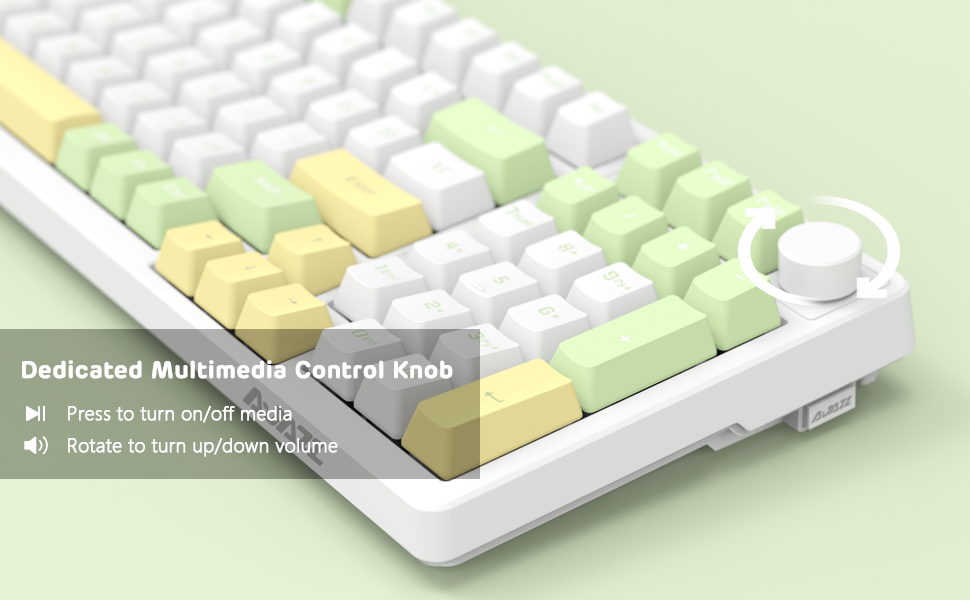
Image 4.2: Illustration of the three connection modes: USB-C, 2.4GHz, and Bluetooth 5.0, connecting to various devices.
4.2.1 2.4GHz Wireless Connection
- Locate the 2.4GHz USB receiver, typically stored in a compartment on the side of the keyboard.
- Plug the USB receiver into an available USB port on your computer.
- Slide the connection switch on the keyboard to the "2.4G" position.
- The keyboard should automatically connect.
4.2.2 Bluetooth 5.0 Connection
The keyboard can store up to 3 Bluetooth devices.
- Slide the connection switch on the keyboard to the "BT" position.
- Press and hold FN + 1, FN + 2, or FN + 3 for 3-5 seconds to enter pairing mode for the desired profile. The indicator light will flash rapidly.
- On your device (PC, Mac, tablet, smartphone), enable Bluetooth and search for "AK992".
- Select "AK992" to pair. The indicator light on the keyboard will stop flashing once connected.
- To switch between paired Bluetooth devices, press FN + 1/2/3 briefly.
4.2.3 USB-C Wired Connection
- Connect the provided USB-C coiled cable to the keyboard's USB-C port.
- Connect the other end of the cable to a USB port on your computer.
- Slide the connection switch on the keyboard to the "Wired" position.
- The keyboard will be recognized as a standard USB keyboard.

Image 4.3: The custom coiled USB-C cable with a metal aviation connector, designed for durability and stable data transmission.
5. Operating Instructions
5.1 Multimedia Control Knob
The knob located in the upper right corner provides convenient multimedia control:
- Rotate Clockwise: Increase Volume
- Rotate Counter-Clockwise: Decrease Volume
- Press: Play/Pause Media or Mute/Unmute Audio

Image 5.1: Close-up of the metal knob, illustrating its functions for volume control and media play/pause/mute.
5.2 RGB Backlighting Control
The AK992 features dynamic RGB backlighting with multiple effects.
- FN + \| (Backslash/Pipe key): Cycle through 18+ RGB lighting effects.
- FN + ↑ / ↓: Adjust backlight brightness.
- FN + ← / →: Adjust backlight speed/direction.
- FN + 1/2/3: Customize three sets of game or office lighting effects (requires software for full customization).
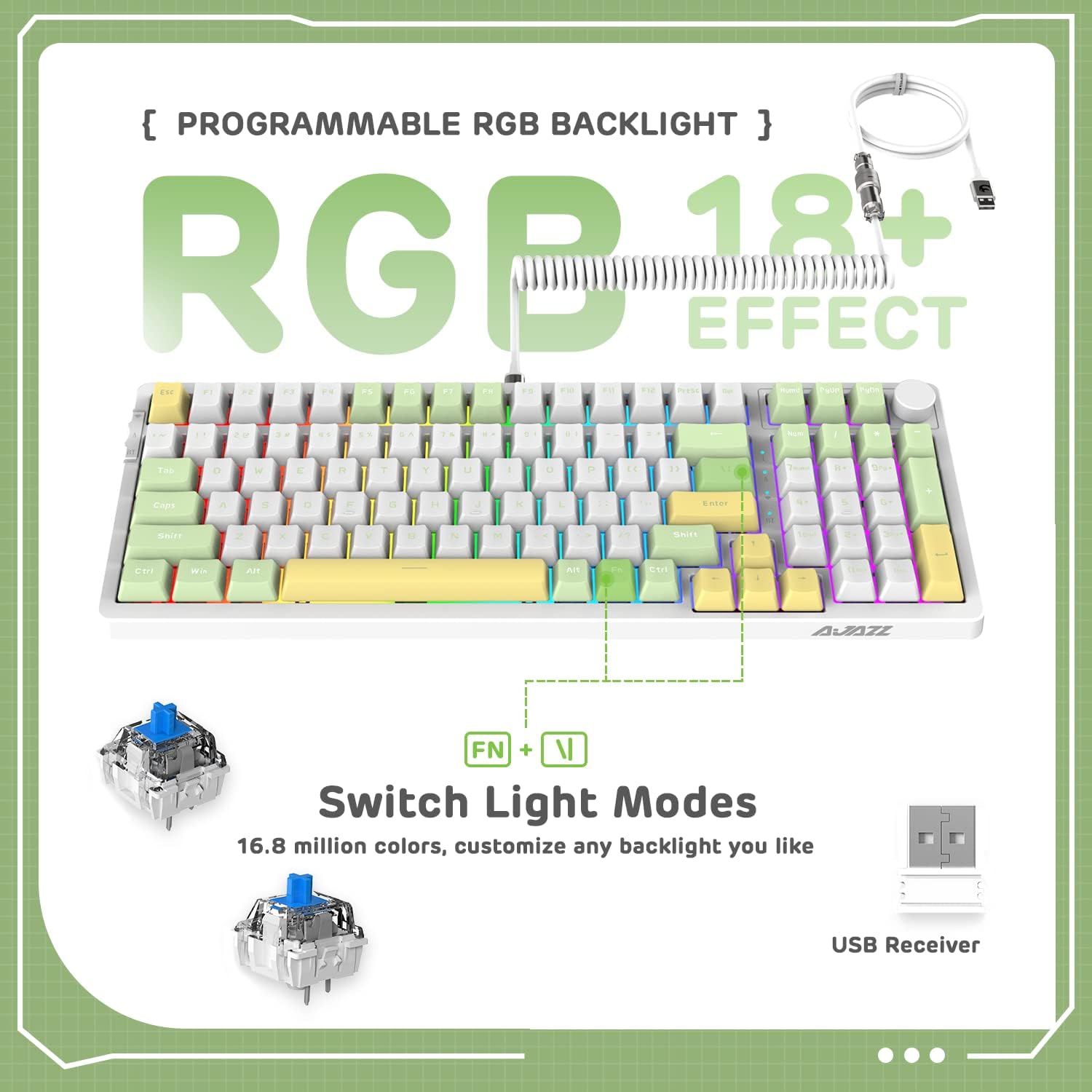
Image 5.2: The keyboard displaying various RGB lighting effects, highlighting the FN + \| key combination for switching modes.
5.3 Hot-Swappable Switches
The AK992 keyboard features a hot-swappable PCB, allowing users to change mechanical switches without soldering. It supports both 3-pin and 5-pin switches.
- Use the provided keycap puller to carefully remove the desired keycap.
- Use the provided switch puller to gently grip the switch and pull it straight up to remove it from the PCB.
- Align the pins of the new switch with the holes on the PCB. Ensure the pins are straight.
- Press the new switch firmly into place until it clicks.
- Replace the keycap.

Image 5.3: A detailed view of the keyboard's hot-swappable PCB, showing removed keycaps and switches, along with replacement components.
5.4 Ergonomic Design
The keyboard is designed with a two-stage tripod foot system, allowing adjustment of the typing angle to 5° or 8° for improved comfort and reduced hand fatigue.

Image 5.4: The keyboard's two-stage tripod design, illustrating the 5° and 8° adjustable typing angles.
6. Maintenance
6.1 Cleaning
- Disconnect the keyboard from all power sources and devices before cleaning.
- Use a soft, lint-free cloth slightly dampened with water or a mild cleaning solution to wipe the keycaps and chassis.
- For deeper cleaning, use the provided keycap puller to remove keycaps and clean underneath with compressed air or a small brush.
- Avoid using harsh chemicals, abrasives, or solvents, as these may damage the keyboard's finish or components.
6.2 Storage
Store the keyboard in a cool, dry place away from direct sunlight and extreme temperatures. If storing for an extended period, ensure the battery is partially charged (around 50%) to preserve battery health.
7. Troubleshooting
| Problem | Possible Cause | Solution |
|---|---|---|
| Keyboard not responding in wireless mode. | Low battery, incorrect mode selected, receiver not plugged in (2.4G), not paired (Bluetooth). | Charge the keyboard. Ensure the mode switch is set correctly. Re-insert the 2.4G receiver. Re-pair Bluetooth device. |
| RGB backlight not working or dim. | Backlight turned off, brightness set too low, low battery. | Press FN + \| to cycle modes. Adjust brightness with FN + ↑. Charge the keyboard. |
| Keys not registering or double-typing. | Faulty switch, debris under keycap, software issue. | Remove keycap and clean. Replace the switch using the provided tools and spare switches. Test on another device. Update keyboard firmware if available. |
| Keyboard disconnects frequently. | Interference, distance from receiver/device, low battery. | Reduce distance to receiver/device. Ensure no strong interference sources. Charge the keyboard. Try wired mode. |
8. Warranty and Support
8.1 Warranty Information
The AJAZZ AK992 Wireless Mechanical Keyboard is covered by a limited warranty against manufacturing defects. Please refer to the warranty card included in your package or contact your retailer for specific warranty terms and conditions. Keep your proof of purchase for warranty claims.
Note: The warranty typically covers defects in materials and workmanship under normal use. It does not cover damage caused by misuse, accidents, unauthorized modifications, or normal wear and tear.
8.2 Customer Support
For technical assistance, troubleshooting, or general inquiries, please contact the manufacturer or your point of purchase. You may also visit the official AJAZZ or MAGIC-REFINER website for FAQs, driver downloads, and additional support resources.
Manufacturer: MAGIC-REFINER
Model: AK992
9. Official Product Video
Video 9.1: An official product video showcasing the AK992 99 Keys Gasket Wireless Mechanical Gaming Keyboard in use, demonstrating its features and RGB lighting. This video is provided by MAGIC-REFINER Direct.
Related documentsAK992


Ask a question about this manual
Ask about setup, troubleshooting, compatibility, parts, safety, or missing instructions. Manuals+ will review the question and use this page’s manual context to help answer it.