
Dreo DR-HTF007S
Contents
Dreo Smart Tower Fan Instruction Manual
Model: DR-HTF007S
1. Introduction
Thank you for choosing the Dreo Smart Tower Fan. This fan is designed to provide powerful, quiet, and customizable airflow for your home or office. Featuring smart controls, multiple modes, and wide oscillation, it offers an enhanced cooling experience. Please read this manual thoroughly before use to ensure proper operation and maintenance.

The Dreo Smart Tower Fan, showcasing its sleek design, remote control, and smartphone app integration for convenient operation.
2. Important Safety Instructions
To reduce the risk of fire, electric shock, or injury, please observe the following safety precautions:
- Always unplug the fan before cleaning or performing any maintenance.
- Do not operate the fan with a damaged cord or plug.
- Keep the fan away from water or other liquids.
- Ensure the fan is placed on a stable, level surface to prevent tipping.
- Do not insert fingers or foreign objects into the fan grilles.
- This appliance is not intended for use by persons (including children) with reduced physical, sensory or mental capabilities, or lack of experience and knowledge, unless they have been given supervision or instruction concerning use of the appliance by a person responsible for their safety.
3. Package Contents
Please check the package for the following items:
- Dreo Smart Tower Fan
- Remote Control
- User Manual
- Power Cord
4. Setup
Assembly
The Dreo Smart Tower Fan is designed for tool-free assembly. Simply attach the base to the main body of the fan by aligning the grooves and twisting until it locks securely. Ensure the power cord is routed correctly through the base.
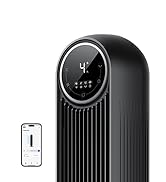
Illustration of the tool-free assembly process, showing how the fan base connects to the main unit.
Placement
Place the fan on a firm, level surface. Ensure there is adequate space around the fan for optimal airflow and oscillation. Avoid placing it near curtains or other objects that could obstruct the air intake or outlet.
5. Operating Instructions
Control Panel
The fan features an intuitive LED control panel located on top of the unit.

Close-up view of the fan's LED control panel, displaying various settings and indicators.
- Power Button: Turns the fan On/Off.
- Mode Button: Cycles through Normal, Nature, Sleep, and Auto modes.
- Speed Button: Adjusts fan speed (1-4).
- Oscillation Button: Toggles 90° oscillation.
- Timer Button: Sets the auto-off timer (1-8 hours).
Remote Control
The included remote control provides convenient access to all fan functions from a distance. Ensure the remote is pointed towards the fan's control panel.

The compact remote control for the Dreo Smart Tower Fan, allowing for convenient operation from a distance.
Smart Control (WiFi)
Connect your Dreo Smart Tower Fan to the Dreo app for advanced control and smart home integration (e.g., voice control via Alexa or Google Assistant).
- Download the Dreo app from your smartphone's app store.
- Follow the in-app instructions to pair your fan.
- Once connected, you can control the fan, set schedules, and monitor room temperature from anywhere.

A smartphone screen showing the Dreo app interface, demonstrating remote control capabilities for the fan, including temperature display and scheduling options.
6. Modes and Settings
Fan Modes
- Normal Mode: Provides a constant, steady airflow at your selected speed.
- Nature Mode: Simulates natural breezes by varying fan speed.
- Sleep Mode: Operates at a lower speed with reduced noise for undisturbed rest. The display light automatically dims after 30 seconds.
- Auto Mode: Automatically adjusts fan speed based on the ambient room temperature to maintain optimal comfort.

Visual representation of the fan's four modes (Normal, Nature, Sleep, Auto) and four speed settings, highlighting the customizable airflow options.
Speed Settings
The fan offers 4 speed settings, from gentle breeze to powerful airflow, allowing you to customize your cooling experience.
Oscillation
Activate the 90° oscillation feature to distribute airflow across a wider area, providing comprehensive room coverage.

An overhead view illustrating the fan's 90-degree oscillation, showing how it expands the coverage area for wider cooling.
Timer
Set the auto-off timer for 1 to 8 hours, ideal for use during sleep or when you leave the room.
7. Maintenance
Regular cleaning helps maintain the fan's performance and extends its lifespan.
Cleaning the Fan
- Unplug the fan from the power outlet before cleaning.
- The rear grille and impeller are removable for easy cleaning. Gently detach them as shown in the diagram.
- Use a soft, damp cloth to wipe down the exterior surfaces.
- For the impeller and grilles, use a soft brush or vacuum cleaner to remove dust. You may rinse the impeller under water if heavily soiled, ensuring it is completely dry before reassembly.
- Ensure all parts are completely dry before reassembling and plugging in the fan.
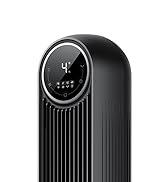
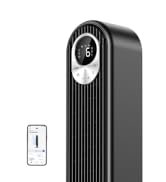
Left: Image showing the detachable rear grille for easy access. Right: Image demonstrating the simple cleaning process of the fan's impeller under running water.
8. Troubleshooting
| Problem | Possible Cause | Solution |
|---|---|---|
| Fan does not turn on. | Not plugged in; Power outlet malfunction; Power button not pressed. | Ensure the fan is securely plugged into a working outlet. Press the power button. |
| Weak airflow. | Fan speed too low; Air intake/outlet blocked; Dust accumulation. | Increase fan speed. Clear any obstructions. Clean the fan grilles and impeller. |
| Fan is noisy. | Fan not on a level surface; Loose parts; Dust accumulation. | Place the fan on a flat, stable surface. Check for any loose components. Clean the fan thoroughly. |
| Remote control not working. | Batteries dead; Obstruction between remote and fan; Remote not pointed correctly. | Replace batteries. Ensure no obstructions. Point the remote directly at the fan's control panel. |
| WiFi connection issues. | Incorrect WiFi password; Router too far; App issues. | Verify WiFi password. Move fan closer to router. Restart app or fan. |
9. Specifications
| Feature | Detail |
|---|---|
| Model Number | DR-HTF007S |
| Brand | Dreo |
| Color | White |
| Dimensions (L x W x H) | 30 x 30 x 92 cm |
| Weight | 4.08 Kilograms |
| Power | 42 Watts |
| Voltage | 120.0 V |
| Noise Level | 28 dB |
| Oscillation | 90° |
| Timer | 1-8 hours |
| Modes | Normal, Nature, Sleep, Auto |
| Speeds | 4 |
10. Warranty and Support
Dreo products come with a standard warranty. For detailed warranty information, product registration, or technical support, please visit the official Dreo website or contact their customer service.
You can also visit the official Dreo Brand Store on Amazon for more products and support: Dreo Brand Store
For any issues not covered in this manual, please do not attempt to repair the unit yourself. Contact qualified service personnel.
Ask a question about this manual
Ask about setup, troubleshooting, compatibility, parts, safety, or missing instructions. Manuals+ will review the question and use this page’s manual context to help answer it.