
1. Product Overview
The ProtoArc K100-A is an ultra-slim wireless Bluetooth keyboard specifically designed for Mac devices. It features a full-size layout with a numeric keypad, responsive scissor-switch keys for quiet typing, and adjustable white LED backlighting. This keyboard supports connection to up to three devices simultaneously, allowing for seamless switching between your MacBook, iMac, iPad, or iPhone. Its built-in rechargeable battery ensures long-lasting use.

Image: The ProtoArc K100-A keyboard connected to a MacBook, iPad, and iPhone, showcasing its multi-device capability.
2. Package Contents
- ProtoArc K100-A Backlit Bluetooth Keyboard
- USB-C Charging Cable
- User Manual (this document)
3. Getting Started
3.1 Charging the Keyboard
Before first use, fully charge the keyboard. Connect the provided USB-C charging cable to the keyboard's Type-C port and the other end to a USB power source (e.g., computer USB port, USB wall adapter). A full charge takes approximately 4-5 hours. The built-in 1200mAh lithium-ion battery provides a standby time of 3-4 months.

Image: The keyboard's Type-C charging port with the charging cable inserted.
3.2 Power On/Off
Locate the power switch on the side or back of the keyboard. Slide it to the "ON" position to power on the keyboard. Slide it to "OFF" when not in use to conserve battery.
4. Bluetooth Connection
The ProtoArc K100-A keyboard supports connection to three different devices via Bluetooth. Follow these steps to pair your devices:
- Ensure the keyboard is powered on.
- Press and hold one of the Bluetooth channel keys (BT1, BT2, or BT3) for 3-5 seconds until the corresponding indicator light flashes rapidly. This indicates the keyboard is in pairing mode.
- On your Mac device (MacBook, iMac, iPad, iPhone), go to System Settings (or System Preferences) > Bluetooth.
- Turn on Bluetooth and search for available devices.
- Select "ProtoArc K100-A" from the list of devices.
- Follow any on-screen prompts to complete the pairing process. The indicator light will stop flashing and remain solid for a few seconds, then turn off, indicating successful pairing.
- Repeat these steps for up to two additional devices using the other Bluetooth channel keys.

Image: The dedicated Bluetooth channel keys (BT1, BT2, BT3) on the keyboard.
4.1 Switching Between Devices
To switch between paired devices, simply press the corresponding Bluetooth channel key (BT1, BT2, or BT3) once. The keyboard will connect to the selected device within a few seconds.
5. Operating Instructions
5.1 Backlight Control
The keyboard features soft white LED backlighting with three adjustable brightness levels (low, medium, high). To adjust the backlight brightness, press the backlight key (often indicated by a sun icon or similar) located on the top right of the keyboard. Pressing it repeatedly cycles through the brightness levels and turns the backlight off.

Image: The keyboard with its white adjustable backlight at different brightness levels.
5.2 Shortcut Keys
The keyboard includes 12 shortcut keys for enhanced productivity on Mac devices. These keys provide quick access to functions such as brightness adjustment, mission control, media playback, volume control, and more. Refer to the key labels for specific functions.

Image: Detail of the keyboard's silent scissor-switch keys, designed for quiet and responsive typing.
6. Maintenance and Care
- Keep the keyboard clean by wiping it with a soft, dry cloth. Avoid using harsh chemicals or abrasive materials.
- Do not expose the keyboard to extreme temperatures, humidity, or direct sunlight.
- Avoid spilling liquids on the keyboard. If a spill occurs, immediately power off the keyboard and allow it to dry completely before use.
- When not in use for extended periods, power off the keyboard to preserve battery life.
- The keyboard automatically enters sleep mode after 30 minutes of inactivity to save power. Press any key to wake it up.
7. Troubleshooting
- Keyboard not connecting/disconnecting frequently:
- Ensure the keyboard is fully charged.
- Verify Bluetooth is enabled on your device and the keyboard is within range (up to 10 meters).
- Try re-pairing the keyboard with your device.
- Ensure no other strong wireless signals are interfering.
- Keys not responding or delayed response:
- Check battery level and charge if necessary.
- Ensure the keyboard is properly connected via Bluetooth.
- If the keyboard has entered sleep mode, press any key and wait a few seconds for it to reconnect.
- Backlight not working:
- Ensure the keyboard is powered on.
- Press the backlight key to cycle through brightness levels and turn it on.
- If the battery is very low, the backlight may not function to conserve power. Charge the keyboard.
8. Specifications
| Model Number | K100-A |
| Brand | ProtoArc |
| Connectivity Technology | Bluetooth |
| Compatible Devices | Mac OS 12.2 or higher (MacBook, MacBook Pro, MacBook Air, iMac, iMac Pro, Mac Pro/Mini, iPad, iPhone) |
| Special Features | Backlit, Rechargeable, Multi-Device Connection (3 devices) |
| Battery Capacity | 1200mAh Lithium-ion |
| Charging Time | 4-5 hours |
| Standby Time | 90-120 days |
| Product Dimensions | 16.79" L x 4.78" W x 0.57" H |
| Item Weight | 1.59 pounds |
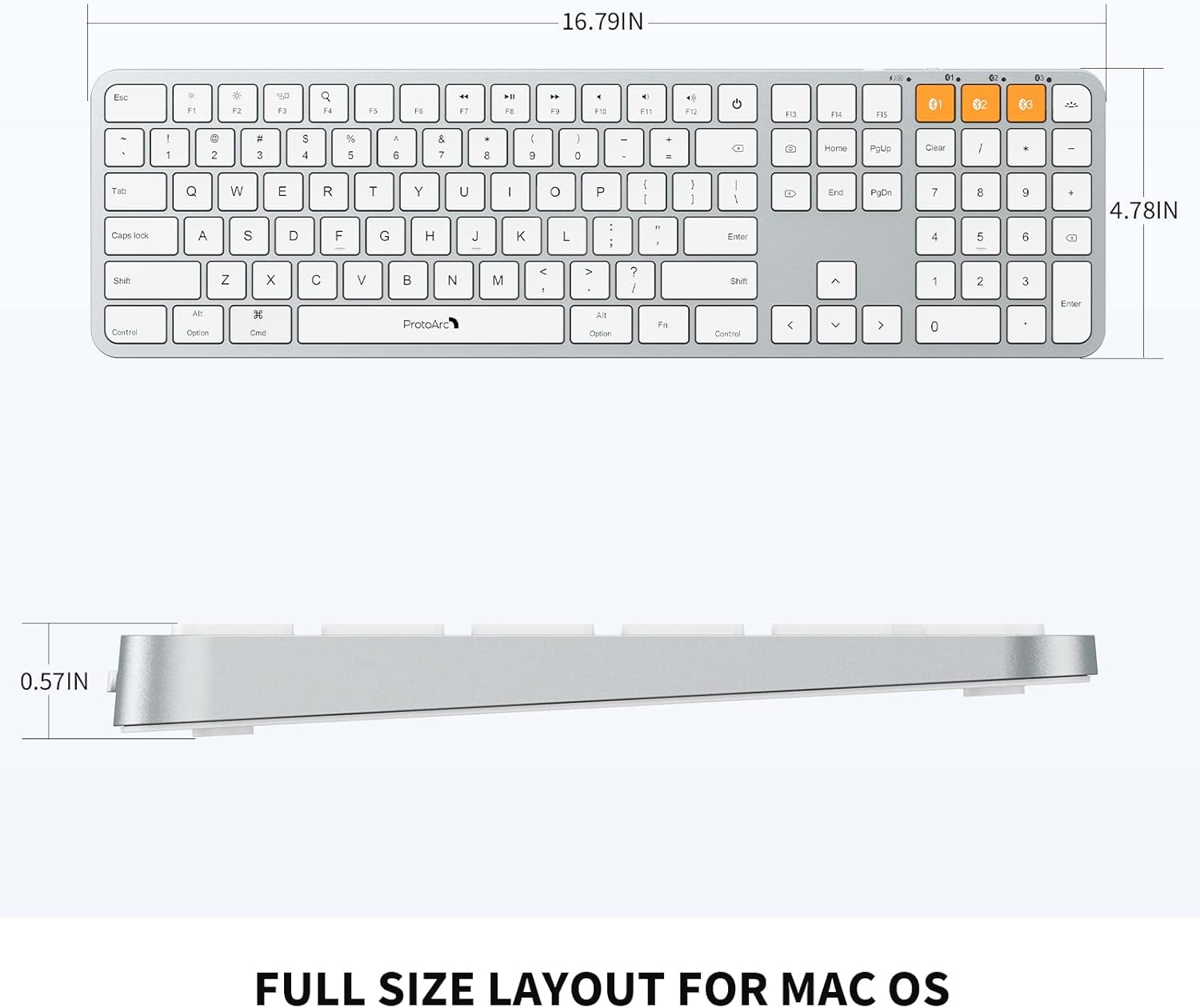
Image: Dimensional diagram of the ProtoArc K100-A keyboard.
9. Warranty and Support
For warranty information and technical support, please refer to the official ProtoArc website or contact their customer service directly. Keep your purchase receipt for warranty claims.


