
Introduction
This manual provides detailed instructions for the setup, operation, and maintenance of your Gaoducash Smart IR Universal Remote Control. This device allows you to control various infrared (IR) appliances in your home using a smartphone application or voice commands, integrating seamlessly with smart home ecosystems like Alexa and Google Home.
Product Features
- Remote Control from Anywhere: Control IR devices via the Smart Life/Tuya Smart app, turning your smartphone into a universal remote. For example, activate your air conditioner before arriving home.
- Voice Control: Compatible with Alexa and Google Home. Use voice commands to control most infrared devices such as air conditioners, fans, TVs, DVDs, and set-top boxes.
- High Compatibility & DIY Learning: Supports over 50,000 IR-controlled devices. If a device brand is not found in the Smart Life App, the programmable DIY learning function allows copying functions from the original remote.
- Intelligent Linkage Function: Create smart routines through the app, such as automatically turning on the air conditioner when the ambient temperature exceeds 30℃, or activating a humidifier when humidity drops below 20%RH.
- Easy Setup: The Smart IR Blaster includes a USB 2.0 cable (adapter not included). It is easy to use and set up, requiring only a USB port for power.
What's in the Box
- Gaoducash Smart IR Universal Remote Control Device
- USB 2.0 Power Cable
- User Manual

Image: Package contents of the Smart IR Remote Control.
Setup Guide
1. Powering On the Device
Connect the provided USB cable to the back of the Smart IR Remote Control and plug the other end into a USB power adapter (not included) or any available USB port. The device will power on automatically.

Image: Connecting the USB power supply to the device.
2. App Installation and Device Pairing
- Download the 'Smart Life' or 'Tuya Smart' app from your smartphone's app store (iOS or Android).
- Register or log in to your account.
- Ensure your Wi-Fi network is 2.4GHz. The device only supports 2.4GHz Wi-Fi connections. If your router supports both 2.4GHz and 5GHz bands, ensure they have different SSIDs or temporarily disable the 5GHz band during setup.
- In the app, tap the '+' icon to add a new device. Select 'Smart IR' or 'Universal Remote Control' from the list.
- Follow the on-screen instructions to put the device into pairing mode (usually by pressing and holding the button on the device until the indicator light blinks rapidly).
- Confirm the indicator light status in the app and enter your 2.4GHz Wi-Fi network password.
- The app will then search for and connect to the device. Once connected, you can rename the device.
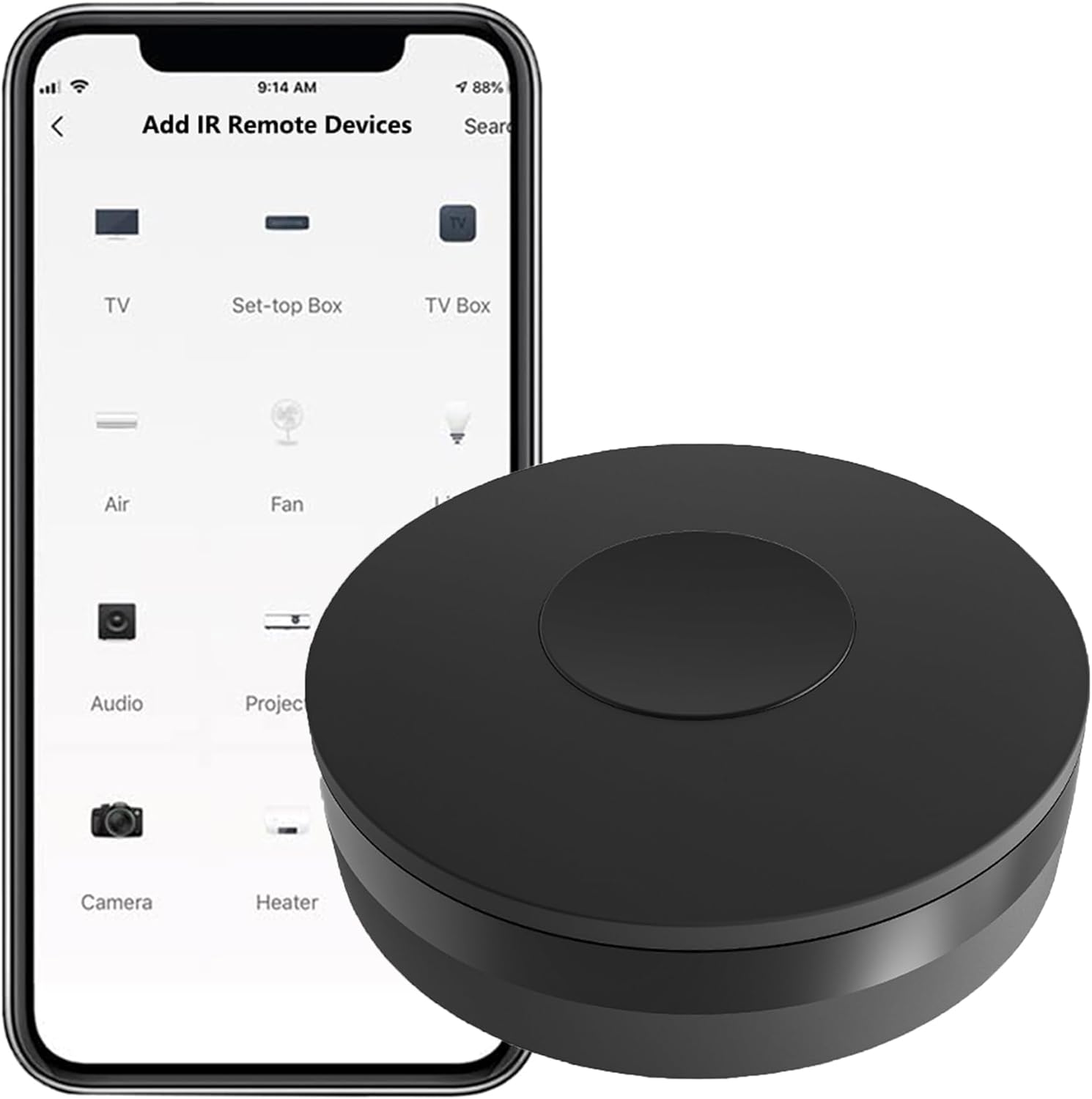
Image: App interface for adding IR remote devices.
Video: Demonstrates the unboxing, USB power connection, and the process of pairing the Smart IR Remote Control with the Tuya Smart Life app, including Wi-Fi network selection.
Operating Instructions
1. Adding and Controlling Devices
After successful pairing, you can add infrared-controlled appliances to the Smart Life/Tuya Smart app. The app provides a database of common IR devices.
- In the Smart IR device interface within the app, tap 'Add Remote Control'.
- Select the type of device you wish to control (e.g., TV, Air Conditioner, Fan, DVD).
- Choose the brand of your appliance from the list.
- Test the controls provided by the app to ensure they work with your device. If successful, save the remote.
- You can now control your appliance directly from the app, adjusting settings like temperature for an air conditioner or channels for a TV.

Image: Smartphone app controlling a TV via the Smart IR Remote Control.
2. Voice Control Integration
Integrate your Smart IR Remote Control with voice assistants like Amazon Alexa or Google Home for hands-free control.
- Link your Smart Life/Tuya Smart account to your Alexa or Google Home app.
- Discover devices in your voice assistant app. Your added IR devices should appear.
- Use voice commands such as "Alexa, turn on the TV" or "Hey Google, set the air conditioner to 22 degrees."

Image: Voice control setup with Alexa and Google Home speakers.
3. DIY Learning Function
For devices not found in the app's database, use the DIY learning function to copy signals from your original remote control.
- In the Smart IR device interface, select the 'DIY' option.
- Choose the function you want to learn (e.g., Power On, Volume Up).
- Point your original remote control at the Smart IR device and press the corresponding button. The Smart IR device will learn and store the signal.
- Repeat for all desired functions.

Image: Using the DIY learning function to copy remote signals.
4. Intelligent Linkage
Create automated routines by linking the Smart IR Remote Control with other smart home sensors and devices.
- In the Smart Life/Tuya Smart app, navigate to the 'Smart' or 'Automation' section.
- Create a new scene or automation.
- Set conditions (e.g., "If temperature exceeds 30℃" from a smart thermometer, or "If door is opened" from a door sensor).
- Set actions for the Smart IR Remote Control (e.g., "Then turn on AC" or "Then turn on TV").

Image: Examples of intelligent linkage scenarios.
Product Specifications
| Feature | Detail |
|---|---|
| Product Dimensions | 2.35 x 2.35 x 0.75 inches |
| Item Weight | 2.39 ounces |
| Model Number | IR remote control |
| Brand | Gaoducash |
| Special Feature | Universal Infrared Control |
| Max Number of Supported Devices | 1 (per remote instance in app, but can control multiple physical devices) |
| Compatible Devices | AC, Fan, TV, DVD, STB, TV Box, etc. |
| Connectivity | 2.4GHz Wi-Fi (only) |

Image: Physical dimensions of the Smart IR Remote Control.
Troubleshooting
- Device not connecting to Wi-Fi: Ensure your Wi-Fi network is 2.4GHz. The device does not support 5GHz networks. Check if your router has separate SSIDs for 2.4GHz and 5GHz, or temporarily disable 5GHz during setup.
- Remote control not working for an appliance: Verify that the Smart IR device has a clear line of sight to the appliance. Ensure the appliance is IR-controlled. Try using the DIY learning function if the pre-programmed codes do not work.
- Voice commands not responding: Confirm that your Smart Life/Tuya Smart account is correctly linked to your Alexa or Google Home app. Ensure the device names in the app match the names used in voice commands.
- Intermittent connection: Ensure the Smart IR device is within a reasonable range of your Wi-Fi router (recommended not to exceed 10 meters). Check for Wi-Fi interference from other devices.
Warranty and Support
The Gaoducash Smart IR Universal Remote Control comes with a 2-year warranty from the date of purchase.
For technical support, troubleshooting assistance, or warranty claims, please refer to the contact information provided with your product packaging or visit the official Gaoducash support website.