
Introduction
This manual provides detailed instructions for the RedThunder K10 Wireless Gaming Keyboard and Mouse Combo. Please read this manual carefully before use to ensure proper operation and to maximize your product experience.

Image: The RedThunder K10 Wireless Gaming Keyboard and Mouse Combo, featuring RGB backlighting and a compact USB receiver.
Package Contents
- 1 x RedThunder K10 Wireless Gaming Keyboard
- 1 x RedThunder Wireless Gaming Mouse
- 1 x 2.4G USB Receiver (stored in the mouse)
- 1 x Charging Cable (USB-A to USB-C)
- 1 x User Manual (this document)
Setup Instructions
- Locate the USB Receiver: The 2.4G USB receiver is conveniently stored in a compartment on the bottom of the wireless mouse. Gently open the compartment and remove the receiver.

Image: The 2.4G USB receiver is located in a dedicated slot on the underside of the mouse for secure storage.
- Connect the Receiver: Insert the USB receiver into an available USB port on your computer or gaming console.
- Power On the Keyboard: Locate the power switch on the keyboard (usually on the side or back) and slide it to the "ON" position.
- Power On the Mouse: Locate the power switch on the bottom of the mouse. It typically has three positions: "OFF", "ON without light", and "ON with light". Select either "ON without light" or "ON with light" to activate the mouse.


Image: The keyboard's power switch is on its side, and the mouse's power switch and receiver slot are on its underside.
- Automatic Connection: The keyboard and mouse are pre-paired with the receiver. They should connect automatically within a few seconds. If connection is lost, refer to the Troubleshooting section.
Operating Instructions
Keyboard Functions
The RedThunder K10 keyboard features customizable RGB backlighting and various function keys.
- Backlight Modes: Press Fn + LED to cycle through 4 dynamic backlight modes and 8 static light modes.
- Brightness Adjustment: Press Fn + PgUp to increase brightness, and Fn + PgDn to decrease brightness. There are 3 brightness levels.
- Breathing Speed: Press Fn + LED (repeatedly after selecting a breathing mode) to adjust the breathing speed. There are 4 breathing speeds.
- Multimedia Keys: Use the Fn key in combination with F1-F12 keys for multimedia controls (e.g., volume, media playback).
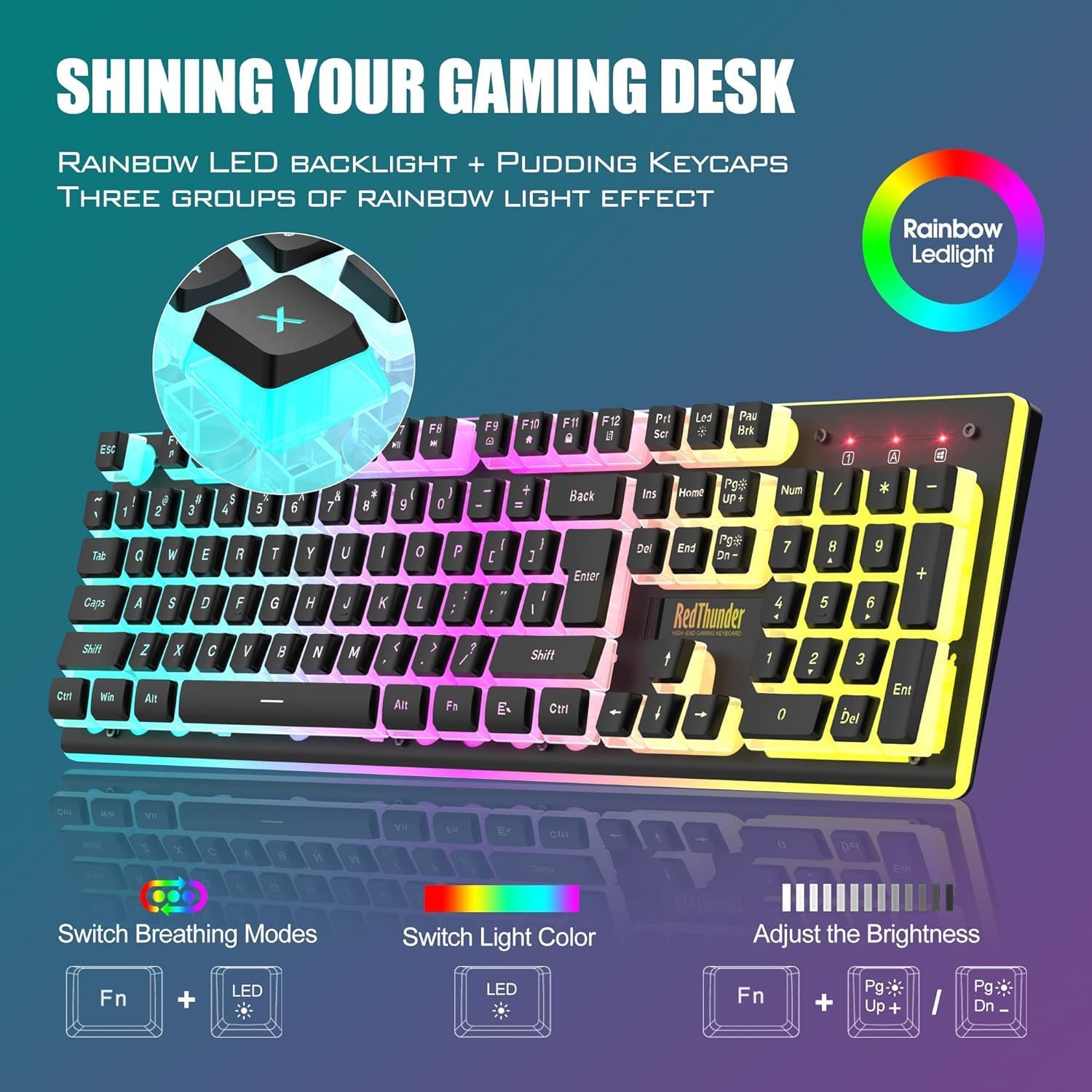
Image: Visual guide for keyboard backlight mode, color, and brightness adjustment using Fn key combinations.
Mouse Functions
The RedThunder K10 mouse offers adjustable DPI and a 7-color cyclic gradual lighting effect.
- DPI Adjustment: Use the DPI+ and DPI- buttons (located near the scroll wheel) to cycle through 4 DPI levels, up to 3200 DPI.
- RGB Lighting: The mouse features a built-in 7-color cyclic gradual lighting effect that activates when the mouse is powered on with lights.
- 7D Buttons: The mouse includes 7 programmable buttons for enhanced gaming and productivity.

Image: The gaming mouse highlighting the DPI adjustment buttons and its integrated RGB lighting.
Charging Instructions
Both the keyboard and mouse are equipped with rechargeable batteries. The keyboard has a 3000 mAh battery, and the mouse has an 800 mAh battery.
- Initial Charge: It is recommended to charge both devices for 8 hours before the first use.
- Charging Method: Use the provided USB charging cable to connect the keyboard and mouse to a DC 5V power source (e.g., computer USB port, USB wall adapter).
- Charging Indicators: The devices will typically have an indicator light that changes color or turns off when fully charged.
- Important: Use only the original charging cable. Do not mix charging cables. Charge once a month to protect the battery if not in regular use.

Image: The keyboard and mouse connected to a power source via USB cables for charging, with battery capacity indicators.
Power Saving Mode
To conserve battery life, both the keyboard and mouse will automatically enter a sleep mode if there is no operation for 2 minutes. Press any key on the keyboard or move/click the mouse to wake them up.
Maintenance
- Cleaning: Use a soft, dry cloth to clean the surfaces of the keyboard and mouse. For stubborn dirt, a slightly damp cloth can be used, ensuring no liquid enters the device.
- Storage: Store the devices in a cool, dry place away from direct sunlight and extreme temperatures.
- Battery Care: Avoid fully discharging the batteries frequently. Charge the devices regularly, especially if they are not used for extended periods.
- USB Receiver: When transporting the mouse, store the USB receiver in its designated slot on the bottom of the mouse to prevent loss.
Troubleshooting
| Problem | Possible Cause | Solution |
|---|---|---|
| Keyboard/Mouse not responding |
|
|
| Backlight not working or flickering |
|
|
| Mouse cursor erratic or unresponsive |
|
|
Specifications
| Feature | Detail |
|---|---|
| Model Number | K10 |
| Connectivity | 2.4G Wireless (USB Receiver) |
| Keyboard Battery Capacity | 3000 mAh |
| Mouse Battery Capacity | 800 mAh |
| Keyboard Dimensions | 17.28 x 5.28 x 1.5 inches (439 x 134 x 38 mm) |
| Mouse Dimensions | 5.0 x 2.8 x 1.6 inches (127 x 72 x 40 mm) |
| Item Weight | Keyboard: Approx. 2.09 pounds (0.95 kg) |
| Key Lifespan | 10,000,000 keystrokes |
| Mouse DPI | Up to 3200 DPI (4 adjustable levels) |
| Compatibility | Windows XP/7/8/10, Mac OS, Linux (USB-C adapter may be required for Mac) |

Image: Detailed product dimensions for the keyboard and mouse, along with a list of compatible operating systems.
Warranty and Support
RedThunder products are designed for reliability and performance. For warranty information or technical support, please refer to the contact details provided with your purchase documentation or visit the official RedThunder website.
If you encounter any issues not covered in this manual, please contact customer support for assistance. When contacting support, please have your product model number (K10) and purchase details ready.

