
1. Introduction
The Autel MaxiTPMS ITS600Pro is a wireless, touchscreen Android-based tablet designed for comprehensive Tire Pressure Monitoring System (TPMS) diagnostics and service functions. It also features all systems diagnostics and an extensive menu of common service tasks. This manual provides detailed instructions for the setup, operation, maintenance, and troubleshooting of your ITS600Pro device.
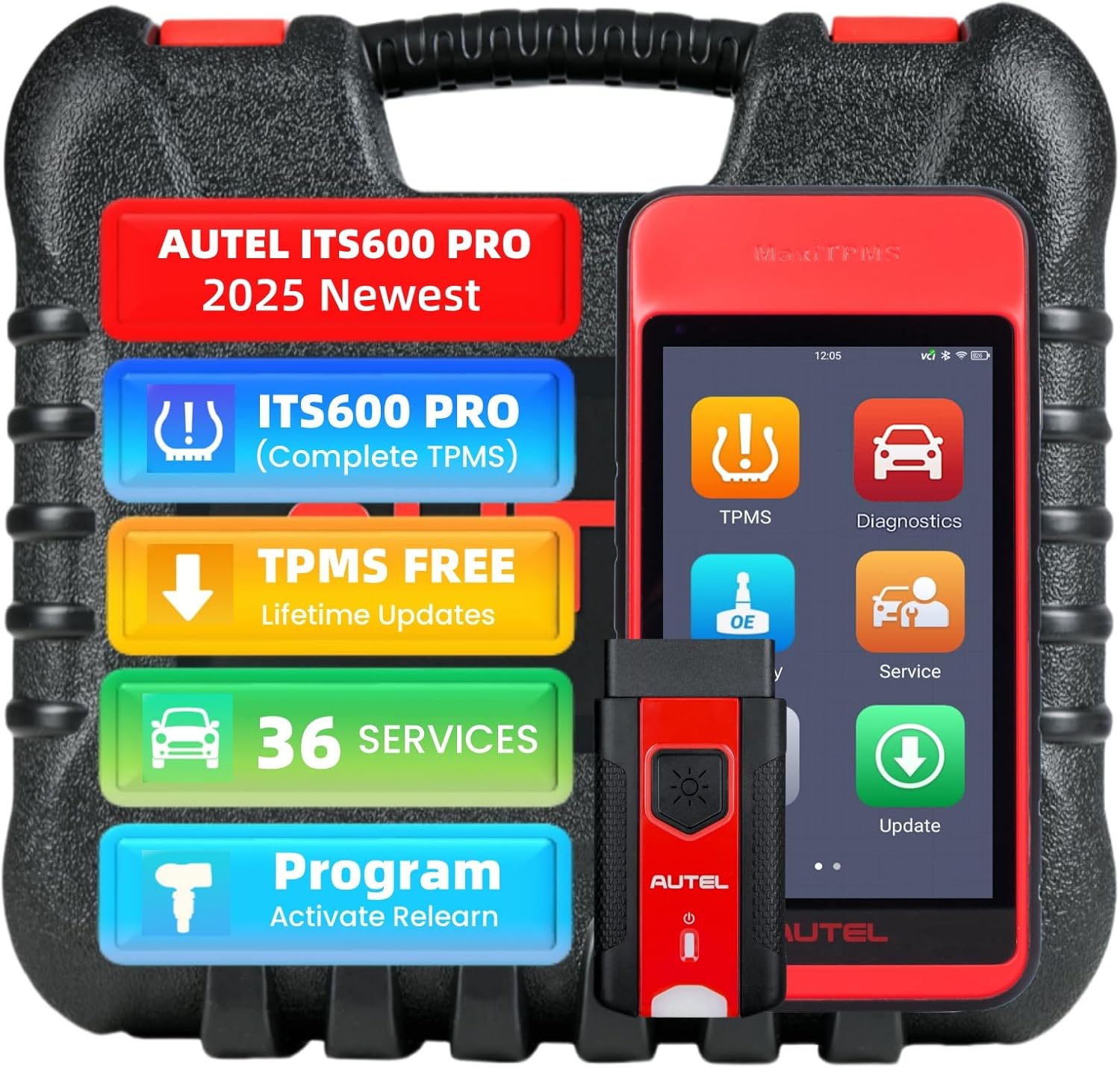
Image 1.1: The Autel MaxiTPMS ITS600Pro device, MaxiVCI V200, and carrying case.
2. Product Overview
The ITS600Pro is an advanced TPMS and diagnostic tool, offering significant enhancements over previous models like the ITS600, TS508, TS608, and MK808TS. It combines full TPMS capabilities with broad diagnostic and service functions.
2.1 Key Features
- Complete TPMS Functions: Activates, reads, and relearns all known TPMS sensors.
- MX-Sensor Programming: Programs Autel MX-Sensors with 99% vehicle coverage, supporting up to 20 sensors simultaneously.
- All Systems Diagnostics: Performs essential diagnostics on all vehicle modules.
- 36+ Service Functions: Includes oil reset, EPB, BMS, SAS, ABS, injector coding, suspension, throttle, airbag, and more.
- Extended Tire Diagnostics: Scans and displays tire DOT registration numbers for age, warning, and recall status. Compatible with the TBE200 wear examiner tool.
- Fast Vehicle Identification: Utilizes optical scanning, VIN scanning, QR code scanning, barcode scanning, automatic identification, and manual input.
- Wireless Connectivity: Features a 5.5-inch touchscreen Android-based tablet with Bluetooth VCI200.

Image 2.1: Overview of the ITS600Pro's main features, including all system diagnostics and 36 service functions.
2.2 What's in the Box
- Autel MaxiTPMS ITS600Pro Tablet
- MaxiVCI V200 Vehicle Communication Interface
- Power Adapter
- USB Cable
- User Manual (this document)
- Carrying Case
3. Setup
Follow these steps for initial setup of your Autel MaxiTPMS ITS600Pro.
3.1 Charging the Device
- Connect the provided power adapter to the ITS600Pro tablet's charging port.
- Plug the power adapter into a suitable electrical outlet.
- Allow the device to charge fully before first use. The charging indicator will show the battery status.
3.2 Powering On/Off
- To Power On: Press and hold the Power button located on the side of the tablet until the Autel logo appears on the screen.
- To Power Off: Press and hold the Power button until the power options menu appears. Select "Power Off" and confirm.
3.3 Connecting the MaxiVCI V200
The MaxiVCI V200 is the vehicle communication interface that connects wirelessly to the ITS600Pro tablet via Bluetooth.
- Locate the vehicle's OBDII port (usually under the dashboard).
- Plug the MaxiVCI V200 into the vehicle's OBDII port. The VCI's indicator lights will illuminate.
- On the ITS600Pro tablet, navigate to the VCI connection settings (usually found in the main menu or system settings).
- Select Bluetooth as the connection method and pair with the MaxiVCI V200. Once connected, the VCI status indicator on the tablet will confirm the connection.
3.4 Initial Software Updates
It is crucial to update the software upon initial setup to ensure access to the latest vehicle coverage and functions.
- Ensure the ITS600Pro tablet is connected to a stable Wi-Fi network.
- From the main menu, tap the "Update" icon.
- Follow the on-screen prompts to download and install all available system, diagnostic, and TPMS software updates.
4. Operating Instructions
The ITS600Pro offers a wide range of functions for TPMS service, vehicle diagnostics, and maintenance tasks.
4.1 TPMS Functions
Access TPMS functions from the main menu by selecting the "TPMS" icon.
4.1.1 Sensor Activation and Data Reading
The tool can activate all known TPMS sensors to read their data, including sensor ID, tire pressure, temperature, battery condition, and OE part number.
- Select "Activate Sensors" from the TPMS menu.
- Follow the on-screen instructions to position the tool near each tire's sensor to activate and read its data.
4.1.2 MX-Sensor Programming
The ITS600Pro supports programming Autel MX-Sensors using four methods:
- Auto Create: Generates new sensor IDs.
- Copy by OBD: Copies sensor IDs from the vehicle's ECU.
- Copy by Activation: Copies sensor IDs from existing activated sensors.
- Manual Input: Allows manual entry of sensor IDs.
The tool can program up to 20 MX-Sensors simultaneously.

Image 4.1: Two primary methods for programming MX-Sensors: Auto Create and Copy by OBD.
4.1.3 Sensor Relearn Procedures
After replacing or programming TPMS sensors, they must be relearned to the vehicle's ECU. The ITS600Pro supports three relearn methods:
- Stationary Relearn: Requires the vehicle to be in a specific mode (e.g., parking brake engaged) and sensors activated in a specific order.
- Automatic Relearn: Sensors relearn automatically by driving the vehicle under specific conditions.
- OBD Relearn: Uses the OBDII port to write new sensor IDs directly to the vehicle's ECU.
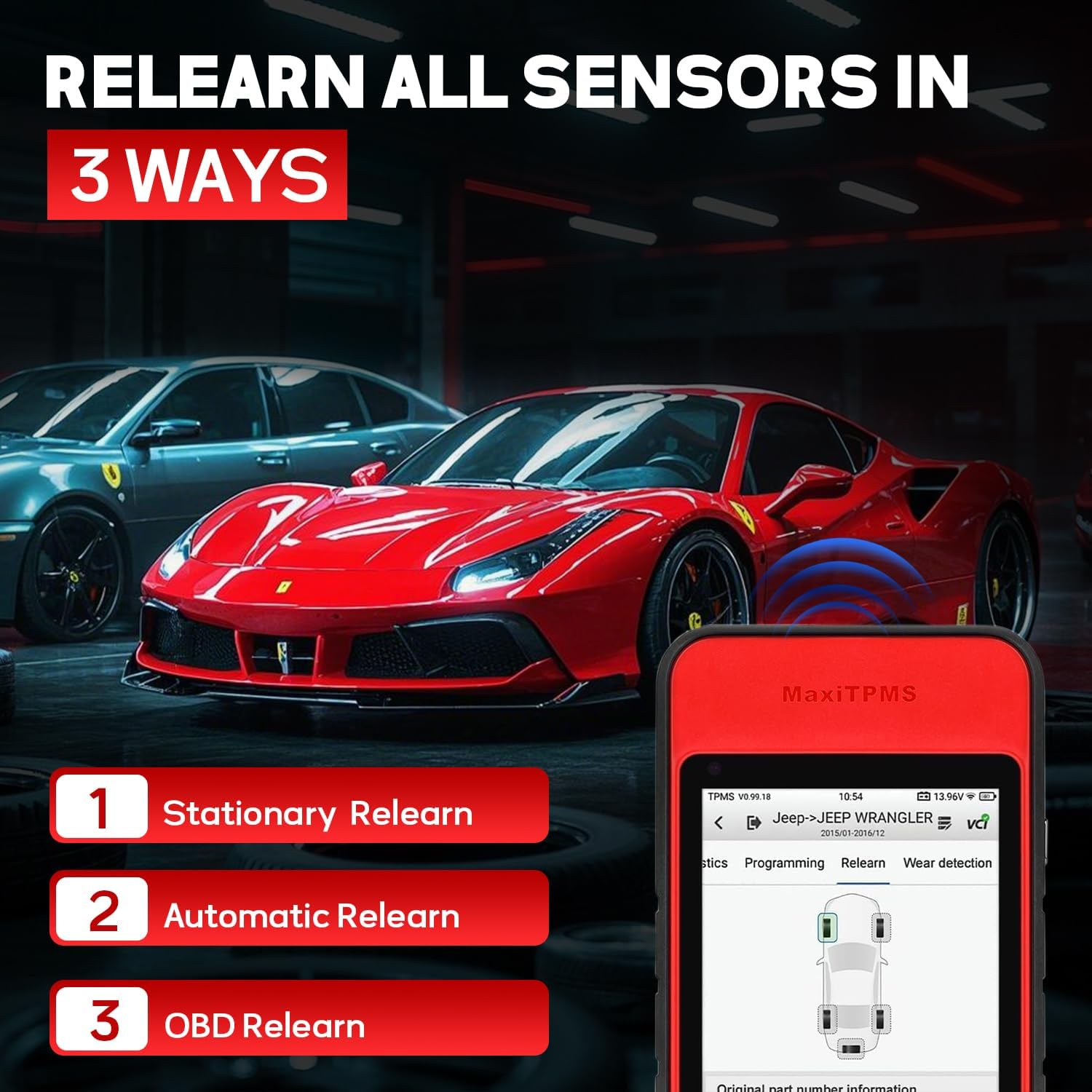
Image 4.2: The three methods for relearning TPMS sensors to a vehicle.
4.1.4 TPMS Retrofit
The tool provides a guide for retrofitting TPMS systems on vehicles that did not originally come equipped with factory TPMS.
4.1.5 Placard/TPMS Threshold Value Resets
Allows for quick resetting of tire placard values and TPMS threshold settings.
4.2 Diagnostic Functions
Access diagnostic functions from the main menu by selecting the "Diagnostics" icon.
4.2.1 All Systems Diagnostics
The ITS600Pro can perform comprehensive diagnostics on all available electronic control modules (ECUs) in the vehicle.
- Read/Clear Codes: Retrieves and clears Diagnostic Trouble Codes (DTCs) from all systems.
- View Live Data: Displays real-time data streams from various sensors and components, often in graphical format.
- Retrieve ECU Information: Accesses detailed information about the vehicle's ECUs.
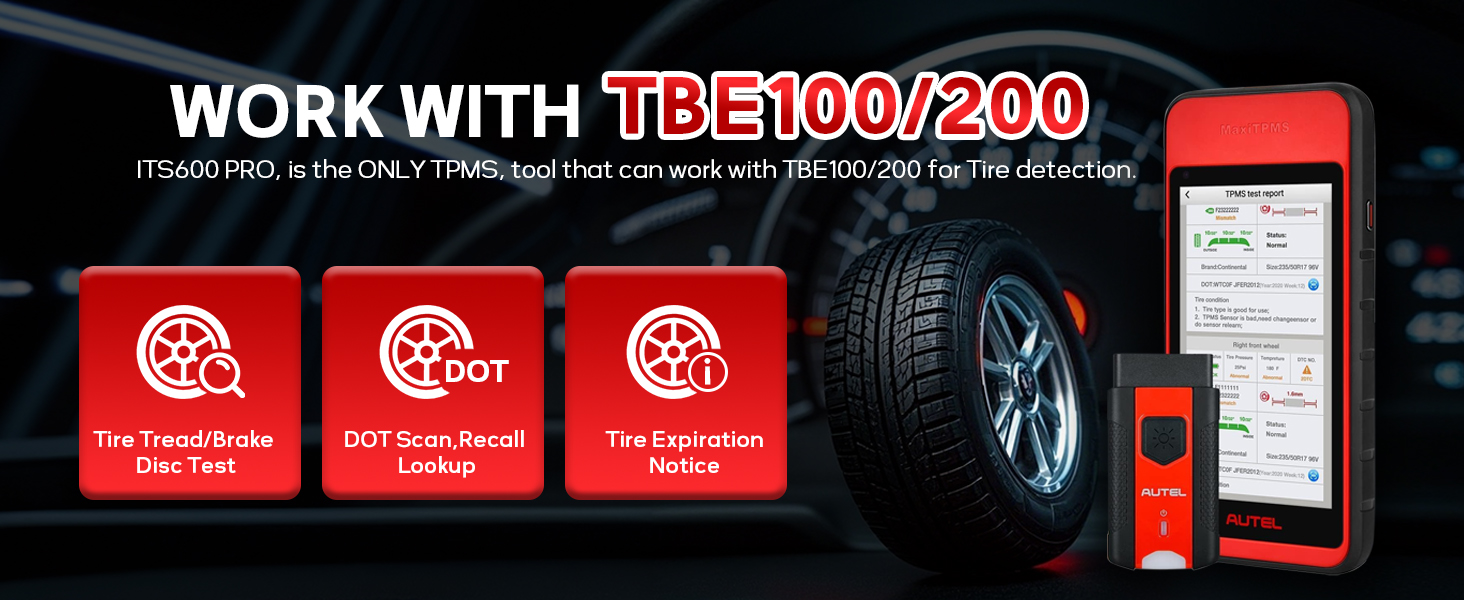
Image 4.3: All System AutoScan & Diagnostics capabilities, including various VIN identification methods.
4.2.2 Fast Vehicle Identification
The tool offers multiple methods to quickly identify vehicle information, including VIN, make, model, year, and sensor OE part numbers:
- Optical Scanning
- VIN Scanning
- QR Code Scanning
- Barcode Scanning
- Automatic Identification
- Manual Input
4.3 Service Functions
The ITS600Pro provides over 36 common maintenance and service functions. Access these from the main menu by selecting the "Service" icon.
Examples of supported service functions include:
- Oil Reset
- Electronic Parking Brake (EPB) Reset
- Battery Management System (BMS) Reset
- Steering Angle Sensor (SAS) Calibration
- Anti-lock Braking System (ABS) Bleeding
- Injector Coding
- Suspension Calibration
- Throttle Adaptation
- Airbag Reset
- Transmission Adaptation
- Cylinder Deactivation
- TEC Learn (Transmission Electronic Control)
- Change Tire Size
- Headlamp Adjustment
- Seat Calibration
- Window/Door/Roof Initialization

Image 4.4: Examples of the 36+ service functions supported by the ITS600Pro.
4.4 Extended Tire Diagnostic Features
The ITS600Pro can perform advanced tire-related diagnostics.
- Tire DOT Registration Number Scan: Allows retrieval of tire age, warning, and recall status information.
- Compatibility with TBE200: When paired with the optional Autel TBE200 (Tire Tread & Brake Disc Examiner), the ITS600Pro transforms into a precision tool for measuring tire tread depth and brake disc wear.
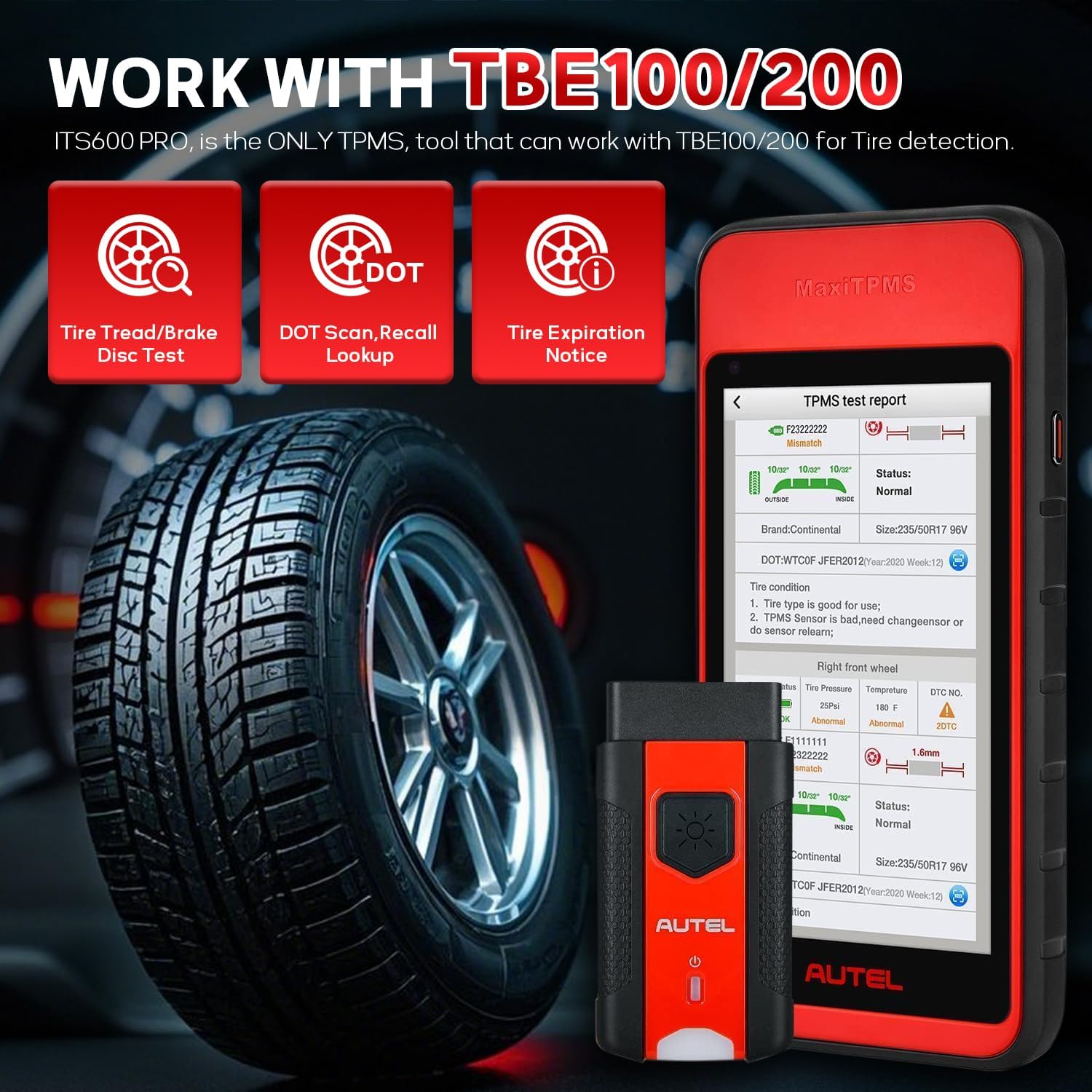
Image 4.5: The ITS600Pro's capability to work with the TBE100/200 for comprehensive tire analysis.
5. Maintenance
Proper maintenance ensures the longevity and optimal performance of your ITS600Pro.
5.1 Software Updates
Regular software updates are essential for maintaining vehicle compatibility and accessing new features.
- TPMS Software Updates: The tool includes free lifetime updates for TPMS software.
- Diagnostic & Service Software Updates: One year of free updates is included for diagnostic and service software. After this period, previously downloaded functions remain active, but access to new downloads will require a subscription.
- Connect the device to Wi-Fi and regularly check for updates via the "Update" icon on the main menu.
5.2 General Care
- Keep the device clean using a soft, dry cloth. Avoid abrasive cleaners or solvents.
- Store the device in its protective carrying case when not in use to prevent damage.
- Avoid exposing the device to extreme temperatures, direct sunlight, or moisture.
6. Troubleshooting
If you encounter issues with your ITS600Pro, refer to the following common troubleshooting tips.
- Device Not Powering On: Ensure the battery is charged. Connect the power adapter and try again.
- VCI Not Connecting: Verify the MaxiVCI V200 is securely plugged into the vehicle's OBDII port and that the vehicle's ignition is on. Check Bluetooth settings on the tablet to ensure proper pairing.
- Sensor Activation/Reading Issues: Ensure the tool is positioned correctly near the sensor. Check the sensor's battery status. Some sensors may require specific activation procedures.
- Software Functionality Issues: Ensure the software is up to date. Restart the device.
- Vehicle Compatibility: Not all functions are compatible with all vehicles. Refer to the vehicle coverage list or contact Autel support with your vehicle's VIN for specific compatibility inquiries.
For persistent issues, please contact Autel technical support.
7. Specifications
| Specification | Detail |
|---|---|
| Model | ITS600Pro |
| Operating System | Android 9.0 |
| Processor | 1.5 GHz Quad-core |
| Memory | 64G |
| Battery | 5000 mAh |
| Item Weight | 12.8 ounces |
| Product Dimensions | 0.87 x 7.2 x 3.5 inches |
| Language | English |
| UPC | 792499187002 |

Image 7.1: A comparison of the ITS600Pro's specifications and features against other Autel models.
8. Warranty and Support
Autel provides comprehensive support for the MaxiTPMS ITS600Pro.
- Warranty Coverage: The tablet includes a one-year warranty from the date of purchase.
- Software Updates: Free lifetime TPMS software updates are provided. One year of free diagnostic and service software updates is also included.
- Return Policy: A 30-day return or replacement policy is available.
- After-Sales Service: 7/24 available after-sales services are provided for customer assistance.
For technical support, warranty claims, or service inquiries, please refer to the contact information provided with your product packaging or visit the official Autel website.

Image 8.1: Summary of warranty, support, and update benefits.


