
Rii RK900 Pro
Contents
Rii Wired Gaming Keyboard and Mouse Combo User Manual
Model: RK900 Pro
1. Product Overview
The Rii Wired Gaming Keyboard and Mouse Combo (Model: RK900 Pro) offers a comprehensive solution for both gaming and office use. This combo features a full-size keyboard with a mechanical feel and vibrant LED rainbow backlighting, paired with an RGB gaming mouse offering adjustable DPI settings. Designed for ergonomic comfort, it provides a responsive and satisfying user experience.

Figure 1: Rii Wired Gaming Keyboard and Mouse Combo (RK900 Pro)
2. Features
- Wired Mechanical Feel Keyboard: Provides a satisfying tactile feedback similar to mechanical keyboards, ideal for both typing and gaming.
- LED Rainbow Backlight: Features gorgeous multi-color mixing with 3 adjustable brightness levels and 2 switching modes for enhanced visibility and aesthetics, especially in low-light conditions.
- RGB Gaming Mouse: Equipped with colorful backlighting that automatically cycles through 7 colors. Offers 4 adjustable DPI settings (1000-1600-2000-2400) for precise cursor control.
- Ergonomic Comfort Design: Both keyboard and mouse are designed for extended use, reducing hand fatigue. The mouse features an ergonomic shape for a comfortable grip.
- Dedicated Multimedia Keys: Convenient keys for controlling volume and music directly from the keyboard.
- Wide Compatibility: Supports Windows 8, 7, Vista, XP, Me, NT, PC, Laptop, Google Android TV Box, HTPC, IPTV, Smart TV, Mac OS, Chrome OS, and Raspberry Pi (all versions).
- Plug and Play: No additional drivers or software installation required.
3. Package Contents
Please check the package carefully to ensure all items are present and in good condition.
- Rii Gaming Keyboard
- Rii Gaming Mouse
- User Manual (this document)
4. Setup Instructions
The Rii Gaming Keyboard and Mouse Combo is designed for simple plug-and-play operation, requiring no complex driver installations.
- Connect the Keyboard: Locate an available USB port on your computer or compatible device. Insert the USB connector of the Rii Gaming Keyboard firmly into the USB port.
- Connect the Mouse: Locate another available USB port on your computer or compatible device. Insert the USB connector of the Rii Gaming Mouse firmly into the USB port.
- System Recognition: Your operating system (Windows, Mac OS, Chrome OS, Android TV Box, etc.) should automatically detect and install the necessary generic drivers. This process usually takes a few seconds.
- Ready for Use: Once recognized, the keyboard and mouse are ready for immediate use.

Figure 2: Connecting the Rii Keyboard and Mouse to your system.
5. Operating Instructions
5.1 Keyboard Functions
- LED Rainbow Backlight Control:
- Brightness Adjustment: Press Fn + PgUp to increase brightness, and Fn + PgDn to decrease brightness. There are 3 adjustable brightness levels.
- Switching Modes: Press Fn + * (asterisk key) to cycle through 2 different lighting modes.
- Light On/Off: Press the dedicated light bulb icon key (usually near the top right) to turn the backlight on or off.
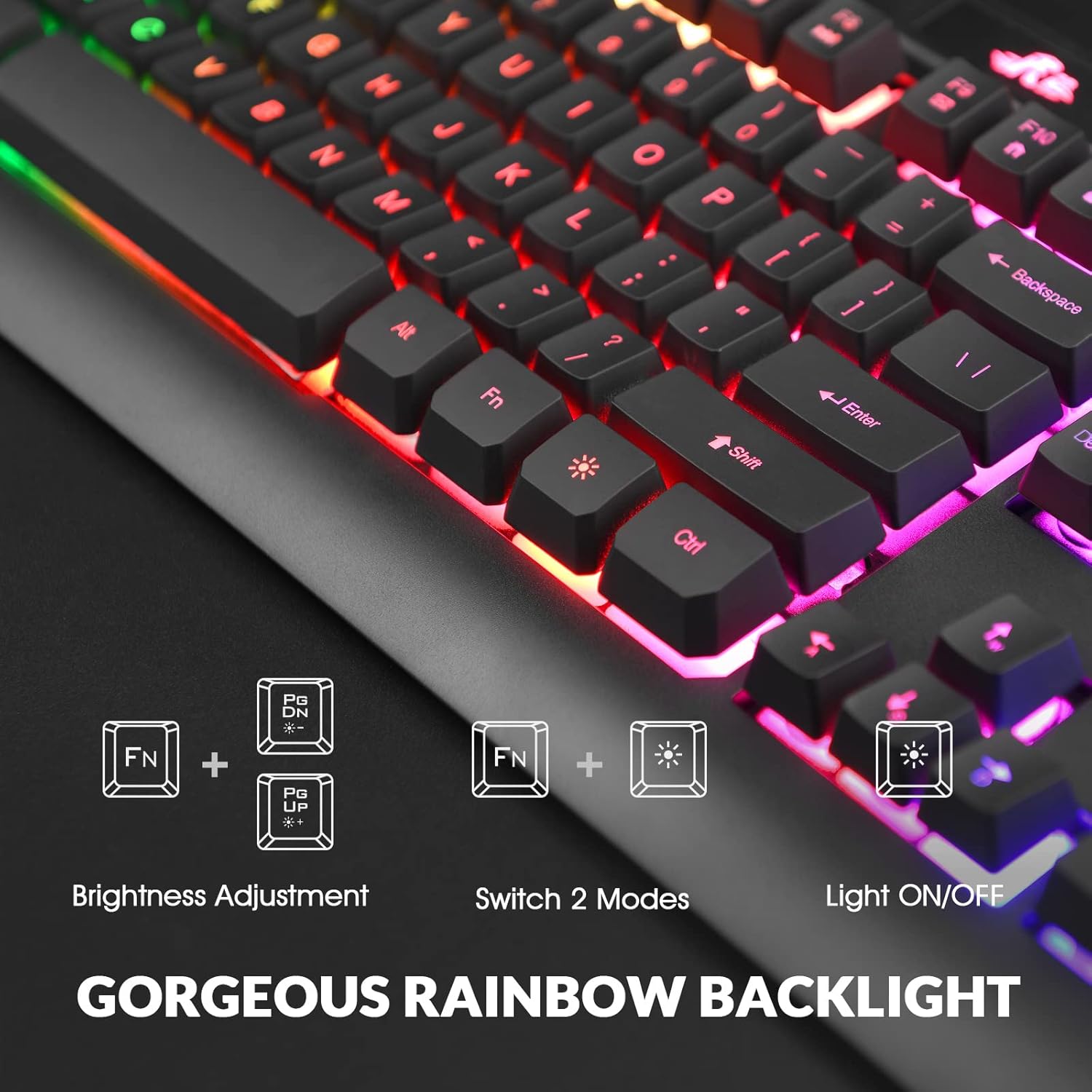
Figure 3: Keyboard backlight brightness and mode controls.
- WASD and Arrow Key Switching: For certain games or applications, you can switch the functionality of the WASD keys with the Arrow keys. Press Fn + W to toggle this function.

Figure 4: Switching WASD and Arrow key functions.
- Multimedia Keys: Use the Fn key in combination with the F1-F12 keys for quick access to multimedia controls:
- Fn + F1: Media Player
- Fn + F2: Volume Down
- Fn + F3: Volume Up
- Fn + F4: Mute
- Fn + F5: Stop
- Fn + F6: Previous Track
- Fn + F7: Play/Pause
- Fn + F8: Next Track
- Fn + F9: Email
- Fn + F10: Home Page
- Fn + F11: Lock Screen
- Fn + F12: Calculator

Figure 5: Multimedia key descriptions for the keyboard.
5.2 Mouse Functions
- DPI Adjustment: The mouse features a dedicated DPI button (usually located behind the scroll wheel) to cycle through 4 adjustable DPI settings: 1000, 1600, 2000, and 2400. Press the button to change sensitivity on the fly.
- RGB Backlight: The mouse's colorful backlight automatically changes colors during operation, providing an aesthetic appeal.
- Forward/Backward Buttons: Located on the side of the mouse, these buttons allow for quick navigation in web browsers or other applications.
- Ergonomic Design: The mouse is shaped to fit comfortably in your hand, ensuring a long and comfortable grip during extended use.

Figure 6: Rii Gaming Mouse features, including DPI adjustment and ergonomic design.
6. Maintenance
To ensure the longevity and optimal performance of your Rii Gaming Keyboard and Mouse Combo, follow these simple maintenance guidelines:
- Cleaning: Regularly wipe down the keyboard and mouse with a soft, dry, or slightly damp cloth. Avoid using harsh chemicals, abrasive cleaners, or excessive moisture, as these can damage the components.
- Dust Removal: Use compressed air to remove dust and debris from between the keyboard keys and around the mouse sensor.
- Avoid Spills: Keep liquids away from the devices to prevent damage from spills.
- Storage: When not in use for extended periods, store the combo in a cool, dry place away from direct sunlight and extreme temperatures.
7. Troubleshooting
If you encounter any issues with your Rii Gaming Keyboard and Mouse Combo, please refer to the following common troubleshooting steps:
| Problem | Possible Cause | Solution |
|---|---|---|
| Keyboard/Mouse not responding. | Loose USB connection, incorrect USB port, system driver issue. |
|
| Keyboard backlight turns off unexpectedly. | Temporary software glitch, power saving mode. |
|
| Mouse cursor erratic or not moving smoothly. | Dirty optical sensor, unsuitable surface, incorrect DPI setting. |
|
If the issue persists after trying these steps, please contact Rii customer support for further assistance.
8. Specifications
| Attribute | Detail |
|---|---|
| Brand | Rii |
| Model | RK900 Pro |
| Connectivity Technology | USB Wired |
| Keyboard Description | Gaming, Mechanical Feel, Full Size, LED Backlit |
| Mouse DPI Settings | 1000-1600-2000-2400 DPI (Adjustable) |
| Compatible Devices | Personal Computer (Windows 8/7/Vista/XP/Me/NT, Mac OS, Chrome OS, Raspberry Pi), Laptop, Google Android TV Box, HTPC, IPTV, Smart TV |
| Package Dimensions | 17.56 x 10.79 x 1.97 inches |
| Item Weight | 2.83 pounds |
| Date First Available | February 3, 2023 |

Figure 7: Approximate dimensions of the Rii Keyboard and Mouse.
9. Warranty and Support
Rii is committed to providing quality service to every customer. Your Rii Gaming Keyboard and Mouse Combo comes with a friendly guarantee. For any product-related inquiries, technical support, or warranty claims, please refer to the contact information provided with your purchase or visit the official Rii website.
We value your satisfaction and are here to assist you.
Ask a question about this manual
Ask about setup, troubleshooting, compatibility, parts, safety, or missing instructions. Manuals+ will review the question and use this page’s manual context to help answer it.