Introduction
Welcome to the user manual for your new Skytech Gaming Chronos Gaming PC Desktop. This manual provides essential information for setting up, operating, maintaining, and troubleshooting your system. Please read it thoroughly to ensure optimal performance and longevity of your PC.

Figure 1: Skytech Chronos Gaming PC Desktop, showcasing its transparent side panel and vibrant RGB lighting.
Setup Guide
1. Unboxing and Initial Inspection
Carefully remove the PC from its packaging. Inspect the chassis for any visible damage. Ensure all accessories, including the power cord, keyboard, and mouse, are present.

Figure 2: Internal view of the Skytech Chronos PC, highlighting the GPU and cooling fans.
2. Connecting Peripherals
- Power: Connect the provided power cord to the PC's power supply unit (PSU) and a wall outlet.
- Monitor: Connect your monitor to the graphics card's display outputs (HDMI or DisplayPort). Ensure it is connected to the dedicated graphics card (NVIDIA RTX 4070 Ti), not the motherboard's integrated graphics ports.
- Keyboard & Mouse: Connect the USB keyboard and mouse to any available USB ports on the rear I/O panel.
- Network: For wired internet, connect an Ethernet cable to the LAN port. For wireless, ensure the Wi-Fi antenna (if provided) is attached.
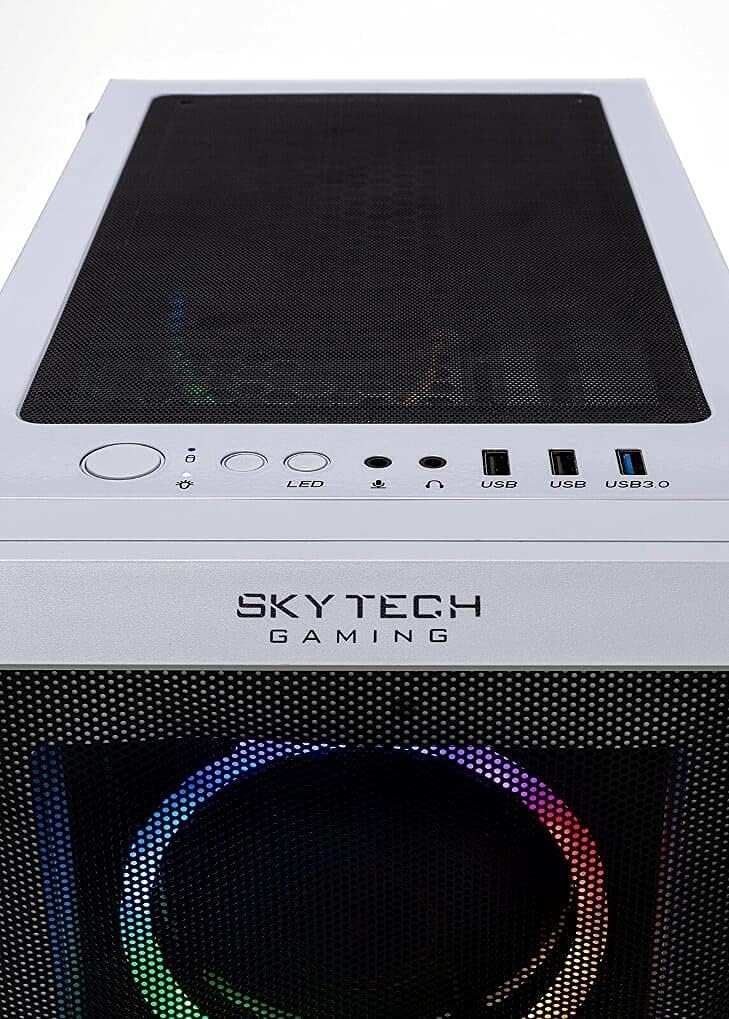
Figure 3: Top panel of the Skytech Chronos PC, showing the power button, USB ports, and audio jacks.
3. First Boot
Press the power button on the top panel of the PC. The system will boot into Windows 11 Home. Follow the on-screen instructions to complete the initial Windows setup.
Operating Your PC
Windows 11 Home
Your Skytech Chronos PC comes pre-installed with Windows 11 Home 64-bit. Familiarize yourself with the Windows 11 interface for optimal use.
Gaming Performance
This PC is equipped with an AMD Ryzen 7 5700X CPU and an NVIDIA GeForce RTX 4070 Ti GPU, designed for high-performance gaming.
- Driver Updates: Regularly update your graphics drivers from the NVIDIA website for the best gaming experience and performance.
- Game Settings: Adjust in-game settings to balance visual quality and frame rate according to your preferences. The system is capable of running games at 4K Ultra HD resolution with 60+ FPS gameplay.

Figure 4: Close-up of the internal components, including the CPU cooler and RAM, illuminated by RGB lighting.
Maintenance
Dust Management
To maintain optimal cooling and performance, regularly clean dust from the PC's interior.
- Use compressed air to clear dust from fans, heatsinks, and vents.
- Ensure the PC is powered off and unplugged before cleaning.
Software Updates
Keep your operating system and drivers updated.
- Windows Updates: Check for and install Windows updates regularly via Settings > Windows Update.
- Driver Updates: Update graphics drivers from NVIDIA's official website and motherboard drivers from the manufacturer's website.
Troubleshooting
| Problem | Possible Cause | Solution |
|---|---|---|
| PC does not power on. | Loose power cable, PSU switch off, faulty power supply. | Check power connections. Ensure PSU switch is ON. Test with a different power outlet. |
| No display on monitor. | Monitor cable loose, connected to integrated graphics, GPU not seated correctly. | Ensure monitor cable is securely connected to the graphics card. Reseat the graphics card if comfortable. |
| System is slow or freezing. | Overheating, outdated drivers, too many background applications. | Check for dust buildup. Update drivers. Close unnecessary applications. |
| Fans are not spinning or are very loud. | Dust buildup, fan malfunction, incorrect fan settings. | Clean fans. Check fan connections. Adjust fan curves in BIOS/software if applicable. |
For further assistance, refer to the official Skytech Gaming support resources or contact technical support.
Technical Specifications
- Model: ST-CHRONOS-0638-W-AM
- Processor: AMD Ryzen 7 5700X 3.4 GHz (4.6GHz Max Boost) CPU
- Graphics Card: NVIDIA Geforce RTX 4070 Ti 12GB GDDR6X
- RAM: 16GB DDR4 RAM 3200 Gaming Memory with Heat Spreader
- Storage: 1TB NVME SSD
- Operating System: Microsoft Windows 11 Home 64-bit
- Case: Skytech Chronos Case White Edition with Front Mesh
- Power Supply: 750W Gold PSU
- Wireless Connectivity: 802.11AC Wi-Fi
- Cooling: 4 RGB Fans for Maximum Air Flow
- Included Peripherals: Free Gaming Keyboard and Mouse
- I/O Ports: HDMI, DisplayPort, USB 2.0, 3.0, and 3.2 Gen1 Ports, HD Audio and Mic
Warranty and Support
Your Skytech Chronos Gaming PC Desktop comes with:
- 1 Year Warranty on Parts and Labor.
- Lifetime Free Technical Support.
For technical assistance or warranty claims, please contact Skytech Gaming customer support.
Additional resources:


