
ZOTAC ZT-A30700J-10PLHR
Contents
ZOTAC GAMING GeForce RTX 3070 Twin Edge OC White Edition LHR Graphics Card User Manual
Model: ZT-A30700J-10PLHR
1. Introduction
This manual provides essential information for the installation, operation, and maintenance of your ZOTAC GAMING GeForce RTX 3070 Twin Edge OC White Edition LHR graphics card. Please read this manual thoroughly before installation to ensure proper setup and optimal performance.

Image 1.1: Front view of the ZOTAC GAMING GeForce RTX 3070 Twin Edge OC White Edition LHR graphics card.

Image 1.2: Backplate view of the graphics card.
2. What's in the Box
Verify that all items are present in the package:
- ZOTAC GAMING GeForce RTX 3070 Twin Edge OC White Edition LHR Graphics Card
- 2 x Dual 6-pin to 8-pin Power Adapter Cable
- User Manual (this document)
3. Setup and Installation
Follow these steps to install your graphics card:
- Prepare Your System:
- Turn off your computer and disconnect the power cable.
- Open your computer case.
- Ground yourself to prevent electrostatic discharge (ESD) by touching a metal part of the case.
- Remove Existing Graphics Card (if applicable):
- Unscrew any retaining screws holding the old graphics card.
- Carefully unclip the PCIe retention latch and remove the old card.
- Install the ZOTAC GAMING GeForce RTX 3070:
- Locate an available PCI Express 4.0 x16 slot on your motherboard.
- Remove the corresponding expansion slot covers from your computer case.
- Align the graphics card with the PCIe slot and press down firmly until it is securely seated and the retention latch clicks into place.
- Secure the graphics card to the case with screws.

Image 3.1: Graphics card showing the PCIe connector for motherboard installation.
- Connect Power Cables:
- The ZOTAC GAMING GeForce RTX 3070 requires two 8-pin PCIe power connectors.
- Connect the 8-pin power cables from your power supply to the graphics card. If your power supply only has 6-pin connectors, use the provided dual 6-pin to 8-pin adapter cables.
- Ensure all power connections are secure.
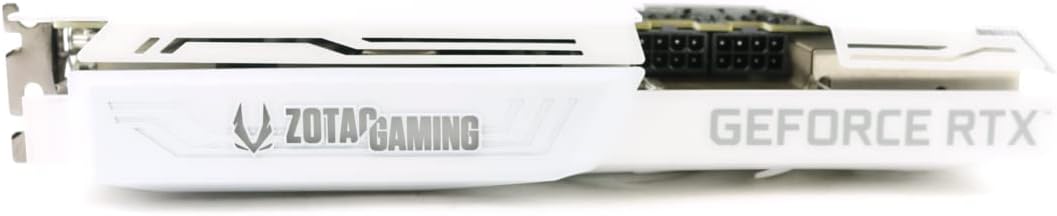
Image 3.2: Side view illustrating the power connector locations on the graphics card.
- Close Case and Connect Display:
- Close your computer case and reconnect the power cable.
- Connect your display monitor to one of the graphics card's output ports (DisplayPort or HDMI).

Image 3.3: Rear I/O panel with DisplayPort and HDMI outputs.
4. Operating Instructions
4.1 Driver Installation
After physical installation, you must install the latest graphics drivers for optimal performance:
- Power on your computer.
- Once Windows has loaded, navigate to the official NVIDIA website: www.nvidia.com/drivers.
- Select "GeForce" as the product type, "GeForce RTX 30 Series" as the product series, and "GeForce RTX 3070" as the product. Choose your operating system.
- Download and run the latest Game Ready Driver or Studio Driver.
- Follow the on-screen instructions to complete the driver installation. A system restart may be required.
4.2 ZOTAC GAMING FireStorm Utility
For advanced control over your graphics card, including fan speed, LED lighting, and overclocking, download the ZOTAC GAMING FireStorm utility from the official ZOTAC website.
5. Maintenance
Proper maintenance ensures the longevity and performance of your graphics card:
- Dust Removal: Periodically clean dust from the fans and heatsink using compressed air. Ensure the computer is powered off and unplugged before cleaning. Hold the fan blades gently to prevent over-spinning.
- Temperature Monitoring: Use monitoring software (e.g., ZOTAC FireStorm, MSI Afterburner) to keep track of GPU temperatures, especially during heavy loads.
- Driver Updates: Regularly update your graphics drivers to benefit from performance improvements and bug fixes.
6. Troubleshooting
If you encounter issues, refer to the following common solutions:
- No Display Output:
- Ensure the monitor cable is securely connected to the graphics card and the monitor.
- Verify that the graphics card is fully seated in the PCIe slot.
- Check that all required power cables are connected to the graphics card.
- Confirm your monitor is set to the correct input source.
- System Not Booting / Black Screen:
- Double-check all power connections to the graphics card and motherboard.
- Ensure your power supply unit (PSU) meets the recommended 650-watt requirement.
- Try reseating the graphics card in its PCIe slot.
- Driver Installation Issues:
- Uninstall any previous graphics drivers using a utility like Display Driver Uninstaller (DDU) in Safe Mode, then attempt a fresh installation of the latest NVIDIA drivers.
- Ensure your Windows operating system is up to date.
- Overheating / Performance Drops:
- Clean dust from the graphics card fans and heatsink.
- Ensure adequate airflow within your computer case.
- Verify that fan speeds are operating correctly using the ZOTAC FireStorm utility.
7. Technical Specifications
| GPU | NVIDIA GeForce RTX 3070 |
| CUDA Cores | 5888 |
| Video Memory | 8GB GDDR6 |
| Memory Bus | 256-bit |
| Engine Boost Clock | 1755 MHz |
| Memory Clock | 14.0 Gbps |
| PCI Express | 4.0 16x |
| Power Consumption | 220W (Max) |
| Power Input | 2 x 8-pin |
| Recommended PSU | 650W |
| Display Outputs | 3 x DisplayPort 1.4a, 1 x HDMI 2.1 |
| HDCP Support | 2.3 |
| Multi-Display Capability | Quad Display |
| Card Dimensions (L x H x W) | 231.9mm (9.1in) x 141.3mm (5.6in) x 41.5mm (1.6in) (Dual Slot) |
| Software Compatibility | Game Ready Drivers, NVIDIA Studio Drivers, Microsoft DirectX 12 Ultimate, Vulkan RT API, OpenGL 4.6, Windows 10 64-bit (build 2004 or later) |
| Key Features | White LED Lighting, IceStorm 2.0 Advanced Cooling, Active Fan Control with FREEZE Fan Stop, Metal Wraparound Backplate, 2nd Gen Ray Tracing Cores, 3rd Gen Tensor Cores, VR Ready, NVIDIA DLSS, NVIDIA GeForce Experience, NVIDIA G-SYNC, NVIDIA GPU Boost, LHR (Lite Hash Rate) |

Image 7.1: Graphics card length measurement.

Image 7.2: Graphics card height measurement at the I/O bracket.
8. Warranty and Support
For detailed warranty information, technical support, and driver downloads, please visit the official ZOTAC website:
It is recommended to register your product on the ZOTAC website to ensure full warranty coverage.
Ask a question about this manual
Ask about setup, troubleshooting, compatibility, parts, safety, or missing instructions. Manuals+ will review the question and use this page’s manual context to help answer it.