
DJI Osmo Mobile 6
DJI Osmo Mobile 6 Gimbal Stabilizer User Manual
Model: Osmo Mobile 6 | Brand: DJI
Introduction
The DJI Osmo Mobile 6 is a compact and easily foldable gimbal stabilizer designed for smartphones. It automatically launches once unfolded, allowing for quick capture of moments. Featuring a built-in extension rod, it enables dynamic angles and perfect selfies. The upgraded ActiveTrack ensures subjects remain in focus, while a suite of intelligent functions and guides are available. The DJI Mimo app facilitates efficient shooting, editing, and sharing, helping users capture every unforgettable moment.
What's in the Box
Your DJI Osmo Mobile 6 package includes the following items:
- DJI Osmo Mobile 6 x1
- DJI OM Magnetic Phone Clamp 3 x1
- Grip Tripod x1
- Power Cable x1
- Storage Pouch x1

Figure 1: Included items in the DJI Osmo Mobile 6 package.
Setup
Follow these steps to set up your DJI Osmo Mobile 6 for first use:
- Unfold the Gimbal: Gently unfold the gimbal. The device will automatically power on once fully unfolded.
- Attach the Magnetic Phone Clamp: Securely attach the DJI OM Magnetic Phone Clamp 3 to your smartphone. Ensure the clamp is centered on your phone for optimal balance.
- Mount Your Smartphone: Align the magnetic phone clamp with the designated area on the gimbal and allow it to snap into place.
- Connect to DJI Mimo App: Download and open the DJI Mimo app on your smartphone. Follow the in-app instructions to connect your Osmo Mobile 6 via Bluetooth.
- Balance the Gimbal: The gimbal will attempt to balance itself. If needed, make minor adjustments to your phone's position within the clamp to achieve optimal balance.

Figure 2: Unfolding the gimbal to power it on.

Figure 3: Attaching the magnetic phone clamp to the gimbal.
Note: Official seller videos for setup are not available for embedding at this time.
Operating the DJI Osmo Mobile 6
The Osmo Mobile 6 offers a range of features for enhanced smartphone videography.
3-Axis Stabilization
The 3-axis stabilization system ensures incredibly smooth and steady footage, effectively eliminating shakes and jerky movements, even during dynamic shots.

Figure 4: Smooth 3-axis stabilization in action.
ActiveTrack
ActiveTrack allows you to select a subject on your screen, and the gimbal will automatically track their movement, keeping them in the center of the frame. This is ideal for capturing dynamic scenes without manual adjustments.

Figure 5: ActiveTrack keeping the subject in the center frame.
Built-in Extension Rod
The integrated extension rod allows you to extend the gimbal for wider shots, higher angles, or perfect selfies, providing greater flexibility in your filming.
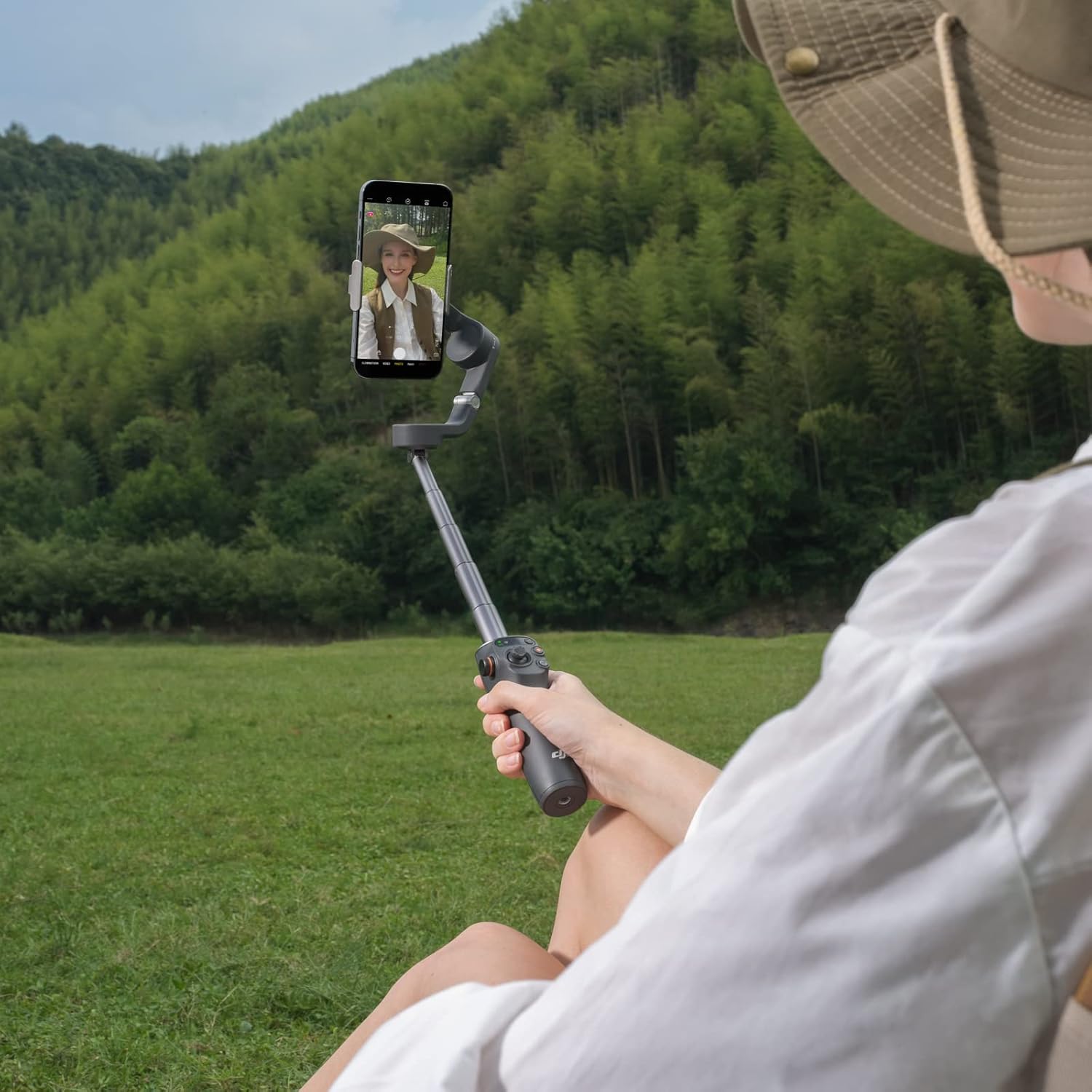
Figure 6: Utilizing the built-in extension rod for versatile shots.
Intuitive Controls
The gimbal features easy-to-use controls, including a zoom and focus wheel, and various buttons for quick mode switching and operation directly from the handle.

Figure 7: Detailed view of the gimbal's intuitive controls.
Specifications
| Feature | Detail |
|---|---|
| Product Dimensions | 8.07 x 7.68 x 2.76 inches |
| Item Weight | 1.01 pounds |
| ASIN | B0BTQ32264 |
| Date First Available | February 2, 2023 |
| Manufacturer | DJI |
| Country of Origin | China |
| Color | Slate Gray |
| Compatible Devices | Cellphone |
| Maximum Weight Recommendation | 290 Grams |
| Folded Size | Fits in palm |
| UPC | 657768290534 |
| Compatible Camcorder Models | dJI OSMO |
Maintenance
To ensure the longevity and optimal performance of your DJI Osmo Mobile 6, follow these maintenance guidelines:
- Cleaning: Wipe the gimbal with a soft, dry cloth. Do not use liquid cleaners or solvents.
- Storage: Store the gimbal in its original storage pouch in a cool, dry place away from direct sunlight and extreme temperatures.
- Battery Care: For long-term storage, ensure the battery is charged to approximately 40-60%. Recharge it every three months to prevent over-discharge.
- Firmware Updates: Regularly check for and install firmware updates via the DJI Mimo app to ensure the best performance and access to new features.
Troubleshooting
If you encounter issues with your DJI Osmo Mobile 6, refer to the following common troubleshooting tips:
- Gimbal Not Powering On: Ensure the gimbal is fully unfolded. Check battery level and charge if necessary.
- Connection Issues: Make sure Bluetooth is enabled on your smartphone. Restart both the gimbal and the DJI Mimo app.
- Unstable Footage: Verify that your smartphone is properly balanced in the magnetic clamp. Recalibrate the gimbal through the DJI Mimo app if necessary.
- App Not Responding: Close and reopen the DJI Mimo app. Ensure your app is updated to the latest version.
- Motor Overload: This may occur if the phone is not properly balanced or if the gimbal is obstructed. Re-balance the phone and ensure no obstructions.
For more detailed troubleshooting or persistent issues, please refer to the official DJI support website or contact customer service.
Warranty and Support
The DJI Osmo Mobile 6 comes with a standard manufacturer's warranty. For specific warranty terms, conditions, and duration, please refer to the warranty card included in your product packaging or visit the official DJI website.
For technical support, product inquiries, or service requests, please contact DJI Customer Support through their official channels. You can typically find contact information and support resources on the DJI website.
It is recommended to register your product on the DJI website to receive important updates and support notifications.
Related documentsOsmo Mobile 6


Ask a question about this manual
Ask about setup, troubleshooting, compatibility, parts, safety, or missing instructions. Manuals+ will review the question and use this page’s manual context to help answer it.