
1. Product Overview
This document provides comprehensive instructions for the installation and proper use of the A-MIND LCD Display Touch Screen Digitizer Assembly, designed for the Huawei Honor X8 and Honor X30i models. This replacement kit is intended to restore functionality to devices experiencing issues such as cracked screens, non-responsive touch, dead pixels, or display malfunctions.
2. Compatibility
This LCD screen replacement is compatible with the following models:
- Huawei Honor X8 2022 (Models: TFY-LX1, TFY-LX2, TFY-LX3)
- Honor X30i
Important: Please verify your device model before proceeding with installation. Using an incorrect model may cause damage to your phone.
3. Package Contents
The following items are included in your screen replacement kit:
- 1x For Huawei Honor X8 LCD Display Touch Screen Replacement
- 1x Strong Suction Cup
- 2x Triangle Opening Tools
- 1x Card Pin
- 1x Plastic Spudger
- 1x Free Tape
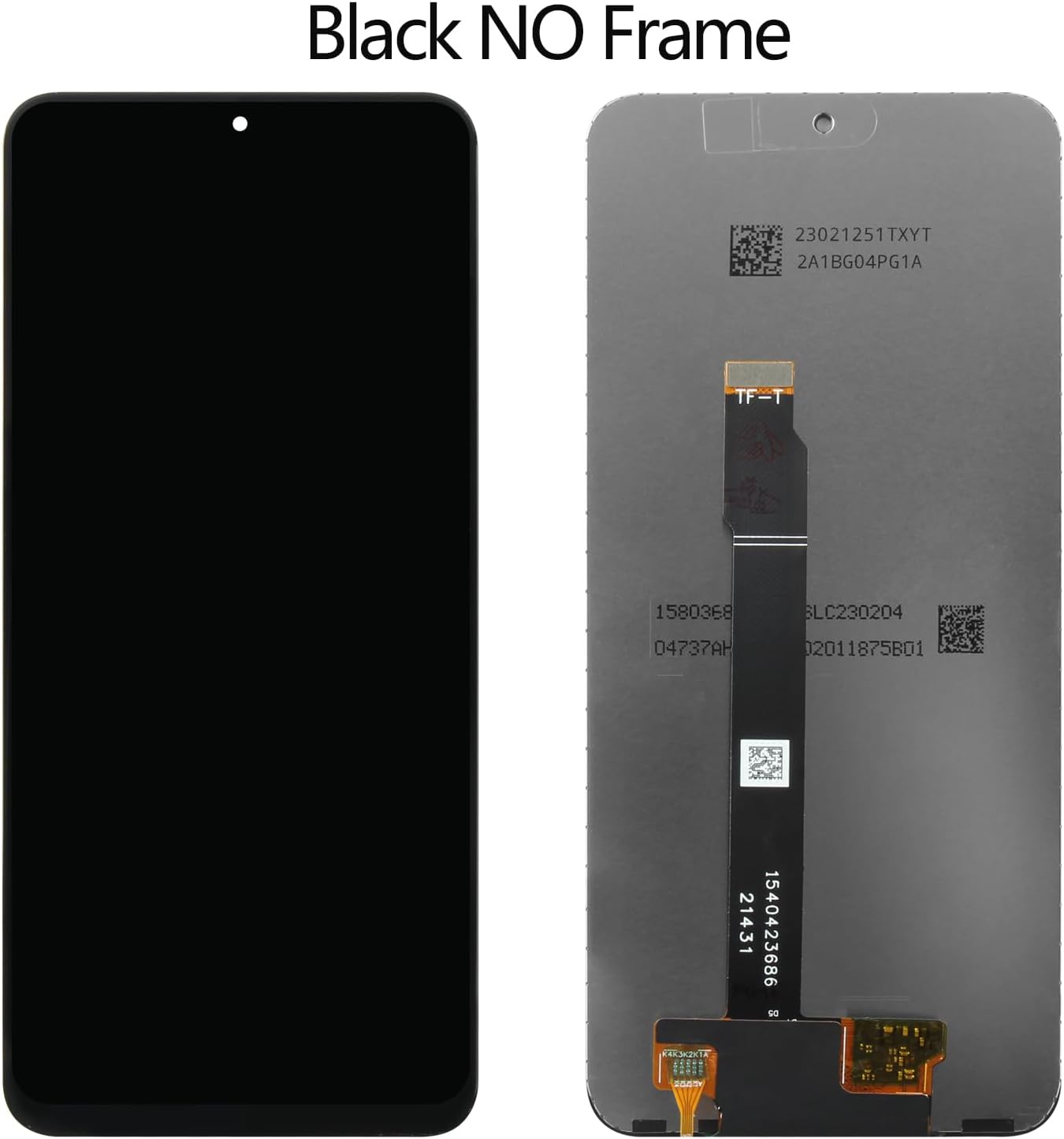
Image: Contents of the A-MIND Huawei Honor X8 LCD screen replacement kit, showing the new screen, suction cup, triangle opening tools, card pin, plastic spudger, and adhesive tape.
4. Important Notices and Safety Precautions
- Professional Installation Recommended: If you lack experience in repairing electronic equipment, it is strongly recommended to seek assistance from a professional repair store. Self-installation without proper knowledge may lead to damage to the screen or device.
- Handle with Care: Screens are made of glass. Exercise extreme caution when opening the package and during installation to prevent damage.
- Battery Disconnection: Before commencing installation, always disconnect the device's battery. Reconnect the battery only after the new screen is properly connected.
- Test Before Adhesion: Prior to permanently adhering the new screen to your device, perform a thorough test to ensure full functionality. Once adhesive is applied, returns or refunds for functional issues may not be accepted.
- Online Resources: This kit does not include detailed installation instructions. For visual guidance, search for installation videos specific to the Huawei Honor X8 or Honor X30i screen replacement on platforms like YouTube.
5. Installation Guide
The following steps outline the general process for replacing your device's screen. Refer to online video tutorials for detailed visual instructions.
- Power Off Device: Ensure your Huawei Honor X8 is completely powered off before beginning.
- Remove SIM Tray: Use the card pin to eject the SIM card tray.
- Heat and Open Back Cover: Gently heat the edges of the back cover to soften the adhesive. Use the suction cup and plastic spudger/triangle opening tools to carefully pry open the back cover.
- Disconnect Battery: Locate and disconnect the battery flex cable from the motherboard to prevent short circuits.
- Disconnect Old Screen: Carefully disconnect the flex cables connecting the old screen to the motherboard.
- Remove Old Screen: Gently heat the edges of the old screen to loosen its adhesive. Use the opening tools to carefully remove the damaged screen.
- Clean Frame: Thoroughly clean any remaining adhesive or debris from the phone's frame.
- Connect New Screen (for testing): Carefully connect the flex cables of the new A-MIND screen to the corresponding connectors on the motherboard. Do not apply adhesive yet.
- Reconnect Battery and Test: Reconnect the battery flex cable. Power on the device and perform a comprehensive test of the new screen (see Section 6).
- Final Installation: If the screen functions correctly, power off the device, disconnect the battery, and then apply the provided adhesive tape to the frame. Carefully align and press the new screen into place.
- Reassemble Device: Reconnect the battery, reattach the back cover, and insert the SIM tray.
Video: An overview of the A-MIND Huawei Honor X8 screen replacement process, demonstrating the handling and initial testing of the new display assembly.

Image: Front and back view of the A-MIND Huawei Honor X8 LCD screen replacement, illustrating the display area and the attached flex cables for connection.

Image: Detailed view of the flex cable connections on the A-MIND Huawei Honor X8 LCD screen replacement, highlighting the delicate components.
6. Testing the Screen
Before permanently installing the screen, it is crucial to test its functionality. Connect the screen's flex cables and the battery, then power on your device. Perform the following checks:
- Display Check: Verify that the display shows images clearly, without any dead pixels, lines, or discoloration.
- Touch Functionality: Test the touch response across the entire screen. Drag an app icon around the screen to ensure all areas respond to touch.
- Brightness Adjustment: Check if the screen brightness can be adjusted correctly.
- Front Camera/Sensor: Ensure the front camera and proximity sensor areas are clear and functional.
If any issues are detected during testing, power off the device, disconnect the battery, and recheck all connections. If problems persist, contact customer support before proceeding with final adhesion.
7. Maintenance
To ensure the longevity and optimal performance of your new screen, follow these maintenance guidelines:
- Screen Protector: Consider applying a high-quality screen protector to guard against scratches and minor impacts.
- Cleaning: Use a soft, lint-free cloth, slightly dampened with water or a screen-specific cleaning solution, to clean the display. Avoid harsh chemicals.
- Avoid Pressure: Do not apply excessive pressure to the screen, as this can damage the LCD panel.
- Temperature Extremes: Avoid exposing your device to extreme temperatures, which can affect screen performance and lifespan.
8. Troubleshooting
If you encounter any issues after installation, refer to the following troubleshooting tips:
- Screen Not Turning On:
- Ensure all flex cables are securely connected.
- Verify the battery is charged and properly connected.
- Try restarting the device.
- Touch Not Responding:
- Check the touch digitizer flex cable connection.
- Ensure there is no debris or liquid under the screen.
- Perform a hard reset of the device.
- Lines or Discoloration on Display:
- Carefully re-seat the display flex cable.
- Inspect the flex cables for any bends or tears.
- Ensure no screws are overtightened, causing pressure on the display.
If these steps do not resolve the issue, please contact A-MIND customer service for further assistance.
9. Specifications
| Material | TFT LCD |
| Size | 6.7 inches |
| Resolution | 1080x2388 pixels |
| Item Weight | 0.8 ounces |
| Package Dimensions | 1 x 1 x 0.1 inches |
10. Warranty and Support
A-MIND provides a 3-month warranty for this product. This warranty covers functional defects, provided there is no man-made or physical damage to the screen. If the screen does not function normally within the warranty period, a replacement may be provided.
For any inquiries or issues regarding your order or the product, please do not hesitate to contact our customer service team. We are committed to providing assistance within 24 hours.
Contact Information: Refer to your purchase platform or packaging for specific customer service contact details.