
1. Introduction
This manual provides instructions for the proper setup, operation, and maintenance of your myFirst Fone R1s smartwatch phone. Please read this manual thoroughly before using the device to ensure safe and optimal performance. The myFirst Fone R1s is designed as a communication and tracking device for children, offering features such as voice/video calls, GPS tracking, and heart rate monitoring.

Image: The myFirst Fone R1s smartwatch on a child's wrist, highlighting key features such as IPX8 waterproofing, heart rate monitoring, animated wallpapers, MP3 player, video/voice calls, customizable ringtones, SOS button, and pedometer.
2. What's in the Box
Before proceeding with setup, please verify that all components are present in the packaging:
- myFirst Fone R1s Smartwatch Phone
- Charging Cable (USB)
- User Manual
- SIM Card (if included with purchase)
- Stickers (for customization)
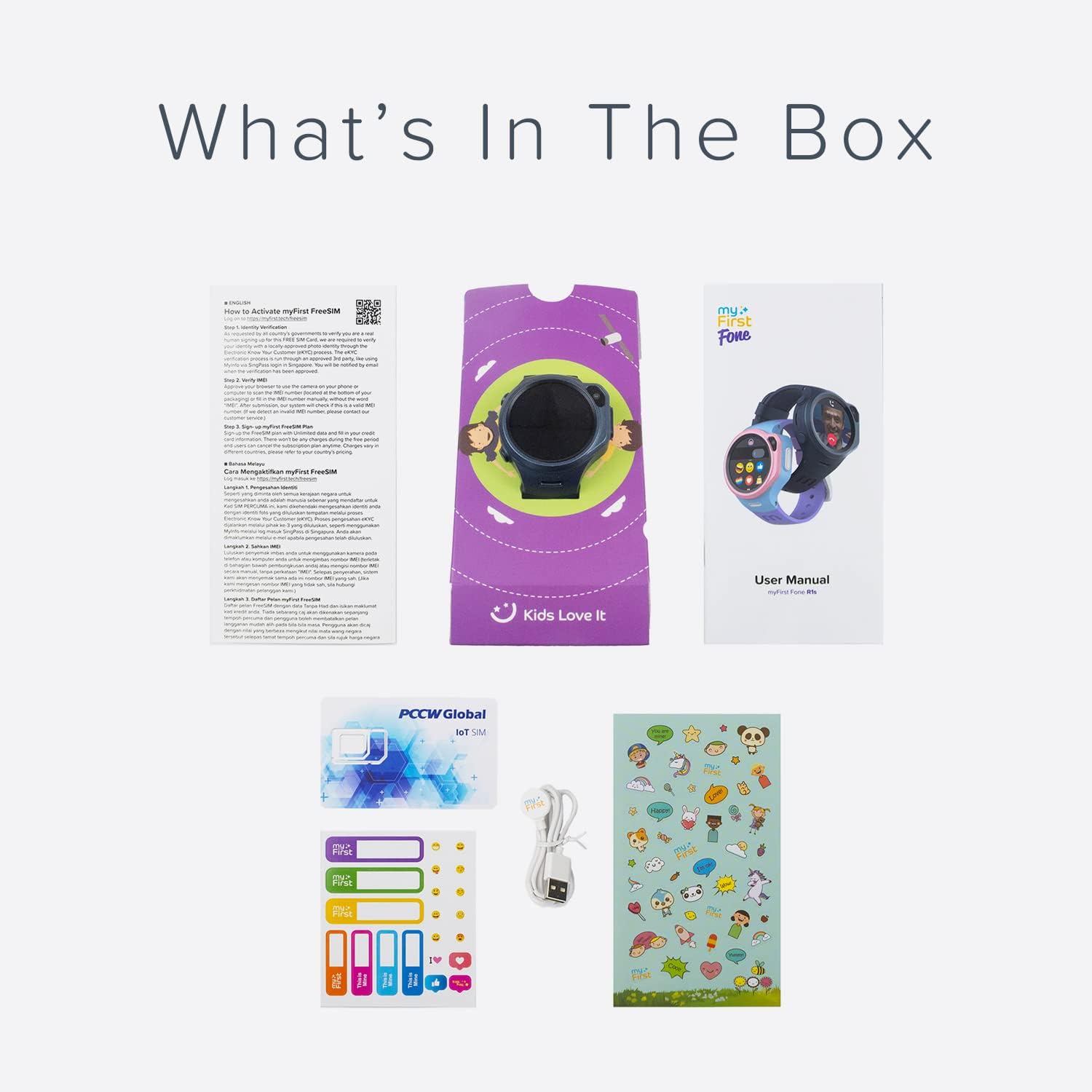
Image: An overview of the myFirst Fone R1s product packaging contents, showing the smartwatch, user manual, SIM card, charging cable, and stickers.
3. Setup Guide
3.1 Charging the Device
Before initial use, fully charge the myFirst Fone R1s. Connect the provided USB charging cable to the charging port on the smartwatch and a compatible USB power adapter. The charging indicator on the screen will show the charging status.
3.2 SIM Card Installation
The myFirst Fone R1s requires a Nano-SIM card for cellular connectivity, including calls, messaging, and GPS tracking. Ensure the device is powered off before inserting or removing the SIM card.
- Locate the SIM card slot on the side of the smartwatch.
- Carefully open the SIM card slot cover.
- Insert the Nano-SIM card into the tray with the gold contacts facing up and the notched corner aligned correctly.
- Gently push the SIM card tray until it clicks into place.
- Close the SIM card slot cover securely to maintain water resistance.

Image: The myFirst Fone R1s smartwatch showing the SIM card slot and a SIM card being inserted.
3.3 App Installation and Pairing
To manage the smartwatch and access its full features, parents must download and install the companion myFirst Fone application on their smartphone. The app is compatible with both iOS and Android devices.
- Search for "myFirst Fone" in the Apple App Store or Google Play Store.
- Download and install the application.
- Follow the on-screen instructions within the app to create an account and pair it with the myFirst Fone R1s smartwatch. This typically involves scanning a QR code displayed on the smartwatch.

Image: The myFirst Fone R1s smartwatch alongside a smartphone displaying the parental control application, illustrating the connection between the device and its management app.
4. Operating Instructions
4.1 Power On/Off
- Power On: Press and hold the Power button until the screen illuminates.
- Power Off: Press and hold the Power button, then select 'Power Off' on the screen.
4.2 Navigation
The myFirst Fone R1s features a touchscreen display for navigation. Swipe left/right or up/down to access different menus and applications. Tap to select an option.
4.3 Voice and Video Calls
Once paired and with an active SIM card, the smartwatch can make and receive voice and video calls from approved contacts. Contacts are managed through the parental control app.
- To initiate a call, navigate to the 'Contacts' menu and select the desired contact.
- During an incoming call, tap the green icon to answer or the red icon to decline.

Image: The myFirst Fone R1s smartwatch displaying a video call in progress on a child's wrist.
4.4 GPS Tracking and Safe Zones
The smartwatch utilizes GPS, Wi-Fi, and GSM for real-time location tracking. Parents can view the child's location history and set up 'Safe Zones' through the companion app. Notifications are sent when the device enters or exits a defined safe zone.
4.5 Heart Rate Monitoring
The myFirst Fone R1s includes a heart rate monitor. Parents can set high heart rate alerts remotely via the app. If the smartwatch detects a heart rate exceeding the set limit (e.g., during physical activity), it will alert the user to slow down.
4.6 MP3 Music Player
The device is equipped with an MP3 player. Music and audiobooks can be stored on the smartwatch and played through the built-in speaker or wirelessly via Bluetooth headphones.
4.7 Customizable Watch Face and Wallpaper
Users can personalize the watch face with a selection of animated wallpapers or by uploading custom photos via the app.
4.8 SOS Button
In an emergency, the user can press and hold the dedicated SOS button. This action will send an alert with the current location to pre-set emergency contacts and initiate calls to them.
4.9 Pedometer
The integrated pedometer tracks daily steps, encouraging physical activity.
5. Maintenance and Care
5.1 Cleaning
Wipe the smartwatch regularly with a soft, dry, lint-free cloth. Avoid using harsh chemicals or abrasive materials, as these can damage the screen and casing.
5.2 Water Resistance
The myFirst Fone R1s is rated IPX8 water resistant. This means it can withstand immersion in water under certain conditions. However, it is not recommended for swimming or showering, and exposure to high-pressure water or hot water should be avoided. Ensure the SIM card slot cover is securely closed to maintain water resistance.
5.3 Battery Care
To prolong battery life, avoid exposing the device to extreme temperatures. Charge the device using only the provided charging cable.
6. Troubleshooting
If you encounter issues with your myFirst Fone R1s, refer to the following common problems and solutions:
- Device not powering on: Ensure the device is fully charged. If the issue persists, try a different charging cable or power adapter.
- No network signal/SIM card not detected:
- Verify the SIM card is correctly inserted and activated with a cellular plan.
- Ensure the SIM card is compatible with the device's network bands (4G).
- Restart the smartwatch.
- Check for network coverage in your area.
- GPS tracking inaccurate: Ensure the device has a clear view of the sky. GPS accuracy can be affected by buildings, dense foliage, or indoor environments.
- Cannot pair with app: Ensure Bluetooth is enabled on your smartphone and the smartwatch is in pairing mode. Reinstall the app if necessary.
- Short battery life: Reduce screen brightness, close unused applications, and limit frequent GPS updates if possible.
For persistent issues not resolved by these steps, please contact customer support.
7. Specifications
| Brand | myFirst |
| Model Name | myFirst Fone R1s |
| Model Number | KW1305 |
| Screen Display Size | 1.3 Inches (2" / 4 cm visible screen diagonal) |
| Compatible Devices | Smartphones |
| Special Features | Heart Rate Monitor, GPS Tracking, Video/Voice Call, MP3 Player, SOS Button, Pedometer |
| Water Resistance | IPX8 |
| Battery Type | Lithium-Ion (rechargeable) |
| Material Type | Silicone Plastic |
| Product Dimensions | 4.8 x 1.8 x 4.8 cm |
| Item Weight | 133 Grams |
| Manufacturer | OAXIS ASIA PTE LTD |
| UPC | 850031616455 |
8. Warranty and Support
8.1 Warranty Information
Warranty terms and conditions for the myFirst Fone R1s are typically provided with your purchase documentation. Please refer to the warranty card or contact your retailer for specific details regarding coverage and duration.
8.2 Customer Support
For technical assistance, product inquiries, or warranty claims, please contact myFirst customer support. Contact information can usually be found on the manufacturer's official website or within the product packaging.
Manufacturer: OAXIS ASIA PTE LTD


