
JYXOIHUB JYX86
Contents
JYXOIHUB 86-inch Interactive Whiteboard JYX86 User Manual
Model: JYX86
1. Introduction
This manual provides essential information for the setup, operation, and maintenance of your JYXOIHUB 86-inch Interactive Whiteboard. Please read it thoroughly to ensure proper use and to maximize the product's capabilities.
The JYXOIHUB Interactive Whiteboard is an advanced 86-inch smart display featuring a 4K UHD touch screen, dual operating systems (Android 11.0 and Windows 10), and integrated audio capabilities, designed for conference rooms, classrooms, and collaborative environments.
2. Safety Information
Observe the following safety guidelines to prevent damage to the product or injury to yourself and others:
- Do not expose the device to water or excessive moisture.
- Ensure proper ventilation around the device to prevent overheating.
- Use only the power adapter and accessories provided or recommended by the manufacturer.
- Avoid placing heavy objects on the device.
- Do not attempt to disassemble or repair the device yourself. Contact qualified service personnel for assistance.
- Handle the large display with care during installation to prevent damage.
3. Package Contents
Verify that all items are present in the package:
- JYXOIHUB 86-inch Interactive Whiteboard
- Wall Mount Bracket
- Instructions Manual
- Remote Control
- Touch Pen
- Wall Hanger
- Speaker (integrated)
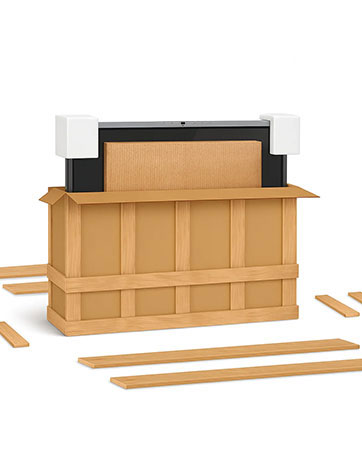
Image: The interactive whiteboard securely packaged in its shipping crate, with protective foam and wooden planks visible.
4. Setup
4.1 Wall Mounting
The JYXOIHUB Interactive Whiteboard is designed for wall mounting. Follow these steps for secure installation:
- Identify a suitable wall location that can support the weight of the 86-inch display (approximately 216 pounds).
- Use the provided wall mount bracket and wall hanger. Refer to the separate wall mount instructions for detailed installation steps.
- Ensure the display is level and securely fastened to the wall.
- Connect the power cable and any necessary peripheral cables (e.g., network, external devices).

Image: The JYXOIHUB 86-inch Interactive Whiteboard displaying its home screen, shown mounted on a mobile stand (wall mount is also supported).
4.2 Initial Power On
- After securing the whiteboard and connecting power, press the power button located on the device.
- The system will boot into the default operating system (either Android or Windows, depending on initial configuration).
- Follow any on-screen prompts for initial setup, such as language selection and network configuration.
5. Operating Instructions
5.1 Dual System Operation
The whiteboard features a dual operating system, allowing seamless switching between Android 11.0 and Windows 10. This provides flexibility for various applications and user preferences.
- Android System: Offers a familiar interface for quick access to apps, cloud services, and basic whiteboard functions. (3GB RAM + 32GB ROM)
- Windows System: Provides a robust environment for demanding applications, full software compatibility, and advanced computing tasks. (Intel i5 CPU, 4GB RAM + 128GB SSD)

Image: The interactive whiteboard displaying both its Android 11.0 interface (top right) and Windows 10 interface (bottom left), illustrating the one-key switching capability.
5.2 Touch Screen Functionality
The 4K UHD touch screen supports 20-point multi-touch, enabling multiple users to interact simultaneously.
- Writing and Annotation: Use the touch pen or your finger to write, draw, and annotate directly on the screen.
- Smart Annotation: The whiteboard function supports graphic recognition and table insertion for enhanced productivity.
- Erasing: Easily erase content by using the back of your hand, mimicking a traditional whiteboard experience.

Image: Two individuals interacting with the whiteboard simultaneously, demonstrating the 20-point multi-touch capability for writing and smart annotation.
5.3 Connectivity and Device Integration
The whiteboard supports various methods for connecting and integrating with other devices:
- External Devices: Connect projectors, computers, sound systems, and other display screens.
- Screen Mirroring: Supports Airplay, Miracast, and Chromecast for wireless mirroring from mobile devices.
- Cloud Drives: Export content to Google Drive, OneDrive, Dropbox, and Box for easy sharing and storage.

Image: A diagram illustrating the whiteboard's capability to integrate with six different types of devices: projector, computer, flat plate, sound box, display screen, and another whiteboard.
5.4 Conferencing and Collaboration
The whiteboard enhances remote presentation and whiteboarding capabilities, integrating with popular third-party video conferencing platforms.
- Integrated Audio: Features 8 array microphones and 2x20W speakers for clear audio during video conferences.
- Platform Compatibility: Compatible with Zoom, Google Meet, Microsoft Teams, Webex, and other conferencing software.
- Remote Collaboration: Facilitates ideation, brainstorming, and collaboration on a shared canvas across different locations.
- Content Sharing: Scan a QR code to securely share and take away content created on the whiteboard. (Example Link)

Image: Multiple screens displaying a video conference call, highlighting the whiteboard's remote conferencing capabilities without geographical restrictions.

Image: The whiteboard displaying a QR code for content sharing, with an illustration of a smartphone scanning the code and cloud security icons.
5.5 Open App Ecosystem
The JYXOIHUB whiteboard supports an open ecosystem, allowing users to download and install various applications and software to suit their needs.

Image: The whiteboard screen displaying a Google Play Store interface with various popular applications available for download, demonstrating its open app ecosystem.
6. Maintenance
6.1 Cleaning the Screen
To maintain optimal display quality, clean the screen regularly:
- Power off the device before cleaning.
- Use a soft, lint-free cloth slightly dampened with a screen-cleaning solution or water.
- Do not use abrasive cleaners, alcohol, or ammonia-based solutions, as these can damage the screen coating.
- Wipe gently in one direction to avoid streaks.
6.2 General Care
- Keep the device free from dust and debris.
- Avoid extreme temperatures and humidity.
- Ensure cables are properly managed to prevent tripping hazards or damage.
7. Troubleshooting
If you encounter issues with your JYXOIHUB Interactive Whiteboard, refer to the following common problems and solutions:
| Problem | Possible Cause | Solution |
|---|---|---|
| No power | Power cable disconnected; Power outlet issue | Check power cable connection; Try a different power outlet. |
| Touch screen unresponsive | Software glitch; Calibration issue | Restart the device; Check for system updates; If issue persists, contact support for calibration guidance. |
| Microphone/Camera not working in video conferencing | Software settings; Driver issues; Hardware conflict | Ensure microphone/camera access is granted in software settings (both Android and Windows); Check device manager for driver status in Windows; Restart the device; If using an external camera/mic, ensure it is properly connected and selected in software. |
| Cannot connect to Wi-Fi | Incorrect password; Router issue; Signal interference | Verify Wi-Fi password; Restart router; Move closer to router or reduce interference. |
| Slow performance | Too many applications running; Low storage space | Close unnecessary applications; Clear cache; Free up storage space. |
8. Specifications
| Feature | Detail |
|---|---|
| Brand | JYXOIHUB |
| Model Number | JYX86 |
| Size | 86 Inch |
| Item Weight | 216 pounds |
| Product Dimensions | 77.3 x 4.1 x 46 inches |
| Operating System (Android) | Android 11.0 (3GB RAM + 32GB ROM) |
| Operating System (Windows) | Windows 10 (Intel i5 CPU, 4GB RAM + 128GB SSD) |
| Display Resolution | 4K UHD |
| Touch Points | 20-point multi-touch |
| Audio | 8 array MICs, 2*20W speakers |
| Mounting Type | Wall Mount |
| Frame Material | Metal |
| Included Components | Touch pen, Wall hanger, speaker |
| Batteries | 1 Lithium Ion battery required (included) |
9. Warranty and Support
JYXOIHUB provides 24-hour online after-sales service. If you encounter any quality issues or require support, please contact the manufacturer directly. Do not initiate a refund process without first contacting support, as they are committed to providing comprehensive solutions.
For further assistance, please refer to the contact information provided with your purchase documentation or visit the official JYXOIHUB website.
Ask a question about this manual
Ask about setup, troubleshooting, compatibility, parts, safety, or missing instructions. Manuals+ will review the question and use this page’s manual context to help answer it.