Introduction
This manual provides comprehensive instructions for the setup, operation, maintenance, and troubleshooting of your BOXY Android TV Box. Please read this manual carefully before using the device to ensure optimal performance and longevity.

Image: The BOXY Android TV Box and its accompanying remote control.
Product Features
- Advanced Media Processor: Equipped with the Amlogic S905X4-J media processor, including full Dolby Vision and Dolby Atmos licenses for superior audio-visual experience.
- High-Quality Streaming: Supports 4K Dolby Vision and Atmos for streaming services like Netflix, Amazon Prime Video, Disney+, Apple TV+, and HBO Max.
- Local Media Playback: Advanced Dune HD media center software enables playback of local media files, including ISO 4K Dolby Vision FEL and full disc menu support.
- Latest Video Codecs: Features AV1 and VP9 profile 2 video codecs for efficient and high-quality video streaming, including YouTube 4K HDR content.
- Robust Connectivity: Includes Ethernet (100Mbit/s), Wi-Fi 802.11ac 2T2R (2.4 + 5 GHz), Bluetooth 5.0, USB 3.0, USB 2.0, Micro SD slot, S/PDIF, and A/V ports.
- Smart Features: Official Google Android TV 11 OS with Chromecast built-in and a Bluetooth remote control with voice search and a customizable app button.
Package Contents
Verify that all items are present in the package:
- BOXY Android TV Box
- Bluetooth Remote Control (with 2 AAA batteries included)
- Power Adapter
- HDMI Cable
- User Manual (this document)
Setup Guide
1. Connecting the Device
- Power Connection: Connect the power adapter to the DC port on the back of the BOXY TV Box and then plug it into a power outlet.
- HDMI Connection: Connect one end of the HDMI cable to the HDMI port on the back of the BOXY TV Box and the other end to an available HDMI input on your television or display. Ensure your TV's HDMI port is HDMI 2.0 or higher capable for optimal 4K HDR performance.
- Network Connection (Optional):
- Wired: For a stable connection, connect an Ethernet cable from your router to the LAN port on the back of the BOXY TV Box.
- Wireless: If using Wi-Fi, you will configure this during the initial setup process on screen.
- Audio Connection (Optional):
- S/PDIF: For digital audio output, connect an optical cable to the S/PDIF port.
- A/V: For analog audio/video output, use the A/V port.
- USB Devices (Optional): Connect USB storage devices (flash drives, HDDs, SSDs) to the USB 3.0 or USB 2.0 ports for media playback or data transfer.
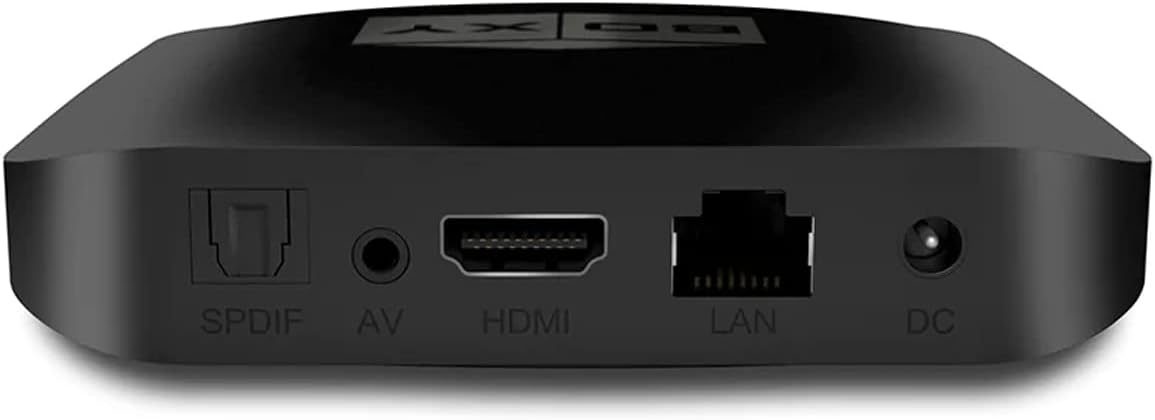
Image: Rear view of the BOXY Android TV Box showing SPDIF, AV, HDMI, LAN, and DC ports.

Image: Side view of the BOXY Android TV Box showing USB 2.0, USB 3.0, and Micro SD ports.
2. Initial Power On and Setup Wizard
- Turn on your television and select the correct HDMI input source.
- The BOXY TV Box will power on automatically. Follow the on-screen instructions for the initial setup.
- Remote Control Pairing: The Bluetooth remote control should pair automatically. If not, follow the on-screen prompts or refer to the remote control section for manual pairing instructions.
- Language Selection: Choose your preferred language.
- Network Configuration: Select your Wi-Fi network and enter the password, or confirm the wired Ethernet connection.
- Google Account Login: Sign in with your Google account to access Google Play Store, YouTube, and other Google services.
- App Installation: The setup wizard may prompt you to install essential apps.
- Complete the remaining steps of the setup wizard.
Operating Instructions
Using the Remote Control

Image: The BOXY Android TV Box remote control with dedicated buttons for streaming services and voice assistant.
The BOXY remote control operates via Bluetooth, allowing control without direct line-of-sight. It also features an IR channel for controlling your TV or A/V receiver.
- Power Button: Turns the device on or off.
- Navigation Pad (Circle): Use to navigate menus and select items.
- Back Button: Returns to the previous screen.
- Home Button: Returns to the Android TV home screen.
- Volume Buttons (+/-): Adjusts the volume.
- Mute Button: Mutes or unmutes audio.
- Voice Search Button (Microphone icon): Activates Google Assistant for voice commands and search.
- App Buttons: Dedicated buttons for popular streaming services (e.g., YouTube, Netflix, Prime Video, BOXY app).
- Customizable App Button: A special button that can be configured to quickly launch any application.
Navigating Android TV
The BOXY TV Box runs on Android TV 11, providing a user-friendly interface for accessing apps and content.

Image: Screenshot of the Android TV home screen displaying various application icons.
- Home Screen: Displays recommended content, installed apps, and settings.
- Apps: Access all your installed applications from the "Apps" section. You can download more apps from the Google Play Store.
- Settings: Configure network settings, display options, audio output, and device preferences.
- Chromecast built-in: Stream content from your phone, tablet, or laptop directly to your TV using compatible apps.
Using Dune HD Media Center
In addition to standard Android TV features, the BOXY TV Box includes the Dune HD media center software, offering advanced media playback capabilities.
- File Browser: Navigate and play media files from connected USB storage devices or network shares (SMB file server function).
- Advanced File Player: Supports a wide range of formats, including MKV, ISO, BDMV, with full menu support for movie ISO files and advanced Dolby Vision file playback.
- Media Library: Organize your local video files into a visually appealing Netflix-like catalog.
- Dune Control Mobile App: Control the media player from your smartphone or tablet.
Maintenance
- Cleaning: Use a soft, dry cloth to clean the device. Do not use liquid cleaners or aerosols.
- Ventilation: Ensure the device is placed in a well-ventilated area to prevent overheating. Do not block ventilation openings.
- Software Updates: Regularly check for and install system updates to ensure optimal performance, security, and access to new features. Updates can typically be found in the device's settings menu.
- Storage: When not in use for extended periods, disconnect the power adapter.
Troubleshooting
If you encounter issues with your BOXY Android TV Box, refer to the following common solutions. For more detailed troubleshooting, please consult the official Troubleshooting Guide (PDF).
| Problem | Possible Solution |
|---|---|
| No power/Device does not turn on. |
|
| No picture/No signal on TV. |
|
| Remote control not responding. |
|
| Poor Wi-Fi connection or buffering. |
|
| Apps crashing or slow performance. |
|
Specifications
| Feature | Detail |
|---|---|
| Brand | BOXY |
| Model Name | BOXY |
| Media Processor | Amlogic S905X4-J (with Dolby Vision and Dolby Atmos licenses) |
| CPU | ARM Cortex A55 4-core |
| Operating Memory (RAM) | 2 GB |
| Flash Memory (Storage) | 16 GB |
| Operating System | Android TV 11 |
| Resolution Support | Up to 4K (3840 x 2160) |
| HDR Support | HDR, HDR10+, Dolby Vision |
| Audio Technologies | Dolby Atmos, Dolby MAT, DTS |
| Video Codecs | AV1, VP9 Profile 2, HEVC |
| Ethernet | 10/100 Mbit/s |
| Wi-Fi | 802.11b/g/n/ac, Dual Band 2.4+5 GHz, 2T2R |
| Bluetooth | 5.0 |
| USB Ports | 1x USB 3.0, 1x USB 2.0 |
| Other Ports | HDMI 2.1 (up to 4Kp60, HDCP 2.2), Analog A/V output, S/PDIF output, Micro SD slot, DC power input |
| Dimensions (L x W x H) | 3.94 x 3.94 x 0.79 inches |
| Weight | 1.1 pounds |
| Remote Control | Bluetooth with microphone (Voice Search) and customizable app button, IR control capability |
| Special Features | Chromecast built-in, Official Netflix/Google certifications, Dune HD Media Center software, Automatic framerate and resolution switching |
Warranty and Support
For product support, troubleshooting, and warranty information, please refer to the following resources:
- Official User Guide: A detailed User Guide is available in PDF format: User Guide (PDF).
- Troubleshooting Guide: For common issues and solutions, consult the Troubleshooting Guide (PDF).
- Manufacturer's Website: Visit the official BOXY website for the latest support information, firmware updates, and contact details.
- Protection Plans: Extended protection plans may be available for purchase, offering additional coverage beyond the standard warranty. Check with your retailer for details.


