
Lenovo T27p-30
Lenovo ThinkVision T27p-30 User Manual
Model: T27p-30
Introduction
This manual provides detailed instructions for the setup, operation, maintenance, and troubleshooting of your Lenovo ThinkVision T27p-30 27-inch 4K UHD LCD Monitor. Designed for professional use, this monitor offers a stunning 3840 x 2160 resolution, In-plane Switching (IPS) technology for wide viewing angles, and versatile connectivity options including USB Type-C, HDMI, and DisplayPort. Its integrated webcam enhances collaboration and communication.
What's in the Box
Carefully unpack all components and ensure the following items are included:
- ThinkVision T27p-30 Widescreen LCD Monitor
- Stand
- 1 x Power cable (1.8m)
- 1 x DP cable (1.8m)
- 1 x USB Type-C to Type-A cable (1.8m)
- 1 x USB Type-C cable (1m)
Setup
Follow these steps to set up your Lenovo ThinkVision T27p-30 monitor:
- Assemble the Stand: Attach the monitor panel to the stand base. Ensure it clicks securely into place. Refer to the quick setup guide included in the box for visual instructions.
- Connect Power: Connect the power cable to the monitor's power input and then to a wall outlet.
- Connect to Your Device:
- USB Type-C: For a single-cable solution that provides video, audio, data, and power delivery, connect the included USB Type-C cable from your device to the monitor's USB Type-C port.
- DisplayPort (DP): Connect the included DP cable from your device's DisplayPort output to the monitor's DisplayPort input.
- HDMI: Connect an HDMI cable (not included) from your device's HDMI output to the monitor's HDMI input.
- Connect USB Devices: Use the integrated USB hub by connecting the USB Type-C to Type-A cable from your computer to the monitor's upstream USB port. You can then connect peripherals like keyboards, mice, or external drives to the monitor's downstream USB ports.
- Adjust Position: Adjust the monitor's height, tilt, swivel, and pivot for optimal viewing comfort.
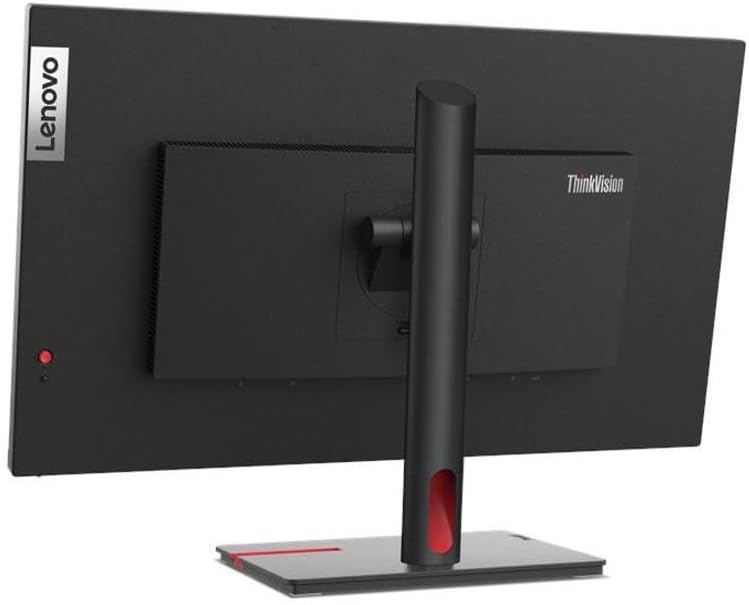
This image provides an angled view of the rear of the monitor, revealing the various input and output ports available for connectivity, including HDMI, DisplayPort, and USB ports. The stand's cable management slot is also visible.

This image illustrates the physical dimensions of the Lenovo ThinkVision T27p-30 monitor, including its height, width, and depth, which are crucial for planning desk space and setup.
Operating Instructions
Once your monitor is set up, follow these guidelines for operation:
- Power On/Off: Press the power button, usually located on the back or side of the monitor, to turn it on or off.
- Input Selection: The monitor should automatically detect the active input. If not, use the On-Screen Display (OSD) menu buttons to manually select the desired input source (USB Type-C, DP, HDMI).
- On-Screen Display (OSD) Menu: Navigate the OSD menu using the physical buttons on the monitor to adjust settings such as brightness, contrast, color temperature, input source, and picture modes.
- Resolution and Refresh Rate: The monitor supports a native resolution of 3840 x 2160 (4K UHD) at a 60 Hz refresh rate. Ensure your computer's display settings are configured to these specifications for the best visual experience.
- Webcam Usage: The integrated webcam is automatically detected by your operating system. Ensure your privacy settings allow applications to access the camera and microphone for video conferencing or recording.
- USB Hub Functionality: The monitor's built-in USB hub allows you to connect various USB devices directly to the monitor, reducing cable clutter on your desk.

This image shows the front of the Lenovo ThinkVision T27p-30 monitor, highlighting its 27-inch 4K UHD display with a clear view of the screen and its slim bezels. The monitor is shown on its stand.
Maintenance
Proper care and maintenance will extend the life of your monitor:
- Cleaning the Screen: Gently wipe the screen with a soft, lint-free cloth. For stubborn marks, slightly dampen the cloth with water or a non-abrasive screen cleaner. Avoid using alcohol, ammonia, or abrasive cleaners.
- Cleaning the Casing: Use a soft, dry cloth to clean the monitor's casing.
- Ventilation: Ensure the ventilation openings on the monitor are not blocked to prevent overheating.
- Power Off When Not in Use: Turn off the monitor when not in use for extended periods to conserve energy and prolong its lifespan.
Troubleshooting
If you encounter issues with your monitor, try these common troubleshooting steps:
| Problem | Possible Solution |
|---|---|
| No image on screen | Ensure the power cable is securely connected. Check if the video cable (HDMI, DP, USB-C) is properly connected to both the monitor and your computer. Select the correct input source via the OSD menu. |
| Image is blurry or distorted | Check your computer's display settings to ensure the resolution is set to 3840 x 2160. Adjust the monitor's OSD settings for sharpness and clarity. |
| Monitor not detected by computer | Restart your computer. Try a different video port or cable. Update your graphics card drivers. |
| Webcam not working | Ensure the USB Type-C cable is connected and providing data. Check your operating system's privacy settings to allow applications access to the camera and microphone. |
| No sound from monitor (if applicable) | Check audio output settings on your computer. Ensure volume is not muted on the monitor or computer. |
Specifications
| Feature | Specification |
|---|---|
| Brand | Lenovo |
| Series | ThinkVision |
| Model Number | T27p-30 |
| Screen Size | 27 Inches |
| Panel Technology | In-plane Switching (IPS) Technology |
| Resolution | 3840 x 2160 (4K UHD) |
| Aspect Ratio | 16:9 |
| Refresh Rate | 60 Hz |
| Response Time | 4 ms (Extreme Mode) |
| Brightness | 350 Nit |
| Colors Supported | 1.07 Billion Colors |
| Connectivity | HDMI, DisplayPort, USB Hub, USB Type-C |
| Screen Surface Description | Glossy |
| Item Weight | 11.68 pounds |
| Product Dimensions (LxWxH) | 2 x 24.2 x 14.3 inches |
| Color | Black |
Warranty and Support
Your Lenovo ThinkVision T27p-30 monitor comes with a standard manufacturer's warranty. For detailed warranty terms and conditions, please refer to the warranty card included with your product or visit the official Lenovo support website.
For technical support, driver downloads, or further assistance, please visit the official Lenovo support page or their Amazon store: