
Product Overview
The KCEVE DP HDMI KVM Switch is designed to allow two computers to share two monitors, a single keyboard, and a single mouse. It supports high-resolution video output up to 4K@60Hz, making it suitable for professional and home office environments. This device simplifies your workspace by reducing cable clutter and enabling seamless switching between systems.
Key Features:
- Supports dual monitor output (one HDMI, one DisplayPort) for each connected computer.
- Enables sharing of a single USB keyboard and mouse between two computers.
- Features additional USB 2.0 ports for sharing peripherals like printers or USB drives.
- Supports Ultra HD 4K (3840x2160@60Hz) resolution.
- Offers two switching methods: physical button on the device and a wired remote control.
- Supports both 'Copy Mode' (mirroring displays) and 'Extend Mode' (extending desktop across displays).
- Plug and play functionality, no driver installation required.

Image: Front view of the KCEVE DP HDMI KVM Switch with its wired remote control.
Setup Guide
Package Contents
Please verify that all items are present in the package:
- 1 x KCEVE DP HDMI KVM Switch
- 1 x Wired Remote Control (1.5m)
- 1 x HDMI 2.0 Cable (1.5m)
- 1 x DP 1.2 Cable (1.5m)
- 2 x USB Cables (1.5m)

Image: Contents of the KVM switch package, including the switch unit, wired remote, HDMI cable, DisplayPort cable, and USB cables.
Connection Diagram and Steps
Follow these steps to connect your computers and monitors to the KVM switch:
- Ensure both computers and monitors are powered off before making connections.
- Connect your primary monitor's HDMI input to the KVM switch's 'Monitor HDMI' output port.
- Connect your secondary monitor's DisplayPort input to the KVM switch's 'Monitor DisplayPort' output port.
- For PC1: Connect PC1's HDMI output to the KVM switch's 'PC1 HDMI' input port.
- For PC1: Connect PC1's DisplayPort output to the KVM switch's 'PC1 DisplayPort' input port.
- For PC1: Connect a USB cable from PC1's USB port to the KVM switch's 'USB 1' input port. This cable also provides power to the KVM switch.
- Repeat steps 4-6 for PC2, connecting its HDMI, DisplayPort, and USB outputs to the corresponding 'PC2' input ports on the KVM switch.
- Connect your USB keyboard and mouse to the dedicated USB 2.0 ports on the KVM switch.
- If desired, connect other USB peripherals (e.g., printer, USB drive) to the additional USB 2.0 ports on the KVM switch.
- Connect the wired remote control to its designated port on the KVM switch.
- Power on your monitors and then your computers.
Important Note: Each computer requires one HDMI and one DisplayPort connection to the KVM switch for dual monitor functionality. Ensure all USB cables are connected to provide sufficient power to the KVM switch.
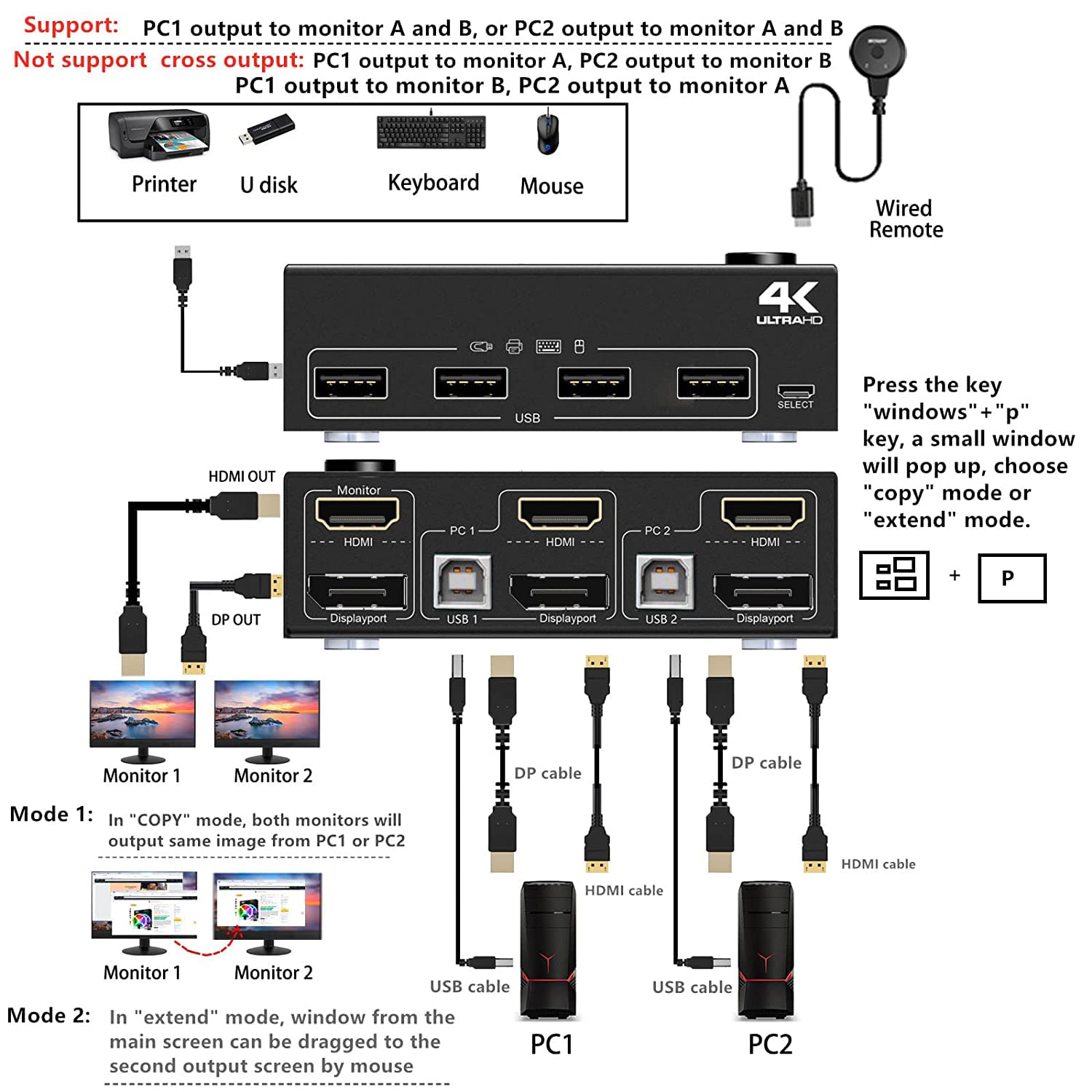
Image: A comprehensive diagram illustrating how to connect two PCs and two monitors to the KVM switch, including USB peripherals.
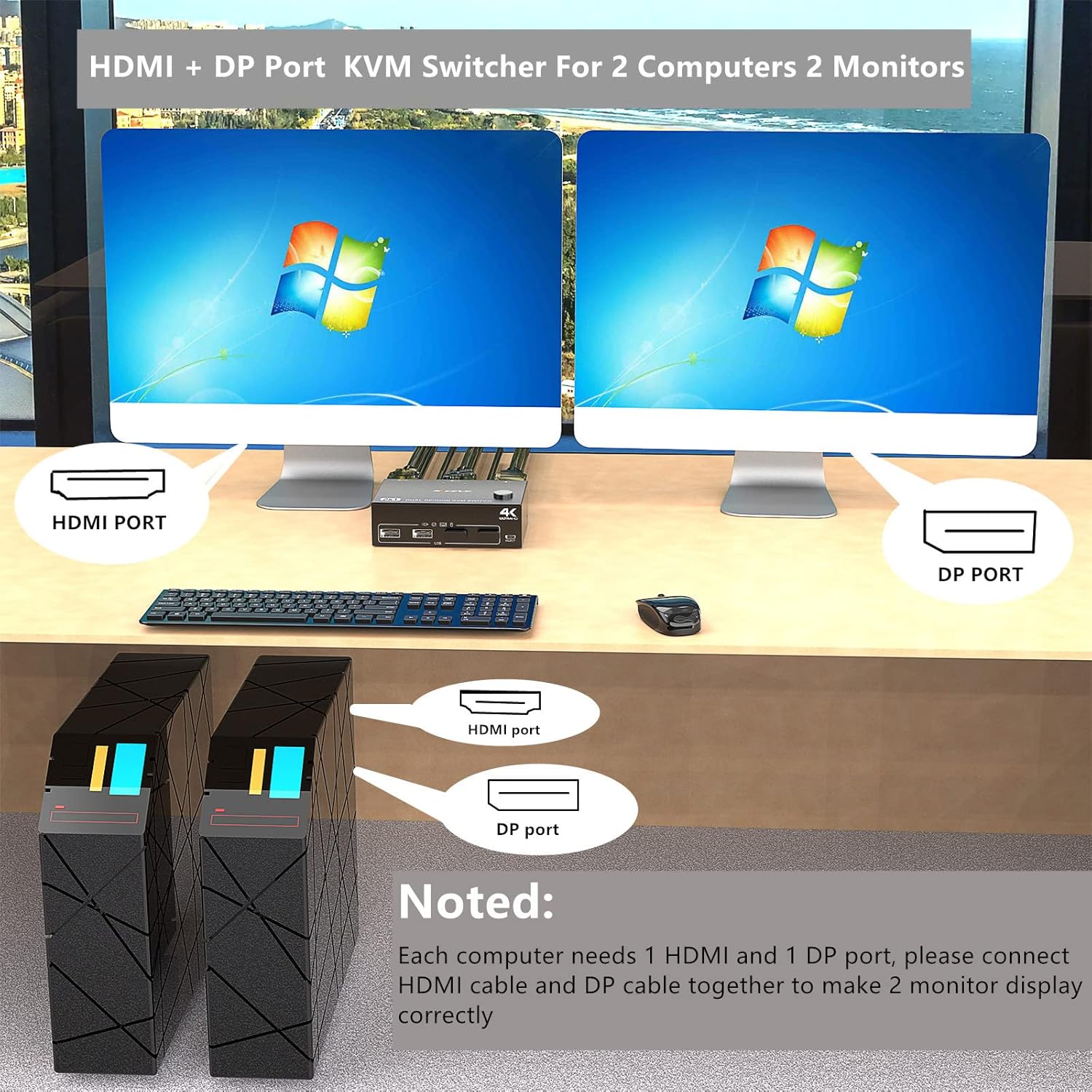
Image: An example setup showing two computers connected to two monitors via the KVM switch on a desk.
Operation
Switching Between Computers
The KVM switch offers two convenient methods for switching between connected computers:
- Physical Button: Press the 'Select' button located on the top of the KVM switch to toggle between PC1 and PC2.
- Wired Remote Control: Use the included wired remote control to switch between PC1 and PC2. This provides flexibility for placing the KVM switch out of sight.

Image: Illustration showing the physical button on the KVM switch and the wired remote control for switching between computers.
Display Modes (Copy vs. Extend)
The KVM switch supports both 'Copy Mode' and 'Extend Mode' for your dual monitor setup. These modes are configured within your computer's display settings, not directly on the KVM switch.
- Copy Mode: In this mode, both monitors will display the same image from the selected PC. This is useful for presentations or mirroring content.
- Extend Mode: In this mode, your desktop is extended across both monitors, allowing you to drag windows from one screen to the other. This is ideal for multitasking and increasing screen real estate.
To switch between display modes on Windows, press the Windows key + P. A small window will pop up, allowing you to choose between 'Duplicate' (Copy Mode) or 'Extend' (Extend Mode).

Image: Visual representation of 'Copy Mode' where both monitors show identical content, and 'Extend Mode' where the desktop spans across two monitors.
Maintenance and Care
To ensure the longevity and optimal performance of your KCEVE DP HDMI KVM Switch, please follow these maintenance guidelines:
- Keep the device in a dry environment, away from moisture and extreme temperatures.
- Clean the exterior of the switch with a soft, dry cloth. Avoid using liquid cleaners or abrasive materials.
- Do not block any ventilation openings on the device.
- Avoid dropping or subjecting the device to strong impacts.
- Disconnect all cables before cleaning or if the device will not be used for an extended period.
Troubleshooting
If you encounter issues with your KCEVE DP HDMI KVM Switch, please refer to the following common problems and solutions:
| Problem | Possible Cause / Solution |
|---|---|
| No display or flickering display on monitors after switching. |
|
| Keyboard or mouse not responding. |
|
| USB peripherals (printer, U disk) not detected. |
|
| MacBook compatibility issues. |
|
Technical Specifications
| Feature | Specification |
|---|---|
| Model Number | KCDZUS202DH |
| Product Dimensions (L x W x H) | 4.01 x 2.55 x 1.19 inches (10.18 x 6.48 x 3.03 cm) |
| Item Weight | 10.58 ounces |
| Supported Resolution | Up to 4Kx2K@60Hz (3840x2160@60Hz) |
| Video Interfaces | HDMI, DisplayPort |
| USB Ports | 4 x USB 2.0 (for keyboard, mouse, peripherals) |
| Switching Control | Physical Button, Wired Remote Control |
| Power Supply | 5V DC (via USB connection) |
| Operation Mode | ON-OFF |
| Connector Type | HDMI, USB |

Image: A monitor displaying a high-resolution image, demonstrating the 4K HD resolution capability of the KVM switch.
Warranty and Support
KCEVE provides a one-year professional warranty for this product. If you have any questions, require technical assistance, or experience any issues with your KCEVE DP HDMI KVM Switch, please do not hesitate to contact our customer support. Refer to your purchase documentation or the KCEVE official website for contact information.


