1. Introduction
This manual provides essential information for the proper setup, operation, and maintenance of your Sceptre C345B-QUT168 34-Inch Curved Ultrawide WQHD Monitor. Please read this manual thoroughly before using the product and retain it for future reference.

Figure 1: Sceptre 34-Inch Curved Ultrawide WQHD Monitor
The Sceptre C345B-QUT168 is a 34-inch curved ultrawide monitor designed for both productivity and immersive entertainment. It features a WQHD (3440 x 1440) resolution, up to 180Hz/165Hz refresh rate, 1ms Moving Picture Response Time (MPRT), 1500R curvature, 99% sRGB color gamut, Picture-by-Picture (PBP) functionality, built-in speakers, and AMD FreeSync Premium support.
2. Setup
2.1 Unboxing and Package Contents
Carefully remove all components from the packaging. Ensure all items listed below are present. A screwdriver is included for assembly.

Figure 2: Included accessories
- Sceptre C345B-QUT168 Monitor
- Monitor Stand (Base and Neck)
- Power Adapter and Cable
- DisplayPort Cable
- Screwdriver
- Mounting Screws (for stand and VESA)
- User Manual and Warranty Information
2.2 Stand Assembly
Attach the monitor stand base to the neck, then secure the assembled stand to the back of the monitor using the provided screws and screwdriver. The monitor is also VESA mount compatible (75x75mm) for alternative mounting solutions.
2.3 Connectivity
The monitor offers multiple input options for connecting to your devices:
- 2 x HDMI 2.0 Ports: Supports WQHD resolution up to 100Hz.
- 2 x DisplayPort 1.4 Ports: Supports WQHD resolution up to 165Hz (or 180Hz, depending on model year and settings).
- 1 x Audio Out (3.5mm): For connecting external speakers or headphones.

Figure 3: Monitor rear ports
Connect the appropriate cable from your computer or gaming console to the corresponding port on the monitor. Ensure the power adapter is securely connected to the monitor and a power outlet.
2.4 Initial Power On
Press the power button (often integrated with the OSD joystick) to turn on the monitor. The monitor will automatically detect the input signal. If no signal is detected, check your cable connections and device power.
Video: Sceptre 34-Inch Curved Gaming Monitor C345B-QUT168 Unboxing. This video demonstrates the unboxing process and initial setup of the monitor.
3. Operating Instructions
3.1 On-Screen Display (OSD) Navigation
The monitor features a single joystick control located on the bottom center of the rear panel for navigating the On-Screen Display (OSD) menu. This joystick allows you to power on/off the monitor, select input sources, and adjust various display settings.

Figure 4: OSD Navigation Joystick
3.2 Display Settings
- Resolution: The native resolution is 3440 x 1440 (WQHD). For optimal clarity, set your device's output resolution to match.
- Refresh Rate: The monitor supports up to 165Hz (or 180Hz via DisplayPort). Adjust your device's display settings to utilize the higher refresh rates for smoother visuals.
- Response Time (1ms MPRT): This feature reduces motion blur and ghosting, ideal for fast-paced content.
- Curvature (1500R): The 1500R curvature provides an immersive viewing experience, bringing the edges of the ultrawide screen closer to your field of vision.
- Picture-by-Picture (PBP): This feature allows you to display content from two different input sources simultaneously on the screen. Refer to the OSD menu for PBP activation and layout options.
- AMD FreeSync Premium: Synchronizes the monitor's refresh rate with your GPU's frame rate to eliminate screen tearing and stuttering. Ensure FreeSync is enabled in both the monitor's OSD and your graphics card settings.
- Luminous Backcover Lights: The monitor features customizable LED lights on the back for aesthetic enhancement. These can be configured via the OSD menu.

Figure 5: Key display features
3.3 Ultrawide Experience
The 21:9 ultrawide aspect ratio provides 30% more screen space compared to conventional monitors, enhancing productivity by allowing multiple windows to be open side-by-side, and offering a more expansive view in games and media.
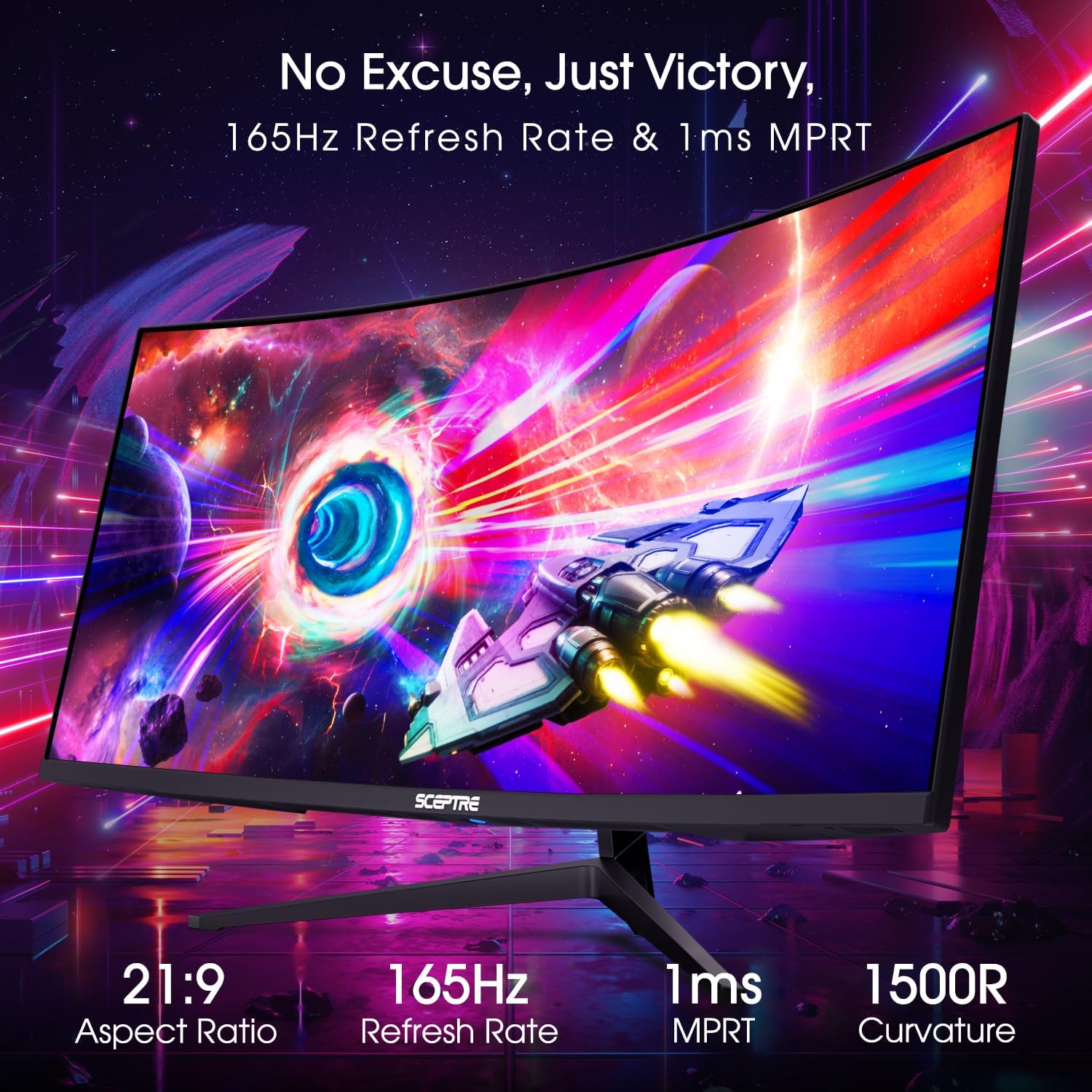
Figure 6: Experience the ultrawide range of view
Video: Sceptre Gaming Monitors. This video provides a general overview of Sceptre's gaming monitor features, including the ultrawide experience.
Video: Sceptre 34-Inch Curved Ultrawide WQHD Monitor up to 165Hz. This video highlights the key features and performance of the monitor.
Video: Not just for gamers! This video showcases the monitor's utility in a professional work environment, emphasizing its ultrawide screen for multitasking.
4. Maintenance
To ensure the longevity and optimal performance of your monitor, follow these maintenance guidelines:
- Cleaning the Screen: Gently wipe the screen with a soft, lint-free cloth. For stubborn marks, use a screen-cleaning solution specifically designed for monitors, applied to the cloth, not directly to the screen.
- Cleaning the Casing: Use a soft, dry cloth to clean the monitor's casing. Avoid abrasive cleaners or solvents.
- Ventilation: Ensure the monitor's ventilation openings are not blocked to prevent overheating.
- Power Off: Always turn off the monitor when not in use for extended periods.
5. Troubleshooting
If you encounter issues with your Sceptre C345B-QUT168 monitor, refer to the following common solutions:
- No Power: Check if the power cable is securely connected to both the monitor and the power outlet. Ensure the power adapter is functioning.
- No Signal: Verify that the video cable (DisplayPort or HDMI) is correctly connected to both the monitor and your source device. Ensure the correct input source is selected via the OSD menu.
- Flickering/Tearing/Stuttering: Ensure AMD FreeSync Premium is enabled in both the monitor's OSD and your graphics card settings. Check that your graphics drivers are up to date.
- Incorrect Resolution/Refresh Rate: Adjust the display settings in your operating system or game to match the monitor's native WQHD resolution and desired refresh rate (up to 165Hz/180Hz).
- Ghosting/Motion Blur: While the monitor features 1ms MPRT, some ghosting can be typical with ultrawide panels. Adjust the 'Overdrive' setting in the OSD menu if available, or refer to the full user manual for advanced settings.
- Audio Issues: Check the audio cable connection to the 3.5mm audio out port. Ensure the volume is not muted or set too low in both the monitor's OSD and your device's audio settings.
Video: Join the Ultrawide revolution - at 165hz! This video demonstrates refresh rate performance, ghosting, and input lag tests, which can be helpful for troubleshooting display issues.
6. Specifications
| Feature | Specification |
|---|---|
| Screen Size | 34 Inches |
| Screen Resolution | 3440 x 1440 (WQHD) |
| Aspect Ratio | 21:9 |
| Max Refresh Rate | Up to 165Hz (DisplayPort), Up to 100Hz (HDMI) |
| Response Time | 1ms MPRT |
| Curvature | 1500R |
| Color Gamut | 99% sRGB |
| Connectivity | 2 x HDMI 2.0, 2 x DisplayPort 1.4, 1 x Audio Out |
| Built-in Speakers | Yes |
| VESA Compatibility | 75 x 75mm |
| Dimensions (LxWxH) | 8.6 x 31.8 x 17.96 inches |
| Weight | 15.32 pounds |

Figure 7: Monitor dimensions
7. Warranty and Support
7.1 Warranty Information
Your Sceptre C345B-QUT168 monitor comes with a 1-year limited product warranty. Please refer to the included warranty card or the Sceptre website for full details regarding warranty coverage and terms.
7.2 Customer Support
For technical assistance, troubleshooting, or warranty claims, please contact Sceptre Customer Support. Contact information can be found on the Sceptre website or in the included documentation.


