
1. Introduction
Thank you for choosing the YOTON Y9 4K Portable Projector. This manual provides essential information for setting up, operating, maintaining, and troubleshooting your device. The Y9 projector features native 1080P resolution with 4K decoding support, a fluid Linux operating system with integrated streaming applications, dual-band WiFi, bidirectional Bluetooth 5.2, and Dolby Audio support for an immersive home theater experience.
2. Safety Information
Before using the projector, please read all safety instructions carefully to ensure safe operation and prevent damage to the device. A detailed safety information document is available in PDF format. Please refer to the official product page or included documentation for the full safety guide.
Important Safety Guidelines:
- Do not block ventilation openings. Ensure adequate airflow around the projector.
- Avoid direct eye exposure to the projector lens when the lamp is on.
- Keep the projector away from water or other liquids.
- Use only the power adapter provided with the projector.
- Do not attempt to repair the projector yourself. Contact qualified service personnel for any repairs.
3. Package Contents
Upon unpacking, please verify that all the following items are included:
- YOTON Y9 Projector
- Remote Control
- Power Adapter
- HDMI Cable
- User Manual
- Carrying Bag
- Cleaning Kit

Image: The YOTON Y9 Projector, remote control, power cables, and a custom carrying case.
4. Product Overview
4.1. Projector Components
Familiarize yourself with the main components of your YOTON Y9 projector:
- Lens: Projects the image onto the screen or wall.
- Focus Ring: Adjusts image sharpness.
- Keystone Correction: Corrects image distortion.
- Control Panel: Buttons for basic navigation and settings.
- Ventilation Openings: For heat dissipation. Do not obstruct.
4.2. Ports and Connections
The YOTON Y9 projector offers various ports for versatile connectivity:
- HDMI Port: Connects to laptops, gaming consoles (PS3, PS4, PS5), TV sticks, etc.
- USB Port: Connects to USB flash drives for media playback or external devices.
- Audio Out (3.5mm Jack): Connects to external wired speakers or headphones.
- Power Input: Connects to the power adapter.

Image: Rear view of the YOTON Y9 Projector highlighting its various input and output ports.
5. Setup
5.1. Initial Placement
Place the projector on a stable, flat surface or mount it according to your preference (ceiling, tripod, wall). Ensure it is positioned perpendicular to your projection surface for optimal image focus. The projector supports projection sizes from 40 to 200 inches.
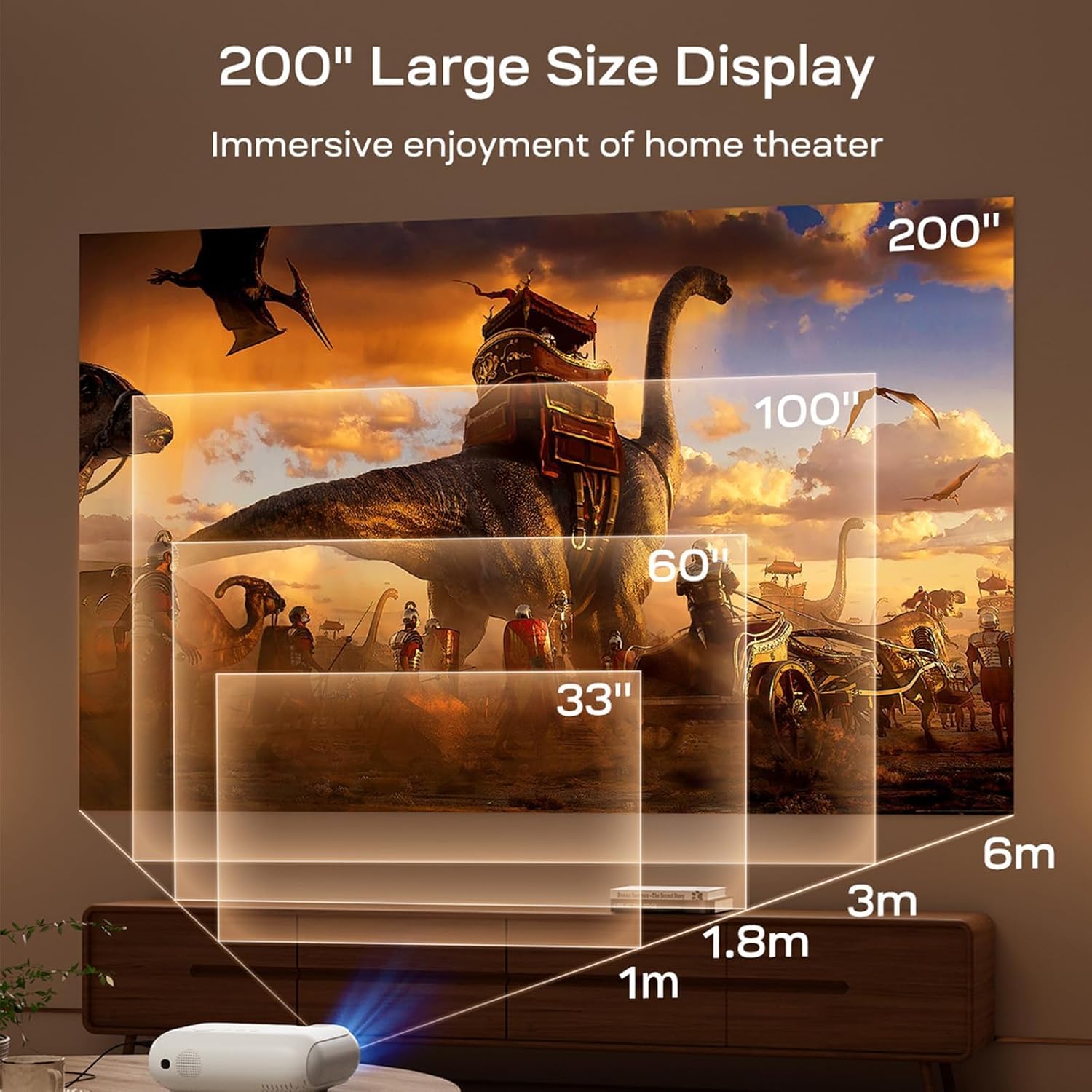
Image: Projection distances and corresponding screen sizes for the YOTON Y9 Projector.
5.2. Power Connection
- Connect the power adapter to the projector's power input port.
- Plug the power adapter into a wall outlet.
- Press the power button on the projector or remote control to turn on the device.
5.3. Focus and Keystone Correction
After powering on, adjust the image for clarity and shape:
- Manual Focus: Rotate the focus ring near the lens until the image appears sharp and clear.
- 4P Keystone Correction: Use the remote control or projector settings to access the 4P keystone correction. This allows independent adjustment of the four corners of the projected image to achieve a perfect rectangular shape, even if the projector is not perfectly aligned.
6. Operating Instructions
6.1. Remote Control
The included remote control provides full functionality for navigating the projector's interface and controlling playback. Ensure batteries are correctly inserted.

Image: The remote control for the YOTON Y9 Projector, featuring quick access buttons for popular streaming services.
6.2. Linux Operating System and Integrated Apps
The Y9 projector runs on a fluid Linux operating system, offering enhanced stability and speed. It comes with over 1000 officially licensed applications, including popular streaming platforms like Netflix, Prime Video, and YouTube, accessible directly from the home screen.

Image: The projector's interface showing pre-installed streaming applications.
6.3. WiFi Connection
The projector supports dual-band WiFi (2.4 GHz and 5.8 GHz) for a stable and smooth network environment.
- Go to the projector's [Settings] menu.
- Select [Network] or [WiFi] and choose your desired WiFi network.
- Enter the WiFi password (note: WiFi passwords do not support spaces).
- Once connected, you can access online content and screen mirroring features.
6.4. Mobile Screen Mirroring
The Y9 projector supports screen mirroring from both iOS and Android smartphones.
For iOS Devices:
- Ensure your iOS device and the projector are connected to the same WiFi network.
- On the projector's home page, select [My Apps] and choose [Wireless iPhone].
- On your iOS device, open [Control Center] and tap [Screen Mirroring].
- Select [YOTON-XXXXX] from the list of available devices to connect.
For Android Devices:
- Ensure your Android device has a screen mirroring function (e.g., Smart View, Cast, Wireless Display) in its settings.
- On the projector's home page, select [My Apps] and choose [Screencast].
- Turn on the wireless connection on your Android device.
- Open the [Screen Projection/Mirroring] function in your phone's settings.
- Select [YOTON-XXXX] from the list of available devices to connect.

Image: Demonstrating smartphone screen mirroring to the YOTON Y9 Projector.
6.5. Zoom Function
The projector includes a 50% zoom function, allowing you to adjust the projected image size without moving the projector. This is useful for adapting to different room sizes or projection surfaces.

Image: Visual representation of the 50% zoom capability, showing how the image size can be reduced.
7. External Device Connectivity
The YOTON Y9 projector offers broad compatibility with various external devices:
- HDMI: Connect laptops, PCs, Fire TV Sticks, TV boxes, Chromecast, or gaming consoles (PS5, etc.) via the HDMI port.
- USB: Plug in USB flash drives for direct media playback.
- DVD Player: Connect traditional DVD players for movie playback.

Image: The YOTON Y9 Projector demonstrating wide compatibility with different devices.
8. Audio Features
The YOTON Y9 projector is equipped with advanced audio capabilities:
- Built-in HiFi Stereo Speakers: Features 35W HiFi stereo dual speakers with Dolby Audio support, creating a 360° immersive sound field for a professional home theater experience.
- Bidirectional Bluetooth 5.2: Enhances compatibility and transmission speed.

Image: Internal diagram of the YOTON Y9 Projector's HiFi speakers and Dolby Audio support.
8.1. Using as a Projector with External Audio
If the built-in sound is not sufficient, you can connect external Bluetooth audio devices:
- Go to the projector's [Settings] menu and select [Bluetooth].
- Enable Bluetooth and search for available devices.
- Select your Bluetooth speaker or headphones from the list to pair.
Note: Bluetooth can only transmit audio, not video. Only one Bluetooth audio device can be connected at a time.
8.2. Using as a Standalone Bluetooth Speaker
You can connect your mobile phone to the Y9 projector via Bluetooth to play music, effectively turning the projector into a standalone Bluetooth speaker.

Image: The YOTON Y9 Projector connected to a smartphone, illustrating its use as a Bluetooth speaker.
9. Maintenance
Proper maintenance ensures the longevity and optimal performance of your projector.
- Lens Cleaning: Use the provided cleaning kit or a soft, lint-free cloth specifically designed for optical lenses. Do not use abrasive cleaners or harsh chemicals.
- Exterior Cleaning: Wipe the projector's exterior with a soft, dry cloth. For stubborn dirt, a slightly damp cloth can be used, followed by a dry one.
- Ventilation: Regularly check and ensure that the ventilation openings are free from dust and obstructions to prevent overheating.
- Storage: When not in use, store the projector in its carrying bag in a cool, dry place away from direct sunlight and extreme temperatures.
10. Troubleshooting
Here are solutions to common issues you might encounter:
10.1. Remote Control Not Working
- Check the batteries in the remote control and replace them if necessary.
- Ensure there are no obstructions between the remote and the projector's IR receiver.
- If the issue persists, the remote control or the projector's signal receiver might be faulty. Contact YOTON after-sales support.
10.2. Mobile Device Cannot Connect to WiFi
- Ensure you have followed the WiFi connection steps correctly (Section 6.3).
- Restart the projector and your mobile device.
- Try restoring the projector to factory settings (refer to the settings menu).
- Attempt to connect the projector to your mobile hotspot. If this works, the issue might be with your main network.
- Remember that WiFi passwords do not support spaces.
10.3. Screen Mirroring Shows Sound but No Image
- When performing wireless screen mirroring, ensure the video resolution is 1080P or below. Higher resolutions may not be supported for wireless mirroring.
- This issue can also occur due to copyright restrictions. Some streaming applications (e.g., Netflix, Prime Video) do not support wireless screen mirroring for content protection reasons. Try connecting via HDMI for these services.
10.4. Image is Blurry or Distorted
- Adjust the manual focus ring until the image is sharp.
- Use the 4P keystone correction to adjust the image shape if it appears trapezoidal.
- Ensure the projector is placed as perpendicular as possible to the projection surface for the best overall focus. Significant angles can make it difficult to achieve uniform focus across the entire screen.
10.5. Fan Noise
- A certain level of fan noise is normal for projectors as they require cooling.
- Ensure ventilation openings are clear to prevent the fan from working harder than necessary.
- If the noise is unusually loud or changes in pitch, contact support.
11. Specifications
| Feature | Detail |
|---|---|
| Model Number | Y9 |
| Native Resolution | 1920 x 1080 (Full HD) |
| Maximum Display Resolution | 3840 x 2160 (4K Decoding Support) |
| Brightness | 450 ANSI Lumens (12000 Lumens marketing value) |
| Contrast Ratio | 1000:1 or 2000:1 |
| Display Technology | LED |
| Connectivity Technology | Bluetooth 5.2, HDMI, USB, Dual-Band WiFi (2.4GHz/5.8GHz) |
| Special Features | Integrated Speaker, Linux OS, Pre-installed Apps, 50% Zoom, Dolby Audio |
| Recommended Uses | Home Cinema, Education, Video Games |
| Product Dimensions (L x W x H) | 21.8 x 16.8 x 8.3 cm |
| Weight | 920 g |
| Power | 50 Watts |
| Voltage | 28 Volts |
| Maximum Projection Distance | 10 Feet |
| Maximum Image Size | 200 Inches |
| Minimum Projection Distance | 0.6 Meters |
| Minimum Image Size | 35 Inches |
| Video Encoding | H.264 or H.265 |
12. Warranty and Support
YOTON is committed to providing excellent customer service and product support.
- Warranty: The YOTON Y9 Projector comes with a 2-year warranty.
- Technical Support: 24-hour technical assistance is available. A professional team is ready to help with any issues during use.
- Lifetime Care: YOTON offers lifetime care for its products.
For assistance, please contact YOTON customer support through the official website or your purchase platform.

Image: YOTON CARE details: Easy to use, Agile support, 24-month warranty, and Lifetime care.
13. Official Product Videos
No official seller-created videos were provided in the product data to embed in this manual.