
Selore&S-Global SEUC0422
Selore&S-Global USB C Docking Station User Manual
Model: SEUC0422
1. Introduction
This manual provides comprehensive instructions for the setup, operation, maintenance, and troubleshooting of your Selore&S-Global USB C Docking Station. This 8-in-1 hub is designed to expand the connectivity of your USB-C or Thunderbolt 3/4 enabled laptop, offering dual HDMI outputs, power delivery, and multiple USB data ports.

Image: The Selore&S-Global USB C Docking Station, a compact grey device, shown with various connected peripherals like USB-C cables, USB 3.0 flash drives, and SD/TF cards, highlighting its multi-functional capabilities.
2. Product Features
The Selore&S-Global USB C Docking Station offers a versatile array of ports to enhance your productivity:
- Dual 4K@60Hz HDMI Ports: Connect two external monitors for extended or mirrored display configurations.
- 100W Power Delivery (PD) Charging Port: Charge your laptop while using the hub. Supports up to 85W output to the laptop (100W input required).
- USB-C 3.0 Data Port: Provides data transfer speeds up to 5Gbps. (Note: This port is for data transfer only, not charging or video output).
- Two USB-A 3.0 Data Ports: Offers data transfer speeds up to 5Gbps, ideal for connecting peripherals like keyboards, mice, and external hard drives.
- SD/TF Card Slots: Supports data transfer speeds up to 104 Mbps for quick access to photos and videos from memory cards.

Image: A detailed diagram illustrating the 8-in-1 USB C Hub, highlighting each port (PD 3.0, SD/TF, HDMI1, HDMI2, 2*USB 3.0, USB C) and its respective function and speed.
3. Setup Guide
Follow these steps to set up your USB C Docking Station:
- Verify Laptop's USB-C Port: Ensure your laptop's USB-C port supports video output (DisplayPort Alt Mode) and/or power delivery. The docking station requires a Thunderbolt 3/4 or a full-featured USB-C port. If your USB-C port only supports data or charging, video output will not function.

Image: A visual guide to identifying compatible USB-C port types on your laptop, distinguishing between Full Function, Data+Video Output, Data+Displayport Alt, and incompatible ports (Only Charging, Only Data Transfer).
- Connect to Laptop: Plug the USB-C connector of the docking station into a compatible USB-C port on your laptop.
- Connect External Monitors: Use HDMI cables to connect your monitors to the HDMI ports on the docking station.
- Connect Power Adapter (Optional but Recommended): For optimal performance and to charge your laptop, connect your laptop's original USB-C power adapter to the PD (Power Delivery) port on the docking station. A 100W PD charger and USB-C to C cable are required to achieve 85W charging output.
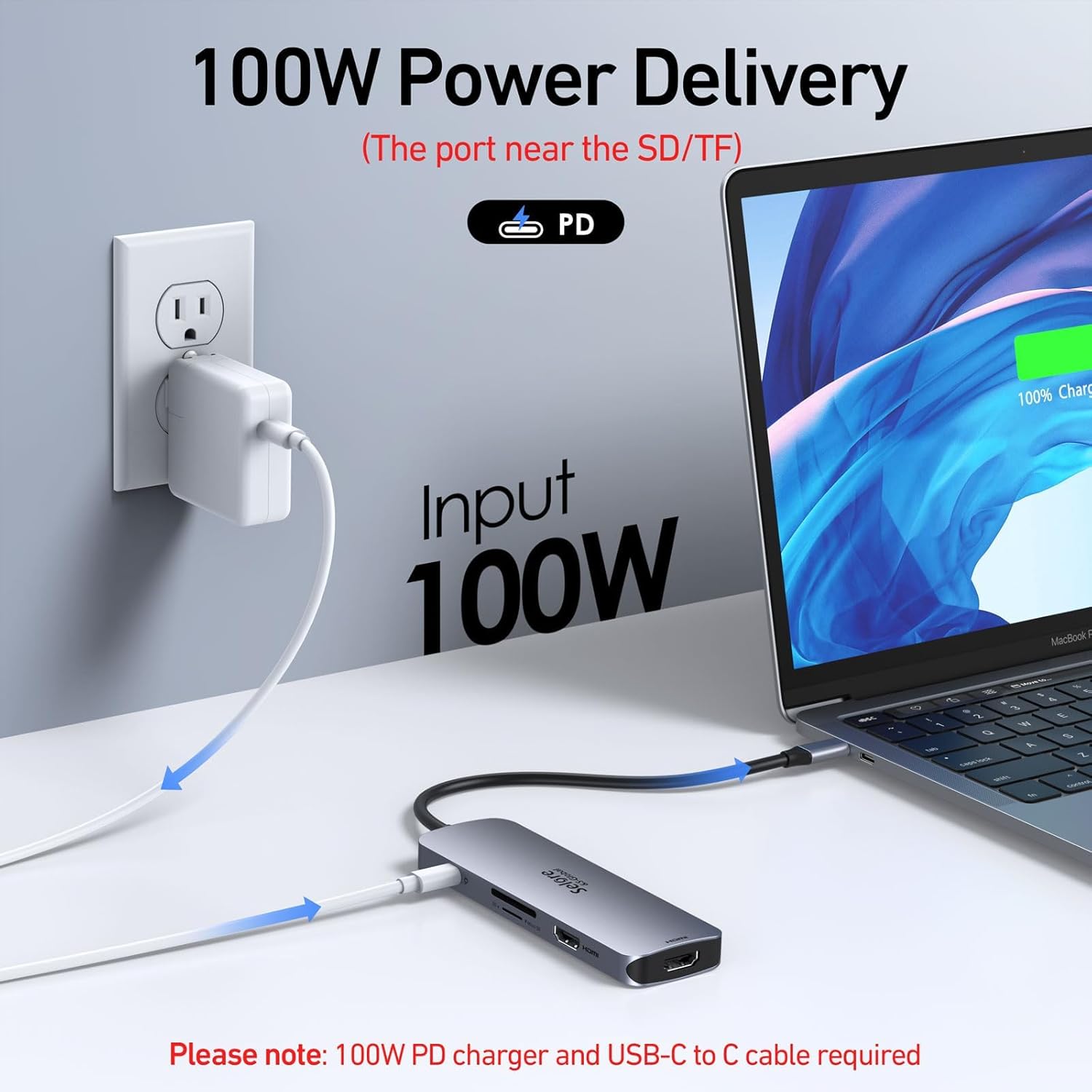
Image: A laptop connected to the docking station, which is then connected to a wall charger, illustrating the 100W Power Delivery feature for simultaneous charging.
- Connect Peripherals: Plug in your USB devices (mouse, keyboard, external hard drive) into the USB-A 3.0 ports. Insert SD or TF cards into the corresponding slots for data access.
4. Operating Instructions
4.1 Display Modes
The docking station supports different display modes depending on your operating system:
For Windows Laptops (MST Mode)
Windows laptops support Multi-Stream Transport (MST) mode, allowing you to extend your desktop across two external monitors, or mirror your display.

Image: A Windows laptop connected to two external monitors, demonstrating the extended display mode where each screen shows different content (A, B, C).
To configure display settings on Windows:
- Right-click on your desktop and select "Display settings".
- Under "Multiple displays", choose your preferred option (e.g., "Extend these displays" or "Duplicate these displays").
For macOS Laptops (SST/Mirror Mode Only)
Due to macOS system limitations, this docking station only supports Single-Stream Transport (SST) or Mirror Mode. This means both external monitors will display the same content, which can either mirror your MacBook's display or extend it as a single, duplicated external display.

Image: A macOS laptop connected to two external monitors, illustrating the mirror display mode where all screens show identical content (A).
To configure display settings on macOS:
- Go to "System Settings" (or "System Preferences") > "Displays".
- Select "Arrangement" to configure your displays. You will see options for mirroring.
4.2 Data Transfer
The USB 3.0 ports (Type-A and Type-C) and the SD/TF card slots allow for high-speed data transfer. Simply plug in your USB devices or insert your memory cards to access and transfer files.

Image: A tablet connected to the USB C hub, which is then connected to an external hard drive, demonstrating the high-speed data transfer capabilities of the USB 3.0 ports and SD/TF card reader.
5. Maintenance
To ensure the longevity and optimal performance of your docking station:
- Cleaning: Use a soft, dry cloth to clean the surface of the device. Avoid liquid cleaners or abrasive materials.
- Storage: Store the docking station in a cool, dry place away from direct sunlight and extreme temperatures.
- Handling: Avoid dropping the device or subjecting it to strong impacts. Do not attempt to disassemble or repair the device yourself.
- Port Care: Ensure cables are inserted and removed gently to prevent damage to the ports.
6. Troubleshooting
If you encounter issues with your docking station, refer to the following common problems and solutions:
| Problem | Possible Cause | Solution |
|---|---|---|
| No display on external monitors. |
|
|
| Laptop not charging via PD port. |
|
|
| USB devices not recognized. |
|
|
| Lag or stuttering with connected devices (e.g., mouse, keyboard). |
|
|
7. Specifications
| Feature | Detail |
|---|---|
| Model Number | SEUC0422 |
| Product Dimensions | 5 x 0.7 x 0.13 inches |
| Item Weight | 3.52 ounces |
| Color | Space Grey |
| Hardware Interface | USB |
| Special Feature | Fast Charging |
| HDMI Ports | 2 (4K@60Hz) |
| Power Delivery | Input 100W, Output 85W |
| USB-C Data Port | 1 (5Gbps, data transfer only) |
| USB-A 3.0 Ports | 2 (5Gbps) |
| SD/TF Card Reader | 1 (104 Mbps) |
| Compatible Devices | All Laptops and Smartphones with Thunderbolt 3/4 or full-function USB-C Port (supporting DisplayPort, charging, data transfer protocol). Examples include Dell XPS, HP Elitebook, Lenovo Yoga, Microsoft Surface, iPhone 15 Series, ASUS ROG Ally, Steam Deck. Also compatible with Projectors/Monitors via HDMI, and Mouse/Keyboards/Hard Drive/Printer via USB A/C Ports. |
| Operating Systems | Windows, macOS, Linux, iPad OS, Android |
8. Warranty Information
Selore&S-Global provides 24-months product support after purchase. Please retain your proof of purchase for warranty claims.
9. Customer Support
For further assistance, technical support, or warranty inquiries, please contact Selore&S-Global customer service through the retailer where you purchased the product or visit the official Selore&S-Global store page:
You may also refer to the official User Manual (PDF) available online for additional details: User Manual (PDF)
Related Documents - SEUC0422
 |
Selore&S-Global 11-in-1 USB-C Docking Station: Features, Compatibility, and FAQ Explore the Selore&S-Global 11-in-1 USB-C Docking Station. This guide details its extensive compatibility list, port specifications including dual HDMI, Thunderbolt, and USB-C, resolution support for Windows and macOS, and answers common troubleshooting questions. |
 |
UC3908A USB-C Hub with Triple Display - User Manual and Specifications Detailed user manual for the UC3908A USB-C hub, featuring triple display support (2x HDMI, 1x DisplayPort), 13 ports including USB-C PD, USB 3.1, USB 3.0, USB 2.0, Gigabit Ethernet, and audio. Includes setup guides for Windows and Mac, features, and FAQ. |
 |
Selore&S-Global USB-C 13-in-1 Multifunctional Hub User Guide Comprehensive user guide for the Selore&S-Global USB-C 13-in-1 Multifunctional Hub, detailing its ports, specifications, and usage notes for enhanced connectivity. |
 |
Selore&S-Global USB-C to Dual HDMI Adapter User Manual Instructions and features for the Selore&S-Global USB-C to Dual HDMI Adapter, supporting 4K resolution and various display modes. Learn about its specifications, connection, and troubleshooting. |
 |
USB-C Triple-Display Docking Station Instruction Manual Comprehensive instruction manual for the USB-C Triple-Display Docking Station, detailing product introduction, structure, connection, graphics settings for Windows and Mac, storage conditions, and FAQ. |
 |
Quadruple Display USB-C Docking Station Instruction Manual Instruction manual for the Selore&S-Global Quadruple Display USB-C Docking Station. Provides detailed information on product features, port specifications (HDMI, DP, VGA, USB-C, USB-A, Ethernet, Card Reader), setup guides for Windows 10 and macOS, and troubleshooting FAQs. Supports up to 4K@60Hz video output and PD 3.0 charging. |
Ask a question about this manual
Ask about setup, troubleshooting, compatibility, parts, safety, or missing instructions. Manuals+ will review the question and use this page’s manual context to help answer it.