
1. Introduction
This manual provides detailed instructions for the installation, operation, and maintenance of your Gologi Outdoor WiFi Security Camera, Model 8720828084205. Please read this manual thoroughly before using the product to ensure correct usage and optimal performance. This camera is designed to provide reliable outdoor surveillance with advanced features for enhanced security.
Key Features:
- Full HD Resolution: Captures clear and sharp video footage.
- Advanced Night Vision: Offers three distinct night vision modes for visibility in low-light conditions.
- Two-Way Audio: Enables real-time communication through the camera's built-in microphone and speaker.
- Intelligent Motion Detection: Detects movement and sends instant notifications to your smartphone, with automatic recording capabilities.
- Flexible Storage Options: Supports local storage via an included 32GB MicroSD card and optional cloud storage.
- Durable Design: IP66 water-resistant for outdoor use in various weather conditions.
- Wide Coverage: Features 355° horizontal and 90° vertical rotation for comprehensive area monitoring.
- Smart Home Compatibility: Integrates with Amazon Alexa and Google Assistant for convenient control.
2. Safety Information
Please observe the following safety precautions to prevent damage to the product or injury to yourself and others:
- Ensure the power supply meets the camera's requirements. Use only the provided USB power adapter.
- Do not expose the camera to extreme temperatures, humidity, or corrosive environments.
- Avoid placing the camera near strong magnetic fields or sources of interference.
- Do not attempt to disassemble or modify the camera. This will void the warranty.
- Keep the camera and its accessories out of reach of children.
- Ensure the camera is securely mounted to prevent it from falling.
- Disconnect power before cleaning or performing any maintenance.
3. Package Contents
Verify that all items are present in your package:
- Gologi Outdoor WiFi Security Camera
- WiFi Antenna
- USB Power Adapter
- Mounting Hardware (Screws and Anchors)
- 32GB MicroSD Card (pre-installed or separate)
- User Manual
4. Product Overview
Familiarize yourself with the components of your Gologi Outdoor WiFi Security Camera.

Image: The Gologi Outdoor WiFi Security Camera, showing its main body, antenna, and a smartphone displaying its live feed.

Image: A diagram illustrating the camera's high-quality antenna for stable connection and its 355° horizontal and 90° vertical rotation capabilities.
Component Identification:
- Camera Lens: Captures video footage.
- Infrared LEDs: Provide illumination for night vision.
- Microphone: Captures audio for two-way communication and recording.
- Speaker: Outputs audio for two-way communication and alerts.
- WiFi Antenna: Ensures stable wireless connection.
- Mounting Bracket: For secure wall installation.
- Power Port: Connects to the USB power adapter.
- MicroSD Card Slot & Reset Button: Located under a protective rubber cover on the camera body.
5. Setup
5.1. Mounting the Camera
- Choose a suitable outdoor location for mounting, ensuring a clear view and strong Wi-Fi signal.
- Use the provided mounting hardware (screws and anchors) to securely attach the camera's bracket to a wall or other stable surface.
- Ensure the camera is positioned to cover the desired surveillance area.
5.2. Powering On
- Connect the USB power adapter to the camera's power port.
- Plug the power adapter into a standard electrical outlet. The camera will power on and initiate its startup sequence.
5.3. App Installation
- Download the Gologi app from your smartphone's app store (available for iOS and Android). Search for "Gologi" or scan a QR code if provided in the quick start guide.
- Install the app and create an account if you are a new user, or log in with your existing credentials.

Image: A smartphone screen showing the user interface of the Gologi application, used for controlling the camera.
5.4. Connecting to Wi-Fi
- Open the Gologi app and follow the on-screen instructions to add a new device.
- Ensure your smartphone is connected to a 2.4GHz Wi-Fi network. The camera only supports 2.4GHz Wi-Fi.
- The camera will enter pairing mode, indicated by an audible signal.
- If pairing fails, you may need to reset the camera. Locate the reset button under the rubber cover, press and hold it for a few seconds until you hear a reset confirmation. Then, attempt the pairing process again.
6. Operating Instructions
6.1. Live View and Monitoring
Once connected, open the Gologi app to access the live video feed from your camera. You can view real-time footage from anywhere with an internet connection.
6.2. Two-Way Audio Communication
The camera features a built-in microphone and speaker, allowing for two-way audio communication.
- In the live view interface of the app, tap the microphone icon to speak through the camera's speaker.
- Tap the speaker icon to listen to audio from the camera's surroundings.
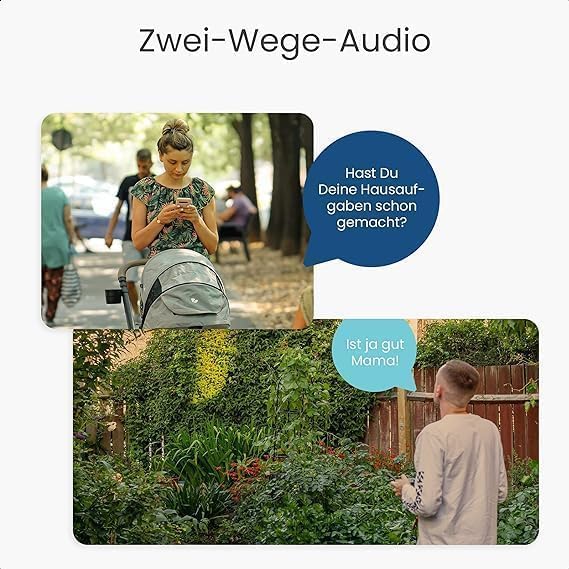
Image: An illustration showing the two-way audio function, with speech bubbles indicating communication between a person viewing the camera feed and a person near the camera.
6.3. Motion Detection and Alerts
The camera's intelligent motion detection system can alert you to activity in the monitored area.
- Navigate to the camera settings in the app to enable motion detection.
- Adjust sensitivity levels and define specific detection zones to minimize false alarms.
- Enable push notifications to receive instant alerts on your smartphone when motion is detected.
- The camera can automatically record footage when motion is triggered.

Image: A visual representation of the motion detector feature, highlighting a detected person and a smartphone displaying a live alert.
6.4. Night Vision Modes
The Gologi camera offers three night vision modes to suit different lighting conditions:
- Infrared Mode: Provides clear black and white images in complete darkness using infrared LEDs.
- Full Color Mode: Utilizes ambient light or built-in white lights (if available) to produce color images at night.
- Smart AI Mode: Automatically switches between infrared and full-color modes based on detected motion or specific events.
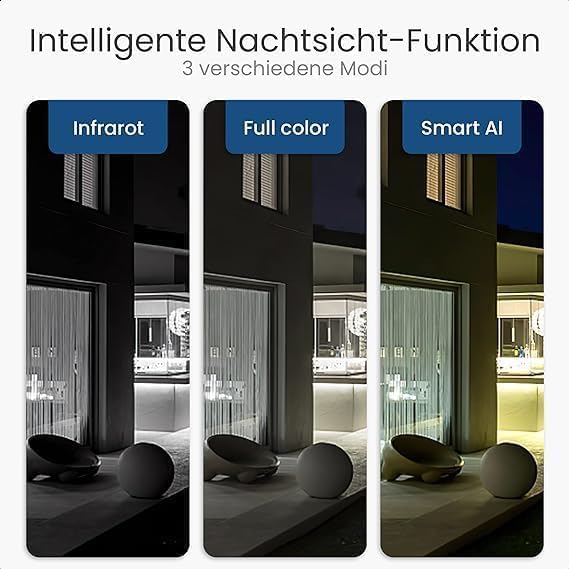
Image: A comparison showing the visual output of the three intelligent night vision functions: Infrared (black and white), Full Color, and Smart AI (adaptive).
6.5. Video Recording and Storage
Your camera supports continuous recording or event-triggered recording, with options for local and cloud storage.
- MicroSD Card: The included 32GB MicroSD card allows for local storage of hundreds of hours of video footage. Access recordings directly through the app's playback function.
- Cloud Storage: An optional subscription-based cloud storage service is available for secure off-site storage and easy access to your recordings from any device.

Image: A graphic illustrating the two storage options: saving all footage on a MicroSD card or choosing online cloud storage.
6.6. Pan and Tilt Control
Control the camera's viewing angle remotely using the Gologi app.
- In the live view, use the directional controls to pan the camera horizontally up to 355° and tilt it vertically up to 90°.
- This allows for a comprehensive overview of your surveillance area.
6.7. Smart Home Integration
The Gologi camera can be integrated with popular smart home platforms.
- Follow the instructions within the Gologi app or your smart home hub (e.g., Amazon Alexa, Google Assistant) to link your camera.
- This enables voice control and integration into smart home routines.
7. Maintenance
7.1. Cleaning the Camera
To maintain optimal image quality, regularly clean the camera lens and housing.
- Ensure the camera is powered off before cleaning.
- Use a soft, dry cloth to wipe the camera body.
- For the lens, use a lens cleaning cloth and a specialized lens cleaning solution to avoid scratches.
- Do not use harsh chemicals or abrasive cleaners.
7.2. Firmware Updates
Periodically check the Gologi app for available firmware updates. Updates can improve performance, add new features, and enhance security.
- Follow the in-app instructions to download and install any available updates.
- Ensure a stable power supply and internet connection during the update process.
8. Troubleshooting
If you encounter issues with your Gologi camera, refer to the following common problems and solutions:
| Problem | Possible Cause | Solution |
|---|---|---|
| Camera not connecting to Wi-Fi | Incorrect Wi-Fi password; camera too far from router; 5GHz Wi-Fi network used; temporary network issue. | Verify Wi-Fi password. Move camera closer to router. Ensure you are connecting to a 2.4GHz Wi-Fi network. Reset the camera using the reset button and try pairing again. |
| No live view in app | No internet connection; camera offline; app issue. | Check your internet connection. Ensure the camera is powered on and connected to Wi-Fi. Restart the app. Note that if the internet connection is lost, the app cannot access the live feed, even if the local network is functional. |
| Motion detection not working | Motion detection disabled; incorrect sensitivity settings; detection zones not configured. | Enable motion detection in the app settings. Adjust sensitivity. Configure detection zones to cover the desired area. |
| Poor image quality | Dirty lens; low light conditions; poor network bandwidth. | Clean the camera lens. Ensure adequate lighting or check night vision settings. Verify your Wi-Fi signal strength. |
| SD card recording issues | SD card full; SD card corrupted; incorrect recording settings. | Check SD card status in the app. Format the SD card if necessary (this will erase all data). Ensure recording settings are enabled. |
| Connection to live view is slow | Network congestion; weak Wi-Fi signal; server delay. | Ensure a strong Wi-Fi signal at the camera's location. Reduce network traffic if possible. Connection establishment can sometimes take a moment. |
9. Specifications
Technical specifications for the Gologi Outdoor WiFi Security Camera (Model 8720828084205):
| Feature | Detail |
|---|---|
| Model Number | 8720828084205 |
| Mounting Type | Wall Mount |
| Color | Black |
| Wireless Communication Technology | Wi-Fi (2.4GHz only) |
| Material | Metal (housing) |
| Item Dimensions (L x W x H) | 10 x 11 x 17 cm |
| Item Weight | 720 g |
| Water Resistance Level | IP66 (Water-resistant) |
| Recommended Product Uses | Night Vision, Outdoor Surveillance |
| Connectivity Technology | Wireless |
| Special Features | 2-way audio, Night Vision, Motion Sensor |
| Indoor/Outdoor Use | Outdoor |
| Compatible Devices | Smartphone (iOS, Android) |
| Power Source | Corded Electric (USB Power Adapter) |
| Controller Type | Amazon Alexa, Google Assistant |
10. Warranty and Support
For warranty information or technical support, please refer to the contact details provided with your purchase or visit the official Gologi website. Keep your proof of purchase for warranty claims.