
Introduction
This manual provides instructions for the setup, operation, maintenance, and troubleshooting of your amazon basics Pro Series Dual Connectivity Rechargeable Gaming Mouse, Model ABIM10. Please read this manual thoroughly before using the product to ensure proper functionality and to maximize your gaming and computing experience.
Product Overview
The amazon basics Pro Series Gaming Mouse features dual connectivity (Bluetooth and 2.4GHz wireless), 8 programmable buttons, and an optical sensor with up to 16000 DPI. It is designed for comfort and precision.

Figure 1: Overview of the mouse buttons, including Left Click, Right Click, Anti-Skid Scroll Wheel, DPI button, Forward button, and Backward button.
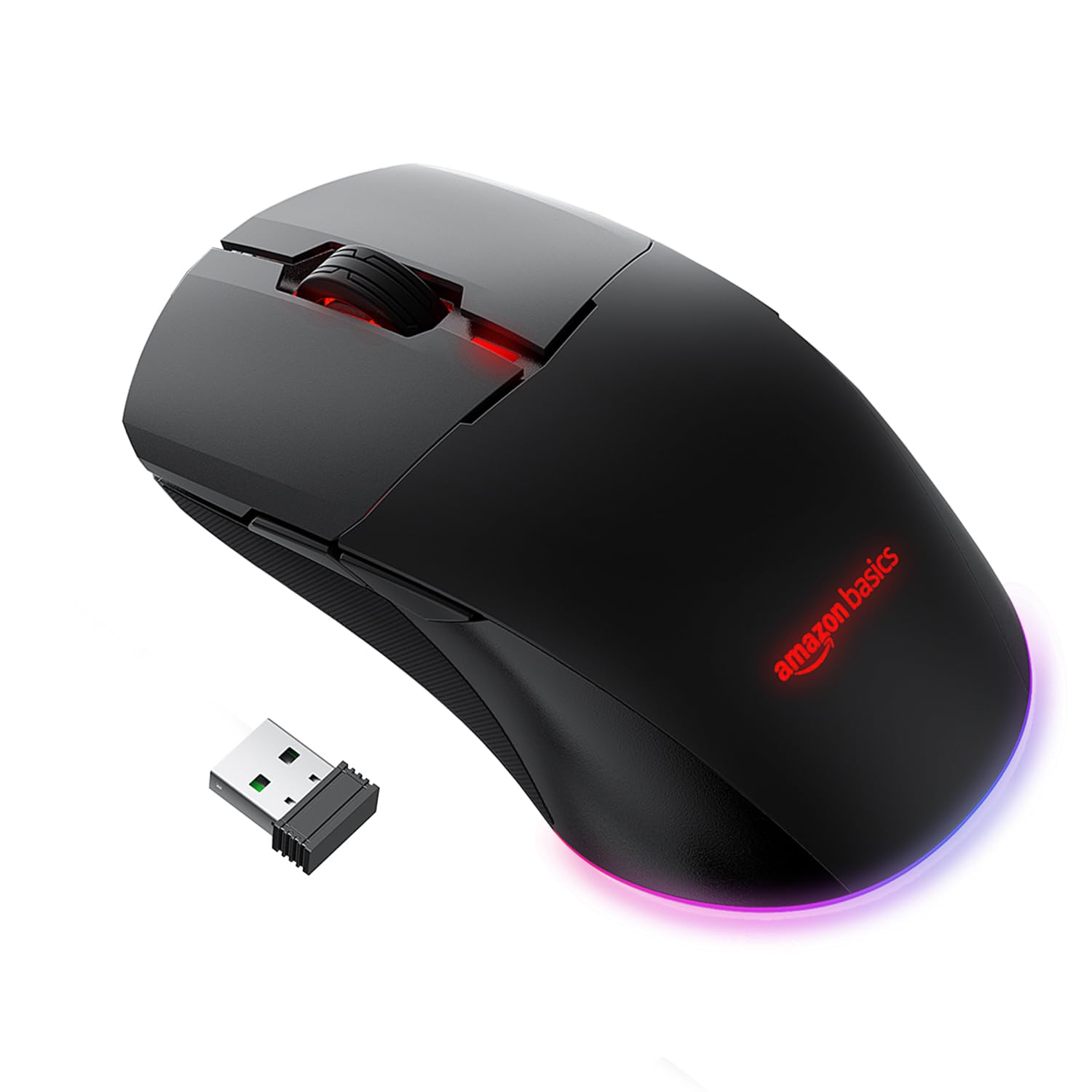
Figure 2: Adjustable DPI settings, indicating a range from 800 to 16000 DPI for precise control.
Setup
1. Charging the Mouse
The mouse is powered by a 650 mAh rechargeable battery. A full charge takes approximately 2 hours and provides up to 50 hours of usage.
- Connect the provided USB charging cable to the mouse's charging port.
- Connect the other end of the USB cable to a powered USB port on your computer or a USB wall adapter.
- The mouse's indicator light will show charging status (refer to product for specific light behavior).

Figure 3: Mouse connected via USB cable for charging or wired operation.
2. Connectivity Modes
The mouse supports three connectivity options: Wired, 2.4GHz Wireless, and Bluetooth.
Wired Connection
- Connect the provided USB cable directly from the mouse to your computer's USB port.
- The mouse will function immediately as a wired device.
2.4GHz Wireless Connection (USB Dongle)
- Locate the USB dongle, usually stored in a compartment on the underside of the mouse.
- Plug the USB dongle into an available USB port on your computer.
- Turn on the mouse. Observe the RGB light bar. If it is BLUE, the mouse is in Bluetooth mode.
- To switch to 2.4GHz mode, press and hold the DPI button located on the underside of the mouse, next to the sensor.
- The RGB light bar will turn GREEN, indicating the mouse is now in 2.4GHz wireless mode.
- Your computer should automatically detect and connect to the mouse.
Bluetooth Connection
- Turn on the mouse. If the RGB light bar is GREEN, the mouse is in 2.4GHz mode.
- To switch to Bluetooth mode, press and hold the DPI button on the underside of the mouse until the RGB light bar turns BLUE.
- To enter pairing mode, press and hold the Left Click, Middle Click (Scroll Wheel), and Right Click buttons simultaneously for approximately 5 seconds.
- The RGB light bar will flash BLUE, indicating the mouse is in Bluetooth pairing mode.
- On your computer or device, open Bluetooth settings and search for new devices.
- Select the "amazon basics Gaming Mouse" (or similar name) from the list of available devices to pair.
- Once paired, the blue light will stop flashing and remain solid, or turn off, depending on the mouse's design.
Operation
1. Adjusting DPI (Sensitivity)
The mouse features adjustable DPI settings up to 16000 DPI, allowing you to customize cursor speed and precision.
- To change DPI, press the DPI button located on the underside of the mouse.
- Each press cycles through predefined DPI levels (e.g., 800, 1200, 1600, 2400, 5000, 16000).
- The mouse's RGB lighting may change color to indicate the current DPI level (refer to product for specific color indications).
2. Using Programmable Buttons
The mouse includes 8 programmable buttons (Left Click, Right Click, Scroll Wheel, DPI, Forward, Backward, and two additional buttons if applicable). These buttons can be customized for various functions.
- Default Functions: The Forward and Backward buttons typically navigate web pages or file folders.
- Customization: To program the buttons, you may need to download specific software from the amazon basics support website. Follow the software's instructions for assigning custom macros or functions.
Maintenance
1. Cleaning
To maintain optimal performance, keep your mouse clean.
- Use a soft, dry cloth to wipe the surface of the mouse.
- For stubborn dirt, slightly dampen the cloth with water or a mild cleaning solution. Avoid harsh chemicals.
- Clean the optical sensor on the underside of the mouse periodically with a cotton swab to ensure accurate tracking.
2. Battery Care
The mouse uses a rechargeable battery. Follow these guidelines for battery longevity:
- Charge the mouse when the battery is low to prevent interruptions.
- Avoid exposing the mouse to extreme temperatures, which can affect battery life.
- If storing the mouse for an extended period, charge it to about 50% before storage.
Troubleshooting
- Mouse not responding:
Ensure the mouse is charged. Check the connection mode (Wired, 2.4GHz, Bluetooth) and ensure it matches your computer's connection. For 2.4GHz, ensure the USB dongle is securely plugged in. For Bluetooth, ensure it's paired correctly and your device's Bluetooth is enabled. Try restarting your computer. - Connectivity issues (frequent disconnections):
Ensure the mouse is within range of the USB dongle or Bluetooth device. Avoid interference from other wireless devices. For Bluetooth, try re-pairing the mouse. Ensure the mouse is fully charged. - DPI not changing:
Ensure you are pressing the correct DPI button on the underside of the mouse. If the issue persists, try connecting the mouse to another computer to rule out software conflicts. - Scroll wheel acting erratically:
Clean the scroll wheel area to remove any dust or debris. If the issue persists, it may indicate a hardware fault. - Buttons not programmable:
Ensure you have downloaded and installed the correct customization software for your amazon basics gaming mouse from the official website. Follow the software's instructions carefully.
Specifications
| Brand | amazon basics |
| Model Number | ABIM10 |
| Connectivity Technology | Bluetooth, 2.4GHz Wireless, Wired (USB) |
| Movement Detection Technology | Optical |
| DPI Range | Up to 16000 DPI |
| Programmable Buttons | 8 |
| Battery Type | 650 mAh Rechargeable |
| Charging Time | Approx. 2 hours |
| Usage Time | Up to 50 hours |
| Product Dimensions (LxWxH) | 13 x 7.5 x 4.2 cm |
| Item Weight | 87 g |
| Hardware Platform | PC |
| Operating System Compatibility | Linux, Windows 7, Windows XP (and newer versions) |

Figure 4: Mouse dimensions for reference.
Warranty and Support
Warranty Information
This amazon basics product comes with a 1-Year Warranty from the date of purchase. Please retain your proof of purchase for warranty claims. The warranty covers manufacturing defects and normal use. It does not cover damage caused by misuse, accidents, unauthorized modifications, or normal wear and tear.
Customer Support
For technical assistance, warranty claims, or further information, please contact the retailer where you purchased the product or visit the official amazon basics support website. Refer to your purchase documentation for specific contact details.


