
Introduction
This manual provides comprehensive instructions for the setup, operation, maintenance, and troubleshooting of your Bewinner 10.1 Inch Portable Touchscreen Monitor. Please read this manual thoroughly before using the product to ensure proper functionality and longevity.
The Bewinner 10.1 Inch Portable Touchscreen Monitor features a 1280x800 HD display, capacitive touch functionality, built-in speakers, and multiple input interfaces including HDMI and VGA, making it suitable for various applications such as gaming, PC use, and CCTV monitoring.
Safety Information
To ensure safe operation and prevent damage, please observe the following safety precautions:
- Do not expose the monitor to rain or moisture.
- Avoid placing the monitor near heat sources or in direct sunlight.
- Use only the power adapter supplied with the device.
- Do not attempt to disassemble or repair the monitor yourself. Refer all servicing to qualified personnel.
- Keep the monitor away from strong magnetic fields.
- Ensure proper ventilation around the monitor to prevent overheating.
Package Contents
Please check the package contents upon unboxing to ensure all items are present:
- 1 x Bewinner 10.1 Inch Portable Touchscreen Monitor
- 1 x USB Power Cable
- 1 x HD Multimedia Interface Cable
- 1 x Instruction Manual (this document)
- 1 x Monitor Support Stand

Image: All components included in the product package, laid out for clear viewing. This includes the monitor, a USB power cable, an HD Multimedia Interface cable, and the monitor support stand.
Product Overview
The Bewinner 10.1 Inch Portable Touchscreen Monitor is designed for versatility and ease of use. Key features include:
- 10.1-inch HD Display: Features a 1280x800 resolution with capacitive touch functionality, requiring no additional drivers for touch operation.
- Multi-Interface Support: Equipped with HD Multimedia Interface (HDMI) and VGA inputs for broad compatibility with various devices such as PCs, laptops, gaming consoles, and DVRs.
- Integrated Audio: Built-in premium dual speakers provide an immersive audio experience. A 3.5mm headphone jack is also available for private listening.
- Flexible Mounting Options: Includes a desktop stand for easy placement. Additionally, four M4 screw holes on the back allow for VESA-compatible wall mounting.
- Menu Functionality: On-screen display (OSD) menu allows adjustment of various settings including horizontal/vertical position, transparency, image flip, and display time.

Image: The Bewinner 10.1 Inch Portable Touchscreen Monitor, showcasing its display quality with a scenic image. The monitor is black with a slim bezel and includes a simple stand.

Image: A close-up of the monitor highlighting its 10.1-inch size and 1280x800 resolution, emphasizing its touch functionality and driver-free operation.
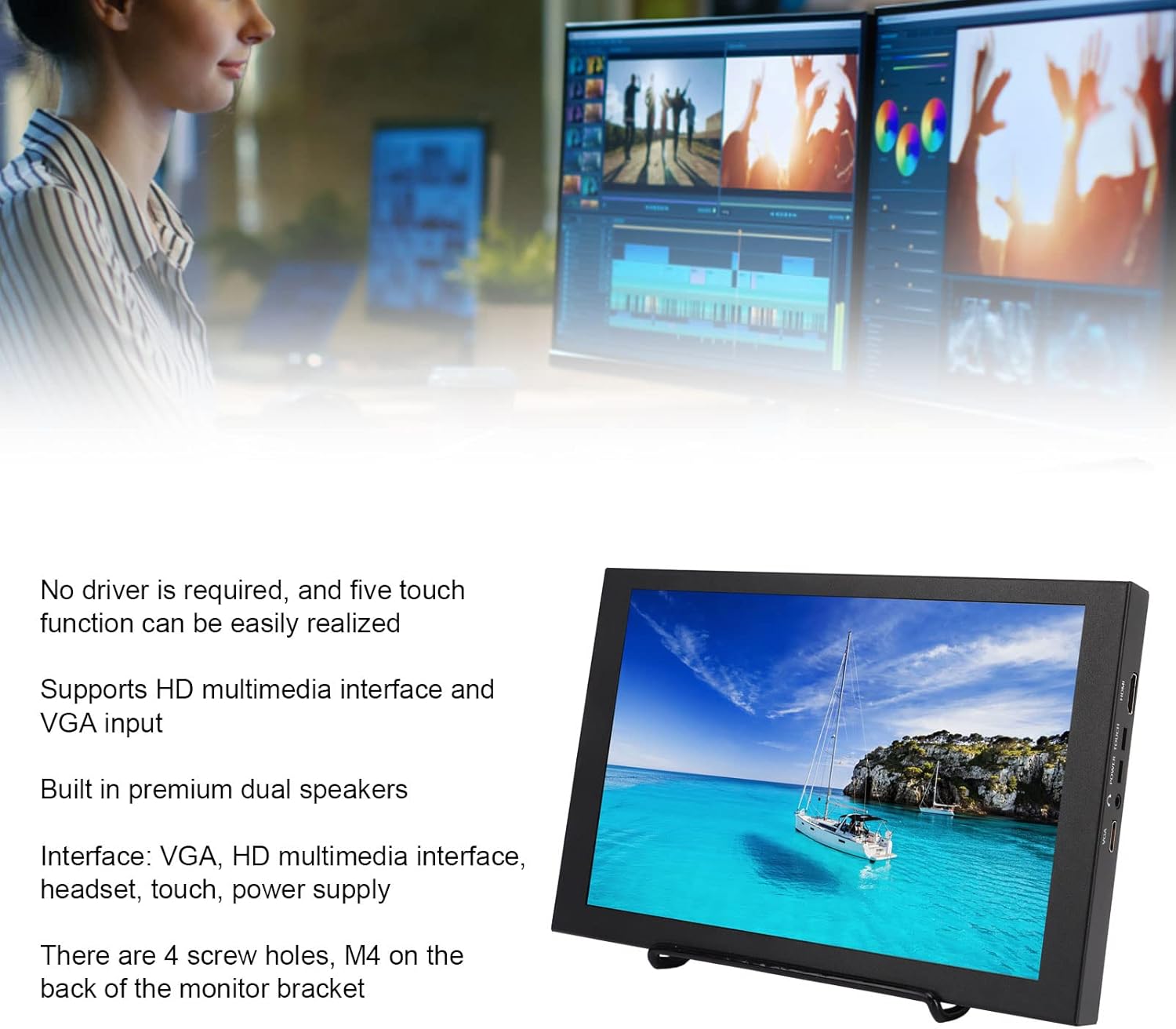
Image: The monitor displayed alongside a summary of its key features, including touch capability, multi-interface support (HDMI, VGA), dual speakers, and VESA mounting options.

Image: The back of the monitor, illustrating the adjustable stand and the four M4 screw holes designed for VESA mounting.

Image: A detailed view of the side of the monitor, showing the physical control buttons for power, menu navigation (up, down), and exit functions.

Image: A close-up of the monitor's side panel, clearly displaying the various input and output ports, including HDMI, power input, touch interface, headset jack, and VGA.
Setup
Follow these steps to set up your Bewinner Portable Monitor:
- Unpack: Carefully open the packing box and remove the pearl cotton protective sleeve from the monitor.
- Remove Protective Film: Gently peel off any protective film from the monitor screen.
- Install Stand: Attach the included support stand to the monitor. Ensure it is securely fastened for stable placement on a desktop. Alternatively, if wall mounting, use the M4 screw holes on the back with a compatible VESA mount (not included).
- Connect Power: Plug the USB Power Cable into the monitor's power input port and connect the other end to a suitable power source (e.g., USB wall adapter, computer USB port).
- Connect Input Source:
- For HD Multimedia Interface (HDMI) connection: Use the provided HD Multimedia Interface Cable to connect the monitor to your device (e.g., computer, gaming console, DVR).
- For VGA connection: Use a VGA cable (not included) to connect the monitor to your PC or laptop.
- Power On: Press the 'POWER' button on the side of the monitor to turn it on.
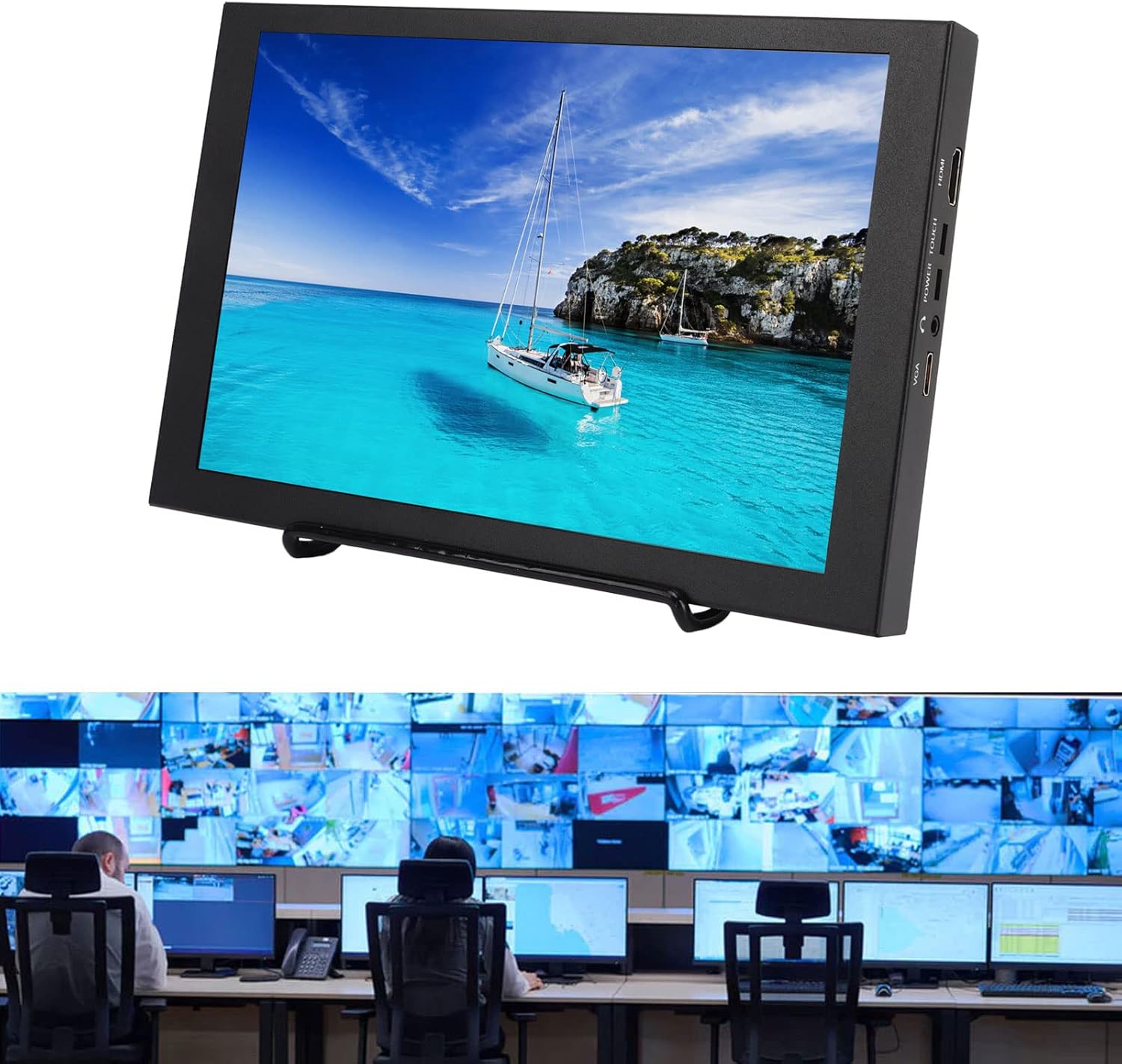
Image: The portable monitor in a professional setting, demonstrating its potential use in a CCTV monitoring station, highlighting its integration capabilities.
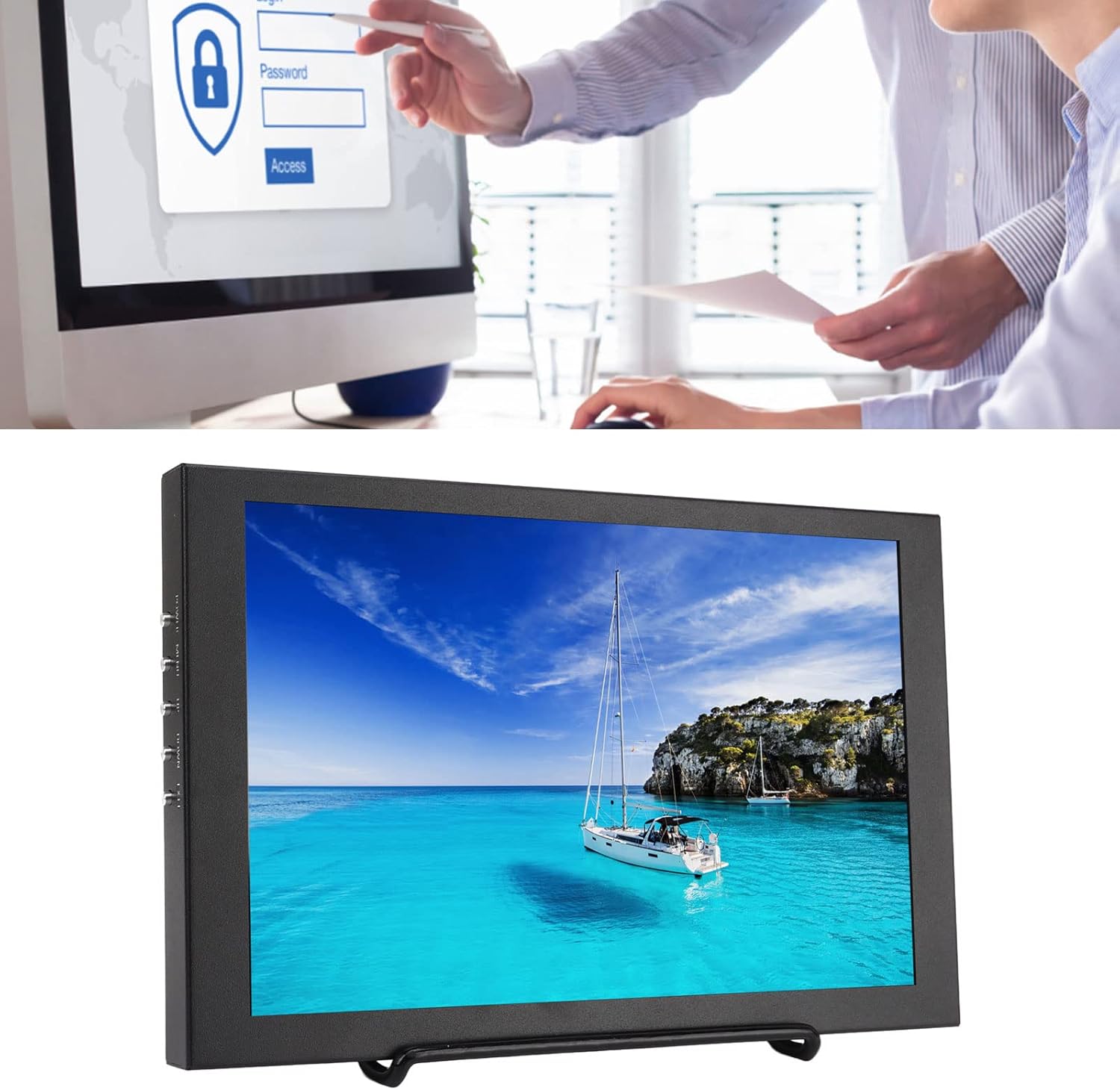
Image: The monitor in an office context, illustrating its use as an auxiliary display for productivity tasks, potentially leveraging its touchscreen for interactive applications.
Operating Instructions
Once the monitor is set up and powered on, you can begin using it and adjust its settings.
Basic Operation:
- Power On/Off: Press the 'POWER' button on the side of the monitor.
- Input Source Selection: The monitor should automatically detect the active input. If not, or if you wish to switch between HDMI and VGA, use the 'MENU' button to access the OSD and navigate to the input selection option.
- Touch Functionality: The 10.1-inch screen supports five-point capacitive touch. Ensure the 'TOUCH' cable (if separate, though typically integrated with USB power for touch data) is connected to your device for touch input to function. No specific driver installation is required for basic touch operation.
- Audio Output: Sound will be played through the built-in dual speakers. For private listening, connect headphones to the 3.5mm headset jack.
Menu Function (OSD):
The monitor's On-Screen Display (OSD) menu allows for various adjustments. Use the buttons on the side of the monitor to navigate and select options:
- MENU Button: Press to open the OSD menu. Press again to enter a selected submenu or confirm a setting.
- UP / DOWN Buttons: Use these buttons to navigate through menu options or adjust values.
- EXIT Button: Press to exit the current menu or return to the previous level.
Common adjustable settings in the OSD menu include:
- Picture Settings: Brightness, Contrast, Color Temperature, Aspect Ratio.
- Display Settings: Horizontal Position, Vertical Position, Transparency, Image Flip (for different mounting orientations).
- Audio Settings: Volume control.
- Other Settings: OSD Language, OSD Display Time.
Maintenance
Proper maintenance ensures the longevity and optimal performance of your monitor.
- Cleaning the Screen: Use a soft, lint-free cloth slightly dampened with water or a non-abrasive screen cleaner. Do not spray liquid directly onto the screen. Avoid using alcohol-based cleaners or harsh chemicals.
- Cleaning the Casing: Wipe the monitor casing with a soft, dry cloth.
- Storage: When not in use for extended periods, store the monitor in a cool, dry place, away from direct sunlight and extreme temperatures.
- Handling: Always handle the monitor by its edges or frame. Avoid pressing directly on the screen.
Troubleshooting
If you encounter issues with your monitor, please refer to the following common problems and solutions:
| Problem | Possible Cause | Solution |
|---|---|---|
| No image on screen |
|
|
| No touch response |
|
|
| No sound from speakers |
|
|
| Image is distorted or incorrect colors |
|
|
If the problem persists after trying these solutions, please contact customer support.
Specifications
| Feature | Detail |
|---|---|
| Brand | Bewinner |
| Model Number | Dilwe6d9atscn7o |
| Screen Size | 10.1 Inches |
| Screen Resolution | 1280x800 HD |
| Display Technology | Capacitive Touchscreen |
| Aspect Ratio | 16:10 |
| Screen Surface | Glossy |
| Interfaces | VGA, HD Multimedia Interface (HDMI), Headset (3.5mm Jack), Touch (USB), Power Supply |
| Speakers | Built-in Dual Speakers |
| Mounting Options | Desktop Stand, 4x M4 Screw Holes (VESA compatible) |
| Package Dimensions | 30.2 x 19.8 x 6.6 cm |
| Gross Weight | 1.19 kg |
| Date First Available | 3 February 2023 |
Warranty and Support
For warranty information and customer support, please refer to the terms provided at the time of purchase or contact the seller directly. The product is sold by Bewinneri.
Extended warranty options may be available from third-party providers. Please check your purchase details for more information on available protection plans.
For technical assistance or service inquiries, please contact Bewinner customer support through the platform where the product was purchased.