
DR1TECH DR10039E
DR1TECH ShockPad II Wireless Gaming Controller User Manual
Model: DR10039E
1. Product Overview
The DR1TECH ShockPad II is a versatile wireless gaming controller designed for an enhanced gaming experience across multiple platforms. It features a next-generation design, touch pad, and double vibration functionality, ensuring immersive gameplay. The controller is equipped with a rechargeable lithium-ion battery for extended play sessions.

Front view of the DR1TECH ShockPad II Controller in blue, showcasing its ergonomic design and button layout.

A user holding the DR1TECH ShockPad II Controller, illustrating its key features: integrated audio port, powerful analog sticks, dual motor vibration, and ergonomic, non-slip design.
Key Features:
- Multi-Platform Compatibility: Designed for PS4, backward compatible with PS5 (for PS4 games), PC (via USB), and iOS devices.
- Next-Generation Design: Modern and attractive design available in multiple color variations.
- Dual Vibration: Provides immersive haptic feedback for a more engaging gaming experience.
- Integrated Touchpad: Offers additional control options for compatible games.
- Rechargeable Battery: Built-in lithium-ion battery ensures long hours of gameplay and fast charging.
- Audio Function: Includes an integrated port for audio output.
2. Controller Layout
Familiarize yourself with the various buttons and components of your ShockPad II controller:

Detailed diagram illustrating the layout of the DR1TECH ShockPad II Controller, including the Touchpad, Charging Port, L1/L2 Buttons, Share Button, Options Button, R1/R2 Buttons, D-Pad, Action Buttons (Triangle, Circle, Cross, Square), Left Joystick, Right Joystick, Home Button, Minilight Bar, and Audio Function port.
- Touchpad: Interactive surface for specific game functions.
- Charging Port: USB-C port for charging the controller.
- L1/L2 Buttons: Left shoulder and trigger buttons.
- Share Button: Used for sharing gameplay content.
- Options Button: Accesses in-game menus or system options.
- R1/R2 Buttons: Right shoulder and trigger buttons.
- D-Pad: Directional pad for precise movement or menu navigation.
- Action Buttons: Triangle, Circle, Cross (X), and Square buttons for in-game actions.
- Left/Right Joysticks: Analog sticks for movement and camera control.
- Home Button: Returns to the console's home screen or powers on/off.
- Minilight Bar: Indicates controller status and player assignment.
- Audio Function: 3.5mm jack for connecting headphones.
3. Setup and Connection
What's in the Box:
- DR1TECH ShockPad II Controller
- USB Charging Cable
Initial Charging:
Before first use, fully charge your ShockPad II controller. Connect the supplied USB charging cable to the controller's charging port and the other end to a USB power source (e.g., console, PC, or USB wall adapter). The minilight bar will indicate charging status. A flashing signal will alert you when the battery is running low during use.

Visual representation of the ShockPad II's battery performance: up to 16 hours of in-game use and approximately 2.5 hours for a full charge.
Connecting to Devices:
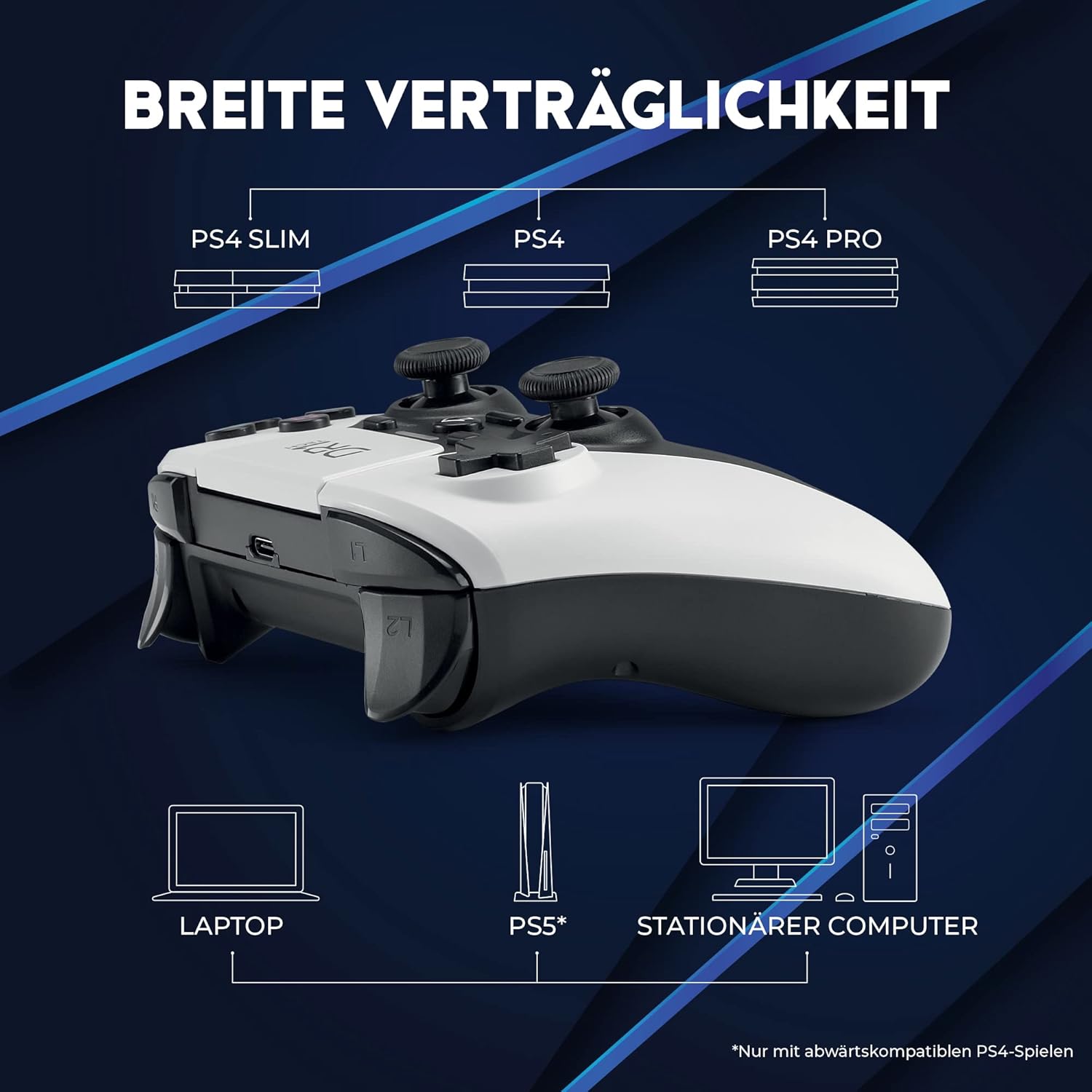
Diagram illustrating the broad compatibility of the DR1TECH ShockPad II Controller with various platforms, including PS4 Slim, PS4, PS4 Pro, Laptops, Desktop PCs, and PS5 (for backward compatible PS4 games only).
- For PlayStation 4 / PlayStation 3:
- Connect the controller to your console using the USB charging cable.
- Press the Home button on the controller.
- The controller will pair with the console. Once paired, you can disconnect the cable for wireless play.
- For subsequent uses, simply press the Home button to connect wirelessly.
- For PC (Windows):
- Connect the controller to your PC via the USB charging cable.
- The PC should automatically detect and install the necessary drivers.
- The controller will function as a wired gamepad.
- For iOS Devices (iPhone/iPad):
- Ensure Bluetooth is enabled on your iOS device.
- Put the controller into pairing mode (refer to specific instructions if available, otherwise assume standard Bluetooth pairing).
- On your iOS device, go to Bluetooth settings and select the ShockPad II controller from the list of available devices.
- Follow any on-screen prompts to complete the pairing process.
4. Operating Instructions
Power On/Off:
- To Power On: Press the Home button. The minilight bar will illuminate.
- To Power Off: Press and hold the Home button for approximately 10 seconds until the minilight bar turns off. The controller will also enter standby mode after a period of inactivity to conserve battery.
Basic Functions:
- Analog Sticks: Use the Left and Right Joysticks for precise movement and camera control in games.
- D-Pad: Ideal for menu navigation and specific directional inputs.
- Action Buttons (Triangle, Circle, Cross, Square): Perform in-game actions as defined by the game.
- L1/L2 and R1/R2 Buttons: Used for various in-game actions, often for shooting, aiming, or special abilities.
- Share Button: Access sharing features on your console (e.g., screenshots, video clips).
- Options Button: Pauses games, accesses game menus, or system settings.
- Touchpad: Functions as an interactive surface for specific game mechanics or navigation.
- Audio Jack: Plug in a 3.5mm headset for in-game audio and communication.
Battery Status:
The minilight bar on the controller will flash to indicate a low battery level, prompting you to recharge the controller. During charging, the light will indicate the charging progress.
5. Maintenance
- Cleaning: Use a soft, dry cloth to wipe the surface of the controller. For stubborn dirt, slightly dampen the cloth with water. Avoid using harsh chemicals, solvents, or abrasive cleaners.
- Storage: Store the controller in a cool, dry place away from direct sunlight, extreme temperatures, and high humidity.
- Battery Care: To prolong battery life, avoid fully discharging the controller frequently. If storing for an extended period, charge the battery to about 50% and recharge every few months.
- Handling: Do not drop the controller or subject it to strong impacts. Avoid pulling the cable forcefully when disconnecting.
6. Troubleshooting
- Controller Not Connecting/Pairing:
- Ensure the controller is fully charged.
- Try connecting the controller to the console/PC using the USB cable to establish an initial connection.
- Restart your console/PC and try pairing again.
- If connecting to PS4, ensure the console's system software is up to date.
- Battery Not Charging:
- Verify the USB cable is securely connected to both the controller and the power source.
- Try a different USB port or power adapter.
- Ensure the USB cable is not damaged.
- Buttons/Joysticks Not Responding Correctly:
- Clean around the buttons and joysticks to remove any debris.
- Restart the controller and the connected device.
- Test the controller on another compatible device if possible to isolate the issue.
- Vibration Not Working:
- Check in-game settings to ensure vibration is enabled.
- Ensure the controller is fully charged.
7. Specifications
| Feature | Detail |
|---|---|
| Model Number | DR10039E |
| Product Dimensions | 15 x 9.9 x 5.2 cm |
| Weight | 250 g |
| Battery Type | 1 Lithium Ion battery (included) |
| Compatibility | PlayStation 4, PlayStation 3, PC (Windows), iOS |
| Connectivity | Wireless (Bluetooth), Wired (USB) |
8. Warranty and Support
DR1TECH is committed to providing high-quality products. While specific warranty details are not provided in this manual, for any questions, technical assistance, or unforeseen circumstances regarding your ShockPad II controller, please contact DR1TECH customer support. Our team is dedicated to assisting you and resolving any issues as quickly as possible.
Please refer to the product packaging or the official DR1TECH website for the most up-to-date warranty information and contact details.
For further assistance, you may visit the product page on Amazon.co.uk.
Ask a question about this manual
Ask about setup, troubleshooting, compatibility, parts, safety, or missing instructions. Manuals+ will review the question and use this page’s manual context to help answer it.