
DR1TECH DR10041E
DR1TECH ShockPad II Wireless Controller User Manual
Model: DR10041E | Brand: DR1TECH
Introduction
The DR1TECH ShockPad II is a versatile wireless controller designed for an enhanced gaming experience across multiple platforms. It is primarily compatible with PlayStation 4 (PS4) and PlayStation 3 (PS3) consoles, and also supports PlayStation 5 (PS5) for PS4 backward-compatible games. Additionally, it offers compatibility with PC and iOS devices, providing broad usability.
This controller features a modern, ergonomic design for comfortable extended play, dual vibration motors for immersive feedback, and a capacitive touch pad. Equipped with a rechargeable Lithium-Ion battery, it ensures long hours of gameplay and quick charging. A flashing signal indicates low battery, prompting timely recharging.
What's in the Box
- DR1TECH ShockPad II Wireless Controller
- USB Charging Cable
Product Overview
Familiarize yourself with the various components and controls of your DR1TECH ShockPad II controller:
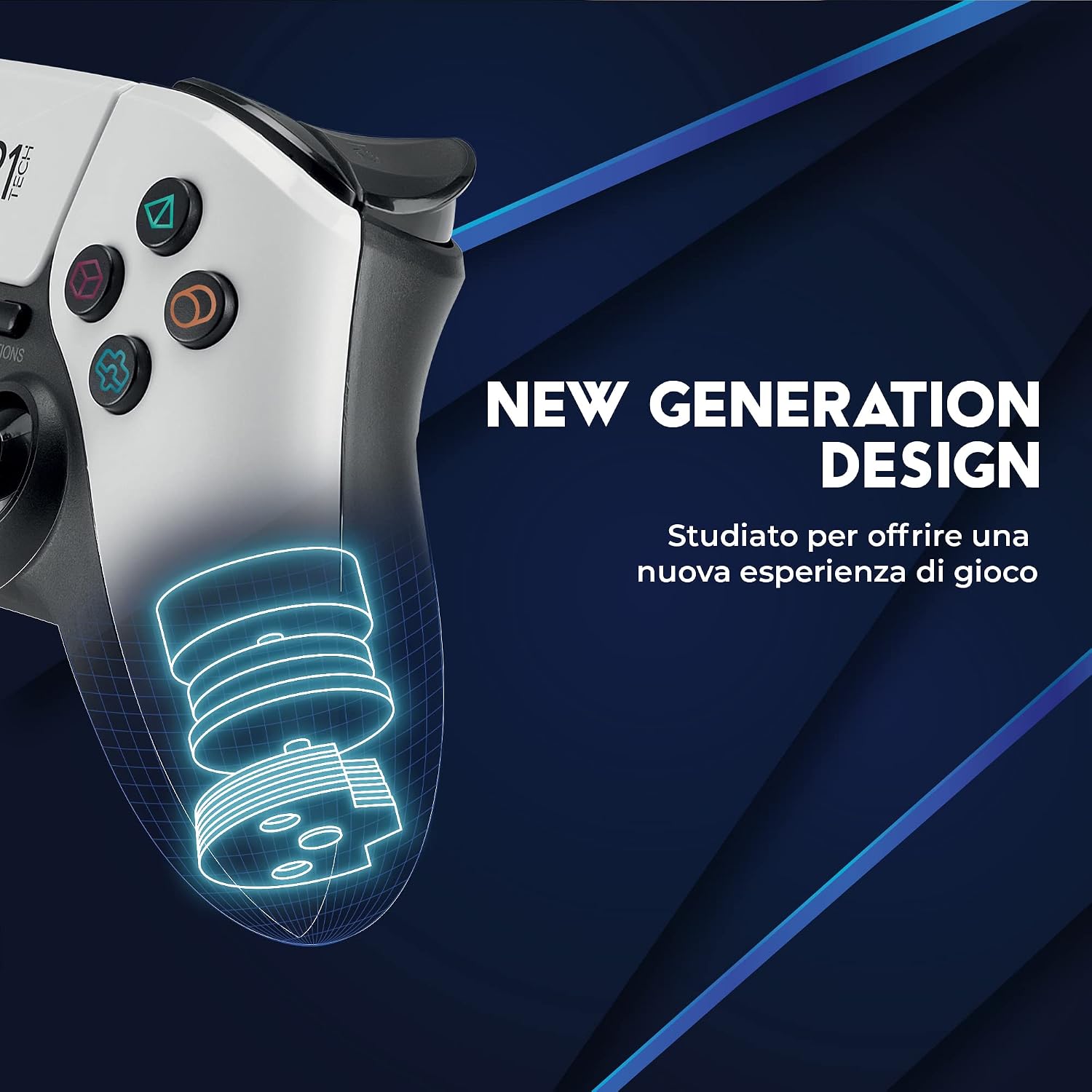
Image: Detailed diagram illustrating the layout and function of each button and port on the DR1TECH ShockPad II controller.
- Touchpad: Capacitive touch surface for interactive input.
- Charging Port: USB port for charging the controller.
- L1/L2 Buttons: Left shoulder and trigger buttons.
- R1/R2 Buttons: Right shoulder and trigger buttons.
- Share Button: Used for sharing gameplay content.
- Options Button: Accesses in-game menus and options.
- D-Pad: Directional pad for precise movement.
- Action Buttons: Standard PlayStation symbols (Triangle, Circle, Cross, Square).
- Left Joystick: Analog stick for movement and camera control.
- Right Joystick: Analog stick for camera control and aiming.
- Home Button: Returns to the console's home screen or powers on/off.
- Minilight Bar: Indicates controller status and player assignment.
- Audio Function Port: 3.5mm jack for connecting headphones or headsets.
Specifications
| Model Number | DR10041E |
| Dimensions | 15 x 9.9 x 5.2 cm |
| Weight | 250 grams |
| Battery Type | Lithium-Ion (included) |
| Battery Life (In-Game) | Up to 16 hours |
| Full Charge Time | Approximately 2.5 hours |
| Connectivity | Wireless (Bluetooth), USB |
| Compatibility | PS4, PS3, PS5 (for PS4 games), PC (via USB), iOS |
Setup
Charging the Controller
Before first use, or when the battery is low (indicated by a flashing signal), charge the controller using the provided USB cable.
- Connect the small end of the USB charging cable to the charging port on the front of the controller.
- Connect the other end of the USB cable to a USB port on your PS4/PS3 console, PC, or a compatible USB wall adapter.
- The controller's light bar will indicate charging status. A full charge takes approximately 2.5 hours, providing up to 16 hours of in-game use.

Image: Visual representation of the controller's battery life and charging duration.
Connecting to PS4/PS3
To pair the controller with your PlayStation console:
- Ensure your console is powered on.
- Connect the controller to the console using the USB charging cable.
- Press the Home button on the controller. The controller will automatically pair with the console.
- Once paired, you can disconnect the USB cable for wireless play.
Connecting to PC/iOS
The ShockPad II offers versatile compatibility:

Image: Compatibility chart for the DR1TECH ShockPad II controller.
- PC Connection: Connect the controller to your PC via the USB cable. The controller should be recognized automatically. For wireless PC connection, ensure your PC has Bluetooth capabilities and follow standard Bluetooth pairing procedures.
- iOS Connection: Enable Bluetooth on your iPhone or iPad. Put the controller into pairing mode (refer to specific pairing instructions if provided with the device, typically by holding a combination of buttons). Select the controller from the list of available Bluetooth devices on your iOS device.
Operating Instructions
Basic Controls
The DR1TECH ShockPad II functions similarly to standard PlayStation controllers. Use the joysticks for movement and camera control, the D-Pad for directional input, and the action buttons for in-game commands. The L1/L2 and R1/R2 buttons provide additional input options, often used for triggers or shoulder actions.
Special Features
- Touch Pad: Utilize the integrated capacitive touch pad for specific game interactions or navigation where supported.
- Dual Vibration: Experience enhanced immersion with the controller's dual vibration motors, providing tactile feedback for in-game events.
- Audio Function: Connect a compatible 3.5mm headset to the audio port for in-game audio and communication.
Maintenance
Proper care will extend the life of your DR1TECH ShockPad II controller:
- Cleaning: Use a soft, dry cloth to clean the controller. For stubborn dirt, slightly dampen the cloth with water. Avoid using harsh chemicals or abrasive cleaners.
- Storage: Store the controller in a cool, dry place away from direct sunlight and extreme temperatures.
- Battery Care: Do not attempt to replace the internal battery. If the controller will not be used for an extended period, charge it periodically to maintain battery health.
Troubleshooting
If you encounter issues with your controller, refer to the following common problems and solutions:
| Problem | Solution |
|---|---|
| Controller does not turn on. | Ensure the controller is charged. Connect it to a power source using the USB cable and allow it to charge for at least 30 minutes. |
| Controller does not connect wirelessly. | Ensure the controller is fully charged. Re-pair the controller by connecting it via USB to the console/device and pressing the Home button. Ensure no other wireless devices are causing interference. |
| Buttons or joysticks are unresponsive. | Try resetting the controller (if a reset button is available, typically a small hole on the back, use a paperclip). Ensure the controller's firmware is up to date if applicable (check manufacturer's website). |
| Vibration function is not working. | Check in-game settings to ensure vibration is enabled. Some games or system settings may disable vibration. |
| Battery life is shorter than expected. | Ensure the controller is fully charged before use. Reduce vibration intensity in game settings if possible. Avoid extreme temperatures during use and storage. |
Warranty and Support
DR1TECH products are designed for reliability and performance. For specific warranty terms and conditions, please refer to the information provided at the time of purchase or on the official DR1TECH website. Generally, products come with a standard warranty period covering manufacturing defects.
If you experience any issues with your DR1TECH ShockPad II controller that cannot be resolved using the troubleshooting guide, or for further assistance, please contact DR1TECH customer support. Contact details can typically be found on the product packaging or the official brand website.
Please retain your proof of purchase for warranty claims.
Ask a question about this manual
Ask about setup, troubleshooting, compatibility, parts, safety, or missing instructions. Manuals+ will review the question and use this page’s manual context to help answer it.