1. Introduction
Thank you for choosing the WOOX R4260 Smart Wireless Outdoor Camera. This manual provides comprehensive instructions for the installation, operation, and maintenance of your device. Please read this manual carefully before use to ensure proper functionality and safety. Keep this manual for future reference.
2. Product Overview
2.1 Package Contents
- WOOX R4260 Smart Wireless Outdoor Camera
- Mounting Bracket
- Mounting Screws and Wall Plugs
- USB Charging Cable
- User Manual
2.2 Camera Components
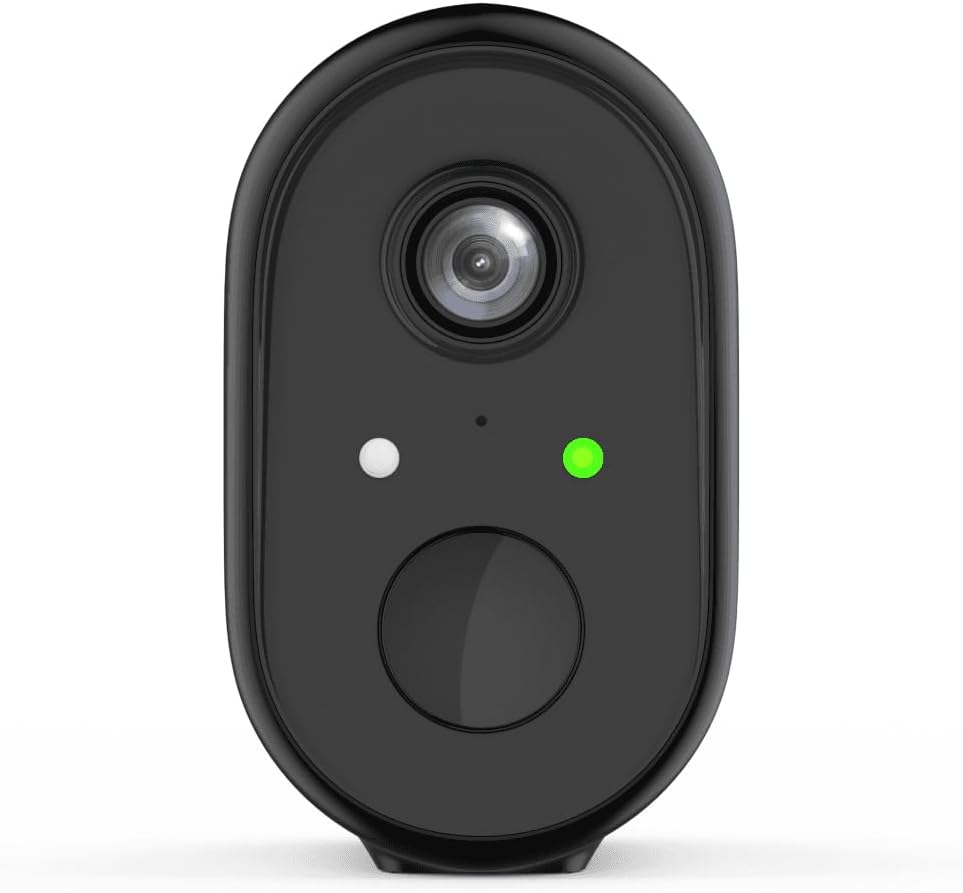
Figure 1: Front view of the WOOX R4260 camera, highlighting the camera lens, status indicator LED, and the main button/microphone area.

Figure 2: The WOOX R4260 camera attached to its adjustable wall mounting bracket, showing the overall design and mounting mechanism.
- Camera Lens: Captures video footage.
- Status LED: Indicates camera status (e.g., pairing mode, connected, charging).
- Microphone/Speaker: For two-way audio communication.
- Mounting Point: Connects to the mounting bracket.
- USB Charging Port: For battery charging (usually located on the back or bottom, covered by a rubber flap).
- Reset Button: Used to reset the camera to factory settings (often near the charging port or under a cover).
3. Setup and Installation
3.1 Charging the Battery
Before initial use, fully charge the camera's built-in lithium-ion battery. Connect the provided USB charging cable to the camera's charging port and a standard 5V USB power adapter (not included). The status LED will indicate charging status (e.g., red for charging, green for fully charged).
3.2 App Download and Account Creation
Download the "WOOX Home" app from the Apple App Store or Google Play Store. Register for a new account or log in with an existing one.
3.3 Pairing the Camera with the App
- Ensure your smartphone is connected to a 2.4GHz Wi-Fi network. The WOOX R4260 camera supports 2.4GHz Wi-Fi only.
- Open the WOOX Home app and tap the "+" icon to add a new device.
- Select "Security Camera" or the specific camera model (R4260) from the device list.
- Follow the on-screen instructions in the app. This typically involves powering on the camera, pressing the reset button until the status LED blinks rapidly (indicating pairing mode), and scanning a QR code generated by the app with the camera's lens.
- Once connected, the status LED will turn solid green, and the camera will appear in your app.
Note: If pairing fails, ensure your Wi-Fi password is correct and does not exceed 20 characters, as some users have reported issues with longer passwords. Ensure the camera is within range of your Wi-Fi router.
3.4 Physical Installation
The WOOX R4260 can be mounted on a wall, ceiling, or tree. Choose a location that provides the desired viewing angle and is within Wi-Fi range.
- Mark the drilling points for the mounting bracket.
- Drill holes and insert wall plugs if mounting on masonry.
- Secure the mounting bracket to the surface using the provided screws.
- Attach the camera to the mounting bracket and adjust the angle as needed.
- Ensure the camera is securely fastened and has a clear line of sight.
4. Operating the Camera
4.1 Live View
Open the WOOX Home app and tap on your R4260 camera to access the live video feed. From here, you can monitor your property in real-time.
4.2 Two-Way Audio
The camera features two-way audio. In the live view, tap the microphone icon to speak through the camera's speaker, and listen to audio from the camera's microphone.
4.3 Motion Detection and Alerts
Configure motion detection settings within the WOOX Home app. You can adjust sensitivity, set detection zones, and schedule alert times. When motion is detected, the camera will record a clip and send a notification to your smartphone.
4.4 Video Recording and Storage
The camera supports local storage via a microSD card (not included) and cloud storage (subscription may be required). You can review recorded footage through the app's playback feature.
5. Maintenance
5.1 Battery Management
The R4260 is powered by a rechargeable Lithium-ion battery. Monitor the battery level in the WOOX Home app and recharge the camera when the battery is low. Battery life can vary based on usage, temperature, and Wi-Fi signal strength.
5.2 Cleaning
Periodically clean the camera lens with a soft, dry cloth to ensure clear image quality. Do not use harsh chemicals or abrasive materials.
5.3 Firmware Updates
The WOOX Home app will notify you of available firmware updates. It is recommended to keep your camera's firmware updated to ensure optimal performance and security.
6. Troubleshooting
| Problem | Possible Solution |
|---|---|
| Camera fails to connect to Wi-Fi. |
|
| Poor video quality. |
|
| Battery drains quickly. |
|
| No motion detection alerts. |
|
7. Specifications
- Model: R4260
- Video Recording Resolution: 1080p
- Effective Video Resolution: 1080
- Effective Still Resolution: 2 Megapixels
- Connectivity Technology: IEEE 802.11b/g/n, 2.4GHz Wi-Fi / WLAN
- Wireless Communication Technology: WLAN
- Special Features: Two-way audio, Motion detector
- Usage: Outdoor
- Power Source: Battery powered (2 Lithium-ion batteries included)
- Voltage: 5 Volts
- Power: 5 Watts
- Viewing Angle: 110 Degrees
- Material: Plastic
- Color: Black
- Dimensions (L x W x H): 11.5 x 6 x 9.5 centimeters
- Mounting Type: Wall mount, Ceiling mount, Tree mount
- Installation Type: Screw-in
- Compatible Devices: Smartphone
- Controller Type: Amazon Alexa (via WOOX Home app integration)
8. Warranty and Support
WOOX products are designed and manufactured to the highest quality standards. For detailed warranty information and technical support, please refer to the official WOOX website or contact their customer service directly. Keep your purchase receipt as proof of purchase.
Manufacturer: WOOX


