
Introduction
This manual provides essential information for setting up, operating, and maintaining your MSI Katana 15 B13VGK-484US gaming laptop. Designed for high-performance gaming and content creation, this laptop features a 13th Gen Intel Core i7 processor, NVIDIA GeForce RTX 4070 graphics, 16GB DDR5 RAM, and a 1TB NVMe SSD. Please read this manual thoroughly to ensure optimal use and longevity of your device.

Figure 1: MSI Katana 15 B13VGK-484US Gaming Laptop with RGB keyboard and MSI dragon logo on screen.
Getting Started
1. Unpacking Your Laptop
Carefully remove all components from the packaging. The box should contain the following items:
- MSI Katana 15 B13VGK-484US Laptop
- Power Adapter
- Power Cord
- User Manual (this document)
2. Initial Power-On and Setup
- Connect the power adapter to the laptop's DC-in port and then to a power outlet.
- Open the laptop lid and press the power button.
- Follow the on-screen instructions to complete the Windows 11 Home setup process. This includes setting up your region, language, network connection, and user account.

Figure 2: Scan the QR code to experience the device in Augmented Reality (AR).
Hardware Overview
Processor and Graphics
Your MSI Katana 15 is equipped with a 13th Gen Intel Core i7 processor, providing robust performance for demanding applications and games. Graphics are powered by the NVIDIA GeForce RTX 4070 GPU, which supports advanced features like ray tracing for realistic visual experiences.
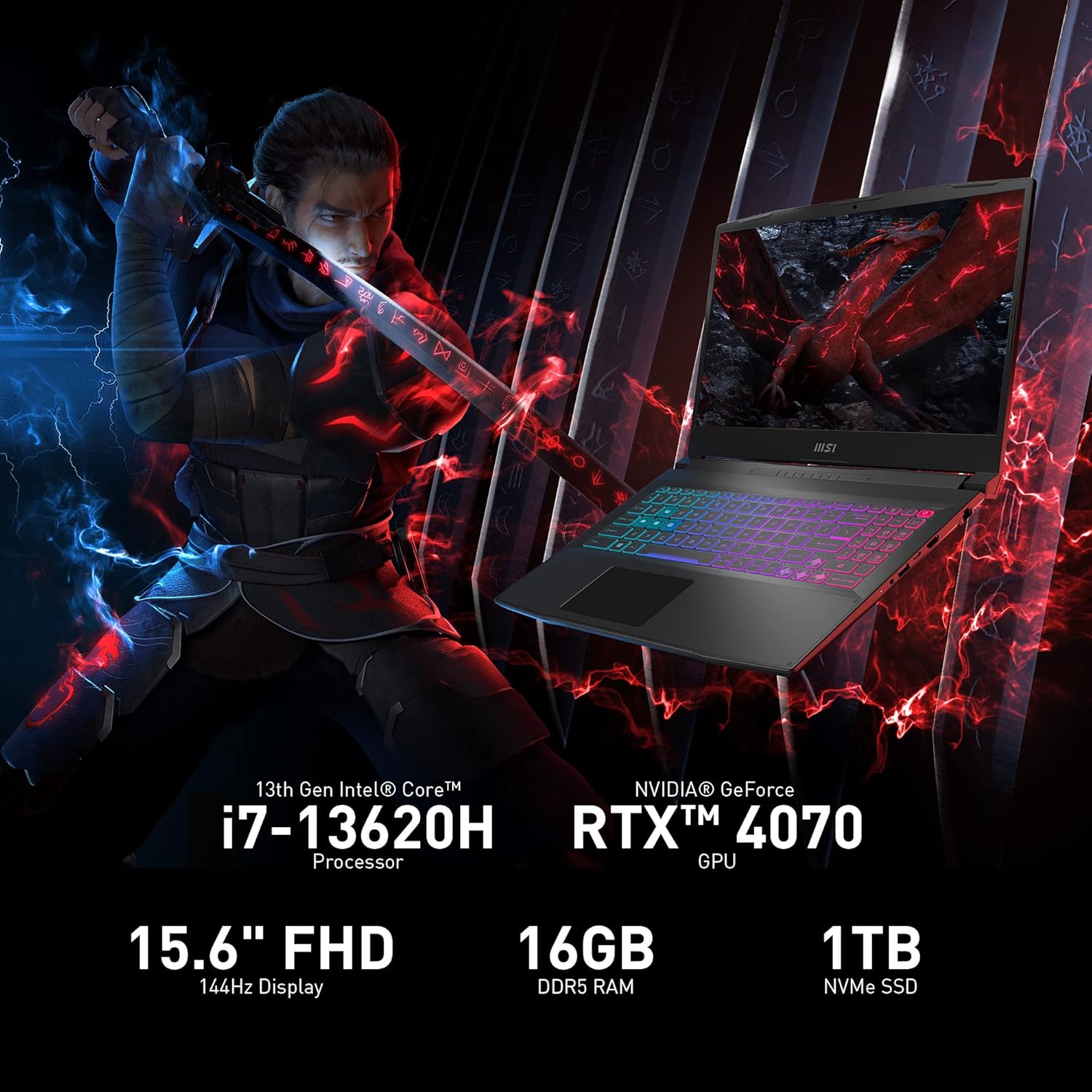
Figure 3: Overview of MSI Katana 15 key specifications including 13th Gen Intel Core i7-13620H Processor, NVIDIA GeForce RTX 4070 GPU, 15.6" FHD 144Hz Display, 16GB DDR5 RAM, and 1TB NVMe SSD.
Display
The laptop features a 15.6-inch Full HD (1920x1080) display with a 144Hz refresh rate, ensuring smooth visuals and a responsive gaming experience. The anti-glare coating helps reduce reflections for better viewing comfort.
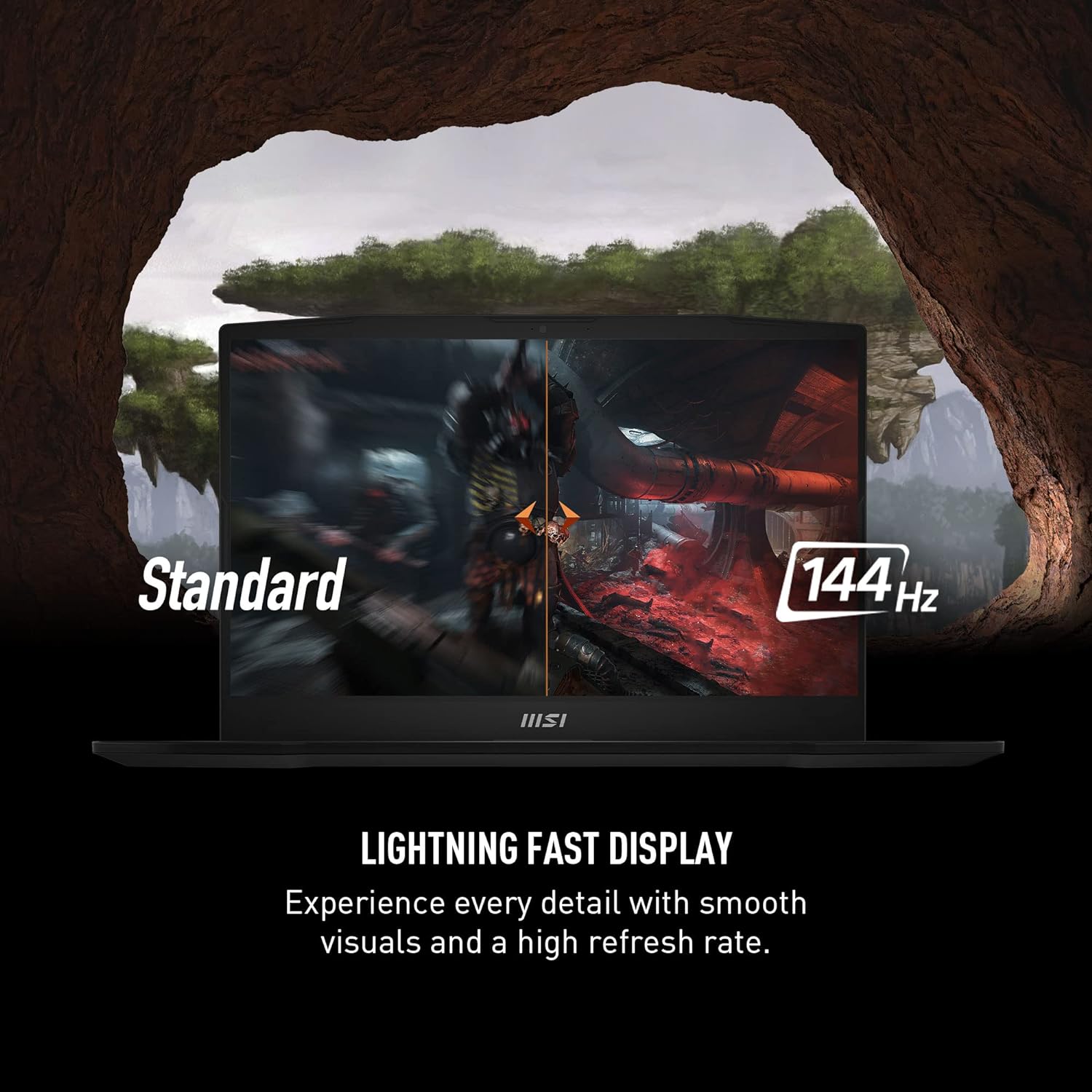
Figure 4: Visual comparison demonstrating the smoothness of a 144Hz display versus a standard display.
Keyboard and Touchpad
The keyboard features 4-Zone RGB illumination, allowing for customizable lighting effects. It includes a handy Numpad and keys with 1.7mm travel for comfortable typing and gaming.
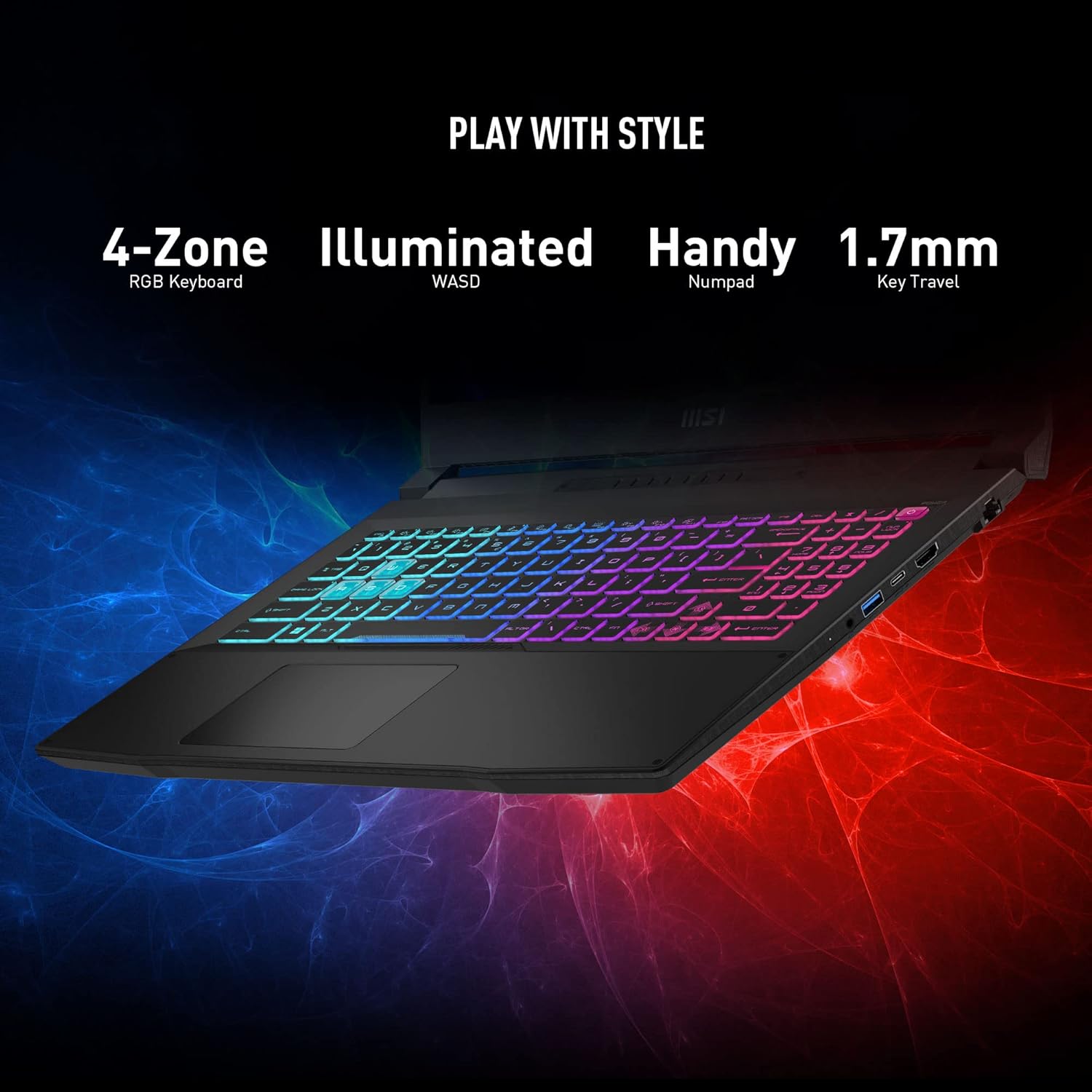
Figure 5: The laptop's keyboard showcasing its 4-Zone RGB illumination and integrated Numpad.
Connectivity Ports
The MSI Katana 15 offers a variety of ports for connecting peripherals and external displays:
- Left Side: USB 2.0 Type-A, USB 3.2 Gen1 Type-A, Audio Combo Jack
- Right Side: USB 3.2 Gen1 Type-A (x2), USB 3.2 Gen1 Type-C / DP, HDMI (8K @ 60Hz / 4K @ 120Hz), RJ45 (Ethernet), DC-in

Figure 6: Illustration of the various connectivity ports available on the MSI Katana 15 laptop.
Operating Your Laptop
Power Management
Your laptop comes with pre-configured power plans to optimize performance and battery life. You can switch between these plans via Windows settings or the MSI Center software. For optimal gaming performance, ensure the laptop is connected to the power adapter.
Cooling System: Cooler Boost 5
The Cooler Boost 5 technology is designed to keep your laptop cool during intensive tasks. It features dedicated thermal solutions for both the CPU and GPU with multiple heat pipes and fans. You can activate or adjust Cooler Boost 5 settings through the MSI Center software for enhanced cooling performance.

Figure 7: Diagram illustrating the internal airflow and heat dissipation of the Cooler Boost 5 system.
Audio Features
Experience enhanced audio with Nahimic by SteelSeries and Hi-Res Audio support, providing immersive sound for gaming, movies, and music.
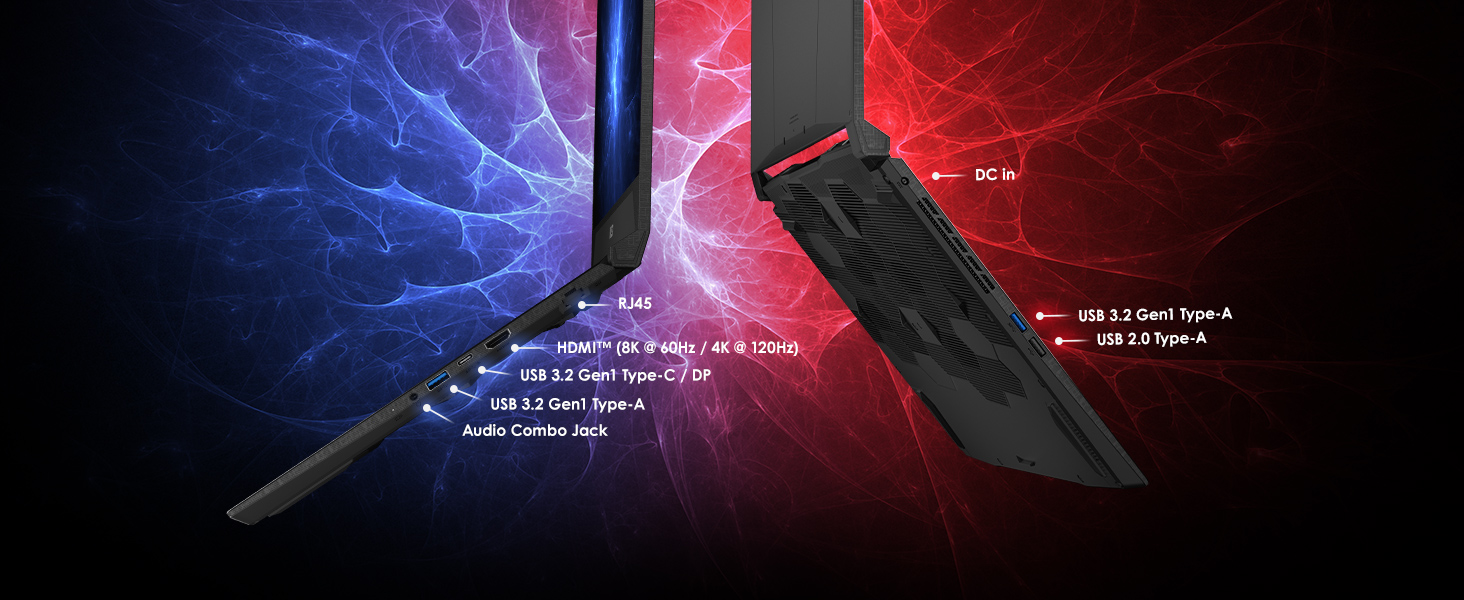
Figure 8: Logos for Nahimic by SteelSeries and Hi-Res Audio, indicating advanced sound capabilities.
MSI Center Software
The MSI Center is a centralized software suite that allows you to monitor system status, customize performance settings, manage RGB lighting, and update drivers. It provides various modes to optimize your laptop for different usage scenarios.

Figure 9: The MSI Center logo, representing the laptop's system management software.
Maintenance and Care
Cleaning Your Laptop
- Screen: Use a soft, lint-free cloth lightly dampened with water or a screen cleaner. Avoid harsh chemicals.
- Keyboard and Chassis: Use a soft brush or compressed air to remove dust and debris. Wipe surfaces with a slightly damp, soft cloth.
- Vents: Regularly check and clean the cooling vents to prevent dust buildup, which can hinder airflow and lead to overheating.
Software and Driver Updates
Keep your operating system (Windows 11) and device drivers updated to ensure optimal performance, security, and compatibility. You can manage these updates through Windows Update and the MSI Center software.
Troubleshooting
If you encounter issues with your laptop, consider the following common troubleshooting steps:
- No Power: Ensure the power adapter is securely connected to both the laptop and a working power outlet. Check if the power outlet is functional.
- Display Issues: If the screen is blank, try connecting an external monitor to verify if the issue is with the laptop's display or the graphics output. Ensure graphics drivers are up to date.
- Connectivity Problems: For Wi-Fi or Ethernet issues, check network cable connections or Wi-Fi settings. Restart your router/modem. Ensure network drivers are installed and updated.
- Performance Lag: Close unnecessary background applications. Check for overheating (use MSI Center to monitor temperatures). Ensure sufficient free storage space.
For persistent issues, refer to the MSI support website or contact customer service.
Technical Specifications
| Feature | Specification |
|---|---|
| Processor | 13th Gen Intel Core i7 (2.4 GHz core_i7, 10 Processors) |
| Graphics Card | NVIDIA GeForce RTX 4070 |
| RAM | 16 GB DDR5 (2400 MHz Memory Speed) |
| Storage | 1 TB NVMe SSD |
| Display | 15.6 Inches, FHD (1920 x 1080 pixels), 144Hz |
| Operating System | Windows 11 Home |
| Wireless Connectivity | 802.11ax |
| USB Ports | 1x USB 2.0, 3x USB 3.0 |
| Dimensions (LxWxH) | 14.13 x 10.2 x 0.98 inches |
| Item Weight | 7.59 pounds |
| Batteries | 1 Lithium Polymer battery (included) |
Warranty and Support
Your MSI Katana 15 B13VGK-484US laptop comes with a manufacturer's warranty. For detailed information regarding warranty terms, conditions, and duration, please refer to the warranty card included with your product or visit the official MSI support website. For technical assistance, driver downloads, and FAQs, please visit the MSI support portal.
Online Support: www.msi.com/support
Product Highlights
Powerful Performance Overview
Video 1: This video highlights the impressive performance of the MSI Katana 15, featuring the 13th Gen Intel Core i7 processor and NVIDIA GeForce RTX 4070 GPU, ensuring smooth multitasking, gaming, and content creation. It also showcases the 144Hz display for fluid visuals and the sleek design with Windows 11 Home and fast DDR5 memory.
Gaming Experience
Video 2: This video demonstrates the MSI Katana 15 B13V Gaming Laptop in action, showcasing gameplay with vibrant RGB keyboard lighting, highlighting its capabilities for an immersive gaming experience.
Dynamic Gameplay
Video 3: A short clip showing dynamic gameplay on the MSI Katana 15 B13V, emphasizing the smooth visuals and responsive performance during gaming sessions.