
1. Introduction
This manual provides comprehensive instructions for the setup, operation, and maintenance of your Mercusys ME50G AC1900 Wi-Fi Range Extender. The ME50G is designed to expand your existing Wi-Fi coverage, eliminate dead zones, and provide reliable, high-speed wireless connectivity throughout your home or office. It supports dual-band Wi-Fi (2.4 GHz and 5 GHz) with speeds up to 1900 Mbps and features Gigabit Ethernet for wired connections.
2. Package Contents
Please verify that all items are present and in good condition. If any item is missing or damaged, please contact your retailer.
- Mercusys ME50G AC1900 Wi-Fi Range Extender
- Quick Installation Guide
- Ethernet Cable

Image: Mercusys ME50G AC1900 Wi-Fi Range Extender and its retail packaging, showing the device and its features.
3. Features
The Mercusys ME50G offers a range of features designed to enhance your network experience:
- AC1900 Dual Band Wi-Fi: Delivers combined speeds of up to 1900 Mbps (1300 Mbps on 5 GHz and 600 Mbps on 2.4 GHz) for smooth streaming and gaming.
- Gigabit Ethernet Port: Provides a high-speed wired connection for devices like smart TVs, PCs, or game consoles.
- 3x3 MU-MIMO: Allows the extender to communicate with multiple devices simultaneously, improving overall network efficiency.
- Built-in Access Point Mode: Transforms your wired internet connection into a dual-band wireless access point.
- Easy One-Touch Setup: Simple setup via WPS button or Mercusys app.
- Adaptive Path Selection: Automatically chooses the fastest connection path to the router to maintain optimal network speed.
- High Speed Mode: Utilizes both Wi-Fi bands to create a super-fast connection, ideal for bandwidth-intensive activities.
- Mercusys App Control: Manage your Wi-Fi settings and devices conveniently from your smartphone.

Image: Illustration of the ME50G's dual-band capabilities, showing 1300 Mbps on 5 GHz and 600 Mbps on 2.4 GHz.

Image: A diagram demonstrating Adaptive Path Selection, where the extender intelligently selects the best band (2.4 GHz or 5 GHz) for optimal performance.
4. Setup and Installation
The Mercusys ME50G can be set up using two primary methods: via the WPS button or through the Mercusys app/web UI.
4.1. Quick Setup via WPS Button (Recommended for initial setup)
- Power On: Plug the ME50G into an electrical outlet near your main router. Wait for the Signal LED to turn solid red or white, indicating it's ready.
- Press WPS on Router: Press the WPS button on your main router. (Refer to your router's manual for the exact location and timing).
- Press WPS on Extender: Within two minutes, press the WPS button on your ME50G extender. The Signal LED should start blinking.
- Wait for Connection: Wait for the Signal LED on the extender to turn solid white. This indicates a successful connection.
- Relocate Extender: Unplug the extender and move it to a location between your router and the Wi-Fi dead zone. Choose a spot where the Signal LED is solid white, indicating good signal strength.
4.2. Setup via Mercusys App or Web UI
This method provides more control over settings and is ideal if your router does not have a WPS button or if you prefer a guided setup.
- Power On: Plug the ME50G into an electrical outlet near your main router.
- Connect to Extender's Wi-Fi: On your smartphone or computer, connect to the Wi-Fi network broadcast by the extender (e.g., "MERCUSYS_Extender").
- Launch Setup:
- Using Mercusys App: Download the Mercusys app from the App Store or Google Play. Open the app and follow the on-screen instructions to set up the extender.
- Using Web Browser: Open a web browser and type mwlogin.net or 192.168.1.253 into the address bar. Create a login password when prompted.
- Follow On-Screen Instructions: The setup wizard will guide you through selecting your router's Wi-Fi network and configuring the extender's settings.
- Relocate Extender: Once configured, unplug the extender and move it to an optimal location. Ensure the Signal LED indicates a strong connection.
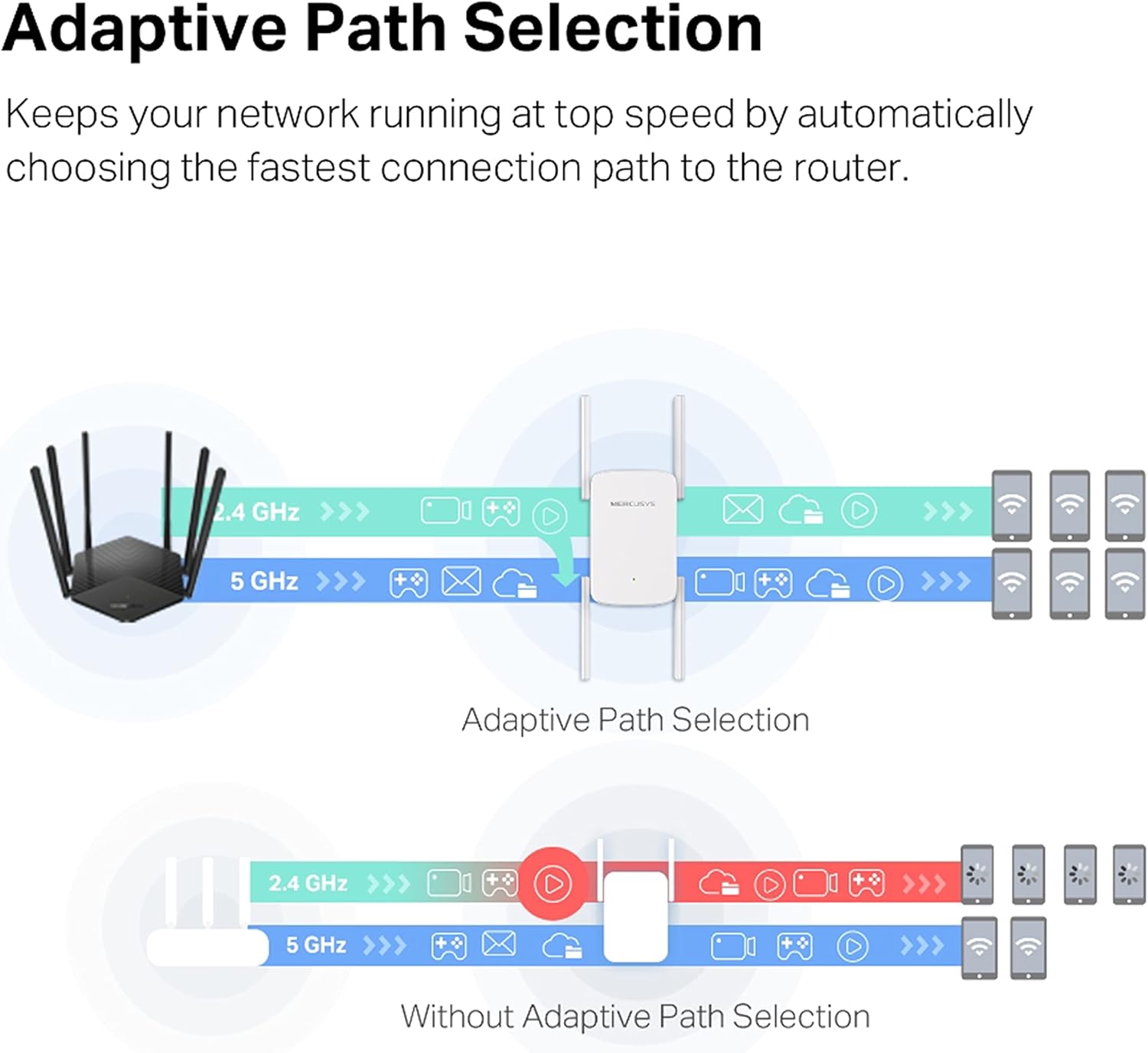
Image: The Mercusys ME50G extender alongside a smartphone displaying the Mercusys app interface, highlighting app-based control. Download the app from mercusys.com/app/download-app.
5. Operating Modes
The Mercusys ME50G supports two main operating modes:
5.1. Range Extender Mode
In Range Extender Mode, the ME50G wirelessly connects to your existing router's Wi-Fi network and re-broadcasts it, extending the coverage to areas with weak or no signal. This is the default mode after initial setup.

Image: An overhead view of a house layout illustrating how the Mercusys ME50G extends Wi-Fi coverage from a central router to cover more areas.
5.2. Access Point Mode
In Access Point Mode, the ME50G connects to your router via an Ethernet cable and transforms your wired internet connection into a dual-band wireless access point. This is useful for creating a new Wi-Fi network in a specific area or for providing Wi-Fi where only a wired connection is available.
- Connect Ethernet: Plug an Ethernet cable from your router (or an active Ethernet wall port) into the Gigabit Ethernet port on the ME50G.
- Configure Mode: Access the extender's web management page (mwlogin.net) or Mercusys app. Navigate to the operating mode settings and select "Access Point Mode".
- Set Wi-Fi Name and Password: Configure the new Wi-Fi network name (SSID) and password for the access point.

Image: A diagram illustrating the ME50G operating in Access Point Mode, connected via Ethernet to a main router and broadcasting a new Wi-Fi signal.
6. Maintenance
To ensure optimal performance and longevity of your Mercusys ME50G, consider the following maintenance tips:
- Optimal Placement: Place the extender in an open area, away from obstructions like thick walls, large metal objects, or other electronic devices that may cause interference.
- Firmware Updates: Regularly check the Mercusys website (mercusys.com) or the Mercusys app for available firmware updates. Updating firmware can improve performance, add new features, and fix bugs.
- Cleaning: Gently wipe the device with a soft, dry cloth. Do not use liquid cleaners or aerosols.
- Ventilation: Ensure the ventilation holes on the device are not blocked to prevent overheating.
7. Troubleshooting
If you encounter issues with your Mercusys ME50G, refer to the following common troubleshooting steps:
7.1. No Internet Access After Setup
- Check Signal LED: Ensure the Signal LED on the extender is solid white. If it's red or off, the connection to the router is weak or non-existent. Try relocating the extender closer to the router.
- Verify Router Connection: Ensure your main router has an active internet connection.
- Re-configure: Try re-configuring the extender using the Mercusys app or web UI, ensuring you select the correct Wi-Fi network and enter the correct password for your main router.
7.2. Slow Speed or Intermittent Connection
- Relocation: The most common cause of slow speeds is poor placement. Relocate the extender to a spot where the Signal LED is solid white, indicating a strong connection to the router, but also close enough to the devices needing extended Wi-Fi.
- Interference: Move the extender away from potential sources of interference such as cordless phones, microwave ovens, Bluetooth devices, or large metal objects.
- Band Selection: For devices that support 5 GHz, ensure they are connecting to the 5 GHz band of the extender for higher speeds.
- Firmware: Ensure your extender's firmware is up to date.
7.3. Cannot Access Web Management Page (mwlogin.net)
- Connect to Extender's Wi-Fi: Ensure your device is connected to the extender's Wi-Fi network (e.g., "MERCUSYS_Extender") or via an Ethernet cable directly to the extender.
- Clear Browser Cache: Clear your web browser's cache and cookies, or try a different browser.
- IP Address: Try accessing the page using the default IP address: 192.168.1.253.
- Reset: If all else fails, perform a factory reset on the extender by pressing and holding the Reset button (usually a small pinhole) for about 5-10 seconds until the LEDs flash. This will revert all settings to factory defaults, and you will need to set up the extender again.
8. Specifications
| Feature | Description |
|---|---|
| Brand | MERCUSYS |
| Model Number | ME50G |
| Wireless Standard | 802.11ac |
| Data Transfer Rate | 1900 Mbps (1300 Mbps 5 GHz, 600 Mbps 2.4 GHz) |
| Frequency Band Class | Dual-Band |
| Antennas | 2 External Antennas |
| Ethernet Port | Gigabit Ethernet Wired Connection |
| Dimensions (D x W x H) | 8.5D x 11.2W x 7.6H centimeters (approx.) |
| Item Weight | 200 Grams |
| Color | White |
| Special Features | Wireless, MU-MIMO, Access Point Mode, One-Touch Setup |
9. Warranty and Support
For warranty information specific to your region and purchase, please refer to the warranty card included with your product or visit the official Mercusys website.
For technical support, frequently asked questions, and driver/firmware downloads, please visit the Mercusys support page:
You can also manage your device and find support resources through the Mercusys app, available for download at mercusys.com/app/download-app.


