
JBL BAR 500 PRO
JBL BAR 500 PRO 5.1 Soundbar System User Manual
Model: BAR 500 PRO
Introduction
This manual provides detailed instructions for the JBL BAR 500 PRO 5.1 Soundbar System. This system includes the JBL BAR 500 PRO Soundbar, a 10-inch wireless subwoofer, and a Sanus SAC-21HDMI2 2.0 meter 8K Ultra High Speed HDMI Cable. It is designed to enhance your audio experience with MultiBeam and Dolby Atmos 3D surround sound, clear voice optimization, and robust bass. Please read this manual thoroughly before operating your device to ensure proper setup and usage.
What's in the Box
Carefully unpack all components and ensure the following items are present:
- JBL BAR 500 PRO Soundbar
- 10-inch Wireless Subwoofer
- Sanus SAC-21HDMI2 2.0 meter/6.56 ft. 8K Ultra High Speed HDMI Cable
- Remote Control (with batteries)
- Power Cords
- Wall-mount bracket kit (if applicable, check packaging)
- Quick Start Guide
- Safety Sheet

Image: All components of the JBL BAR 500 PRO Soundbar System, including the soundbar, wireless subwoofer, remote control, and HDMI cable.

Image: Close-up of the Sanus 8K Ultra High Speed HDMI Cable, highlighting its specifications.

Image: Cable ties included for managing and securing cables, useful for neat installation.
Setup
1. Placement
- Soundbar: Place the soundbar on a flat, stable surface directly in front of your television, centered for optimal audio dispersion. Ensure no objects obstruct the front or sides of the soundbar.
- Wireless Subwoofer: Position the wireless subwoofer anywhere in the room. For best bass performance, experiment with different locations, typically near a wall or in a corner. Ensure it is within wireless range of the soundbar.
2. Connections
Connect the soundbar to your television and power source using the following steps:
- HDMI ARC/eARC Connection (Recommended):
Using the provided 8K Ultra High Speed HDMI cable, connect the HDMI OUT (TV ARC/eARC) port on the soundbar to the HDMI ARC/eARC port on your television. This connection allows for high-quality audio transmission and control of the soundbar volume with your TV remote.
- Optical Connection (Alternative):
If your TV does not have an HDMI ARC/eARC port, connect an optical cable (not included) from the OPTICAL port on the soundbar to the optical output on your television.
- Power Connection:
Connect the power cords to the soundbar and the wireless subwoofer, then plug them into a wall outlet. The soundbar and subwoofer will automatically power on.

Image: Rear view of the JBL BAR 500 PRO Soundbar, showing the various input and output ports for connection.
3. Subwoofer Pairing
The wireless subwoofer should automatically pair with the soundbar upon powering on. If the connection is not established:
- Ensure both the soundbar and subwoofer are powered on.
- Press and hold the PAIRING button on the back of the subwoofer until the LED indicator flashes rapidly.
- On the soundbar, press and hold the BLUETOOTH button for 5 seconds. The soundbar display will show "PAIRING".
- Once successfully paired, the LED indicator on the subwoofer will turn solid, and the soundbar display will confirm the connection.
Operating Instructions
Basic Controls
Use the included remote control or the buttons on the top panel of the soundbar to operate the system.
- Power: Press the power button to turn the soundbar on or off.
- Volume: Use the '+' and '-' buttons to adjust the volume level.
- Source: Press the source button to cycle through input sources (HDMI, Optical, Bluetooth, Wi-Fi).
- Mute: Press the mute button to temporarily silence the audio.
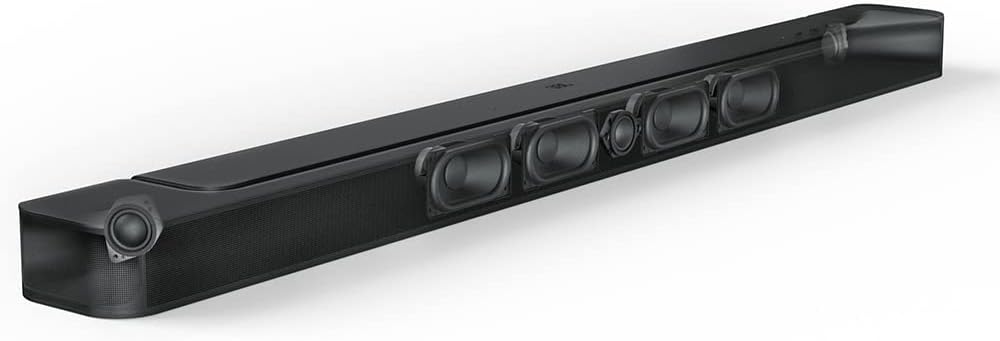
Image: Top panel of the JBL BAR 500 PRO Soundbar, showing integrated control buttons.
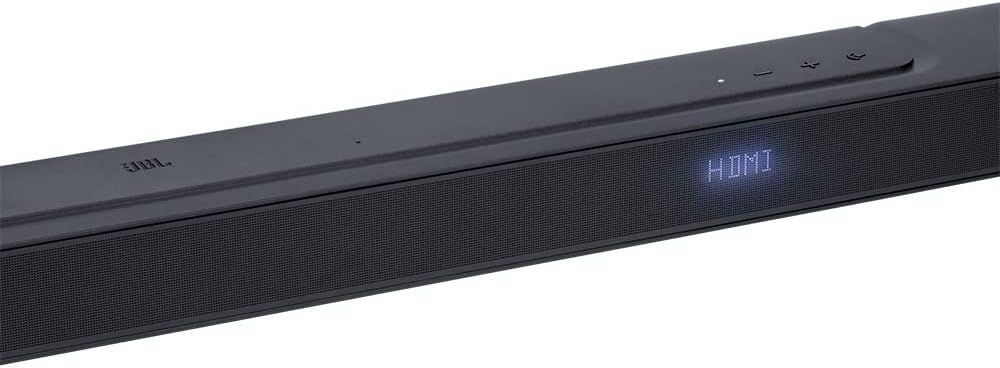
Image: Close-up of the JBL BAR 500 PRO Soundbar's front display, indicating the currently selected input source, such as HDMI.
Sound Modes and Features
- MultiBeam Technology: Provides an immersive surround sound experience without additional rear speakers.
- Dolby Atmos 3D Surround Sound: Delivers a three-dimensional audio experience, placing sounds precisely in your environment.
- PureVoice Technology: Optimizes dialogue clarity, ensuring voices are distinct and easy to understand.
- Bass Boost: Adjust the subwoofer level using the remote control to enhance bass output.
Streaming Options
- AirPlay: Stream audio wirelessly from Apple devices.
- Alexa Multi-Room Music (MRM): Integrate the soundbar into your Alexa multi-room audio setup.
- Chromecast built-in: Cast music, podcasts, and more from compatible apps to your soundbar.
- Bluetooth: Connect and stream audio from any Bluetooth-enabled device.
Voice Control
The JBL BAR 500 PRO supports voice control. Follow the instructions in the Quick Start Guide or the JBL One app to set up your preferred voice assistant (e.g., Alexa, Google Assistant).
Maintenance
- Cleaning: Use a soft, dry cloth to clean the surfaces of the soundbar and subwoofer. Do not use liquid cleaners or abrasive materials.
- Ventilation: Ensure proper ventilation around the soundbar and subwoofer to prevent overheating. Do not block any ventilation openings.
- Storage: If storing the system for an extended period, disconnect it from power and store it in a cool, dry place away from direct sunlight and extreme temperatures.
Troubleshooting
If you encounter issues with your JBL BAR 500 PRO system, refer to the following common problems and solutions:
| Problem | Possible Solution |
|---|---|
| No power | Ensure power cords are securely connected to the soundbar, subwoofer, and a working power outlet. |
| No sound |
|
| Subwoofer not connecting |
|
| Remote control not working |
|
| Poor sound quality |
|
If the problem persists after trying these solutions, please contact JBL customer support.
Specifications
| Feature | Detail |
|---|---|
| Model Name | BAR 500 PRO |
| Surround Sound Channel Configuration | 5.1 |
| Special Features | Bass Boost, Dolby Enabled, Stereo Pairing, Subwoofer |
| Subwoofer Diameter | 10 Inches |
| Subwoofer Connectivity | Wireless |
| Connectivity Technology | HDMI, Bluetooth, Wi-Fi (AirPlay, Chromecast, Alexa MRM) |
| Audio Output Mode | Surround |
| Control Method | Voice, Remote |
| Product Dimensions (Soundbar) | Approx. 40.06 x 4.69 x 2.25 inches (L x W x H) |
| Item Weight | 35.5 pounds (total system) |
| Material | Plastic, Metal, Polypropylene, Aluminum |
| Power Source | AC Power |
| Batteries Required (Remote) | 2 AAA batteries |
Warranty Information
The JBL BAR 500 PRO 5.1 Soundbar System comes with a Limited Warranty. For detailed terms and conditions, including warranty duration and coverage, please refer to the warranty card included in your product packaging or visit the official JBL support website.
Support
For further assistance, technical support, or to download the full user manual, please visit the official JBL support website:
You can also find additional resources and FAQs on the JBL brand store page on Amazon: JBL Store on Amazon
Ask a question about this manual
Ask about setup, troubleshooting, compatibility, parts, safety, or missing instructions. Manuals+ will review the question and use this page’s manual context to help answer it.