1. Product Overview
The CarlinKit CarPlay AI Box Max is an advanced adapter designed to expand the functionality of your car's existing wired CarPlay or Android Auto system. It transforms your car's display into a full Android 13.0 system, offering wireless CarPlay, wireless Android Auto, and access to various applications.
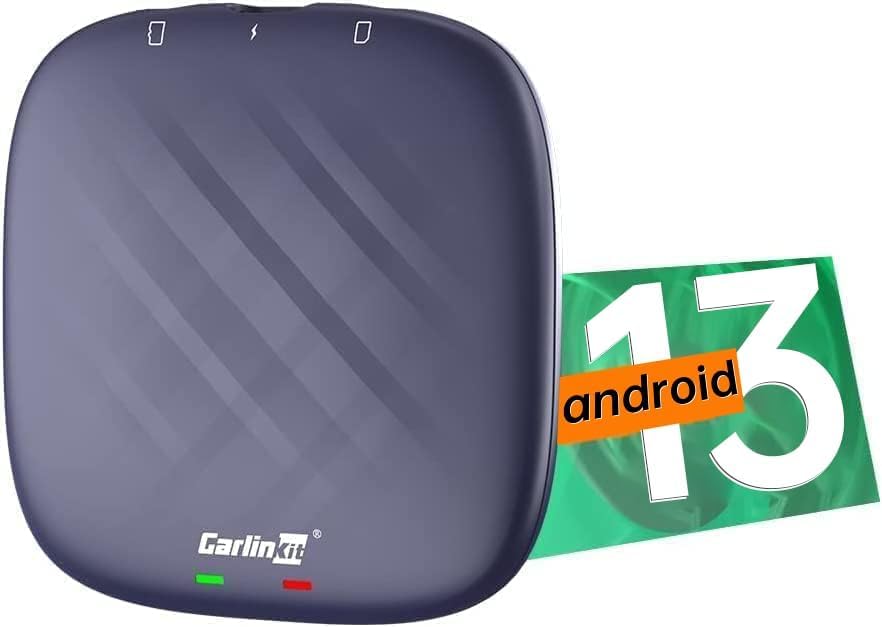
Image 1.1: CarlinKit CarPlay AI Box Max device with Android 13.0 branding.
Key Features:
- Wireless CarPlay & Android Auto: Converts wired CarPlay/Android Auto to wireless.
- Full Android 13.0 System: Integrates a complete Android operating system into your car's display.
- High Performance: Equipped with 8GB LPDDR4 RAM and 128GB UFS ROM for smooth operation.
- Pre-installed Applications: Includes YouTube and Netflix for immediate entertainment.
- Expandable Storage: Supports TF card for additional app downloads and media.
- Dual Bluetooth: Bluetooth 5.0 for music and Bluetooth 4.2 for peripherals.
- 4G Connectivity: Built-in 4G full Netcom module or mobile hotspot support.
2. Package Contents
Verify that all items are present in the package:

Image 2.1: The package includes the AI Box, data cables, and a user manual.
- CarlinKit Ai Box CarPlay Max *1
- Data Cable *1 (USB-A to USB-C)
- Instructions *1
- Box *1
3. Setup Guide
3.1 Compatibility Requirements
- Your car must be equipped with a factory OEM wired CarPlay or Android Auto system.
- Your car's display must have touch screen capability.
- For wireless CarPlay: iPhone 6 or higher (iOS 10+).
- For wireless Android Auto: Android 10+ (for wireless Android Auto support).
- Not compatible with Mitsubishi Outlander.
3.2 Initial Connection
- Connect the CarlinKit AI Box Max to your car's USB data port using the provided data cable. Ensure you use the correct cable type (USB-A or USB-C) for your car's port.
- The device will boot up and display an interface on your car's screen.

Image 3.1: Steps for connecting the CarlinKit AI Box Max to your car and phone.
3.3 Wireless CarPlay / Android Auto Connection
- On your car's screen, click the 'Autokit' application.
- Turn on Wi-Fi and Bluetooth on your smartphone.
- Pair your phone with the device's Bluetooth name (e.g., 'Autokit Ambient' or 'VehiConn_003F').
- After a few seconds, the wireless CarPlay or Android Auto interface will appear on your car's screen.
Video 3.1: Demonstrates the wireless CarPlay connection method for the Carlinkit Ai Box.
3.4 Inserting SIM/TF Cards
The device supports TF cards for additional storage and app downloads, and a SIM card for 4G data connectivity.
- Insert the TF card with the metal face down into the designated slot.
- Insert the SIM card with the metal face down into the designated slot.
- Caution: Do not insert the SIM/TF card backward, as this may damage the product's card slot.
Video 3.2: Tutorial on how to correctly insert a SIM/TF card into the device.
4. Operating Instructions
4.1 Accessing Android System Features
Once connected, your car's screen will display the Android 13.0 system interface. You can navigate through applications and features just like on an Android tablet.
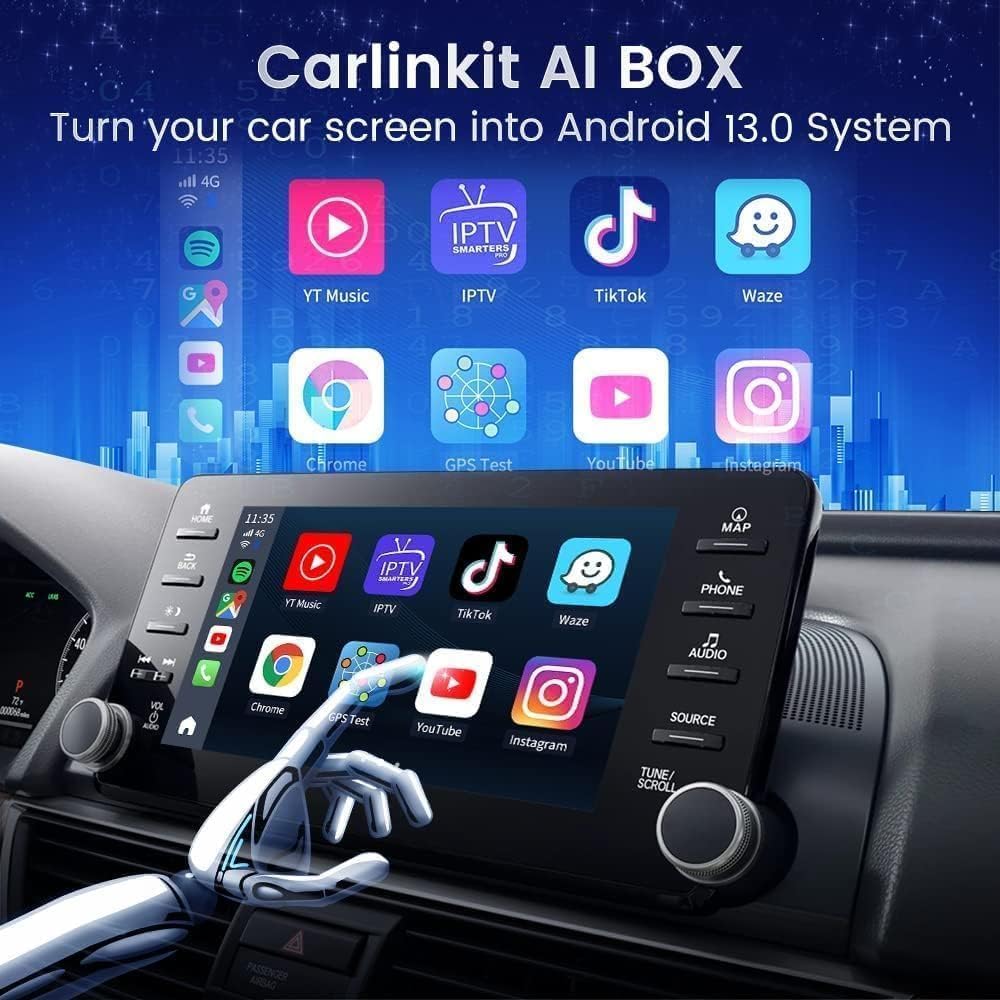
Image 4.1: Your car's screen transformed into an Android 13.0 system.
4.2 Entertainment and Navigation
The device comes with pre-installed applications like YouTube and Netflix. You can also download more apps from the Google Play Store by connecting to your car's Wi-Fi or a mobile hotspot.

Image 4.2: The CarPlay AI Box allows downloading a large number of applications.
- Enjoy video streaming from platforms like YouTube and Netflix.
- Utilize navigation apps for real-time directions.
- Listen to music through various streaming services.
- The device supports split-screen viewing, allowing you to run multiple applications simultaneously.
- Control functions using your car's steering wheel controls and voice commands (e.g., Siri, Google Assistant).
Video 4.1: Demonstration of the Carplay Adapter with Netflix/YouTube functionality.
4.3 Network Connectivity
The AI Box Max can connect to the internet via its built-in 4G module (requires a compatible SIM card) or by tethering to your mobile phone's hotspot.

Image 4.3: The device features a built-in 4G module and supports mobile phone hotspot for internet access.
5. Maintenance and Updates
5.1 Online FOTA Upgrade
Keep your device updated with the latest features and improvements through Firmware Over-The-Air (FOTA) updates.
- Open the 'FOTA Update' application on the device.
- If an upgradable version is available, click 'DOWNLOAD'.
- Wait for the download to complete, then click 'update'.
- After the upgrade is complete, click 'OK' and the box will automatically restart.
- Note: If you do not find an available update file, please contact customer support.

Image 5.1: Online FOTA Upgrade process for the CarlinKit AI Box Max.
Video 5.1: Demonstrates the online updating method for the Carlinkit Ai Box Plus.
5.2 Restoring Factory Settings
If you encounter persistent issues, restoring factory settings may resolve them.
- Click the Autokit application settings.
- Navigate to "System" > "Advanced" > "Reset Option".
- Select the third option: "restore Factory settings".
- Note: After a factory reset, you need to manually enter the Tbox system settings-network-hotspot (manually open the hotspot) when connecting to wireless CarPlay or Android Auto for the first time.
5.3 Viewing Android Version and IMEI
- Click 'Settings'.
- Click 'More'.
- Slide down and click 'About Autokit-TBox Plus'.
- Here you will find the IMEI and Android version information.

Image 5.2: Instructions for checking the Android version and IMEI.
5.4 Entering Developer Mode
- Click 'Settings'.
- Click 'More'.
- Slide down and click 'About Autokit-TBox Plus'.
- Click 'Build number' 7 times in a row.
- Go back to the previous step and scroll down to 'System' to find 'Developer options'.

Image 5.3: Instructions for accessing Developer Mode.
6. Troubleshooting
- Connectivity Issues: Ensure your car's wired CarPlay/Android Auto is functioning correctly before connecting the AI Box. Verify Bluetooth and Wi-Fi are enabled on your phone and correctly paired.
- App Performance/Lag: The device features high RAM and ROM, but performance can be affected by network speed or a large number of background applications. Ensure a stable internet connection.
- Audio Delay with Video: Some users may experience a slight audio delay when playing videos. This can sometimes be mitigated by ensuring the device firmware is up to date.
- SIM Card Not Working: Some SIM cards requiring IMEI verification may not be compatible. Consider using a SIM card that does not require IMEI verification (e.g., Sprint, T-Mobile, Cricket, MetroPCS SIM card carriers often do not detect IMEI numbers).
- Hulu/Disney+ Access: These applications may require a TF card for downloading.
- General Instability: Try restoring factory settings as described in Section 5.2.
7. Specifications
| Feature | Detail |
|---|---|
| Product Dimensions | 3.9 x 1.54 x 3.9 inches |
| Item Weight | 5.4 ounces |
| Item Model Number | Carlinkit Ai Box Max |
| Operating System | Android 13.0 |
| RAM | 8GB LPDDR4 |
| ROM | 128GB UFS |
| Processor | 8-Core (Qualcomm 6125/6225) |
| Connectivity Technology | Bluetooth, Wi-Fi, 4G (SIM card slot) |
| Bluetooth Version | 5.0 (Music), 4.2 (Peripherals) |
| Compatible Devices | Android, iPhone (with wired CarPlay/Android Auto) |
| Connector Type | USB |
| Color | Blue |
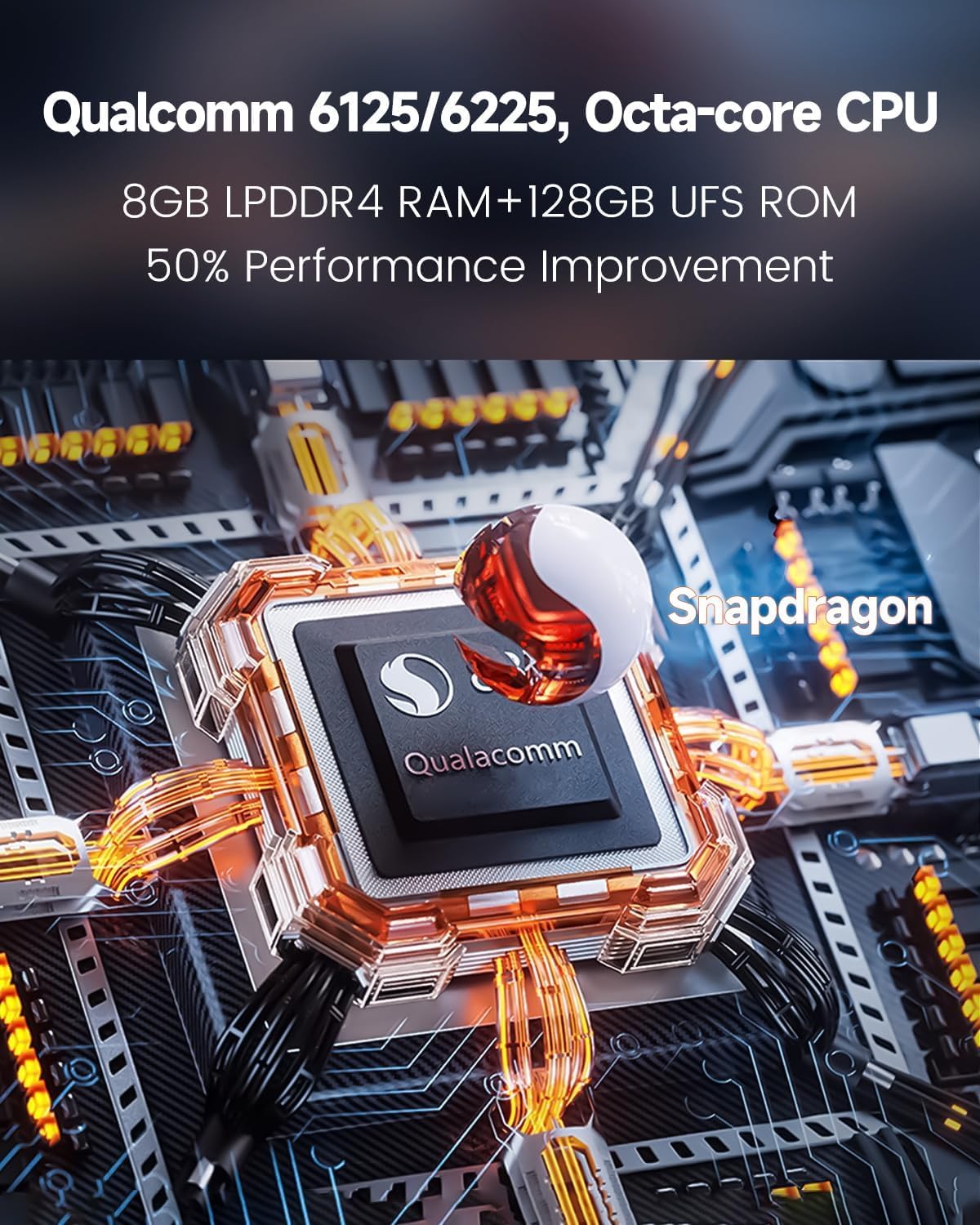
Image 7.1: The device is powered by a Qualcomm 6125/6225 Octa-core CPU.
8. Warranty and Support
CarlinKit provides comprehensive after-sales service for the CarPlay AI Box Max.
- One-Year Global Guarantee: The product is covered by a one-year global guarantee period.
- Lifetime Technical Service Support: Receive ongoing technical assistance for the product.
- Online Upgrades and Problem Reporting: Access online tools for firmware updates and reporting any issues.
For product-related problems or technical support, please contact CarlinKit customer service. They aim to reply within 24 hours.


