Introduction
Welcome to the Ducky One 3 Mini Aura 60% Mechanical Keyboard. This manual provides essential information for setting up, operating, and maintaining your new keyboard. The Ducky One 3 series incorporates the innovative QUACK Mechanics design philosophy, focusing on enhanced aesthetics, hot-swappable functionality, superior sound dampening, and improved stabilizers.
Your Ducky One 3 Mini Aura features a low-profile case with a unique 3-layer design, allowing for vibrant RGB lighting. It includes a silicone plate dampener and EVA foam case dampener for optimal acoustics. The keyboard is equipped with hot-swappable Kailh Yellow Sockets, Ducky's V2 stabilizers for improved stability, and 3-level adjustable feet. The keycaps are Double Shot Pudding style PBT, offering durability and enhanced RGB illumination.
Package Contents
Please ensure all items are present in your package:
- Ducky One 3 Mini Aura 60% Mechanical Keyboard
- USB-C Cable
Setup
Connecting the Keyboard
- Locate the USB-C port on the back of the keyboard.
- Connect the provided USB-C cable to the keyboard.
- Connect the other end of the USB-A connector to an available USB port on your computer.
- The keyboard will be automatically recognized by your operating system.

Image: The Ducky One 3 Mini Aura keyboard connected to its detachable USB-C cable.
Adjusting Keyboard Height
The keyboard features 3-level adjustable feet on the underside. Flip out the desired feet to achieve your preferred typing angle.
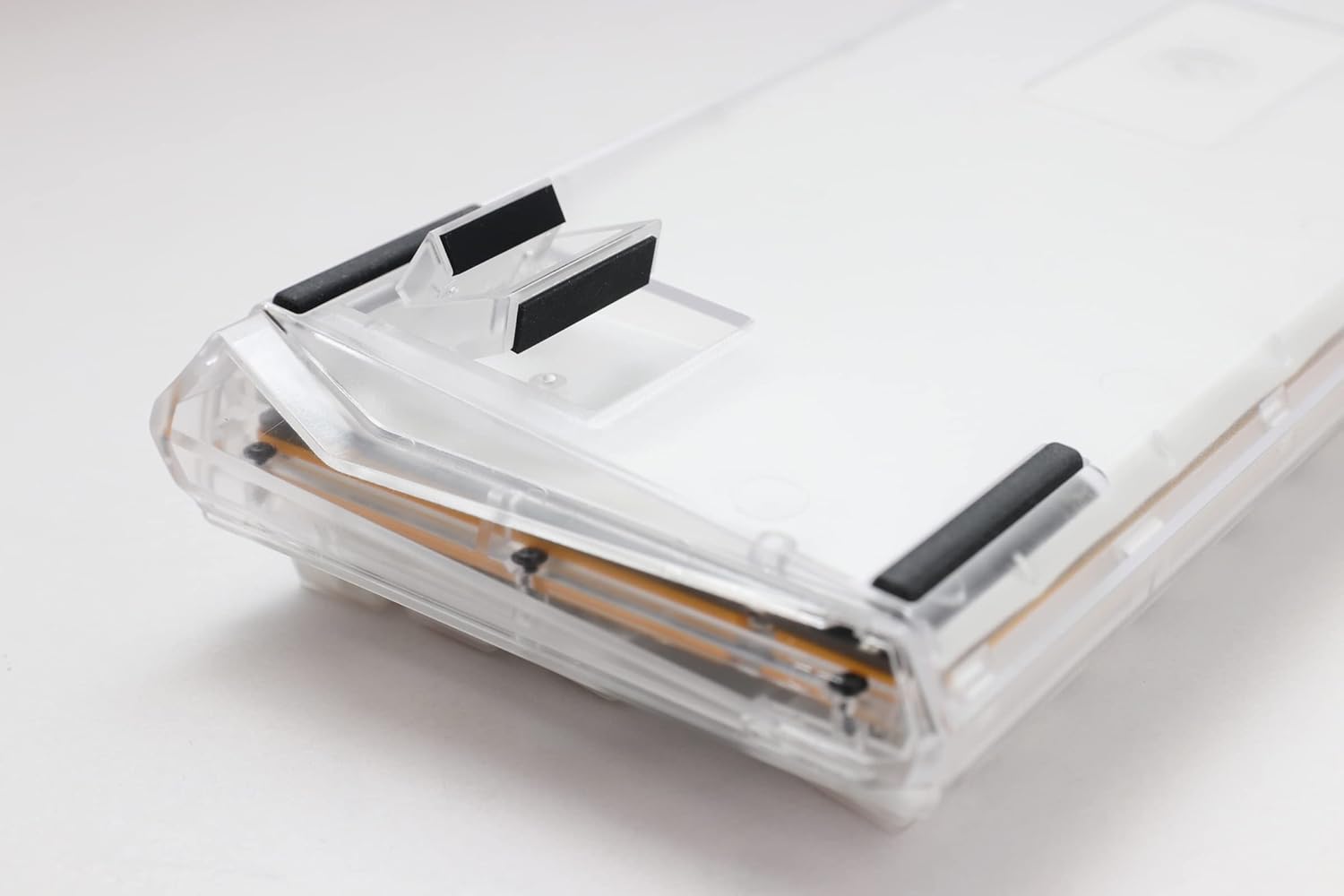
Image: The underside of the Ducky One 3 Mini Aura keyboard, highlighting the adjustable feet for ergonomic positioning.
Operating Instructions
Basic Keyboard Functions
The Ducky One 3 Mini Aura functions as a standard 60% mechanical keyboard. Refer to the keycap legends for primary functions. Secondary functions are typically accessed via the Fn key combination.

Image: A top-down view of the Ducky One 3 Mini Aura 60% mechanical keyboard, showcasing its compact layout and white keycaps.
RGB Lighting
The keyboard features per-key programmable RGB lighting. Various lighting modes and customization options are available directly on the keyboard. Consult the official Ducky website or included quick guide for detailed instructions on changing lighting effects and colors.
Macro Functions
The Ducky One 3 Mini Aura supports a remapped macro layout, allowing users to program custom key sequences. Specific instructions for macro recording and assignment can be found in the comprehensive user guide available on the Ducky support page.
Hot-Swapping Switches
Your Ducky One 3 Mini Aura is equipped with a hot-swappable PCB and Kailh Yellow Sockets, allowing you to change mechanical switches without soldering. This feature enables customization of typing feel and sound.
- Power Off: Disconnect the keyboard from your computer before attempting to remove or install switches.
- Remove Keycap: Use a keycap puller to gently remove the desired keycap.
- Remove Switch: Use a switch puller to carefully grip the top and bottom clips of the switch and pull it straight up.
- Install New Switch: Align the pins of the new switch with the holes on the PCB. Gently press the switch down until it clicks into place. Ensure the pins are not bent.
- Replace Keycap: Place the keycap back onto the new switch stem.
Video: An overview of the Ducky One 3 series, demonstrating features like hot-swappable switches and the QUACK Mechanics design philosophy.
Maintenance
Cleaning Your Keyboard
- Disconnect the keyboard from your computer.
- Use a soft brush or compressed air to remove dust and debris from between the keycaps.
- For stubborn dirt, gently remove keycaps using a keycap puller and clean the exposed switches and plate with a damp cloth (ensure it's not dripping wet).
- Clean keycaps with mild soap and water, then dry thoroughly before reattaching.
General Care
Avoid exposing the keyboard to extreme temperatures, direct sunlight, or liquids. Do not attempt to disassemble the keyboard beyond switch and keycap removal, as this may void your warranty.
Troubleshooting
Keyboard Not Responding
- Ensure the USB-C cable is securely connected to both the keyboard and your computer.
- Try connecting the keyboard to a different USB port on your computer.
- Test the keyboard on another computer to rule out system-specific issues.
- If using a USB hub, try connecting directly to the computer.
Incorrect Key Input or RGB Issues
- Perform a factory reset (refer to the official Ducky manual for specific key combinations).
- Ensure no switches are bent or improperly seated if you have recently hot-swapped them.
- Update your computer's USB drivers if necessary.
Specifications
| Brand | Ducky |
| Model Number | DKON2161ST-BUSPDAWWWWC1 |
| Product Dimensions | 12.2 x 4.33 x 1.57 inches |
| Item Weight | 2.09 pounds |
| Keyboard Description | Mechanical |
| Connectivity Technology | USB-C |
| Compatible Devices | PC |
| Special Feature | Backlit (RGB) |
| Switch Type | Cherry MX Brown (Hot-Swappable) |
| Keycap Material | Polybutylene Terephthalate (PBT) |
| Style | 60% White |
| Language | English |
Warranty and Support
Product Warranty
This Ducky keyboard comes with a manufacturer's warranty. Please refer to the warranty card included with your product for specific terms, conditions, and duration. Keep your proof of purchase for warranty claims.
Optional Protection Plans
Extended protection plans may be available for purchase separately:
- 3-Year Protection Plan
- 4-Year Protection Plan
- Asurion Complete Protect (monthly billing)
These plans offer additional coverage beyond the standard manufacturer's warranty. Review the terms of each plan for details.
Customer Support
For technical assistance, troubleshooting, or warranty inquiries, please visit the official Ducky website or contact their customer support. You can often find FAQs, driver downloads, and detailed manuals on their support pages.