
1. Introduction
This manual provides essential information for setting up, operating, maintaining, and troubleshooting your Acer Aspire 3 A314-23P-R3QA Slim Laptop. Please read this manual thoroughly to ensure proper use and to maximize the lifespan of your device.

Image 1.1: Acer Aspire 3 A314-23P-R3QA Slim Laptop with its protective sleeve.
The Acer Aspire 3 A314-23P-R3QA is a 14.0-inch Full HD IPS laptop featuring an AMD Ryzen 5 7520U Quad-Core Processor, AMD Radeon Graphics, 8GB LPDDR5 RAM, and a 512GB NVMe SSD. It comes pre-installed with Windows 11 Home and supports Wi-Fi 6 connectivity. This model is designed for general computing tasks and productivity.
2. Setup
2.1 Unboxing and Initial Inspection
Carefully remove all components from the packaging. Verify that the following items are present:
- Acer Aspire 3 Laptop
- AC Adapter
- Power Cord
- Protective Sleeve
Inspect the laptop and accessories for any signs of damage. If any items are missing or damaged, contact your retailer or Acer support immediately.
2.2 Connecting to Power
- Connect the AC adapter to the power jack on the side of the laptop.
- Plug the power cord into the AC adapter.
- Plug the other end of the power cord into a grounded electrical outlet.
It is recommended to fully charge the laptop before initial use.
2.3 Initial Boot and Windows 11 Setup
- Open the laptop lid and press the power button.
- Follow the on-screen instructions to complete the Windows 11 Home setup process. This includes selecting your region, language, connecting to a Wi-Fi network, and creating a user account.
3. Operating Instructions
3.1 Basic Navigation
- Touchpad: Use the touchpad for cursor control. Tap to click, use two fingers to scroll, and pinch to zoom.
- Keyboard: The keyboard provides standard input. Function keys (F1-F12) often have secondary functions accessible by pressing the Fn key simultaneously.
3.2 Connecting to Wi-Fi
Your laptop supports Wi-Fi 6 (802.11ax) for fast wireless connectivity.
- Click the Wi-Fi icon in the taskbar (usually bottom-right).
- Select your desired Wi-Fi network from the list.
- Enter the network password if prompted and click Connect.

Image 3.1: The laptop connected to a Wi-Fi 6 network, enabling online activities.
3.3 Using External Ports
The Acer Aspire 3 A314-23P-R3QA includes various ports for connecting peripherals:
- USB Type-C Port (USB 3.2 Gen 2): Supports data transfer up to 10 Gbps, DisplayPort over USB Type-C, and USB Charging.
- USB 3.2 Gen 1 Ports (x2): For connecting USB devices.
- HDMI 2.1 Port: For connecting to external displays with HDCP support.
- Headphone/Speaker/Line-Out Jack: For audio output.
- DC-in Jack: For connecting the AC adapter.

Image 3.2: Left side ports including power, HDMI, USB-C, and USB-A.

Image 3.3: Right side ports including USB-A and audio jack.
3.4 Display and Audio Features
- 14.0" Full HD IPS Display: Provides clear visuals with a 1920x1080 resolution and wide viewing angles.
- HD Front-Facing Camera: Utilizes Acer's TNR (Temporal Noise Reduction) technology for improved image quality in low-light conditions during video calls.
- Acer PurifiedVoice: Features AI Noise Reduction to filter out background noise for clearer communication during online meetings.

Image 3.4: The laptop's 14.0" Full HD IPS display with narrow bezels.
4. Maintenance
4.1 Battery Care
- To prolong battery life, avoid fully discharging the battery frequently.
- Store the laptop in a cool, dry place when not in use for extended periods.
- Use only the original Acer AC adapter and power cord.
4.2 Cleaning the Laptop
- Use a soft, lint-free cloth slightly dampened with water or a specialized screen cleaner to clean the display.
- For the keyboard and chassis, use a soft cloth. Avoid harsh chemicals or abrasive materials.
- Periodically use compressed air to clear dust from the keyboard and ventilation areas.
4.3 Thermal Management
The Aspire 3 features an improved thermal system. To ensure optimal cooling:
- Ensure ventilation openings are not obstructed when using the laptop.
- Avoid operating the laptop on soft surfaces like beds or couches that can block airflow.
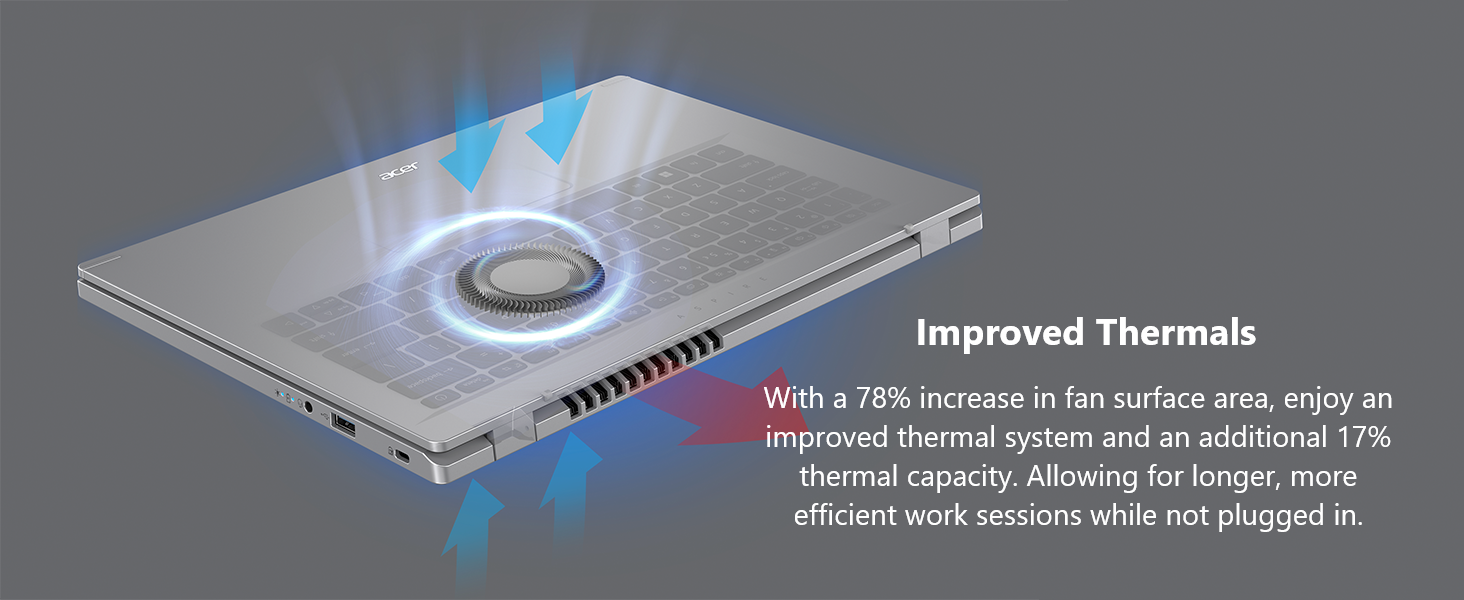
Image 4.1: Illustration of the laptop's enhanced thermal system.
5. Troubleshooting
This section addresses common issues you might encounter. For more complex problems, refer to Acer's official support resources.
5.1 Power Issues
- Laptop does not turn on:
- Ensure the AC adapter is securely connected to both the laptop and a working power outlet.
- Verify the battery has sufficient charge.
- Try holding the power button for 10-15 seconds to perform a hard reset.
- Battery not charging:
- Check the AC adapter and power cord for damage.
- Ensure the power outlet is functional.
5.2 Display Issues
- No image on screen:
- Ensure the laptop is powered on.
- If an external monitor is connected, try disconnecting it or pressing Fn + F5 (or the appropriate function key for display toggle) to switch display output.
5.3 Connectivity Issues
- Cannot connect to Wi-Fi:
- Ensure Wi-Fi is enabled (check Windows settings).
- Restart your router and modem.
- Verify the Wi-Fi password is correct.
5.4 Performance Issues
- Laptop is slow or unresponsive:
- Close unnecessary applications.
- Check for Windows updates.
- Restart the laptop.
- Ensure sufficient free space on the SSD.
6. Specifications
| Feature | Detail |
|---|---|
| Model Name | A314-23P-R3QA |
| Processor | AMD Ryzen 5 7520U Quad-Core (up to 4.3 GHz) |
| Graphics | AMD Radeon Graphics (Integrated) |
| RAM | 8GB LPDDR5 |
| Storage | 512GB NVMe SSD |
| Display | 14.0" Full HD (1920 x 1080) IPS Display |
| Operating System | Windows 11 Home |
| Wireless Connectivity | Wi-Fi 6 (802.11ax), 1x1 MIMO |
| Ports | 1x USB Type-C (USB 3.2 Gen 2, DisplayPort, Charging), 2x USB 3.2 Gen 1, 1x HDMI 2.1, 1x Headphone/Speaker/Line-Out Jack, DC-in |
| Battery Life | Up to 5 hours (Average) |
| Dimensions (LxWxH) | 12.93 x 0.74 x 8.55 inches |
| Weight | 3.09 pounds |
7. Warranty and Support
7.1 Manufacturer's Warranty
Your Acer Aspire 3 laptop is covered by a standard manufacturer's warranty. The terms and duration of this warranty may vary by region and purchase location. Please refer to the warranty card included with your product or visit the official Acer website for detailed warranty information.
7.2 Technical Support
For technical assistance, driver downloads, or further support, please visit the official Acer support website. You will typically need your product's serial number (found on a sticker on the bottom of the laptop or in the system information) when contacting support.
Acer Support Website: https://www.acer.com/support