
1. Product Overview
The Strex 4K 16MP Action Camera is designed for capturing high-quality photos and videos during various activities, from extreme sports to casual adventures. It features stunning 4K resolution, a 170-degree wide-angle lens, and Electronic Image Stabilization (EIS) for clear, stable footage even in dynamic environments.
Equipped with built-in Wi-Fi, a 2-inch LCD screen, and a waterproof housing, this camera is versatile and user-friendly, allowing you to record and share your most exciting moments with ease.

Image 1.1: The Strex 4K 16MP Action Camera, shown within its transparent waterproof housing. The camera's rear screen displays a dynamic scene of a snowboarder, highlighting its capability for capturing action sports. The front lens and control buttons are clearly visible.
2. Key Features
- Ultra HD 4K Video Recording: Capture breathtaking footage at 4K resolution with options for 30FPS, 1080P at 60FPS, or 720P at 120FPS for slow-motion effects.
- 16MP Photo Resolution: Take crisp, high-detail still images.
- 170-Degree Wide-Angle Lens: Provides an expansive field of view, perfect for capturing landscapes and immersive action shots.
- Electronic Image Stabilization (EIS): Ensures smooth and steady video, minimizing blur from camera movement.
- Waterproof up to 30m (98ft): With the included waterproof housing, the camera is suitable for diving, snorkeling, and other water sports.
- Built-in Wi-Fi: Easily connect to your smartphone via a dedicated app for remote control, live preview, and instant sharing of content.
- 2-Inch LCD Screen: Allows for easy framing of shots, playback, and menu navigation.
- 950 mAh Battery: Provides ample power for extended recording sessions.

Image 2.1: The Strex 4K Action Camera held in a hand, emphasizing its compact size. Overlaid text highlights its main features: 16MP Camera, 4K Resolution, 60FPS, WiFi connectivity, and a 950 mAh battery.
3. Package Contents
Your Strex Action Camera package includes a variety of accessories to enhance your recording experience across different activities. Please verify that all items listed below are present:
- Waterproof Housing
- Mounting Bracket
- Hook Buckle
- Clamping System
- Adjustment Screw
- Adapter Piece
- Flat Mount
- Mounting Strap
- Fixing Cable
- Charging Cable
- User Manual (this document)
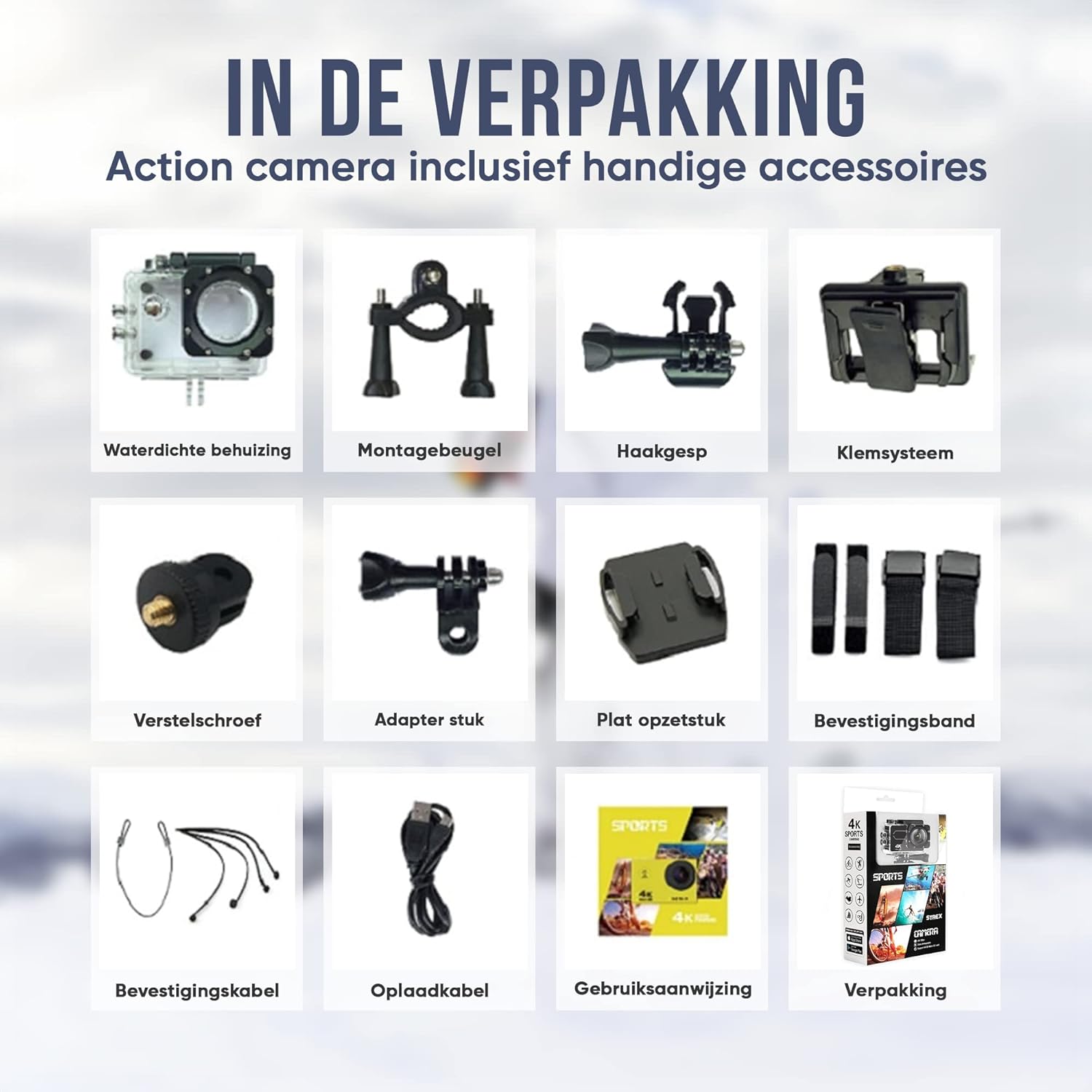
Image 3.1: A visual representation of all accessories included with the Strex Action Camera. This grid displays the waterproof housing, various mounting brackets, buckles, screws, adapter pieces, straps, and cables, along with the user manual and product packaging.
4. Setup
4.1 Charging the Battery
Before first use, fully charge the camera's battery. Connect the included charging cable to the camera's charging port and a USB power source (e.g., computer, wall adapter). The charging indicator light will show the charging status and turn off when fully charged.
4.2 Inserting a Micro SD Card
The camera supports Micro SD cards for storage. Open the Micro SD card slot cover, and gently insert a compatible Micro SD card (Class 10 or higher recommended) with the contacts facing the correct direction until it clicks into place. Close the cover securely.
4.3 Attaching Accessories
Depending on your activity, select the appropriate accessories from the package. For water sports, ensure the camera is securely placed inside the waterproof housing. For mounting on helmets, bicycles, or other surfaces, use the relevant mounting brackets and straps. Always ensure accessories are firmly attached before use.

Image 4.1: The Strex Action Camera shown mounted on a helmet, illustrating its suitability for various rugged environments. Icons depict activities such as motorcycling, skydiving, skiing, diving, and cycling, demonstrating the camera's versatility with different mounts.

Image 4.2: The Strex Action Camera encased in its waterproof housing, submerged in water. The image visually confirms its waterproof capability up to 30 meters, with depth markers at 10M, 20M, and 30M, making it ideal for diving, snorkeling, and other water sports.
5. Operating the Camera
5.1 Powering On/Off
Press and hold the Power/Mode button (usually on the front or top) for a few seconds to turn the camera on or off.
5.2 Navigating Menus
Use the Mode button to cycle through different camera modes (Video, Photo, Playback, Settings). Use the Up/Down buttons (if present) to navigate within menus and the Shutter/OK button to confirm selections.
5.3 Recording Video / Taking Photos
In Video mode, press the Shutter/OK button to start recording. Press it again to stop. In Photo mode, press the Shutter/OK button to take a picture.
5.4 Wi-Fi Connectivity and App Control
To use Wi-Fi, enable it in the camera's settings. Download the free Strex app (available for Android and iOS) on your smartphone. Connect your phone to the camera's Wi-Fi network (SSID and password usually displayed on the camera screen). Once connected, you can control the camera, view live footage, and transfer files directly from your phone.

Image 5.1: A smartphone screen showing the Strex action camera's companion app, positioned next to the camera itself. This illustrates the ease of sharing and controlling the camera wirelessly, with icons for App Store and Google Play indicating where to download the application.
5.5 Camera Modes and Settings
The camera offers various modes such as Slow Motion and Time-lapse. Access these through the camera's menu settings. Adjust video resolution, photo quality, white balance, exposure, and other parameters to suit your recording conditions.

Image 5.2: The Strex Action Camera in its waterproof case, with an arrow pointing to its 2-inch screen. The image highlights the camera's 170-degree wide-angle capability and available camera modes such as Slow Motion and Time-lapse, indicating its versatility for different shooting styles.
6. Maintenance
- Cleaning: Use a soft, dry cloth to clean the camera body. For the lens, use a specialized lens cleaning cloth and solution.
- Waterproof Housing: After using the waterproof housing in saltwater, rinse it with fresh water and let it air dry. Ensure the seals are clean and free of debris.
- Storage: Store the camera and accessories in a cool, dry place away from direct sunlight and extreme temperatures. Remove the battery if storing for extended periods.
- Battery Care: Avoid fully discharging the battery frequently. Charge it regularly, even if not in use, to maintain battery health.
7. Troubleshooting
7.1 Camera Not Turning On
- Ensure the battery is fully charged.
- Check if the battery is inserted correctly.
- Try connecting the camera to a power source to see if it powers on.
7.2 Poor Video/Photo Quality
- Clean the camera lens and waterproof housing lens.
- Ensure sufficient lighting in your recording environment.
- Check camera settings (resolution, EIS, exposure).
- Use a high-speed Micro SD card (Class 10 or higher).
7.3 Wi-Fi Connection Issues
- Ensure Wi-Fi is enabled on both the camera and your smartphone.
- Restart both the camera and your smartphone.
- Verify the Wi-Fi password if prompted.
- Ensure your smartphone is within range of the camera's Wi-Fi signal.
7.4 Camera Freezes/Unresponsive
- Remove and reinsert the battery to perform a hard reset.
- Format the Micro SD card (this will erase all data, so back up first).
- Ensure the camera's firmware is up to date (check Strex website for updates).
8. Technical Specifications
| Brand | Strex |
| Model | SP257 |
| Product Type | Action Camera |
| Color | Black |
| Video Resolution | 4K 30FPS, 1080P 60FPS, 1080P 30FPS, 720P 120FPS |
| Still Photo Resolution | 16 Megapixels |
| Lens | 170-Degree Wide-Angle |
| Image Stabilization | Electronic Image Stabilization (EIS) |
| Waterproof Depth | Up to 30 meters (with waterproof housing) |
| Screen Type | 2-inch LCD |
| Connectivity | Wi-Fi |
| Storage Media | Micro SD |
| Battery Capacity | 950 mAh |
| Product Dimensions (L x W x H) | 2.5 x 4 x 6 cm |
| Item Weight | 55 Grams |
| Video Format | AVI |
| Audio Format | AAC |
| Photo Sensor Technology | CMOS |
9. Warranty and Support
For warranty information and customer support, please refer to the official Strex website or contact your retailer. Keep your purchase receipt as proof of purchase for any warranty claims.
For the latest software updates, FAQs, and additional support resources, visit the Strex support page.
Note: Information regarding spare parts availability and software updates is not explicitly provided in the product data. Please contact Strex customer service for details.