1. Introduction
The GRAUGEAR G-3502-AC is a versatile docking station designed for easy access to 3.5-inch and 2.5-inch SATA hard disk drives (HDDs) and solid-state drives (SSDs). It supports SATA III with data transfer rates up to 6 Gbit/s and UASP, ensuring fast and efficient data management. Featuring hot-swap capability and plug-and-play functionality, this docking station requires no additional drivers for operation. It includes a USB 3.0 interface with a Type-C to Type-A adapter for broad compatibility.
2. Package Contents
Please verify that all items listed below are included in your package:

Image: All components included in the GRAUGEAR G-3502-AC docking station package.
- GRAUGEAR G-3502-AC Docking Station
- Power Supply (12V/1.5A 18W)
- USB Type-A to Type-B Cable (60cm length)
- User Manual
- USB Type-C Adapter
- 3.5" HDD Screws
- 2.5" HDD Screws
- Screwdriver
- Anti-slip pads (20x10mm)
3. Product Features
- Supports 3.5" HDDs and 2.5" HDDs/SSDs SATA III up to 20TB.
- SATA III support up to 6 Gbit/s with UASP (USB Attached SCSI Protocol) for enhanced performance.
- Hot-Swap, Plug & Play functionality; no drivers required.
- Integrated On/Off button for convenient power control.
- LED indicator for operational status and drive access.
- Includes a Type-C to Type-A adapter for versatile connectivity.
- Automatic sleep mode after 10 minutes of inactivity to conserve energy and extend drive life.
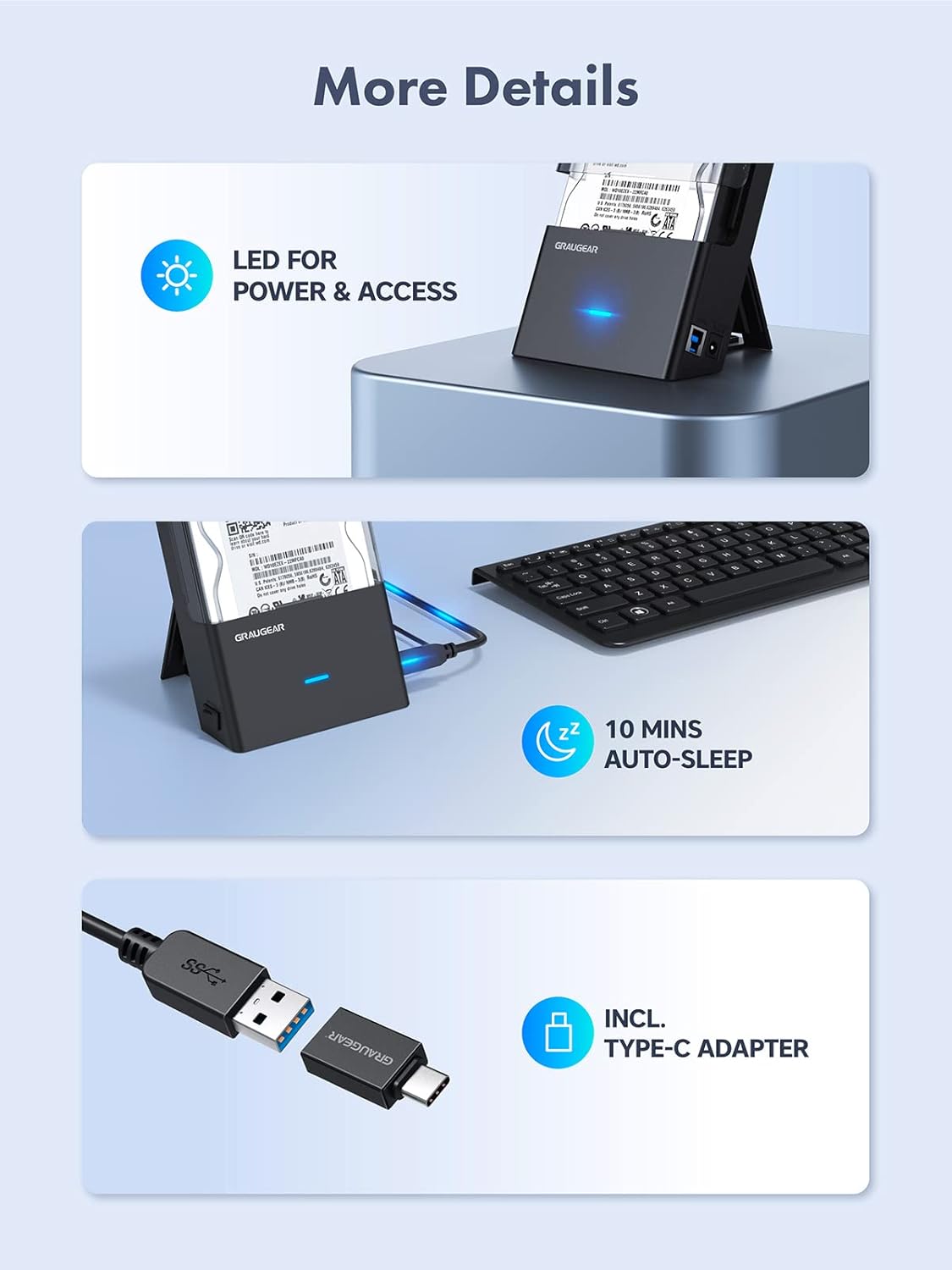
Image: Details showing the LED indicator, 10-minute auto-sleep feature, and the included USB Type-C adapter.
4. Setup Instructions
Follow these steps to install your hard drive or SSD into the docking station:

Image: Visual guide for tool-free hard drive installation.
- Step 1: Open the Enclosure
Gently slide the top cover of the docking station upwards to open the hard drive enclosure. - Step 2: Insert Drive
Connect your 3.5" HDD or 2.5" HDD/SSD to the SATA connector inside the docking station. Ensure it is firmly seated. - Step 3: Close the Enclosure
Slide the top cover back down until it clicks into place, securing the drive within the enclosure. - Step 4: Connect Power and Data
Connect the external power supply (12V/1.5A) to the docking station. Then, connect the USB 3.0 cable from the docking station to your computer. Use the included Type-C adapter if your computer has a USB-C port.
5. Operating Instructions
Once the drive is installed and the docking station is connected to power and your computer, press the On/Off button. The LED indicator will illuminate, signifying that the device is powered on and ready for use. Your operating system should detect the drive automatically. If the drive is new, it may need to be initialized and formatted before use.

Image: The docking station with an 8TB HDD inserted, demonstrating its 6Gbps ultra-fast speed. The HDD shown is a Western Digital drive; for more information on Western Digital products, visit http://qr.wdc.com/wdblue.
6. Horizontal Operation Mode
The docking station can be used in a horizontal position for stability or space-saving. Follow these steps to adjust the stand:

Image: Instructions for converting the docking station to a horizontal operating position.
- Step 1: Pull Out Stand
Locate the stand at the back of the docking station and pull it outwards. - Step 2: Fold Stand
Fold the stand so that its two parts stick together. - Step 3: Close Stand
Push the folded stand back into its housing until it is flush with the device. - Step 4: Place Horizontally
You can now place the docking station horizontally on a flat surface.
7. Safety and Protection Features
The GRAUGEAR G-3502-AC docking station is equipped with multiple protection mechanisms to ensure the safety of your valuable data and hardware:

Image: Overview of the comprehensive protection features of the docking station. The HDD shown is a Western Digital drive; for more information on Western Digital products, visit http://qr.wdc.com/wdblue.
- Short-Circuit Protection: Prevents damage from electrical shorts.
- Over-Current Protection: Safeguards against excessive current flow.
- Over-Voltage Protection: Protects against voltage spikes.
- Over-Heat Protection: Monitors and prevents overheating of the device and drive.
8. Compatibility
The GRAUGEAR G-3502-AC docking station offers wide compatibility with various devices and operating systems:

Image: Diagram illustrating the broad compatibility of the docking station with various devices and operating systems. The HDD shown is a Western Digital drive; for more information on Western Digital products, visit http://qr.wdc.com/wdblue.
Supported Drives:
- 3.5-inch SATA HDDs
- 2.5-inch SATA HDDs/SSDs
- Maximum capacity: 20 TB
Compatible Devices:
- Game Consoles (e.g., PlayStation, Xbox)
- Computers (Desktops, Laptops)
- Smart TVs
- Routers
- Smartphones and Tablets (with appropriate USB host support)
Compatible Operating Systems:
- Windows
- macOS
- Linux
9. Specifications

Image: Detailed dimensions and technical specifications of the GRAUGEAR G-3502-AC docking station.
| Feature | Detail |
|---|---|
| Model Number | G-3502-AC |
| Internal Interface | SATA |
| External Interface | USB 3.0 Type-B (with Type-C adapter) |
| Supported Drives | 3.5" HDD & 2.5" HDD/SSD |
| Max. Storage Capacity | 20 TB |
| Data Transfer Speed | 6 Gbit/s (Theoretical) |
| Power Adapter | 12V/1.5A 18W |
| Product Material | Plastic |
| USB Cable Length | 60 cm |
| Color | Black |
| Manufacturer | CHAB GmbH |
10. Maintenance
To ensure the longevity and optimal performance of your GRAUGEAR G-3502-AC docking station, please follow these maintenance guidelines:
- Keep the device clean and free from dust. Use a soft, dry cloth for cleaning.
- Avoid exposing the docking station to extreme temperatures, humidity, or direct sunlight.
- Do not block the ventilation openings on the device.
- Disconnect the power adapter when the device is not in use for extended periods.
- Handle hard drives and SSDs with care to prevent physical damage.
11. Troubleshooting
If you encounter issues with your docking station, refer to the following common troubleshooting steps:
- Device not recognized:
- Ensure the power adapter is securely connected and the docking station is powered on.
- Verify the USB cable is properly connected to both the docking station and your computer. Try a different USB port.
- If using the USB-C adapter, ensure it is correctly attached and the USB-C port on your computer is functional.
- Check the drive itself by connecting it directly to a computer (if possible) or trying a different drive in the docking station.
- For new drives, ensure they are initialized and formatted in your operating system's Disk Management (Windows) or Disk Utility (macOS).
- Slow transfer speeds:
- Ensure you are connected to a USB 3.0 port on your computer. USB 2.0 ports will result in slower speeds.
- Verify that your operating system and drivers are up to date.
- The actual transfer speed can be affected by the drive's performance and the computer's system resources.
- Drive not spinning up:
- Confirm the power adapter is working and connected.
- Ensure the drive is correctly seated in the SATA connector.
- Test with a different power adapter or drive if available.
12. Warranty and Support
GRAUGEAR products are designed for reliability and performance. For warranty information, technical support, or service inquiries, please refer to the official GRAUGEAR website or contact their customer support directly. Keep your purchase receipt as proof of purchase for warranty claims.


