
Dreo DR-HAF004S
Dreo DR-HAF004S Circular Air Table Fan User Manual
Model: DR-HAF004S | Brand: Dreo
Introduction
Thank you for choosing the Dreo DR-HAF004S Circular Air Table Fan. This manual provides essential information for the safe operation, maintenance, and troubleshooting of your new air circulator. Please read it thoroughly before use and retain it for future reference.

This image displays the Dreo DR-HAF004S circular air table fan, its accompanying remote control, and a smartphone screen illustrating the fan's control interface within the Dreo application.
Important Safety Instructions
To reduce the risk of fire, electric shock, or injury, please observe the following safety precautions:
- Always unplug the fan before cleaning or performing any maintenance.
- Do not operate the fan with a damaged cord or plug. If the cord or plug is damaged, contact Dreo customer support.
- Keep the fan away from water and moisture. Do not use it in bathrooms or other wet environments.
- Do not insert fingers or foreign objects into the fan grille while it is operating.
- Ensure the fan is placed on a stable, level surface to prevent tipping.
- This appliance is not intended for use by persons (including children) with reduced physical, sensory or mental capabilities, or lack of experience and knowledge, unless they have been given supervision or instruction concerning use of the appliance by a person responsible for their safety.
- Children should be supervised to ensure that they do not play with the appliance.
Package Contents
- Dreo DR-HAF004S Circular Air Table Fan
- Remote Control (with 1 CR2 battery included)
- User Manual
Product Overview
Components
- Front Grille
- Fan Blades
- Control Panel / Display
- Base
- Power Cord
- Remote Control Receiver
Setup
Unpacking
Carefully remove all packaging materials and ensure all components are present and undamaged. Keep packaging for future storage or transport.
Placement
Place the fan on a firm, level surface. Ensure there is adequate space around the fan for optimal airflow and oscillation. Avoid placing it near curtains or objects that could obstruct the air intake or outlet.
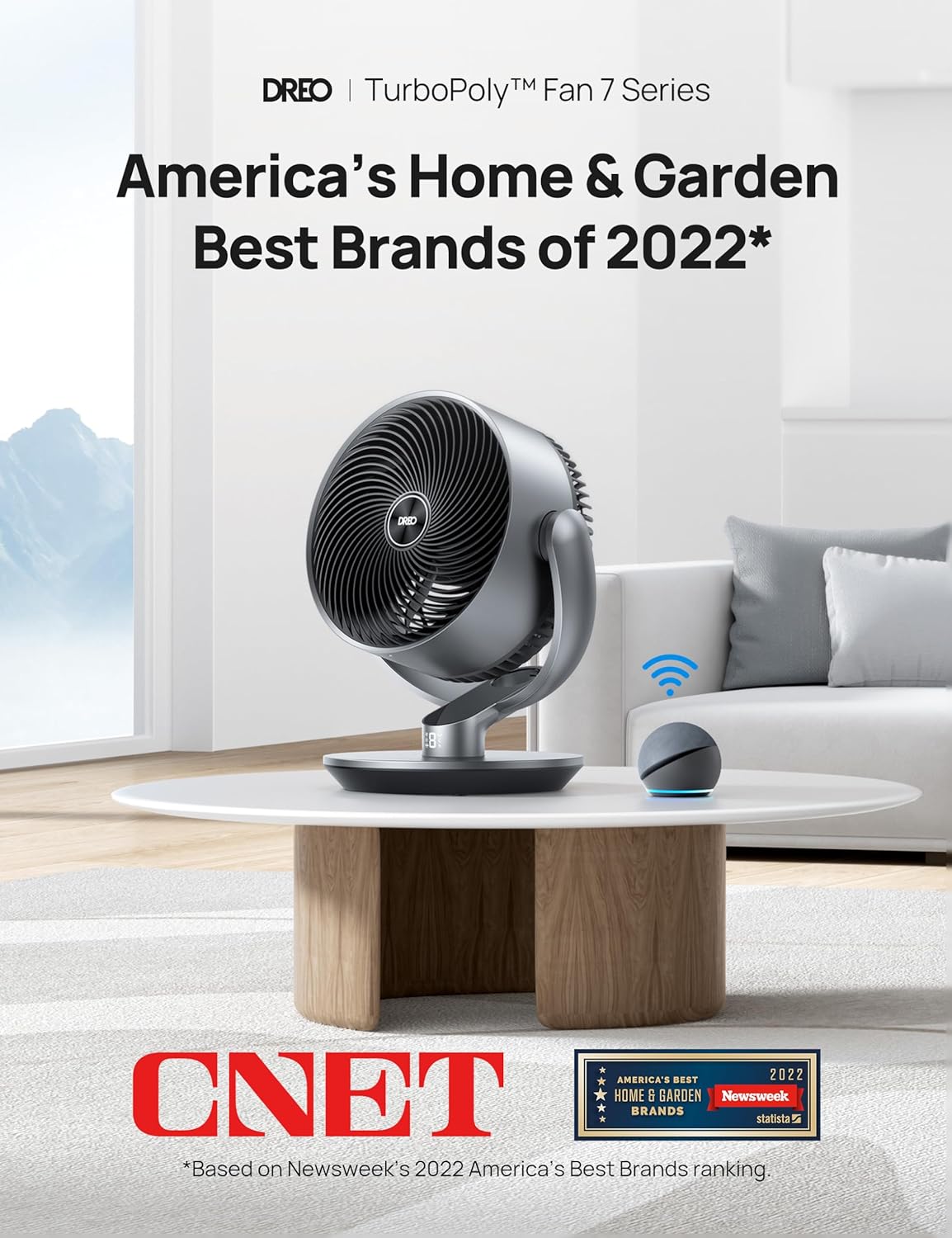
The Dreo DR-HAF004S fan is shown in a contemporary living room environment, positioned on a coffee table alongside a smart speaker, indicating its smart home integration capabilities.
Operating Instructions
Power On/Off
Plug the power cord into a standard electrical outlet. Press the power button on the control panel or remote control to turn the fan on or off.
Speed Control
The fan offers 9 adjustable wind speeds. Use the '+' and '-' buttons on the control panel or remote to increase or decrease the fan speed.

An illustration of the Dreo fan's control panel, indicating the availability of 9 distinct wind speeds and 6 different operating modes for varied airflow preferences.
Mode Selection
Cycle through the 6 available operating modes (e.g., Normal, Natural, Sleep, Auto) by pressing the Mode button on the control panel or remote.
Oscillation
The fan supports 120-degree horizontal and vertical oscillation, as well as a custom oscillation mode. Press the Oscillation button to activate or adjust the oscillation settings.
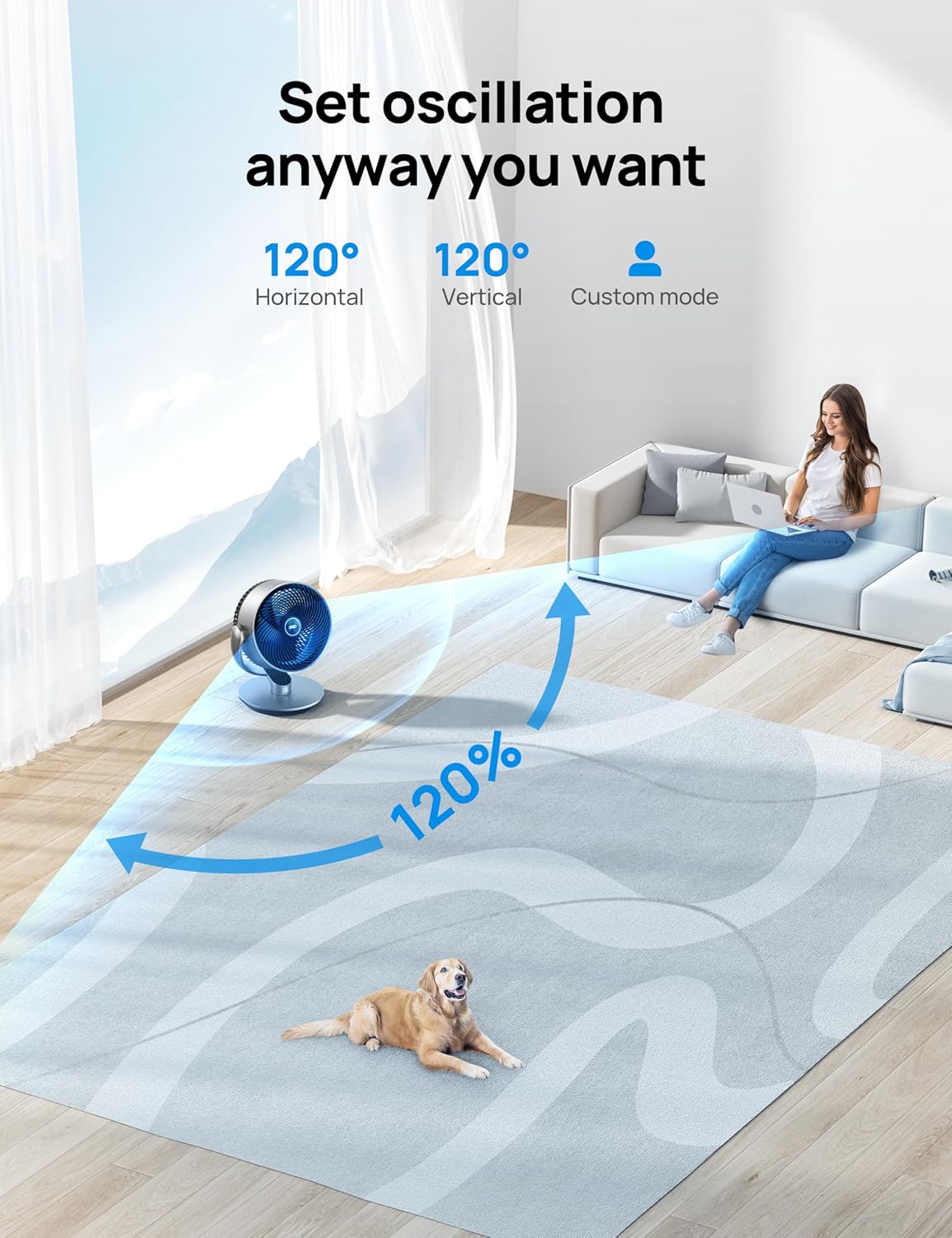
This image highlights the Dreo fan's versatile oscillation features, including 120-degree horizontal and vertical movement, as well as a customizable oscillation mode for targeted airflow.
Timer Function
Set a timer for the fan to automatically turn off after a specified period. Refer to the specific instructions in the app or remote for setting the timer.
Wi-Fi and App Control
Download the Dreo app from your smartphone's app store. Follow the in-app instructions to connect your fan to your home Wi-Fi network. The app allows for advanced control, custom settings, and scheduling.
Remote Control Usage
The included remote control allows convenient operation from a distance. Ensure the remote is pointed towards the fan's receiver. The remote uses one CR2 battery.
Voice Control (Alexa)
Once connected to Wi-Fi, the fan can be integrated with voice assistants like Amazon Alexa. Enable the Dreo skill in your Alexa app and use voice commands to control the fan (e.g., "Alexa, set air circulator to speed one").

The Dreo fan is depicted effectively circulating air throughout a room, suitable for both table and floor placement, with a text bubble showing an example of voice control via Alexa.
Sleep Mode
Activate Sleep Mode for ultra-quiet operation, ideal for nighttime use. The fan operates at a low noise level of 25dB in this mode.
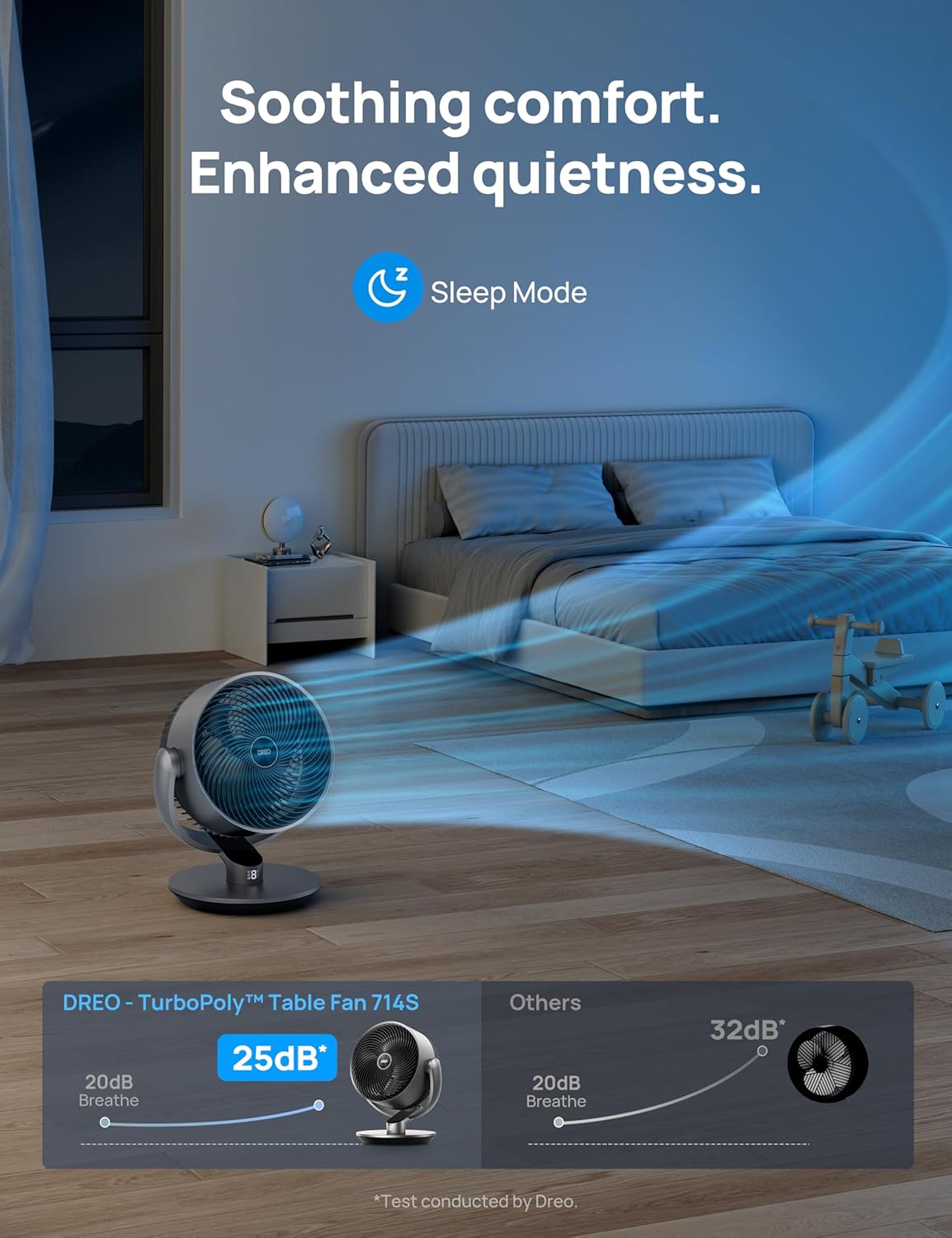
This graphic compares the Dreo fan's low noise level of 25dB in Sleep Mode against other fans, emphasizing its enhanced quietness for undisturbed comfort.

A visual representation of the Dreo fan's powerful air circulation, demonstrating its ability to project airflow up to 110 feet, optimizing room air movement.
Maintenance
Cleaning
Always unplug the fan before cleaning. Use a soft, dry cloth to wipe the exterior surfaces. For the grilles, use a vacuum cleaner with a brush attachment to remove dust. Do not use abrasive cleaners or allow water to drip into the motor housing.
Storage
If storing the fan for an extended period, clean it thoroughly and place it back in its original packaging. Store in a cool, dry place.
Troubleshooting
| Problem | Possible Cause | Solution |
|---|---|---|
| Fan does not turn on | Not plugged in; Power outlet fault; Remote battery low | Ensure plug is fully inserted; Try a different outlet; Replace remote battery. |
| Weak airflow | Fan speed too low; Grilles obstructed; Fan placed too far | Increase fan speed; Clean grilles; Move fan closer to desired area. |
| Fan makes unusual noise | Obstruction in fan blades; Fan not on a level surface | Unplug and check for obstructions; Place fan on a stable, level surface. |
| Wi-Fi connection issues | Incorrect password; Router too far; App not updated | Re-enter Wi-Fi password; Move fan closer to router; Update Dreo app. |
Specifications
| Feature | Detail |
|---|---|
| Brand | Dreo |
| Model Number | DR-HAF004S |
| Color | Metallic Silver |
| Product Dimensions (L x W x H) | 27.94 x 33.02 x 40.64 cm |
| Item Weight | 4.17 Kilograms |
| Power | 48 Watts |
| Voltage | 120V |
| Material | Plastic |
| Number of Speeds | 9 |
| Noise Level | 25 dB (minimum) |
| Features | Wi-Fi, App Control, Timer, Oscillating, Remote Control, Auto-off function |
| Power Source | DC |
| Battery (Remote) | 1 CR2 (included) |
| Recommended Use | Air Circulation |
Warranty and Support
Dreo products come with a limited warranty from the date of purchase. For specific warranty terms and conditions, please refer to the warranty card included with your product or visit the official Dreo website.
If you encounter any issues or have questions regarding your Dreo DR-HAF004S fan, please contact Dreo Customer Support. Have your model number and purchase details ready when contacting support.
Website: www.dreo.com
Email: support@dreo.com
Related documentsDR-HAF004S


Ask a question about this manual
Ask about setup, troubleshooting, compatibility, parts, safety, or missing instructions. Manuals+ will review the question and use this page’s manual context to help answer it.