Introduction
This manual provides comprehensive instructions for the setup, operation, maintenance, and troubleshooting of your ASUS ROG Strix OLED XG32UCWMG Gaming Monitor. Please read this manual thoroughly before using the product to ensure proper functionality and to prevent damage.
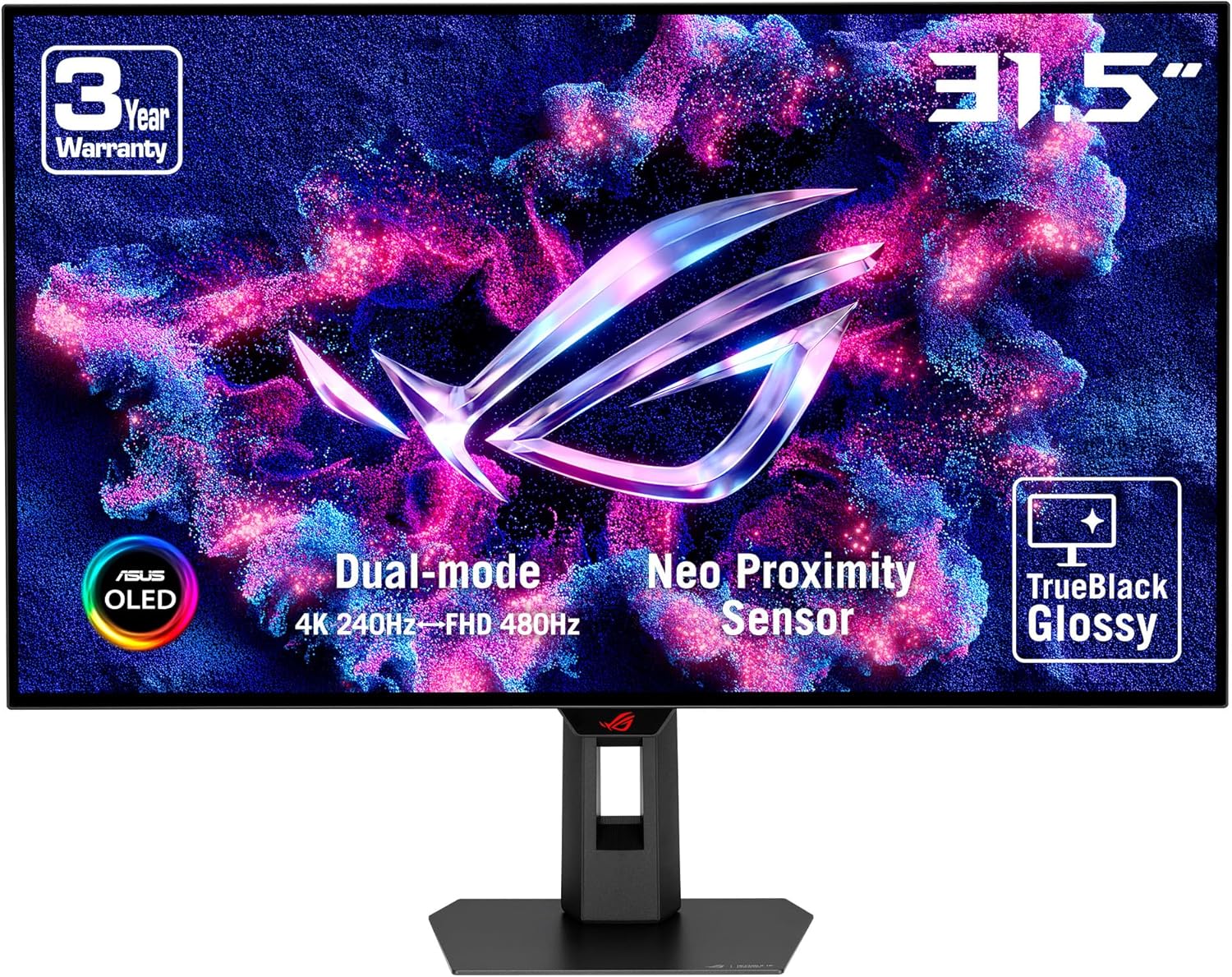
Front view of the ASUS ROG Strix OLED XG32UCWMG Gaming Monitor, showcasing its 31.5-inch display, dual-mode capabilities (4K 240Hz / FHD 480Hz), Neo Proximity Sensor, and TrueBlack Glossy panel.
Setup Instructions
Follow these steps to set up your monitor:
- Unpacking: Carefully remove all components from the packaging. Ensure all parts are present: monitor panel, stand base, stand neck, power adapter, and necessary cables (HDMI, DisplayPort, USB-C).
- Assemble the Stand:
- Attach the stand neck to the stand base using the provided screws.
- Attach the assembled stand to the back of the monitor panel. Ensure it clicks securely into place or is fastened with screws as per the quick start guide.

Illustration of the monitor's compact and ergonomic stand, demonstrating height adjustment, swivel, and tilt capabilities. The stand is designed to be 45% smaller than previous models.
- Connect Cables:
- Power: Connect the power adapter to the monitor and then to a power outlet.
- Video Input: Connect one end of an HDMI 2.1, DisplayPort 1.4 (DSC), or USB-C cable to the corresponding port on the monitor and the other end to your computer's graphics card.
- USB Hub: Connect the USB-C cable from the monitor to your computer to enable the integrated USB 3.0 ports on the monitor.
- Position the Monitor: Adjust the monitor's height, tilt, and swivel for optimal viewing comfort.
- Power On: Press the power button on the monitor.
Operating Instructions
On-Screen Display (OSD) Menu
The OSD menu allows you to adjust various monitor settings. Access it using the joystick or buttons located on the monitor.
Key Features and Settings
- Dual Mode (4K@240Hz / FHD@480Hz): This monitor supports a versatile dual mode. You can switch between 4K resolution at 240Hz and Full HD resolution at 480Hz using a dedicated hotkey or through the OSD menu. This allows for flexibility between high-resolution detail and ultra-high refresh rate performance.

Visual representation of the monitor's Dual-Mode Display, illustrating the ability to switch between 4K at 240Hz and Full HD at 480Hz via a hotkey.
- TrueBlack Glossy Panel: The exclusive TrueBlack Glossy WOLED panel provides ultra-sharp visuals and deep, inky blacks by offering a veil-free surface.
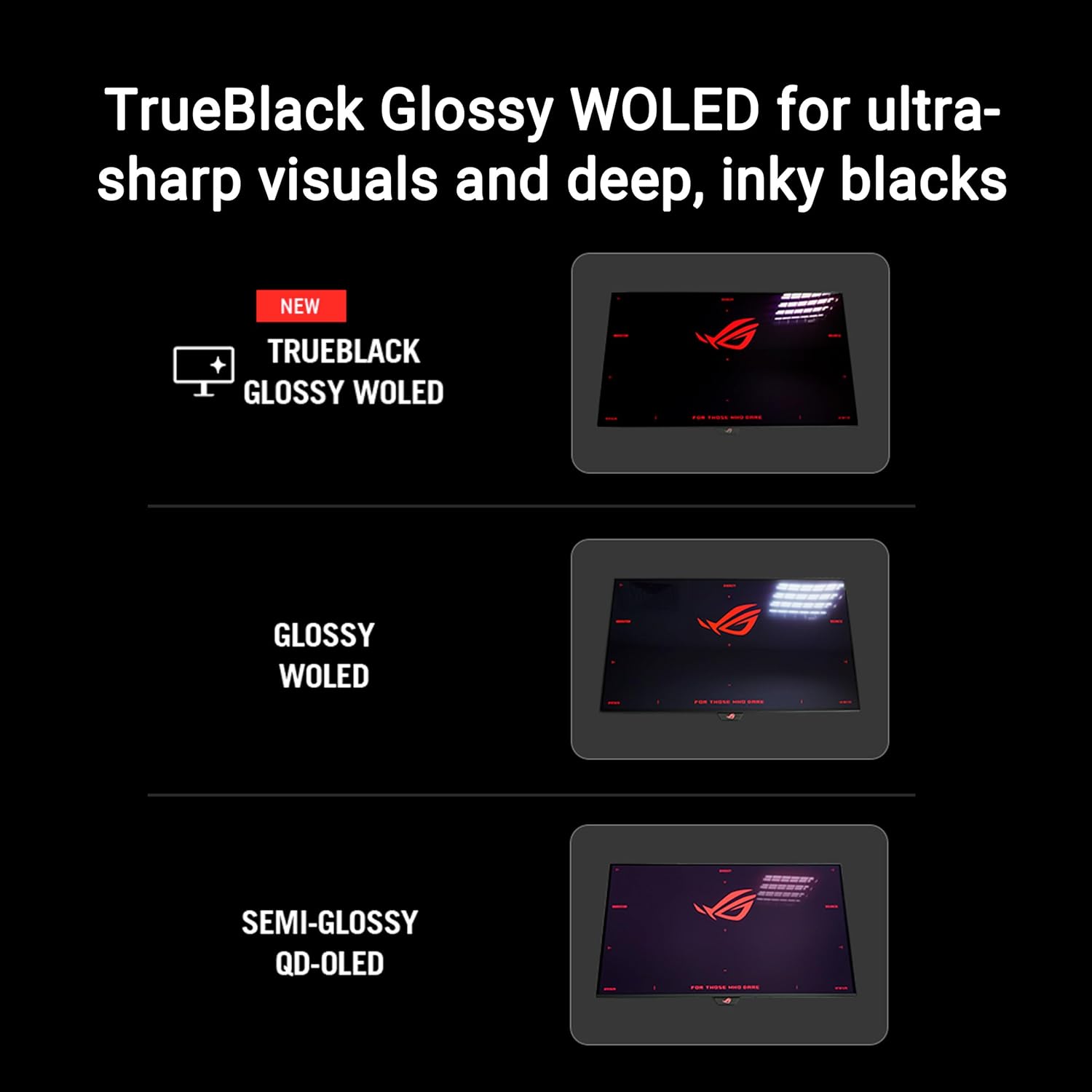
Comparison illustrating the visual difference between TrueBlack Glossy WOLED, standard Glossy WOLED, and Semi-Glossy QD-OLED panels, highlighting the superior sharpness and black levels of the TrueBlack Glossy WOLED.
- Aspect Ratio Control: Adjust the aspect ratio to optimize the display for different game genres and devices. Options typically include 24-inch, 27-inch, Square Equivalent, and Square Full modes.

Diagram showing various Aspect Ratio Control options, including simulated 24-inch and 27-inch displays, along with Square Equivalent and Square Full modes, for adapting to different content.
- KVM Automatic Switch: The integrated KVM switch allows you to control two devices connected to the monitor using a single keyboard and mouse. The monitor can automatically switch input based on activity.
- G-SYNC Compatible: This monitor supports NVIDIA G-SYNC technology for a tear-free gaming experience. Ensure your graphics card drivers are up to date and G-SYNC is enabled in your NVIDIA control panel.
Maintenance
Cleaning the Monitor
- Always power off the monitor and disconnect the power cord before cleaning.
- Use a soft, lint-free cloth slightly dampened with water or a mild, non-abrasive screen cleaner.
- Do not spray liquid directly onto the screen.
- Avoid using benzene, thinner, ammonia-based cleaners, or abrasive cleaning agents.
ASUS OLED Care Pro Technology
This monitor features advanced OLED Care Pro functions designed to protect the OLED panel from potential burn-in and ensure its longevity. These functions include:
- Neo Proximity Sensor: Automatically detects when a user is away from the screen and switches to a black screen to reduce the risk of image retention.
- Screen Save: Activates a screen saver when the monitor is idle.
- Pixel Cleaning: A routine process that refreshes the pixels to prevent image retention. This typically runs automatically when the monitor is in standby.
- Pixel Move: Shifts the image slightly to prevent static elements from causing burn-in.
- Taskbar Detection: Automatically dims or hides the Windows taskbar to prevent burn-in from static elements.
- Logo Brightness Adjustment: Reduces the brightness of static logos or UI elements.
- Global Dimming Detection: Adjusts overall screen brightness based on content to protect the panel.
- Outer Dimming Detection: Dims static elements around the edges of the screen.
These features can be managed and configured via the OSD menu or through the DisplayWidget Center software.

Overview of ASUS OLED Care Pro features, highlighting the Neo Proximity Sensor, Screen Save, Pixel Cleaning, Pixel Move, Taskbar Detection, Logo Brightness Adjustment, Global Dimming Detection, and Outer Dimming Detection, all designed to protect the OLED panel.
Troubleshooting
| Problem | Possible Solution |
|---|---|
| No image on screen |
|
| Image retention / Burn-in |
|
| Flickering or distorted image |
|
| USB ports not working |
|
Specifications
| Feature | Detail |
|---|---|
| Model Name | ROG Strix OLED XG32UCWMG |
| Panel Size | 31.5 Inches (32-inch class) |
| Panel Type | WOLED, TrueBlack Glossy |
| Resolution | 4K UHD (3840 x 2160) |
| Refresh Rate |
|
| Response Time | 0.03ms (GTG) |
| Aspect Ratio | 16:9 |
| Connectivity |
|
| Adaptive Sync Technology | G-SYNC Compatible |
| HDR Support | VESA DisplayHDR 400 True Black |
| Special Features | ASUS OLED Care Pro, Neo Proximity Sensor, KVM Automatic Switch, DisplayWidget Center |
| Dimensions (LxWxH) | 10.79 x 28.11 x 22.8 inches (with stand) |
| Weight | 16.06 pounds (with stand) |
| Color | Black |
Warranty and Support
Warranty Information
The ASUS ROG Strix OLED XG32UCWMG Gaming Monitor typically comes with a 3-year limited warranty from the date of purchase. This warranty covers manufacturing defects and workmanship under normal use. Please refer to the warranty card included with your product or visit the official ASUS support website for detailed terms and conditions, including specific coverage for OLED panels.
Customer Support
For technical assistance, troubleshooting beyond this manual, or warranty claims, please contact ASUS customer support:
- ASUS Support Website: www.asus.com/support/
- Refer to your product's packaging or the ASUS website for regional contact numbers and service centers.
When contacting support, please have your monitor's model number (XG32UCWMG) and serial number ready.


