1. Introduction
This manual provides detailed instructions for the installation, operation, and maintenance of your Eujgoov TH01 WiFi Temperature and Humidity Sensor. Please read this manual carefully before using the device to ensure proper function and longevity.
2. Product Overview
The Eujgoov TH01 is a smart WiFi-enabled sensor designed to monitor indoor temperature and humidity levels. It integrates with the Smart Life application, allowing for remote monitoring, real-time alerts, and smart home automation. Its compact and simple design ensures it blends seamlessly into any home environment.
Key Features:
- APP Alarm Function: Receive instant notifications via the app if temperature or humidity levels exceed or fall below predefined thresholds.
- High Measurement Precision: Temperature range of -20℃ to 60℃ with ±1℃ accuracy; Humidity range of 0%RH to 100%RH with ±5%RH accuracy.
- Smart Life Integration: Compatible with the Smart Life app for advanced automation and control.
- Easy Installation: Designed for straightforward setup in various indoor locations.
- Real-time Battery Monitoring: The app displays the current battery level and provides low battery alerts.
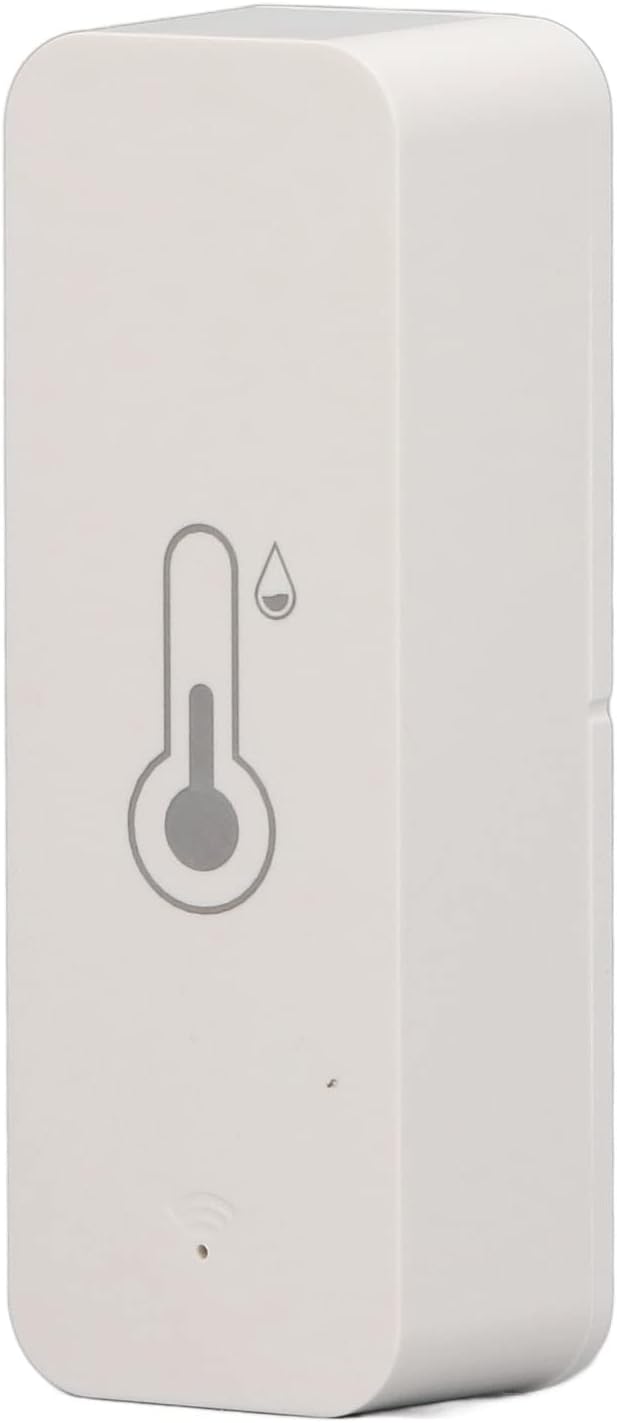
Image 2.1: Front view of the Eujgoov TH01 sensor, showing the temperature and humidity icons.
3. Specifications
| Parameter | Value |
|---|---|
| Model Number | TH01 |
| Brand | Eujgoov |
| Temperature Measurement Range | -20℃ to 60℃ |
| Temperature Accuracy | ±1℃ |
| Humidity Measurement Range | 0%RH to 100%RH |
| Humidity Accuracy | ±5%RH |
| WiFi Frequency | 2.4GHz |
| Power Supply | 2 x AAA (LR03-1.5V) batteries |
| Dimensions | 71mm x 25mm x 20mm (approx. 2.8in x 0.98in x 0.79in) |
| Weight | 20g |

Image 3.1: Dimensions of the Eujgoov TH01 sensor, showing length, width, and thickness.
4. Setup
4.1. Battery Installation
- Locate the battery compartment on the back of the sensor.
- Slide the cover open as indicated by the "OPEN" arrow.
- Insert two AAA (LR03-1.5V) batteries, ensuring correct polarity (+/-).
- Close the battery compartment cover securely.

Image 4.1: Back view of the sensor showing the battery compartment and model information.

Image 4.2: The sensor next to two AAA batteries, illustrating the power source.
4.2. App Installation and Pairing
- Download the "Smart Life" app from your smartphone's app store (iOS or Android).
- Register or log in to your Smart Life account.
- Ensure your smartphone is connected to a 2.4GHz WiFi network. The TH01 sensor only supports 2.4GHz WiFi.
- Open the Smart Life app, tap "+" or "Add Device".
- Follow the in-app instructions to add the TH01 sensor. This typically involves putting the sensor into pairing mode (often by pressing a button or power cycling) and confirming the WiFi network.
- Once successfully paired, the sensor will appear in your device list within the app.
5. Operating Instructions
5.1. Real-time Monitoring
After successful pairing, open the Smart Life app and select your TH01 sensor. You will see real-time temperature and humidity readings displayed on the main screen.
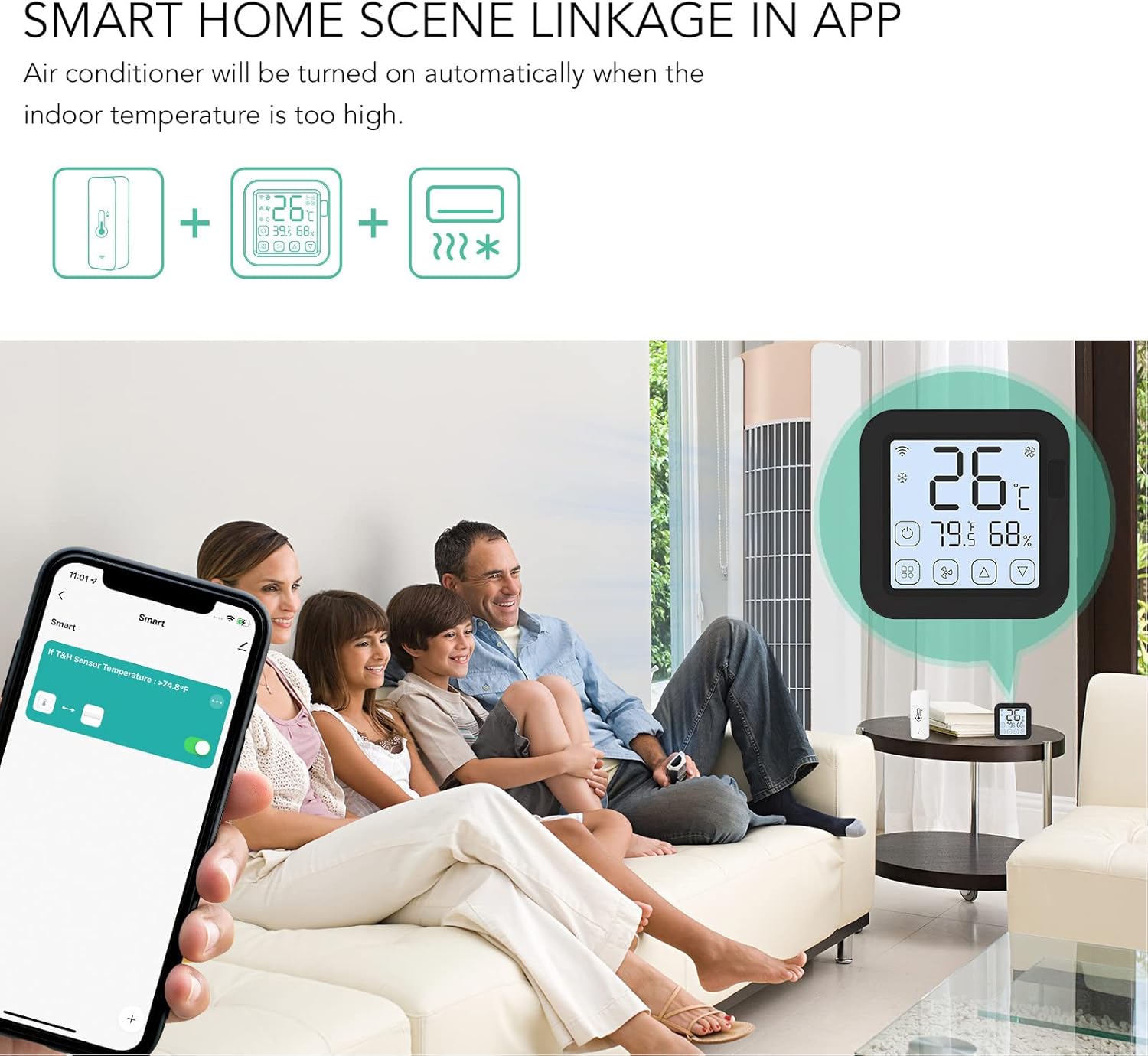
Image 5.1: A smartphone screen showing the Smart Life app interface with current temperature and humidity readings from the TH01 sensor.
5.2. Setting Up Alerts
You can configure custom alerts for temperature and humidity:
- In the Smart Life app, navigate to your TH01 sensor's settings.
- Find the "Alarm Settings" or "Thresholds" option.
- Set your desired upper and lower limits for temperature and humidity.
- Enable notifications to receive alerts on your smartphone when these thresholds are crossed.
5.3. Historical Data
The Smart Life app stores historical temperature and humidity data, allowing you to review trends over time. This data is typically presented in graphs for easy analysis.

Image 5.2: The Smart Life app displaying historical temperature and humidity data in graph format.
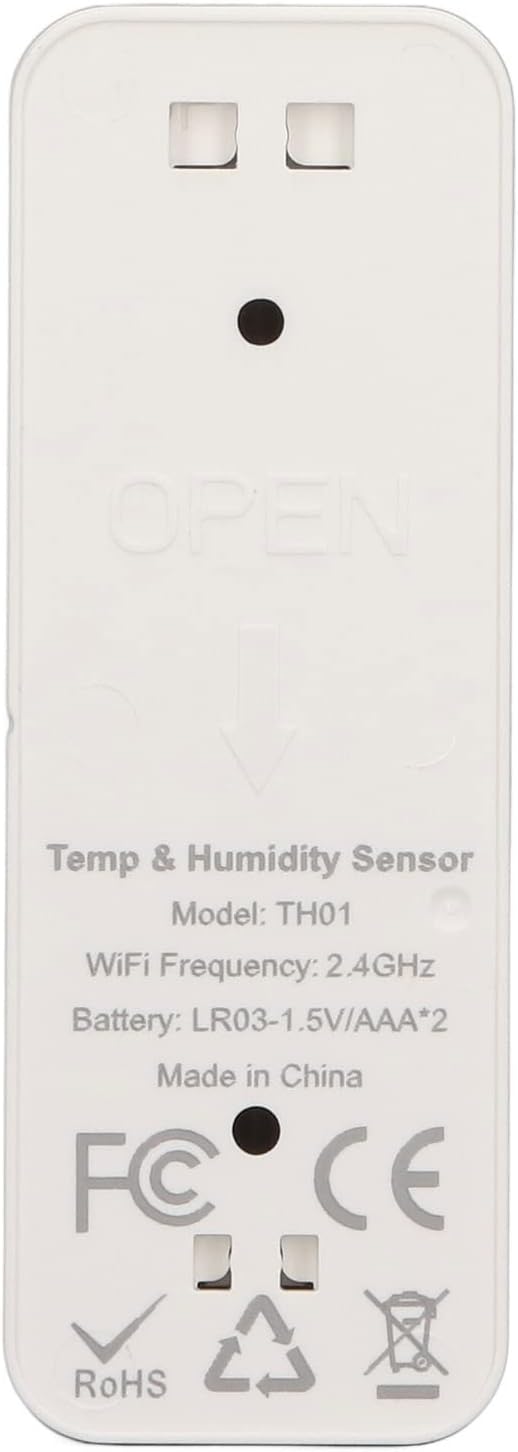
Image 5.3: The TH01 sensor positioned next to a smartphone displaying historical environmental data.
6. Smart Home Integration
The Eujgoov TH01 sensor can be integrated into Smart Life automation routines to control other smart devices based on environmental conditions.
Example Automation:
- Automatic Air Conditioner Control: Set up a rule to automatically turn on a smart air conditioner when the indoor temperature exceeds a certain level.
- Humidifier/Dehumidifier Control: Automate a smart humidifier or dehumidifier to maintain optimal humidity levels.

Image 6.1: Diagram illustrating how the TH01 sensor can link with other smart devices, such as an air conditioner, for automated control.

Image 6.2: An example of smart home integration, showing the TH01 sensor, a smart controller, and an air conditioner working together.
6.1. Device Sharing
The Smart Life app allows you to share access to your TH01 sensor with family members, enabling multiple users to monitor environmental conditions and receive alerts.
Image 6.3: A family interacting with the Smart Life app on their devices, demonstrating device sharing for monitoring the TH01 sensor.
7. Maintenance
- Cleaning: Wipe the sensor with a soft, dry cloth. Do not use liquid cleaners or immerse the device in water.
- Battery Replacement: Replace batteries when the low battery alert is received in the app. Use two new AAA batteries.
- Placement: For accurate readings, place the sensor away from direct sunlight, heat sources, and areas with high airflow (e.g., near vents or open windows).
Image 7.1: The Smart Life app interface showing the low battery alarm setting, indicating when to replace batteries.
8. Troubleshooting
| Problem | Possible Cause | Solution |
|---|---|---|
| Device not connecting to WiFi. | Incorrect WiFi password; Not a 2.4GHz network; Sensor too far from router; Pairing mode not activated. | Verify WiFi password. Ensure your router broadcasts a 2.4GHz signal and your phone is connected to it during pairing. Move the sensor closer to the router. Re-enter pairing mode as per app instructions. |
| Inaccurate readings. | Sensor placed near heat/cold sources or in direct sunlight/drafts. | Relocate the sensor to a central area away from environmental extremes. |
| Short battery life. | Frequent data updates; Low-quality batteries. | While the data update frequency is generally fixed, ensure you are using high-quality alkaline AAA batteries. (Note: One user review mentioned short battery life, suggesting this is a known concern). |
| No app notifications. | App notifications disabled; Thresholds not set; Phone's notification settings. | Check app settings for enabled notifications and correctly set thresholds. Verify your phone's system notification settings for the Smart Life app. |
9. Warranty and Support
For warranty information and technical support, please refer to the documentation provided with your purchase or contact the retailer/manufacturer directly. Keep your proof of purchase for warranty claims.


