
MOFII SK-646BT WP
Contents
MOFII Wireless Keyboard Candy BT User Manual
Model: SK-646BT WP | Brand: MOFII
Introduction
This manual provides comprehensive instructions for the setup, operation, maintenance, and troubleshooting of your MOFII Wireless Keyboard Candy BT. Please read this manual carefully before using the product to ensure proper functionality and longevity.

Image: The MOFII Wireless Keyboard Candy BT in White-Pink, showcasing its full layout and vibrant keycaps.
Setup
1. Unboxing and Battery Installation
Carefully remove the keyboard from its packaging. Locate the battery compartment on the underside of the keyboard. Insert the required batteries (typically AAA, not included) ensuring correct polarity as indicated inside the compartment. Close the battery cover securely.
2. Powering On
Locate the power switch, usually on the top right edge or underside of the keyboard. Slide the switch to the "ON" position. An indicator light may briefly illuminate.
3. Bluetooth Pairing
- Ensure your device (computer, tablet, smartphone) has Bluetooth enabled.
- On the keyboard, press and hold the Fn key and one of the Bluetooth channel keys (BT1, BT2, or BT3, usually located near F1-F3) for 3-5 seconds until the corresponding indicator light starts blinking rapidly. This indicates the keyboard is in pairing mode.
- On your device, go to Bluetooth settings and search for new devices.
- Select "MOFII Keyboard" or a similar name from the list of available devices.
- Follow any on-screen prompts to complete the pairing process. You may be asked to type a code on the keyboard and press Enter.
- Once paired, the indicator light on the keyboard will stop blinking and remain solid or turn off, indicating a successful connection.

Image: Top-down view of the keyboard, highlighting the Bluetooth channel keys (BT1, BT2, BT3) and power switch.
Operating Instructions
Basic Typing
Once connected, the keyboard functions like a standard QWERTY keyboard. Simply begin typing.
Function Keys (Fn)
The keyboard features multimedia and system function keys accessible by holding down the Fn key and pressing the corresponding F-key (F1-F12) or other designated keys. Common functions include:
- Fn + F1-F3: Switch between paired Bluetooth devices (BT1, BT2, BT3).
- Fn + F4: Mute audio.
- Fn + F5: Decrease volume.
- Fn + F6: Increase volume.
- Fn + F7: Previous track.
- Fn + F8: Play/Pause.
- Fn + F9: Next track.
- Fn + F10: Web browser.
- Fn + F11: My Computer/File Explorer.
- Fn + F12: Calculator.
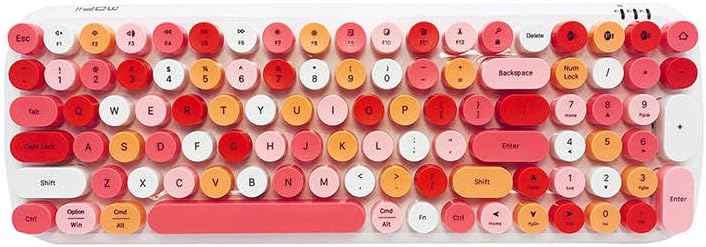
Image: A clear overhead view of the MOFII Wireless Keyboard, showing all keys and their primary and secondary functions.
Maintenance
Cleaning the Keyboard
To maintain the keyboard's appearance and functionality, regularly clean it. Use a soft, lint-free cloth slightly dampened with water or a mild cleaning solution. Avoid excessive moisture. For dust and debris between keys, use compressed air. Do not immerse the keyboard in liquid.
Battery Replacement
When the keyboard's performance degrades or the low battery indicator (if present) illuminates, it's time to replace the batteries. Follow the battery installation steps outlined in the "Setup" section. Dispose of old batteries responsibly according to local regulations.
Troubleshooting
- Keyboard not connecting/pairing:
- Ensure the keyboard is powered on and batteries are correctly installed and charged.
- Make sure Bluetooth is enabled on your device.
- Move the keyboard closer to your device.
- Try re-entering pairing mode on the keyboard (Fn + BT1/BT2/BT3).
- Remove the keyboard from your device's Bluetooth list and attempt to pair again.
- Restart both the keyboard (power off/on) and your device.
- Keys not responding:
- Check battery level; replace if low.
- Ensure the keyboard is properly connected via Bluetooth.
- Clean any debris that might be stuck under the keys.
- Test the keyboard on another device to rule out device-specific issues.
- Lag or delayed input:
- Ensure there are no strong interferences (e.g., other wireless devices) nearby.
- Move closer to your device.
- Check battery level.
Specifications
- Brand: MOFII
- Model Number: SK-646BT WP
- Connectivity: Wireless (Bluetooth)
- Number of Keys: 100
- Number of Buttons: 78
- Color: White-Pink
- ASIN: B0BS9TP7GB
Warranty Information
Specific warranty information for the MOFII Wireless Keyboard Candy BT is not available in this manual. Please refer to the product packaging, the retailer's website, or contact MOFII customer support for detailed warranty terms and conditions.
Customer Support
For further assistance, technical support, or inquiries regarding your MOFII Wireless Keyboard Candy BT, please visit the official MOFII website or contact their customer service department. Contact details are typically found on the product packaging or the manufacturer's official website.
Documents and downloads
Ask a question about this manual
Ask about setup, troubleshooting, compatibility, parts, safety, or missing instructions. Manuals+ will review the question and use this page’s manual context to help answer it.