
1. Introduction
This manual provides essential information for the safe and efficient operation of your Acer KB272 Hbi 27-inch Full HD monitor. Please read this manual thoroughly before using the product and retain it for future reference.
The Acer KB272 Hbi is a 27-inch Full HD (1920 x 1080) monitor designed for various applications, including office work, general use, and casual gaming. It features AMD FreeSync technology, a 100Hz refresh rate, and a 1ms Visual Response Boost (VRB) for smooth visuals. The monitor also incorporates Acer VisionCare technologies to enhance viewing comfort.
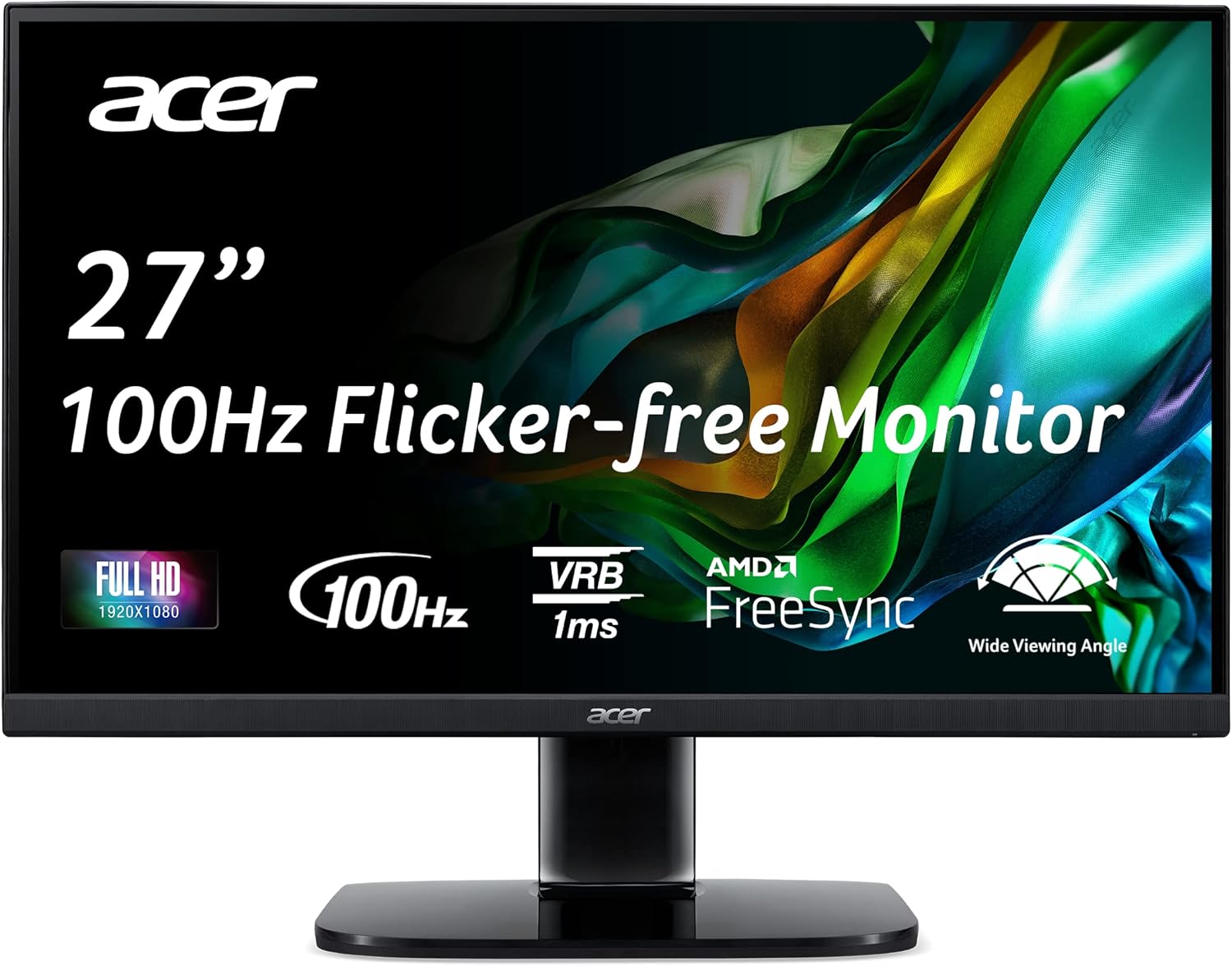
Image 1.1: Front view of the Acer KB272 Hbi 27-inch Full HD monitor.
2. Safety Information
Observe the following safety guidelines to prevent damage to the monitor and ensure user safety:
- Do not expose the monitor to rain, moisture, or extreme temperatures.
- Ensure proper ventilation around the monitor. Do not block ventilation openings.
- Use only the power cord and adapter supplied with the monitor.
- Disconnect the power plug from the outlet if the monitor will not be used for an extended period.
- Do not attempt to service the monitor yourself. Refer all servicing to qualified service personnel.
- Avoid placing heavy objects on the power cord or monitor cables.
3. Package Contents
Verify that all items are present in the package:
- Acer KB272 Hbi Monitor
- Monitor Stand (Base and Neck)
- Power Cord
- HDMI Cable
4. Setup
4.1 Assembling the Monitor Stand
- Carefully remove the monitor and stand components from the packaging.
- Attach the stand neck to the monitor panel. Ensure it clicks securely into place.
- Attach the stand base to the stand neck. Tighten any screws if provided.
- Place the assembled monitor on a stable, flat surface.

Image 4.1: The monitor stand allows for tilt adjustment. The monitor is also VESA wall mount compatible.
4.2 Connecting Cables
Connect the necessary cables to the monitor and your computer:
- Power Cable: Connect the power cord to the monitor's power input and then to a power outlet.
- HDMI Cable: Connect one end of the HDMI cable to the HDMI port on the monitor and the other end to the HDMI output port on your computer.
- VGA Cable (Optional): If using a VGA connection, connect a VGA cable to the VGA port on the monitor and your computer.

Image 4.2: Rear view highlighting the HDMI and VGA input ports.
5. Operating Instructions
5.1 Power On/Off
Press the power button located on the monitor to turn it on or off. The power indicator light will illuminate when the monitor is on.
5.2 On-Screen Display (OSD) Menu
The OSD menu allows you to adjust various monitor settings. Typically, buttons on the back or bottom right of the monitor are used to navigate the menu. Common adjustments include brightness, contrast, color settings, input selection, and advanced features.
5.3 Key Features
- AMD FreeSync Technology: This technology synchronizes the monitor's refresh rate with your graphics card's frame rate, reducing screen tearing and stuttering for a smoother visual experience. Ensure your graphics card supports AMD FreeSync and it is enabled in your system settings.

Image 5.1: Visual representation of AMD FreeSync technology reducing screen tearing.
- 100Hz Refresh Rate: The monitor supports a 100Hz refresh rate via HDMI, providing smoother motion compared to standard 60Hz displays. This is beneficial for fast-paced content and reduces perceived flicker.

Image 5.2: Illustration of 100Hz refresh rate providing a smoother visual experience.
- 1ms Visual Response Boost (VRB): This feature minimizes motion blur in fast-moving scenes, ensuring clear and sharp images. It is particularly useful for gaming.

Image 5.3: Visual comparison demonstrating the effect of 1ms VRB on image clarity during motion.
- Acer VisionCare (Low Blue Light & Flicker-Free): Acer VisionCare technology includes features like Low Blue Light and Flicker-Free to reduce eye strain during prolonged use. These settings can typically be adjusted through the OSD menu.

Image 5.4: Acer VisionCare technology designed to reduce eye strain.
- Tilt Adjustment: The monitor stand allows for tilt adjustment from -5° to 15°, enabling you to find a comfortable viewing angle.
- Wide Viewing Angle: The monitor offers a wide viewing angle of 178° horizontally and vertically, ensuring consistent color and image quality from various positions.

Image 5.5: Illustration of the monitor's wide 178-degree viewing angle.
6. Maintenance
6.1 Cleaning the Monitor
To clean the monitor screen and casing:
- Turn off the monitor and unplug the power cord.
- Use a soft, lint-free cloth lightly dampened with water or a non-abrasive screen cleaner.
- Wipe the screen gently. Avoid applying excessive pressure.
- Do not use alcohol, ammonia, or abrasive cleaners, as they may damage the screen or casing.
7. Troubleshooting
If you encounter issues with your monitor, refer to the following common problems and solutions:
| Problem | Possible Cause | Solution |
|---|---|---|
| No power | Power cord not connected; Power outlet faulty | Ensure power cord is securely connected to monitor and outlet; Test outlet with another device. |
| No signal | Video cable not connected; Incorrect input selected | Check HDMI/VGA cable connections; Use OSD menu to select correct input source. |
| Image is blurry or distorted | Incorrect resolution; Cable issue | Set display resolution to 1920 x 1080; Try a different HDMI cable. |
| Screen flickering | Refresh rate mismatch; Environmental interference | Ensure graphics card drivers are updated; Check for nearby electronic devices causing interference. |
8. Specifications
| Feature | Detail |
|---|---|
| Model Number | KB272 Hbi |
| Screen Size | 27 Inches |
| Max Resolution | 1920 x 1080 (Full HD) |
| Refresh Rate | 100Hz (via HDMI) |
| Response Time | 1ms VRB (Visual Response Boost) |
| Panel Type | IPS (implied by wide viewing angle and color claims) |
| Brightness | 250 nits |
| Pixel Pitch | 0.311mm |
| Aspect Ratio | 16:9 |
| Viewing Angle | 178° (H) / 178° (V) |
| Connectivity | 1 x HDMI 1.4 Port, 1 x VGA Port |
| Ergonomics | Tilt: -5° to 15° |
| VESA Mounting | 100 x 100mm Compliant |
| Dimensions (LxWxH) | 7.87 x 24.2 x 18 inches (with stand) |
| Item Weight | 11.86 pounds |

Image 8.1: Physical dimensions of the Acer KB272 Hbi monitor.
9. Warranty and Support
For warranty information and technical support, please refer to the warranty card included with your product or visit the official Acer support website. The website provides access to drivers, FAQs, and contact information for customer service.
Acer Official Support: www.acer.com/support