
1. Introduction
The Herilary C9 CarPlay AI Box is an advanced in-car entertainment system designed to enhance your driving experience. It integrates Android 11.0, wireless CarPlay, and wireless Android Auto into your vehicle's existing wired CarPlay system, offering a wide range of multimedia and navigation features.
2. Key Features
- Operating System: Android 11.0
- Processor: Quad-core 64-bit ARM Cortex-A53 @ 2.0GHz (QCM2290) for enhanced performance and stability.
- Wireless Connectivity: Supports both wireless Apple CarPlay and wireless Android Auto.
- Multimedia Playback: Access popular streaming services like YouTube, Netflix, Amazon Prime Video, and Hulu directly on your car's display.
- Automatic Connection: After initial pairing, the device automatically connects to CarPlay when the car engine starts.
- Storage Expansion: Features a micro SD card slot supporting up to 128GB for local media playback.
- Adaptive Display: Automatic screen adjustment function supports various navigation screen shapes and resolutions.
- Compact Design: Ultra-lightweight and portable, designed for convenience and aesthetic integration.
- Enhanced Heat Dissipation: New design with 7 heat dissipation vents for improved efficiency.

Image: Herilary C9 CarPlay AI Box highlighting its Qualcomm Snapdragon processor, Android 11.0 system, 1080p video playback, and 2GB+16GB memory.
3. Package Contents
- CarPlay AI Box Unit × 1
- USB Cable (Type-C to Type-A) × 1
- Conversion Adapter × 1
- Japanese Instruction Manual × 1
4. Compatibility
The Herilary C9 CarPlay AI Box is compatible with genuine wired CarPlay vehicles manufactured in 2016 or later. It supports a wide range of car brands including, but not limited to:
- Mercedes-Benz, Audi, Volkswagen, Ford, Toyota, Honda, Nissan, Buick, Porsche, Kia, Jaguar, Hyundai, Chevrolet, Lincoln, Lexus, Jeep, Cadillac.
The automatic screen adjustment feature ensures compatibility with various car navigation screen shapes.

Image: The AI Box demonstrating compatibility with different car navigation screen types, including rectangular, horizontal, and vertical displays.

Image: A table listing various car brands and model years (e.g., Mercedes-Benz 2017-2022, Audi 2017-2022) compatible with the AI Box.
5. Setup
5.1 Initial Connection
1. Connect the CarPlay AI Box to your car's USB port using the provided USB cable. Ensure your car supports wired CarPlay.
2. The LED indicator on the AI Box will light up, indicating it is powering on.
3. Your car's display should recognize the CarPlay device and initiate the connection process.
Video: Demonstrates connecting the AI Box to a car's USB port, showing the device powering on and the car's display recognizing it. It also shows inserting a SIM card and micro SD card, and using split-screen mode for navigation and video playback.
5.2 Switching Between Android and iPhone Modes
The AI Box features a physical switch on its underside to toggle between Android Auto (AA) and CarPlay (CP) modes. Select the appropriate mode based on your smartphone's operating system.
Video: Illustrates how to use the physical switch on the AI Box to select between Apple CarPlay and Android Auto modes, ensuring proper connection for your smartphone.
5.3 Network Connection
To access online features, connect the AI Box to the internet via Wi-Fi. This can be done using your smartphone's hotspot, in-car Wi-Fi, or a pocket Wi-Fi device.
1. Navigate to the 'Settings' menu on the car's display.
2. Select 'Network and Internet'.
3. Choose your desired Wi-Fi network and enter the password if prompted.
5.4 Google Account Login
For full access to Google services like YouTube, Google Maps, and the Play Store, log in with your Google account:
1. Go to 'Settings' > 'Google' > 'Google services and settings'.
2. Follow the on-screen prompts to log in to your Google account.
6. Operating Instructions
6.1 Wireless CarPlay / Android Auto
Once connected, your car's display will show the CarPlay or Android Auto interface. You can navigate through apps, make calls, send messages, and use navigation directly from the car's screen.
6.2 Multimedia Playback
Access pre-installed apps like YouTube, Netflix, Amazon Prime Video, and Hulu for video streaming. You can also download other apps from the Google Play Store.

Image: The AI Box displaying logos for YouTube, TikTok, Netflix, and Hulu, indicating support for video playback from these platforms.

Image: A car's display showing various video (YouTube, TikTok, Netflix) and music (BT Music, Amazon Music) applications available through the AI Box.
6.3 Split Screen Functionality
The AI Box supports split-screen mode, allowing you to run two applications simultaneously, such as navigation and a video player. The size of each window can be adjusted by dragging the divider.
Video: Demonstrates the split-screen feature, showing Google Maps navigation on one side and a YouTube video on the other. The video also shows how to adjust the size of each window.
6.4 Voice Assistant
Utilize the built-in voice assistant for hands-free control of navigation, music playback, and other functions. Simply tap the voice assistant icon and speak your commands.
6.5 App Installation
Access the Google Play Store to download and install a variety of applications, including navigation apps, social media, and music streaming services.
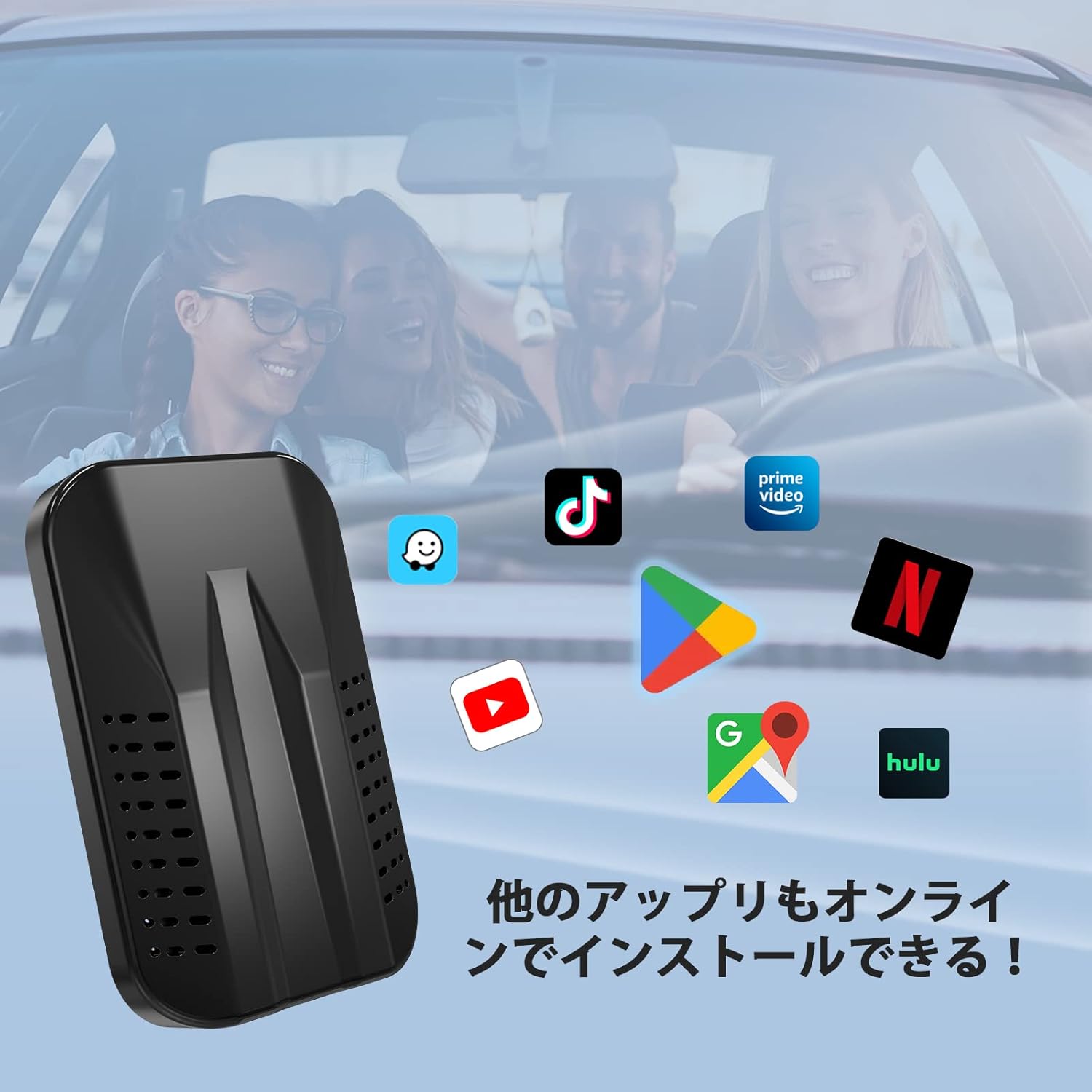
Image: The AI Box displaying various app icons like TikTok, Prime Video, YouTube, Google Maps, and Hulu, indicating that other applications can be installed online.
6.6 MicroSD Card Usage
The AI Box has a micro SD card slot (up to 128GB). You can store videos (MP4) and music (MP3) on an SD card and play them directly through the device, even without an internet connection.
Video: Shows how to insert a SIM card and a micro SD card into the AI Box. Text overlays indicate that the SD card can be used for storing and playing videos (MP4) and music (MP3).
7. Connectivity
7.1 Bluetooth
The device supports Bluetooth for connecting to external devices like BT mice, remote controls, HID, and OBD devices (Bluetooth 4.2). It also supports Bluetooth 5.0 for hands-free calling and audio streaming with smartphones.

Image: Illustrates the difference between Bluetooth 4.2 (for external BT mouse, remote, HID, OBD devices) and Bluetooth 5.0 (for iPhone/Android hands-free calls & audio streaming).
7.2 Wi-Fi
The AI Box supports both 2.4GHz and 5.0GHz Wi-Fi bands for stable and fast internet connectivity.
Image: A graphic showing '5.0GHz' and '2.4GHz' indicating dual-band Wi-Fi support.
8. Troubleshooting
If you encounter any issues with the product, please refer to the following steps:
- Ensure the AI Box is securely connected to the car's USB port.
- Verify that the correct Android Auto/CarPlay mode is selected using the physical switch on the device.
- Check your Wi-Fi connection for internet-dependent features.
- If the screen resolution is incorrect, the automatic screen adjustment function should adapt. If not, try restarting the device.
- For connection issues with CarPlay/Android Auto, ensure your smartphone's Bluetooth is on and paired correctly with the AI Box.
Video: Provides an overview of the CarPlay AI Box, including unboxing, connection, remote control usage, screen mirroring, and app functionality, which can be helpful for troubleshooting common issues.
9. Specifications
| Feature | Specification |
|---|---|
| Color | C9 |
| Compatible Devices | Smartphones |
| Connectivity Technology | Bluetooth, USB, Wi-Fi |
| Controller Type | Android |
| Special Features | Android Auto, Apple CarPlay, Compact Design |
| Supported Internet Services | Hulu, Netflix, YouTube |
| Control Method | Remote |
| UPC | 759357675378 |
10. Warranty and Support
The Herilary C9 CarPlay AI Box comes with a 1-year warranty. Our company has a rich technical team with specialized knowledge, ensuring comprehensive support.
For inquiries regarding product usage or in case of malfunction, please contact us via email through your Amazon account:
- Go to 'Account Service' > 'Order History' > 'Contact Seller'.
- Please include your order number in your email.
Alternatively, you can contact us through the 'Customer Support App' displayed on the screen after device connection.
Technical Certification Number: R210-194450
