
surmen GT68
surmen GT68 65% Wireless Mechanical Gaming Keyboard User Manual
Model: GT68 | Brand: surmen
1. Introduction and Overview
The surmen GT68 is a compact 65% wireless mechanical gaming keyboard designed for versatility and performance. Featuring 68 keys, it includes dedicated arrow keys and essential F-keys while maintaining a small footprint, making it ideal for both gaming and professional use. This keyboard supports multiple connectivity modes, hot-swappable switches, and vibrant RGB backlighting, offering a customizable and efficient typing experience.
Key features include:
- Mini portable 65% design with 68 keys.
- Hot-swappable PCB compatible with 3-pin MX-style switches.
- Gateron Yellow switches for a smooth, quiet, linear typing experience.
- Wireless Bluetooth RGB backlighting with an 1800mAh battery.
- Tri-mode connectivity: 2.4Ghz wireless, Bluetooth, and USB wired.
- PBT Double-shot Keycaps for durability and a premium feel.
2. What's in the Box
Upon unboxing your surmen GT68 keyboard, please ensure all the following items are present:
- surmen GT68 65% Wireless Mechanical Gaming Keyboard
- Keycap Puller
- USB Cable
- Extra Keycaps (ESC, Space Bar, Enter)

Image: The surmen GT68 keyboard, showcasing its compact design, RGB lighting, and included USB receiver and a Gateron Yellow switch.
3. Setup Guide
Initial Charging
Before first use, it is recommended to fully charge the keyboard. Connect the provided USB cable to the keyboard's USB-C port and the other end to a powered USB port on your computer or a wall adapter. The RGB lighting may indicate charging status.
Connectivity Modes
The surmen GT68 keyboard offers three versatile connection options:
- 2.4GHz Wireless Mode:
Insert the 2.4GHz USB receiver into an available USB port on your computer. The keyboard should automatically connect. Ensure the keyboard's mode switch (usually on the back or side) is set to 'RF' or '2.4G'. - Bluetooth Mode:
The keyboard can connect to up to three Bluetooth devices. To switch between paired devices, press FN + Q (Device 1), FN + W (Device 2), or FN + E (Device 3). To pair a new device, press and hold FN + Q/W/E until the corresponding key's backlight flashes rapidly, indicating pairing mode. Then, search for 'surmen GT68' on your device's Bluetooth settings and connect. - USB Wired Mode:
Connect the keyboard directly to your computer using the provided USB-C cable. The keyboard will function as a wired device and will also charge simultaneously. Ensure the keyboard's mode switch is set to 'USB' or 'Wired'.

Image: Visual representation of the keyboard's wired, 2.4GHz wireless, and Bluetooth connection options.
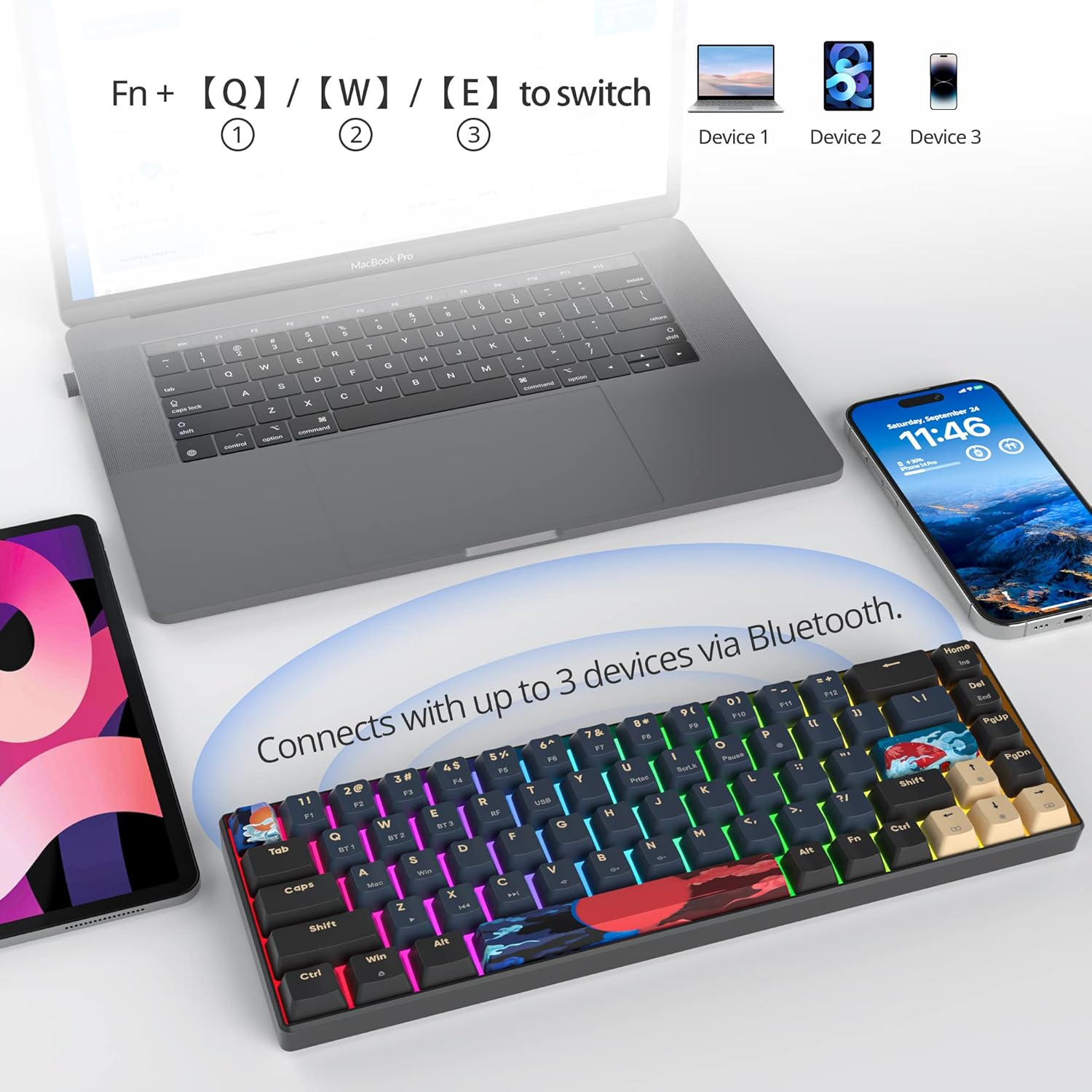
Image: The keyboard demonstrating its ability to connect with up to three devices simultaneously via Bluetooth, switching with FN+Q/W/E.
4. Operating Instructions
Key Functions and Shortcuts
The surmen GT68 utilizes an FN (Function) key for accessing secondary functions and multimedia controls. Specific combinations may vary, but common functions include:
- FN + Q/W/E: Switch between paired Bluetooth devices.
- FN + F1-F12: Access multimedia controls (e.g., volume, play/pause) or system functions.
- FN + Arrow Keys: Adjust RGB lighting effects, brightness, and speed.
RGB Backlighting
The keyboard features customizable RGB backlighting. Use FN key combinations (refer to the specific key legends or included mini-manual for exact commands) to cycle through various lighting modes, adjust brightness levels, change animation speeds, and select static colors.
Hot-Swappable Switches
The surmen GT68's hot-swappable PCB allows you to easily change 3-pin mechanical switches without soldering. This feature enables customization of your typing feel and sound.
- Remove Keycap: Use the provided keycap puller to gently remove the desired keycap.
- Remove Switch: Use the switch puller to grasp the switch firmly and pull it straight up.
- Insert New Switch: Align the pins of the new 3-pin switch with the holes on the PCB. Press down gently until the switch clicks into place. Ensure pins are not bent.
- Replace Keycap: Place the keycap onto the new switch stem and press down firmly.

Image: A close-up showing the hot-swappable sockets on the keyboard, with switches and keycaps removed.
Video: An official product video demonstrating the features of the Surmen GT68 65% Wireless Mechanical Gaming Keyboard, including its hot-swappable switches and overall design.
5. Maintenance
Proper maintenance ensures the longevity and optimal performance of your surmen GT68 keyboard:
- Cleaning Keycaps: Use a soft, damp cloth to wipe down keycaps. For deeper cleaning, remove keycaps with the puller and wash them with mild soap and water, ensuring they are completely dry before reattaching.
- Cleaning the Board: Use compressed air to remove dust and debris from between the keys. A soft brush can also be used.
- Storage: When not in use for extended periods, store the keyboard in a dry, dust-free environment.
- Avoid Liquids: Keep liquids away from the keyboard to prevent damage to internal components.
6. Troubleshooting
If you encounter issues with your surmen GT68 keyboard, try the following solutions:
- Keyboard Not Responding:
Check the battery level. Ensure the keyboard is powered on and the correct connectivity mode (2.4G, BT, USB) is selected. For wireless modes, ensure the receiver is properly inserted or Bluetooth is paired. Try connecting via USB wired mode to rule out wireless issues. - Lag or Disconnection in Wireless Mode:
Ensure the keyboard is within the 10m wireless range. Reduce interference from other wireless devices. Re-pair the Bluetooth connection or re-insert the 2.4GHz receiver. - RGB Lighting Not Working/Incorrect:
Ensure the keyboard is powered on. Check FN key combinations for lighting control. If using software, ensure it's correctly installed and configured. - Specific Keys Not Working:
If a single key is not responding, it might be a faulty switch. Utilize the hot-swappable feature to replace the switch. Ensure the keycap is properly seated. - Battery Life Shorter Than Expected:
High brightness RGB settings consume more power. Reduce brightness or turn off RGB if not needed. Ensure the keyboard is fully charged before use.
7. Specifications
| Feature | Detail |
|---|---|
| Brand | surmen |
| Model Number | GT68 |
| Product Dimensions | 12 x 4.1 x 0.98 inches |
| Item Weight | 1.94 pounds |
| Number of Keys | 68 |
| Connectivity Technology | 2.4Ghz Wireless, Bluetooth 5.0, USB Wired |
| Switch Type | Gateron Yellow (Hot-swappable 3-pin) |
| Keycap Material | PBT Double-shot |
| Backlighting | RGB |
| Battery Capacity | 1800mAh Lithium Ion |
| Compatible Devices | PC, Laptop, Pad, Smart Phone |
| Manufacturer | GTSP |
8. Warranty and Support
For warranty information and customer support, please refer to the documentation included with your purchase or visit the official surmen website. If you require further assistance or have questions not covered in this manual, please contact surmen customer service.
Ask a question about this manual
Ask about setup, troubleshooting, compatibility, parts, safety, or missing instructions. Manuals+ will review the question and use this page’s manual context to help answer it.