1. Introduction
The Jabra Evolve2 55 Stereo Wireless Headset is designed to enhance your hybrid working experience with advanced audio technology and comfort. This manual provides essential information for setting up, operating, and maintaining your headset.
Key features include:
- Instant Connectivity: Seamlessly connect to laptops and smartphones.
- AirComfort Technology: Designed for all-day comfort with rotating ear cups and soft foam.
- Active Noise Cancellation (ANC): Effectively blocks out background distractions.
- Clear Call Quality: Features two premium noise-cancelling microphones for clear voice transmission.
- Microsoft Teams Certified: Optimized for efficient collaboration with a dedicated MS Teams button.
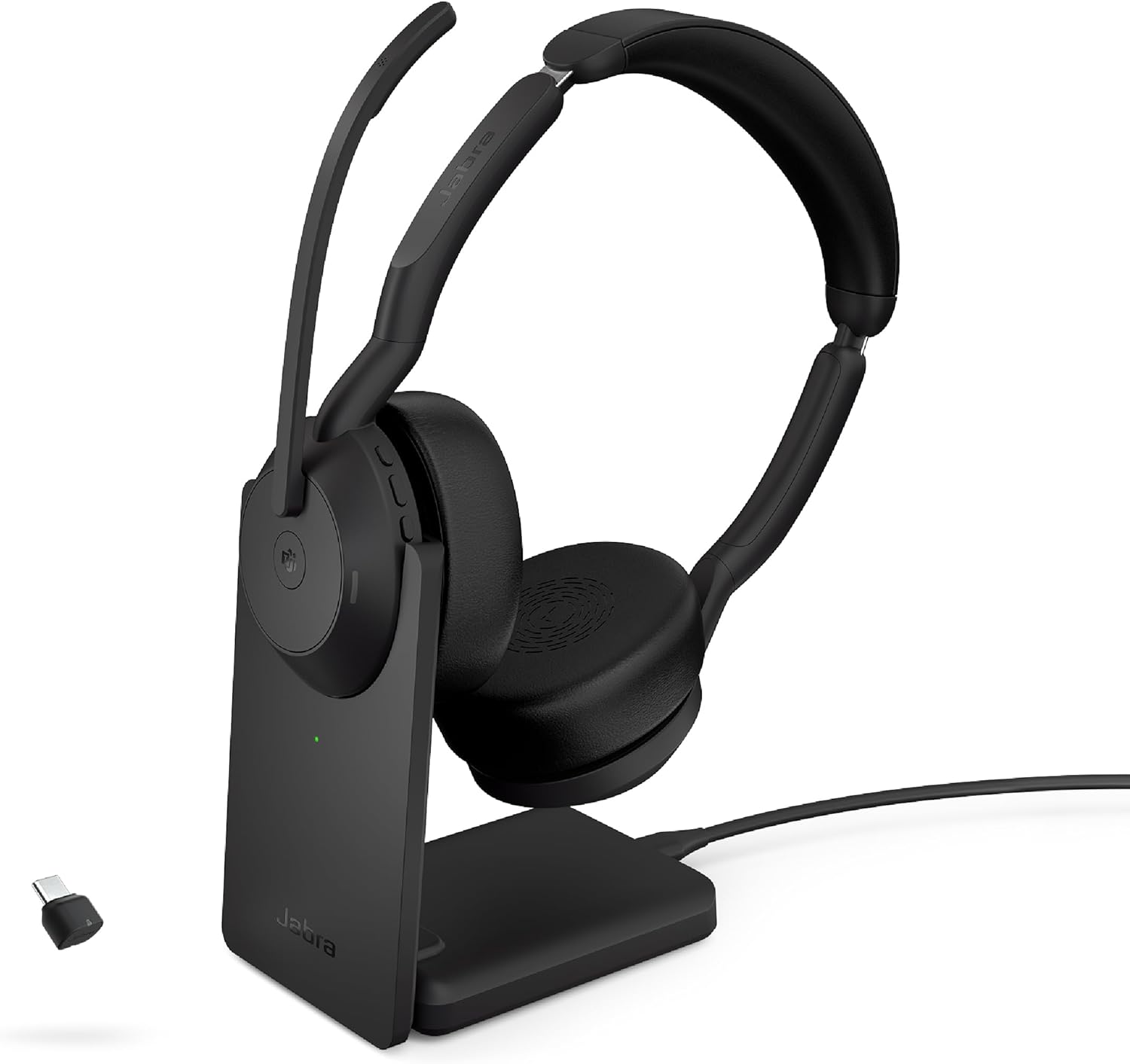
Image: Jabra Evolve2 55 Stereo Wireless Headset with Charging Stand and USB-C Dongle.
2. Package Contents
Verify that all items are present in your product packaging:
- Jabra Evolve2 55 Stereo Headset
- Link 380 Bluetooth adapter (USB-C)
- USB cable (1.2m/3.9ft)
- Carry pouch
- User documents
- Charging Stand

Image: All components included in the Jabra Evolve2 55 Headset package.
3. Setup and Connectivity
3.1 Initial Charging
Before first use, fully charge your headset. Place the headset on the charging stand or connect the USB-C cable directly to the headset and a power source.

Image: The Jabra Evolve2 55 Headset placed on its dedicated charging stand.
3.2 Connecting to a Computer (USB-C Dongle)
- Insert the Link 380 USB-C Bluetooth adapter into an available USB-C port on your computer.
- Power on your Jabra Evolve2 55 headset.
- The headset will automatically pair with the adapter. A voice prompt will confirm the connection.

Image: Headset positioned near a laptop, illustrating the USB-C dongle connection.
3.3 Connecting to a Smartphone (Bluetooth)
- Ensure your headset is powered on and in pairing mode (refer to headset controls for specific instructions).
- On your smartphone, navigate to Bluetooth settings and select the Jabra Evolve2 55 from the list of available devices.
- A voice prompt will confirm successful pairing.
The headset supports dual connectivity, allowing connection to two devices simultaneously.

Image: A user demonstrating wireless use of the headset in a remote work environment.
4. Operating Instructions
4.1 Headset Controls
The headset features intuitive controls for managing calls, audio, and settings:
- Power On/Off: Use the dedicated switch on the earcup.
- Volume Up/Down: Buttons located on the earcup.
- Multi-function Button: Customizable via Jabra Direct/Xpress software for various actions (e.g., answer/end call, voice assistant).
4.2 Microphone Usage
The boom arm microphone offers flexible control:
- Unmute: Lower the boom arm to activate the microphone.
- Mute: Raise the boom arm to mute the microphone. This action can also be configured via software.
4.3 Active Noise Cancellation (ANC) and HearThrough
Manage your audio environment:
- ANC: Activates to reduce ambient background noise, allowing for focused work.
- HearThrough: Allows you to hear your surroundings without removing the headset.

Image: A user engaged in work while wearing the headset, highlighting its noise-cancelling capabilities.
4.4 Microsoft Teams Certification
The headset is certified for Microsoft Teams, providing a dedicated button for quick access to Teams functions, such as joining meetings.

Image: The headset displayed with the Microsoft Teams Certified logo, indicating optimized integration.
5. Maintenance
5.1 Cleaning
Regularly clean your headset with a soft, dry cloth. Avoid using harsh chemicals or abrasive materials.
5.2 Software Updates
Utilize Jabra Direct and Jabra Xpress software to remotely update and manage your headset, ensuring optimal performance and access to the latest features.
6. Troubleshooting
6.1 Connectivity Issues
- Ensure the headset is charged and powered on.
- Verify the Link 380 adapter is securely plugged into your computer.
- For smartphone connections, ensure Bluetooth is enabled and the headset is in pairing mode.
- Restart both the headset and the connected device.
6.2 Audio Quality
- Check volume levels on both the headset and the connected device.
- Ensure the microphone boom arm is correctly positioned for optimal voice pickup.
- Update headset firmware via Jabra Direct/Xpress.
6.3 Battery Life
The headset offers great battery life and quick charging. To maximize battery longevity, avoid letting the battery drain completely before recharging.
Video: A user review highlighting the headset's battery life, quick charging, and sound quality.
7. Specifications
| Feature | Detail |
|---|---|
| Model Name | Jabra Evolve2 55 Link380c MS Stereo Stand, NA |
| Connectivity Technology | Wireless (Bluetooth 5.2) |
| Noise Control | Active Noise Cancellation |
| Headphones Jack | Wireless |
| Frequency Response | 20000 Hz |
| Earpiece Shape | On-ear |
| Control Type | Media Control, Touch |
| Special Feature | LED Indicator, Noise Cancellation, PeakStop, SafeTone Technology, Sub Band Coding (SBC) |
| Item Weight | 4.6 ounces |
| Product Dimensions | 6.9 x 7.3 x 2.6 inches |
| Batteries | 1 Lithium Ion battery required (included) |
8. Warranty and Support
The Jabra Evolve2 55 comes with a 2-year warranty. Registration may be required to activate the full warranty period.
For further support, software downloads (Jabra Direct and Jabra Xpress), and detailed product information, please visit the official Jabra website.


