
Introduction
Welcome to your LENTION USB C Hub CE35p. This 6-in-1 multiport adapter is designed to expand the connectivity of your USB-C enabled devices, providing a 4K HDMI output, multiple USB data ports, and power delivery. This manual provides essential information for setup, operation, maintenance, and troubleshooting to ensure optimal performance.
Product Overview
Features
- 6-in-1 Connectivity: Includes a 4K HDMI port, one 5Gbps USB-C data port, three 5Gbps USB-A 3.0 ports, and one 100W USB-C Power Delivery (PD) charging port.
- High-Resolution Display: Supports 4K@60Hz video output via the HDMI port for external monitors or projectors.
- Fast Data Transfer: USB-A and USB-C data ports offer speeds up to 5Gbps for quick file transfers.
- Power Delivery: The USB-C PD port provides up to 100W pass-through charging for your host device.
- Wide Compatibility: Compatible with MacBook Pro/Air, iPhone 17 Pro/Pro Max, Surface, Chromebook, and other full-functional USB-C devices.
- Durable Design: Constructed with an aluminum alloy casing for heat resistance and portability.
Package Contents
- LENTION USB-C Hub CE35p (6-in-1)
- Welcome Guide
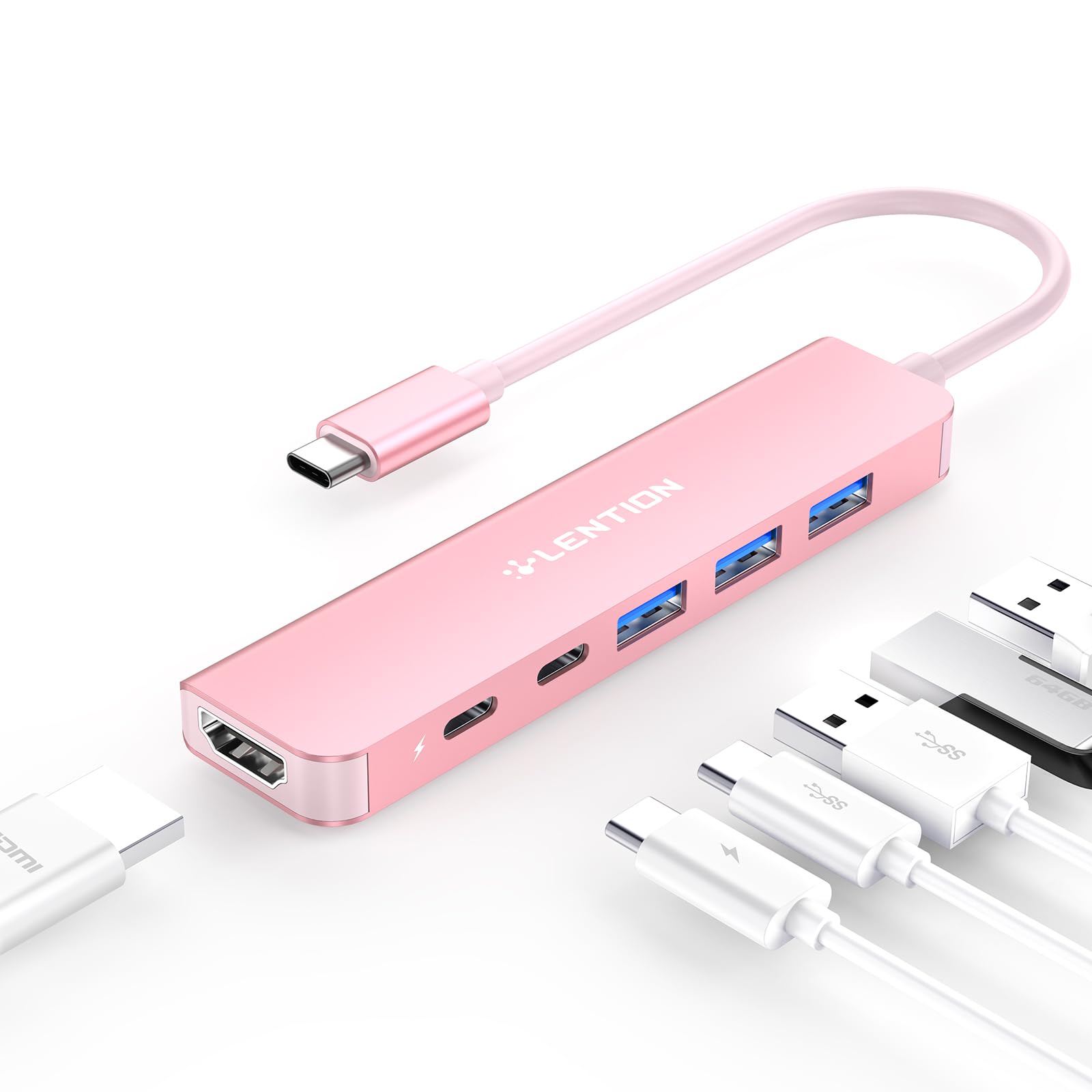
LENTION USB C Hub CE35p, Rose Gold color, showcasing its compact design and multiple ports.

An overview of the LENTION USB C Hub CE35p, highlighting its 6-in-1 massive expansion capabilities.
Setup Instructions
Connecting the Hub
- Locate the USB-C connector on the LENTION CE35p hub.
- Plug the USB-C connector firmly into a full-functional USB-C port on your host device (laptop, tablet, or smartphone).
- The hub is plug-and-play and does not require additional drivers for most operating systems.
Official LENTION video demonstrating the connection of the USB C Hub to a device and highlighting its various ports.
Operating Instructions
HDMI Display Connection
To connect an external display:
- Connect an HDMI cable (not included) from your external monitor or TV to the HDMI port on the LENTION CE35p hub.
- Ensure your host device's USB-C port supports DisplayPort Alternate Mode (DP Alt Mode) for video output.
- Your device should automatically detect the external display. You can configure display settings (mirror or extend mode) through your operating system's display preferences.

Diagram illustrating the 4K HDMI output feature, showing both mirror and extend display modes for an external monitor.
USB Data Transfer
To transfer data using the USB-A or USB-C data ports:
- Connect your USB devices (e.g., flash drives, external hard drives, keyboards, mice) to the available USB-A 3.0 ports or the USB-C data port on the hub.
- Data transfer speeds up to 5Gbps are supported.
- Note: The USB-C data port does not support media display or charging.

Image showing the LENTION USB C Hub with various USB devices connected, demonstrating high-speed data transfer capabilities.
Power Delivery (PD) Charging
To charge your host device through the hub:
- Connect your original USB-C power adapter to the USB-C PD port on the LENTION CE35p hub.
- The hub supports up to 100W power pass-through. A portion of this power is used by the hub itself, with the remainder delivered to your host device.
- For stable operation and charging, it is recommended to use a power adapter of at least 65W.

Illustration of the LENTION USB C Hub connected to a laptop and a power adapter, demonstrating 100W Power Delivery charging.
Maintenance
- Keep the hub clean and free from dust. Use a soft, dry cloth for cleaning.
- Avoid exposing the hub to extreme temperatures, humidity, or direct sunlight.
- Do not attempt to disassemble or repair the hub yourself. Contact customer support for assistance.
- Disconnect the hub from your device when not in use for extended periods.
Troubleshooting
No Display Output via HDMI
- Ensure your host device's USB-C port supports DisplayPort Alternate Mode (DP Alt Mode). Not all USB-C ports support video output.
- Check the HDMI cable connection at both the hub and the monitor. Try a different HDMI cable if available.
- Verify the monitor's input source is correctly selected.
- If the connection is unstable, gently adjust the hub's connection to the host device.
Devices Not Recognized or Unstable Connection
- Ensure the hub is securely connected to your host device.
- Try connecting the device directly to your host device to rule out the hub as the cause.
- If using multiple power-intensive devices, ensure adequate power is supplied to the hub via the PD port.
- Restart your host device.
Slow Data Transfer Speeds
- Ensure the connected USB devices are USB 3.0 compatible to achieve 5Gbps speeds. Older USB 2.0 devices will operate at slower speeds.
- Avoid connecting multiple high-bandwidth devices simultaneously if experiencing slowdowns.
Charging Issues
- Confirm your USB-C power adapter is connected to the hub's PD port.
- Use a power adapter with sufficient wattage (at least 65W recommended) for stable charging, especially when other peripherals are connected.
- Ensure your host device supports USB-C Power Delivery.
Specifications
| Feature | Detail |
|---|---|
| Model | CE35p |
| Ports | 1x HDMI (4K@60Hz), 1x USB-C Data (5Gbps), 3x USB-A 3.0 (5Gbps), 1x USB-C PD (100W) |
| Data Transfer Rate | Up to 5 Gbps |
| Power Delivery | Up to 100W (input) |
| Material | Aluminum Alloy |
| Weight | 0.05 Kilograms |
| Compatible OS | Mac OS 10.13 High Sierra or later, Windows 10 or later, iOS 17 or later |
| Special Features | Fast Charging, Heat Resistant, Lightweight, Plug and Play, Portable |
Warranty and Support
LENTION provides an 18-month warranty for the CE35p USB-C Hub. For technical support, warranty claims, or any inquiries, please visit the official LENTION website or contact their customer service team. Please retain your proof of purchase for warranty service.
LENTION Official Website: LENTION Store on Amazon

