
MONODEAL DG10 Pro
MONODEAL DG10 Pro Bone Conduction Headphones User Manual
Model: DG10 Pro
Introduction
Thank you for choosing the MONODEAL DG10 Pro Bone Conduction Headphones. This manual provides detailed instructions on how to set up, operate, and maintain your headphones and the included replacement charging cable. Please read this manual thoroughly before use to ensure optimal performance and longevity of your device.
Product Overview and Components
The MONODEAL DG10 Pro headphones offer a unique open-ear listening experience using bone conduction technology, coupled with a noise-canceling microphone for clear communication. This package also includes a dedicated magnetic charging cable.
What's in the Box:
- MONODEAL DG10 Pro Bone Conduction Headphones
- Replacement Magnetic Charging Cable

Image: The MONODEAL DG10 Pro Bone Conduction Headphones with its adjustable boom microphone, alongside the magnetic charging cable.
Setup
1. Charging the Headphones:
Before first use, fully charge your MONODEAL DG10 Pro headphones. Connect the magnetic charging cable to the charging port on the headphones and the USB-A end to a compatible USB power source (e.g., computer USB port, wall adapter). The LED indicator on the headphones will show charging status.
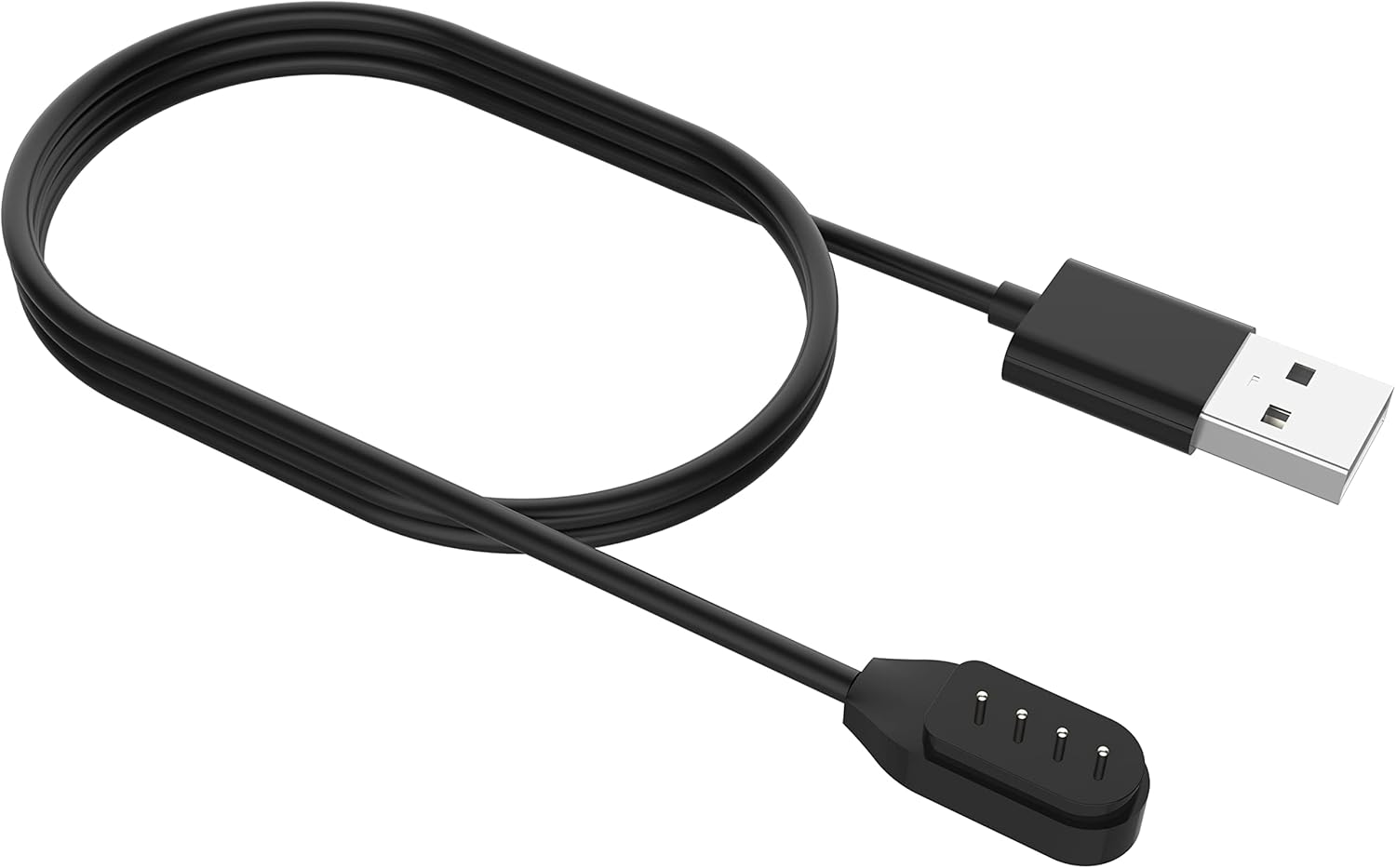
Image: Close-up of the magnetic charging cable, showing the USB-A connector and the magnetic charging pins.
2. Bluetooth Pairing:
- Power On: Press and hold the power button on the headphones until the LED indicator flashes, indicating pairing mode.
- Activate Bluetooth: On your device (smartphone, tablet, computer), enable Bluetooth.
- Select Device: In your device's Bluetooth settings, search for "MONODEAL DG10 Pro" and select it to connect.
- Confirmation: Once connected, the LED indicator on the headphones will change, and you may hear an audible confirmation.
The headphones support multipoint pairing, allowing connection to two devices simultaneously. This enables seamless switching between devices for calls or audio playback.

Image: A visual representation of the DG10 Pro headphones connected simultaneously to a smartphone, tablet, and laptop, illustrating multipoint pairing.
Operating Instructions
Wearing the Headphones:
Position the headphones with the transducers resting on your cheekbones, just in front of your ears. The band should wrap around the back of your head. The lightweight and ergonomic design ensures comfort even during extended wear.

Image: A man wearing the DG10 Pro headphones, demonstrating the open-ear comfort and proper placement on the cheekbones.
Basic Controls:
The headphones feature intuitive touch controls for various functions.
- Power On/Off: Press and hold the power button.
- Play/Pause: Single tap the multi-function button.
- Volume Up/Down: Use the dedicated volume buttons.
- Next Track: Double tap the multi-function button.
- Previous Track: Triple tap the multi-function button.
- Answer/End Call: Single tap the multi-function button during an incoming call.
- Reject Call: Press and hold the multi-function button during an incoming call.
- Activate Voice Assistant: Press and hold the multi-function button (check specific model for duration).
Using the Dual Mic ENC Noise Canceling Feature:
The adjustable boom microphone, combined with dual-mic ENC (Environmental Noise Cancellation) technology, ensures clear voice pickup and reduces background noise during calls. Position the microphone close to your mouth for optimal clarity.

Image: An infographic detailing the dual-mic ENC noise cancellation, showing omnidirectional pickup and the closed-loop bone-conducting oscillator for clear calls.
Safety and Awareness:
Due to their open-ear design, the DG10 Pro headphones allow you to remain aware of your surroundings while listening to audio or taking calls. This feature is particularly beneficial in environments where situational awareness is crucial, such as during work or driving.

Image: A man in a car wearing the DG10 Pro headphones, highlighting the ability to stay connected while remaining aware of the environment.
Maintenance
Cleaning:
- Wipe the headphones with a soft, damp cloth.
- Do not use harsh chemicals or abrasive cleaners.
- Ensure the charging port is dry before charging.
Storage:
Store the headphones in a cool, dry place away from direct sunlight and extreme temperatures. Avoid bending or twisting the band excessively.
Troubleshooting
| Problem | Possible Cause | Solution |
|---|---|---|
| Headphones won't turn on. | Low battery. | Charge the headphones fully using the provided cable. |
| Cannot pair with device. | Headphones not in pairing mode; Bluetooth off on device; device too far. | Ensure headphones are in pairing mode; enable Bluetooth on your device; move device closer (within 10 meters). |
| No sound or low volume. | Volume too low; not connected; audio source issue. | Increase volume on headphones and device; ensure proper Bluetooth connection; check audio source. |
| Microphone not clear. | Microphone position; environmental noise. | Adjust the boom microphone closer to your mouth; ensure ENC is active (if applicable); reduce background noise if possible. |
Specifications
- Model Name: DG10 Pro
- Brand: MONODEAL
- Connectivity Technology: Wireless
- Wireless Communication Technology: Bluetooth 5.3
- Bluetooth Range: 10 Meters
- Ear Placement: Open Ear
- Form Factor: On Ear
- Audio Driver Type: Bone Conduction Driver
- Control Type: Media Control, Touch
- Microphone: Dual Mic ENC Noise Canceling Boom Microphone
- Material: Aluminum, Silicone
- Weight: Approximately 33g
- Water Resistance Level: Not Water Resistant
- Included Components: Headphones, Magnetic Charging Cable
Warranty and Support
For warranty information and customer support, please refer to the warranty card included with your product or visit the official MONODEAL website. You can also contact MONODEAL customer service through the platform where you purchased the product.
MONODEAL Official Store: Visit MONODEAL Store on Amazon
Related documentsDG10 Pro


Ask a question about this manual
Ask about setup, troubleshooting, compatibility, parts, safety, or missing instructions. Manuals+ will review the question and use this page’s manual context to help answer it.