
VBESTLIFE VBESTLIFE9buz3m8yts
VBESTLIFE USB Fingerprint Reader User Manual
Model: VBESTLIFE9buz3m8yts
1. Introduction
The VBESTLIFE USB Fingerprint Reader is a compact and efficient biometric security device designed to provide fast and secure access to your computer system. Utilizing advanced fingerprint recognition technology, it offers a convenient alternative to traditional password-based logins, enhancing both security and user experience.

Image: The VBESTLIFE USB Fingerprint Reader, a small silver device with a black fingerprint sensor, shown plugged into the USB port of a laptop. This illustrates its compact size and direct integration with a computer.
This device is built with a durable zinc alloy material, ensuring longevity and reliability. Its small size and lightweight design make it highly portable and easy to integrate into any desktop or laptop setup.
2. Key Features
- System Compatibility: Suitable for Windows 10 and Windows 11 (32-bit and 64-bit operating systems).
- Fast Matching: Identifies fingerprints in approximately 0.5 seconds for quick and secure login.
- Automatic Improvement: The device automatically refines fingerprint data with each successful recognition, adapting to subtle changes and improving identification accuracy over time.
- 360-Degree Touch: Supports fingerprint reading from any angle, providing flexible and convenient usage.
- Multi-User Support: Up to 10 fingerprints can be registered per user account, and fingerprints can be set for multiple user accounts on the same system.
- Compact and Portable: Made from durable zinc alloy, its small and lightweight design ensures easy portability and discreet integration.
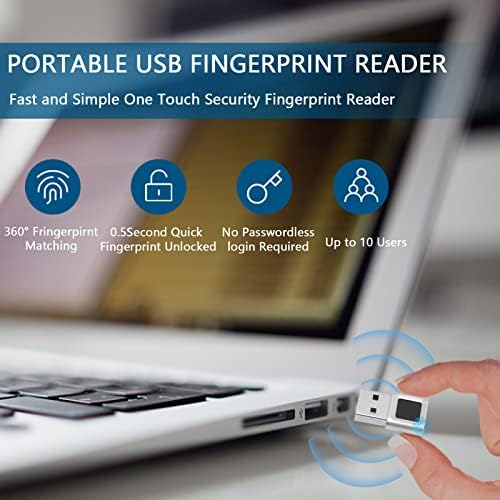
Image: A graphic illustrating the key features of the fingerprint reader, including 360-degree fingerprint matching, 0.5-second quick unlock, no password required, and support for up to 10 users. The device is shown next to a laptop, emphasizing its portability.
3. Setup Guide
Follow these steps to set up your VBESTLIFE USB Fingerprint Reader:
- Connect the Device: Insert the USB fingerprint reader into an available USB port on your computer. Ensure it is fully seated.
- System Recognition: Your Windows 10 or Windows 11 operating system should automatically detect the device and install the necessary drivers. A notification may appear indicating successful device installation.
- Access Windows Hello Settings:
- Go to Start > Settings.
- Click on Accounts.
- Select Sign-in options from the left-hand menu.
- Set up Fingerprint Recognition:
- Under "Ways to sign in," locate Fingerprint (Windows Hello).
- Click on Set up.
- Follow the on-screen prompts to register your fingerprints. You will be asked to repeatedly place your finger on the sensor from different angles until the system captures a complete scan.
- Register Multiple Fingerprints: For enhanced convenience and reliability, it is recommended to register multiple fingers (e.g., index fingers, thumbs) from both hands. You can also register up to 10 fingerprints per user account.
- Set up for Multiple Accounts: If multiple user accounts are on the computer, each user can set up their own fingerprints through their respective account settings.

Image: An illustration demonstrating the capability to set up to 10 fingerprints for each user account, and to configure fingerprints for multiple accounts on the same system. Various fingerprint patterns are shown.
4. Operating Instructions
Once your fingerprints are registered, using the VBESTLIFE USB Fingerprint Reader is straightforward:
- Login: At the Windows login screen, simply place your registered finger on the fingerprint sensor. The system will quickly recognize your fingerprint and log you in automatically.
- Authentication: For applications or websites that support Windows Hello for authentication, you can use your fingerprint to verify your identity instead of typing a password.
- 360-Degree Recognition: The sensor is designed to read your fingerprint from any angle, so you do not need to orient your finger in a specific way.
- Automatic Learning: The device's automatic improvement feature means that with continued use, its recognition accuracy will improve as it adapts to subtle variations in your fingerprints.
5. Maintenance
To ensure optimal performance and longevity of your fingerprint reader, follow these simple maintenance guidelines:
- Cleaning the Sensor: Periodically wipe the fingerprint sensor surface with a soft, dry, lint-free cloth. Do not use abrasive materials, harsh chemicals, or liquids directly on the sensor.
- Avoid Moisture: Keep the device away from water and excessive humidity.
- Handle with Care: Avoid dropping the device or subjecting it to strong impacts.
- Storage: When not in use, store the device in a clean, dry environment.
6. Troubleshooting
If you encounter issues with your VBESTLIFE USB Fingerprint Reader, try the following troubleshooting steps:
- Device Not Recognized:
- Try plugging the device into a different USB port.
- Restart your computer.
- Check Device Manager (right-click Start, select Device Manager) to see if the device is listed under "Biometric devices" or "Universal Serial Bus controllers." If there's a yellow exclamation mark, try updating the driver or reinstalling it.
- Fingerprint Not Recognized:
- Ensure your finger is clean and dry.
- Try placing your finger on the sensor from slightly different angles or with varying pressure.
- Re-register your fingerprint in Windows Hello settings. Sometimes, re-scanning can improve recognition.
- Ensure the sensor surface is clean (refer to Maintenance section).
- "Unexpected Error" During Setup (Windows 11):
- Some users have reported issues if work or school accounts are connected to the system. Navigate to Settings > Accounts > Access work or school and temporarily disconnect any such accounts, then try setting up the fingerprint again. Reconnect accounts afterward if needed.
- Slow Recognition:
- Ensure your system meets the minimum requirements for Windows Hello.
- Close any resource-intensive applications running in the background.
7. Specifications
| Brand | VBESTLIFE |
| Model Number | VBESTLIFE9buz3m8yts |
| Connectivity Technology | USB |
| Scanner Type | Fingerprint |
| Resolution | 508 dpi |
| Optical Sensor Technology | CMOS |
| Standard Fingerprint Capacity | Up to 10 fingerprints per user account |
| Material | Zinc Alloy |
| Dimensions (Approx.) | 2.5 cm (Length) x 1.5 cm (Width) |

Image: A close-up view of the USB fingerprint reader with its approximate dimensions labeled: 2.5 cm in length and 1.5 cm in width, highlighting its compact form factor.

Image: A detailed view of the USB fingerprint reader, specifically highlighting the capacitive fingerprint sensor area. This shows the technology used for fingerprint detection.
8. Warranty and Support
For warranty information and technical support, please refer to the documentation provided with your purchase or contact VBESTLIFE customer service through their official channels. Keep your proof of purchase for warranty claims.
Manufacturer: VBESTLIFE
Country of Origin: China
For further assistance, please visit the VBESTLIFE official website or contact their support team directly.
Related Documents - VBESTLIFE9buz3m8yts
 |
APWIKOGER U10 USB Fingerprint Key Reader User Manual User manual and specifications for the APWIKOGER U10 USB Fingerprint Key Reader, a biometric security dongle for Windows Hello and U2F authentication. |
 |
USB Fingerprint Key Reader U5: User Manual & Product Specification Detailed user manual and product specification for the USB Fingerprint Key Reader U5, featuring Windows Hello and FIDO U2F support for secure biometric login on Windows 10/11 computers. Includes key features, technical specifications, and notes. |
 |
FeinTech FPS00200 USB Fingerprint Sensor for Windows Hello User guide and troubleshooting for the FeinTech FPS00200 USB Fingerprint Sensor, enabling secure login with Windows Hello on Windows 10 and 11. |
 |
WA28 Fingerprint Reader User Specifications and Installation Guide This document provides user specifications and a detailed installation guide for the WA28 fingerprint reader, enabling Windows Hello biometric authentication on Windows 10 and above. It covers product overview, system requirements, automatic and manual driver installation, usage settings, and frequently asked questions. |
 |
FeinTech FPS00201 USB Fingerprint Sensor for Windows Hello - User Guide This document provides comprehensive instructions for the FeinTech FPS00201 USB Fingerprint Sensor, covering setup, installation, configuration with Windows Hello, driver management, troubleshooting, and important safety and disposal information. Designed for Windows 10 and 11. |
 |
FeinTech FPS00200/FPS00201/FPS210 USB Fingerprint Sensor User Manual User manual and guide for the FeinTech FPS00200, FPS00201, and FPS210 USB fingerprint sensors. This document provides instructions on setup, installation, compatibility, troubleshooting, and driver management for use with Windows 10, Windows 11, and Windows Hello. |
Ask a question about this manual
Ask about setup, troubleshooting, compatibility, parts, safety, or missing instructions. Manuals+ will review the question and use this page’s manual context to help answer it.