
Septpenta B0BS19JF1L
Septpenta Bluetooth Remote Control User Manual
Model: B0BS19JF1L
1. Product Overview
The Septpenta Bluetooth Remote Control is a versatile, compact device designed to enhance your mobile phone and tablet experience. Its ergonomic ring design allows for comfortable, hands-free operation, enabling control over various functions such as media playback, page navigation, and camera functions.

Figure 1: Septpenta Bluetooth Remote Control (Black)

Figure 2: The ring-designed remote control, highlighting its compact form factor and ease of use for various functions.
2. Specifications
| Parameter | Value |
|---|---|
| Item Type | Bluetooth Remote Control |
| Gross Weight | 65g / 2.3oz |
| Material | ABS |
| Bluetooth Version | 5.3 |
| Bluetooth Name | JX 05 |
| System Compatibility | For OS 15.0 or for Android 8.0 and above |
| Communication Distance | 10m |
| Dimensions (LxWxH) | 32x31x18mm / 1.3x1.2x0.7in |
| Battery Capacity | 50mAh lithium-ion battery (included) |
| Standby Time | About 4 months |
| Continuous Use Time | About 48 hours |
| Product Features | Page up, down, left and right, volume increase and decrease, like, pause, take pictures, continuous pictures, record video |

Figure 3: Detailed dimensions of the remote control.
3. Package Contents
- 1 x Bluetooth Remote Control
- 1 x Charging Cable

Figure 4: The remote control and its included USB charging cable.
4. Setup and Pairing
4.1 Initial Charge
Before first use, ensure the Bluetooth Remote Control is fully charged using the provided charging cable. Connect the cable to the remote and a standard USB power source.
4.2 Bluetooth Pairing
- Ensure the remote control is powered on.
- On your mobile phone or tablet, navigate to the Bluetooth settings.
- Enable Bluetooth.
- Search for available devices. The remote control will appear as "JX 05".
- Select "JX 05" to initiate the pairing process.
- Once paired, the remote control is ready for use.
Note for iOS Users (OS 15.0 and above): To ensure full functionality, especially for certain application controls, you may need to enable the system's AssistiveTouch feature. This can be found in your device settings under Settings > Accessibility > Touch > AssistiveTouch. Enable AssistiveTouch for optimal performance.
5. Operating Instructions
The Septpenta Bluetooth Remote Control features a simple five-button layout for intuitive operation. The buttons correspond to various functions depending on the application and device.

Figure 5: User demonstrating the remote control's use for hands-free operation with a smartphone.
5.1 Basic Functions
- Up/Down Buttons: Control page scrolling (up/down), volume adjustment (increase/decrease), or navigation within applications.
- Left/Right Buttons: Control page scrolling (left/right), switching modes, or navigating content.
- Center Button: Typically functions as play/pause for media, 'like' button in social media, or a primary selection button.
5.2 Camera Control (Selfie Shutter)
The remote control can act as a wireless selfie shutter, allowing you to take photos and record videos remotely.
- Open your device's camera application.
- Use the remote's buttons (typically the center button or specific directional buttons) to trigger the shutter, focus, or switch between photo/video modes.
- Supports continuous picture taking and video recording.

Figure 6: The remote control functioning as a phone selfie shutter, enabling remote photo capture.
5.3 Media and Reading Control
Control media playback and navigate through digital content effortlessly.
- Video Playback: Pause, play, adjust volume, and navigate through videos.
- Reading: Turn pages in e-books, comics, or web articles (page up/down, left/right).
- Social Media: Scroll through feeds, 'like' content, and interact with applications.

Figure 7: Illustrations of the remote control's capabilities for fiction page turning, comic page turning, and media pause/play.

Figure 8: The remote control being used to interact with social media, demonstrating its 10-meter remote control range.
6. Maintenance and Care
- Keep the device dry. Avoid exposure to moisture or liquids.
- Clean the device with a soft, dry cloth. Do not use harsh chemicals or abrasive cleaners.
- Store the device in a cool, dry place when not in use.
- Avoid dropping or subjecting the device to strong impacts.
- Recharge the battery regularly, even if not in frequent use, to maintain battery health.
7. Troubleshooting
7.1 Device Not Pairing
- Ensure the remote control is charged and powered on.
- Verify Bluetooth is enabled on your phone/tablet.
- Make sure the remote is within the 10m communication distance.
- Try restarting both the remote control and your device.
- Forget the device in your phone's Bluetooth settings and attempt to pair again.
7.2 Functions Not Responding
- Check if the device is still paired and connected via Bluetooth.
- Ensure the application you are using supports external Bluetooth controls.
- For iOS devices, confirm that AssistiveTouch is enabled (Settings > Accessibility > Touch > AssistiveTouch).
- Recharge the remote control if the battery is low.
7.3 Short Battery Life
- Ensure the device is fully charged before use.
- Avoid extreme temperatures, which can affect battery performance.
- If battery life significantly degrades over time, it may indicate the end of the battery's lifespan.
8. Important Safety Information
Please read the product instructions carefully before use to ensure correct and safe operation.
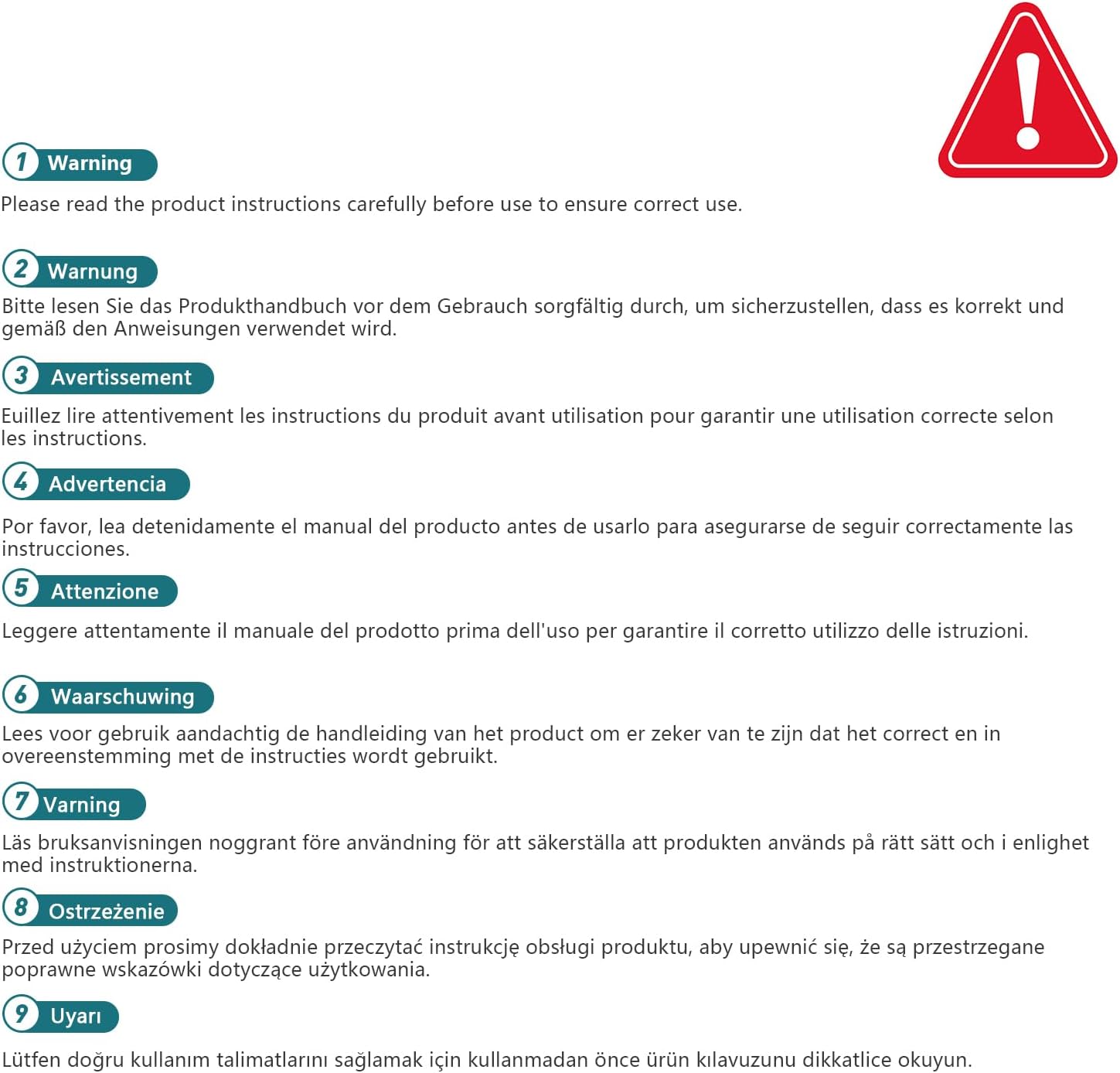
Figure 9: General warning regarding reading instructions before use.
9. Warranty and Support
For warranty information and technical support, please refer to the contact details provided with your purchase or visit the official Septpenta brand store.
Septpenta Brand Store: Visit Store
Ask a question about this manual
Ask about setup, troubleshooting, compatibility, parts, safety, or missing instructions. Manuals+ will review the question and use this page’s manual context to help answer it.