
WIWACAM MW5Nest
WIWACAM MW5Nest WiFi Bird Box Camera User Manual
Model: MW5Nest | Brand: WIWACAM
Introduction
This manual provides comprehensive instructions for the installation, operation, and maintenance of your WIWACAM MW5Nest WiFi Bird Box Camera. Please read this manual thoroughly before using the product to ensure proper functionality and longevity.
The WIWACAM MW5Nest is designed to provide live video monitoring of bird activity within a bird box or birdhouse, offering 4K HD resolution, WiFi connectivity, and night vision capabilities.
Product Components
Verify that all components are present in the package:
- 1 x WIWACAM MW5Nest Camera Unit
- 1 x USB Cable
- 1 x Quick Guide (English)
Note: A microSD card (up to 128GB) is required for recording and is not included.
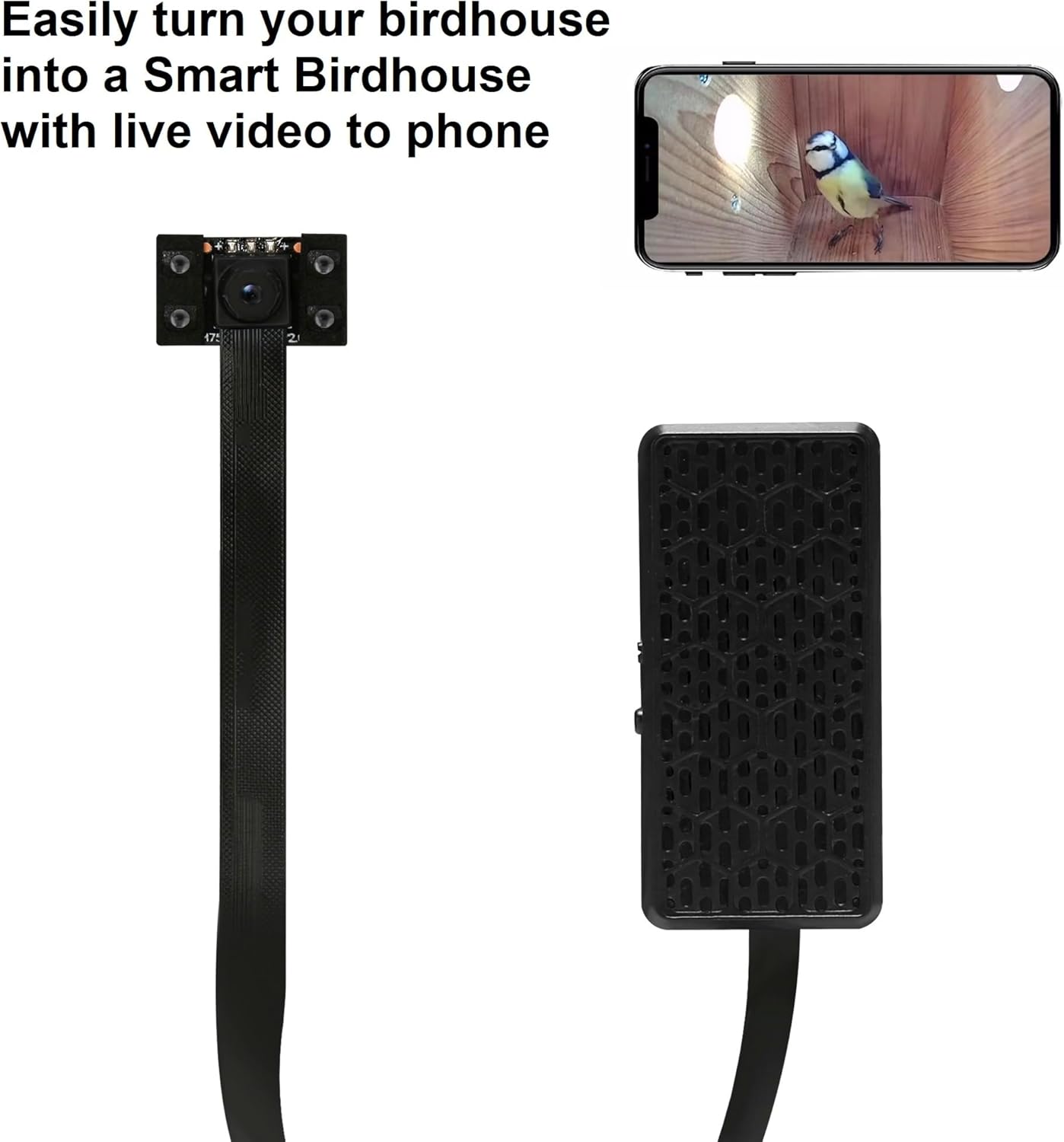
Figure 1: Components of the MW5Nest Camera system.
Setup and Installation
1. Charging the Camera
The camera includes a built-in 800mAh battery. For initial setup and long-term operation, connect the camera to a power source using the provided USB cable.
- Option 1: Built-in Battery: Provides up to 3 hours of operation.
- Option 2: Power Bank: A 10,000mAh power bank can provide approximately 24 hours of operation.
- Option 3: USB Power Plug: For continuous, long-term operation, connect to a standard USB power adapter (not included).

Figure 2: Powering Options for the MW5Nest Camera.
2. Inserting the MicroSD Card
The MW5Nest features an easily accessible microSD card slot, designed to simplify installation and removal without disturbing the bird box. Insert a microSD card (up to 128GB) for recording video.
3. Physical Installation in Bird Box
The camera is designed for easy installation into most standard bird boxes and birdhouses. Its small size and specialized lens are optimized for distances of 4 to 8 inches, providing clear images within the confined space.

Figure 3: Example of MW5Nest Camera installed in a bird box, showing live video feed on a smartphone.
Ensure the camera lens is positioned to capture the desired area within the bird box. The camera's flat wire and control box should be secured to prevent interference with the birds or their nesting activities.
4. App Installation and Wi-Fi Connection
Download the official WIWACAM application to your smartphone (Android or iPhone). The app facilitates camera setup and live viewing.
- Download and install the WIWACAM app from your device's app store.
- Open the app and follow the on-screen instructions to add your camera. This typically involves scanning a QR code displayed by the app with the camera.
- Connect the camera to your home 2.4 GHz Wi-Fi network. Ensure your phone is also connected to the same 2.4 GHz network during setup.
Direct AP Mode: If an internet connection is not available, the camera can operate in Direct AP (Access Point) mode. In this mode, the camera creates its own Wi-Fi network. Connect your phone directly to this camera-generated Wi-Fi network to access live video and download recordings. Note that the camera's Wi-Fi in Direct AP mode has a range of approximately 30 feet.
Operating the Camera
Live Video Monitoring
Once connected, you can view live video from the bird box on your smartphone, whether you are at home or away.
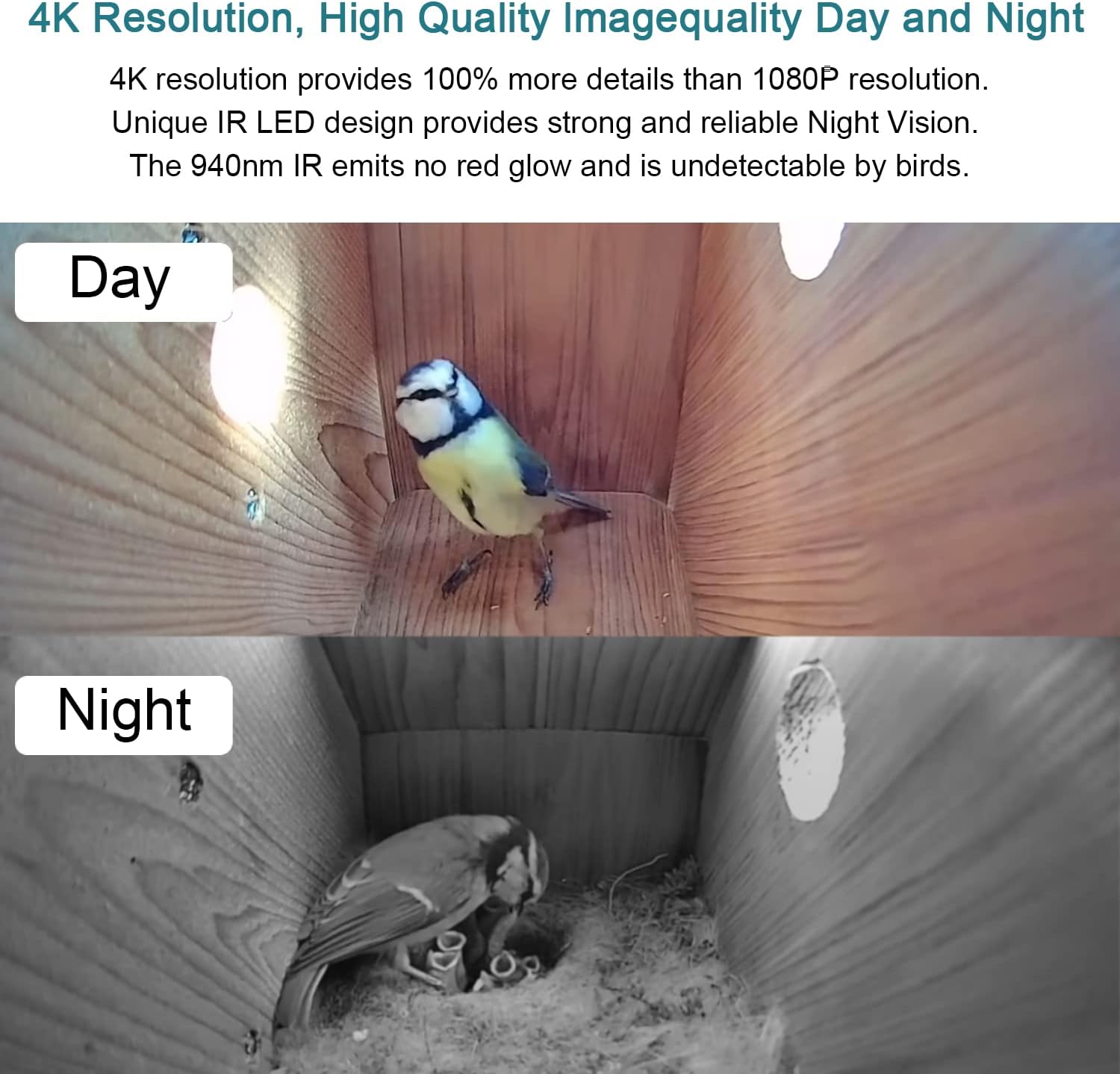
Figure 4: Day and Night Image Quality.
The camera provides 4K/2K image quality. It features a 940nm IR LED design for night vision, which emits no red glow and is undetectable by birds, ensuring natural behavior is not disturbed.
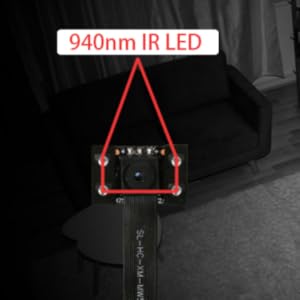
Figure 5: 940nm Infrared LED for Undetectable Night Vision.

Figure 6: Focus Test in Bird Box/Birdhouse. The lens is optimized for distances of 4 to 8 inches.
Recording Modes
The MW5Nest supports various recording options:
- Continuous Recording: Records continuously until manually stopped, with auto-loop functionality. This mode also functions when the camera has no Wi-Fi or internet connection.
- Scheduled Recording: Allows setting specific times for recording, for example, daily from 8 a.m. to 5 p.m.
- Alarm Recording: Initiates recording when an alarm is triggered (e.g., motion detection).
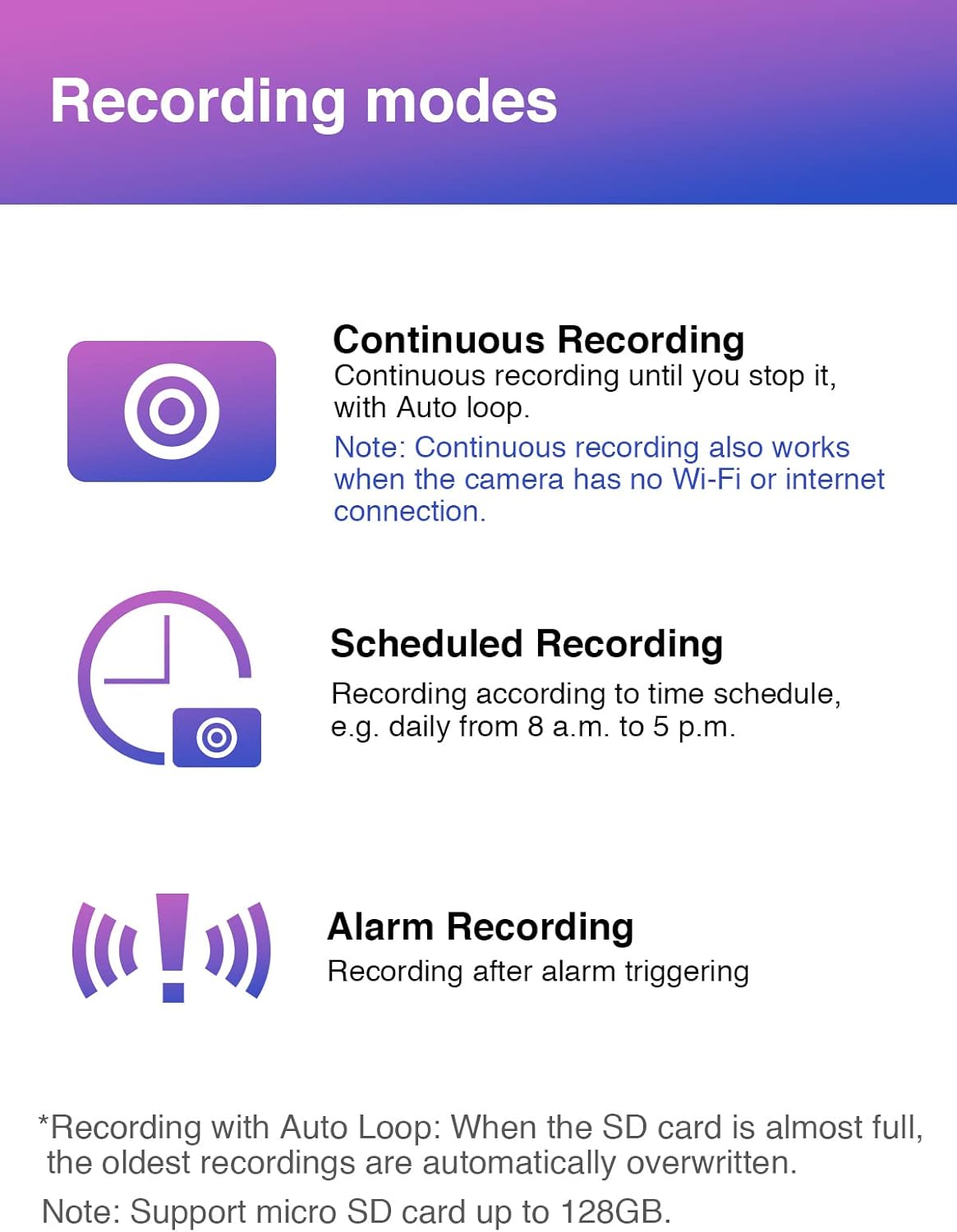
Figure 7: Available Recording Modes.
When the microSD card is full, the oldest recordings are automatically overwritten to ensure continuous operation (Auto Loop).
Advanced Features
- RTSP Support: The camera supports RTSP (Real Time Streaming Protocol) for DIY solutions, such as broadcasting to YouTube (requires OBS software and detailed guide from manufacturer).
- Built-in Microphone: Allows for audio recording, enabling you to hear the sounds of birds and other animals.
- Alerts: Configure alerts to be sent to your phone and email box upon detection of activity.
Maintenance
- Cleaning: Gently wipe the camera lens with a soft, dry cloth to remove dust or smudges. Do not use liquid cleaners directly on the lens.
- MicroSD Card Management: Periodically review and back up important recordings from your microSD card. While auto-loop overwrites old data, manual management ensures critical footage is saved.
- Firmware Updates: Check the WIWACAM app regularly for any available firmware updates to ensure optimal performance and access to new features.
- Battery Health: If using the built-in battery, ensure it is charged regularly, especially if the camera is not continuously powered.
Troubleshooting
| Problem | Possible Cause | Solution |
|---|---|---|
| Camera not connecting to Wi-Fi. | Incorrect Wi-Fi password; Camera too far from router; Not a 2.4 GHz network. | Verify password; Move camera closer to router or use a Wi-Fi extender; Ensure your router is broadcasting a 2.4 GHz network and connect to it. |
| Choppy video or frequent disconnections. | Weak Wi-Fi signal; Network congestion. | Improve Wi-Fi signal strength (e.g., relocate router, use repeater); Reduce other network activity. |
| No recording to microSD card. | MicroSD card not inserted correctly; Card full; Card not formatted; Faulty card. | Reinsert card; Check card capacity; Format card via app; Try a different microSD card. |
| Night vision not working. | Insufficient power; IR LEDs obstructed. | Ensure camera is adequately powered; Check for any physical obstructions blocking the IR LEDs. |
| Camera not turning on. | Battery depleted; Power cable issue. | Charge the battery; Check USB cable and power source connection. |
Specifications
| Feature | Detail |
|---|---|
| Model Name | MW5Nest |
| Brand | WIWACAM |
| Connectivity Technology | Wireless (Wi-Fi) |
| Video Capture Resolution | 4K/2K |
| Maximum Webcam Image Resolution | 5 MP |
| Night Vision Range | 30 Feet (with 940nm IR LED) |
| Storage | Micro SD card slot (supports up to 128GB) |
| Power Source | Corded Electric, Built-in 800mAh Battery |
| Controller Type | Android, iPhone, iPad (via App) |
| Item Weight | 4.2 ounces |
| Package Dimensions | 5.87 x 3.66 x 1.93 inches |
| UPC | 645569410305 |
Warranty and Support
For warranty information and technical support, please refer to the official WIWACAM website or contact their customer service directly. The Quick Guide included in your package also contains support contact details.
Online resources and FAQs may be available on the WIWACAM brand store page: WIWACAM Store on Amazon
Ask a question about this manual
Ask about setup, troubleshooting, compatibility, parts, safety, or missing instructions. Manuals+ will review the question and use this page’s manual context to help answer it.